
1. پیژندنه
The TC Electronic Desktop Konnekt 6 is a high-quality 24-bit/192kHz Firewire desktop audio interface designed for recording instruments and vocals into your Mac or PC. It offers a compact design with essential monitoring and input/output controls readily accessible, allowing users to focus on their creative process.
This manual provides detailed instructions for setting up, operating, maintaining, and troubleshooting your Desktop Konnekt 6 to ensure optimal performance and longevity.
2. کلیدي ځانګړتیاوې
- Monitor Control: Features a large volume knob, high-resolution meter, tracking reverb level control, direct monitor control with input/DAW control, DIM switch, and instant scene recall.
- IMPACT™ Mic Preamp and I/O: Equipped with a high-quality IMPACT™ mic preamp with 48V phantom power, versatile input configurations (mic + instr, instr + instr, stereo line), balanced stereo outputs, true Hi-Z guitar inputs, and a headphone output with separate level control.
- M40 Studio Reverb: Includes a studio-grade reverb powered by AlgoFlex™ technology, offering Hall, Room, and Plate algorithms. Available as part of the monitor mix for tracking and as a VST/AU compatible plug-in.
- د سافټویر ادغام: Bundled with Cubase LE4 for immediate recording capabilities.
- ارتباط: FireWire 1394, bus powered, with DICE™ digital interface chip and JetPLL™ jitter elimination technology.
- د لوړ ریزولوشن آډیو: Supports 24-bit/192 kHz sampد ژبې نرخونه
3. د تنظیم کولو لارښود
3.1 پیک کول او تفتیش کول
Carefully remove the Desktop Konnekt 6 from its packaging. Verify that all components are present: the Desktop Konnekt 6 unit, Firewire cable, external power supply, and software installation disc (Cubase LE4).
3.2 د هارډویر پیوستون
- د بریښنا پیوستون: Connect the included external power supply to the 12V power input on the rear of the unit. Alternatively, the unit can be bus-powered via the Firewire connection if your computer's Firewire port provides sufficient power.
- Firewire Connection: Connect the Desktop Konnekt 6 to your computer using a Firewire 1394 cable. Ensure a secure connection.
- د څارنې محصول: Connect your studio monitors to the balanced LEFT and RIGHT monitor outputs on the rear panel using appropriate cables.
- هیډفونونه: Plug your headphones into the dedicated 'PHONES OUT' jack on the rear panel.
- معلومات:
- مایکروفون: Connect a microphone to the 'MIC' XLR input.
- کرښه/آله: Connect instruments (guitars, basses) or line-level devices to the 'LINE/INST' 1/4" inputs. The unit features true Hi-Z inputs for direct guitar recording.
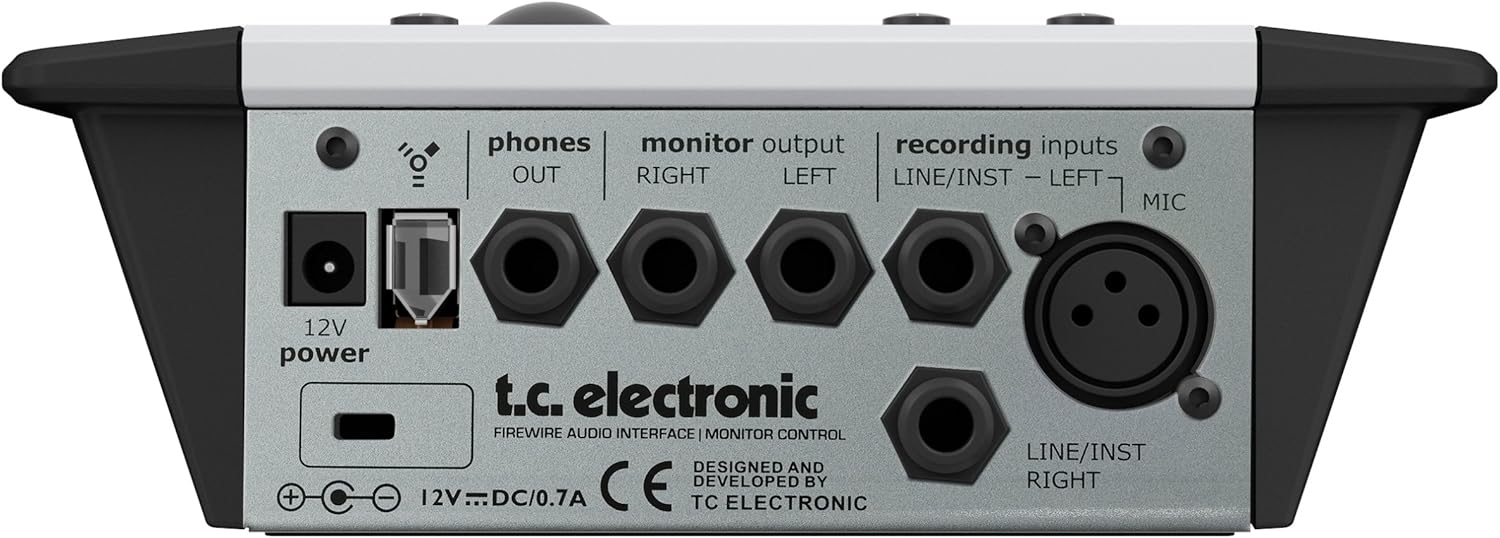
Figure 3.2.1: Rear panel connections of the Desktop Konnekt 6, illustrating power, Firewire, monitor outputs, headphone output, and various input types including XLR for microphone and 1/4" jacks for line/instrument.
3.3 د سافټویر نصب کول
Insert the provided software installation disc into your computer's optical drive. Follow the on-screen instructions to install the necessary drivers for your operating system (Windows or macOS) and the bundled Cubase LE4 software. Ensure your operating system is up-to-date for best compatibility.
4. عملیاتي لارښوونې
4.1 مخکینۍ تختهview

شکل 4.1.1: پورته view of the Desktop Konnekt 6, displaying the input section, monitor section with large volume knob, high-resolution meter, and scene selection buttons.
4.2 د ننوتلو برخه
- Gain Knobs (Input 1 & 2): Adjust the input level for connected microphones or instruments. Monitor the high-resolution meter to prevent clipping.
- د صحنې انتخاب: Use the 'SCENE 1', 'SCENE 2', 'SCENE 3' buttons to quickly recall predefined input configurations. Default presets include Microphone and Guitar, Two Guitars/Basses, and Stereo Line Signal.
- ربړ غوټۍ: Controls the level of the M40 Studio Reverb applied to the monitor mix for tracking purposes.
۴.۸ د څارنې برخه
- Big Volume Knob: The primary control for adjusting the overall output volume to your studio monitors. This control is independent of your computer's volume.
- High Resolution Meter: Provides precise visual feedback on input and output levels, helping to prevent clipping and for mastering purposes.
- Direct Monitor Mix Knob: Blends the direct input signal with the playback signal from your computer (DAW). Turn towards 'input' for more direct monitoring (zero latency) and towards 'DAW' for more playback from your software.
- DIM Switch: Reduces the monitor output volume by a fixed amount for quick level attenuation without losing your main volume setting.
- MONO Switch: Sums the stereo monitor output to mono, useful for checking phase compatibility and mix balance.
- د تلیفونونو نوب: Adjusts the volume for the headphone output independently from the main monitor output.
4.4 M40 Studio Reverb
The M40 Studio Reverb is integrated into the Desktop Konnekt 6. It can be used for monitoring during tracking without affecting the recorded signal. The reverb parameters can be adjusted via the control panel software on your computer. It also functions as a native VST/AU plug-in within your DAW.
- الګوریتمونه: Choose between Hall (large, warm reverb), Room (intimate ambience), and Plate (classic metallic plate reverb).
5. ساتنه
To ensure the longevity and optimal performance of your TC Electronic Desktop Konnekt 6, follow these maintenance guidelines:
- پاکول: Use a soft, dry cloth to clean the exterior of the unit. Avoid abrasive cleaners, solvents, or waxes. Do not spray liquids directly onto the unit.
- چاپیریال: Operate the unit in a clean, dry environment away from direct sunlight, excessive heat, humidity, or dust. Ensure adequate ventilation around the unit.
- د کیبل مدیریت: کیبلونه منظم وساتئ او د زیانونو د مخنیوي لپاره د کنکونو یا ډیر کږیدو څخه پاک وساتئ.
- ذخیره کول: If storing the unit for an extended period, disconnect all cables and store it in its original packaging or a protective case in a cool, dry place.
6. ستونزه حل کول
This section addresses common issues you might encounter with your Desktop Konnekt 6.
۶.۱ د غږ محصول نشته
- اړیکې چیک کړئ: Ensure all audio cables (monitors, headphones) are securely connected to the correct outputs.
- د حجم کچه: Verify that the main volume knob and headphone volume knob are turned up. Check volume levels within your computer's operating system and DAW.
- Direct Monitor Mix: Adjust the 'input/DAW' knob to ensure you are hearing the desired source.
- د ډرایور نصب کول: Confirm that the latest drivers for the Desktop Konnekt 6 are correctly installed and recognized by your computer.
6.2 Popping Sound on Startup/Wake
- This can occur when the interface powers on or wakes from sleep, sending a transient signal to connected speakers.
- حل لاره: It is recommended to power on your studio monitors وروسته the Desktop Konnekt 6 and your computer have fully started up, and to power them off مخکې shutting down or putting the interface/computer to sleep.
6.3 Firewire Connectivity Issues (Random Dropouts, No Recognition)
- Firewire Chipset Compatibility: The Desktop Konnekt 6, like many Firewire audio interfaces, is highly sensitive to the Firewire controller chipset in your computer. It is widely known to perform best with Texas Instruments (TI) Firewire chipsets. Other chipsets (e.g., VIA, NEC) may cause instability, audio dropouts, or prevent the device from being recognized.
- MacBook Specifics: Some batches of Apple MacBooks (particularly older models) were manufactured with non-TI Firewire chipsets that are incompatible with this device. If you experience issues on a MacBook, research your specific model's Firewire chipset.
- External Firewire Card: If your computer does not have a TI chipset, consider installing an external PCIe Firewire card with a TI chipset (for desktops) or a compatible ExpressCard/CardBus adapter (for laptops) to resolve connectivity issues.
- د موټر چلوونکي تازه معلومات: Ensure your Firewire port drivers are up-to-date.
- د کیبل چک: Try a different Firewire cable to rule out a faulty cable.
6.4 Software Not Recognizing Device
- د ډرایور نصب کول: Reinstall the latest drivers from the TC Electronic webسایټ
- Firewire Connection: Ensure the Firewire cable is securely connected and the interface is powered on.
- د DAW ترتیبات: Check your Digital Audio Workstation's (DAW) audio settings to ensure the Desktop Konnekt 6 is selected as the input and output device.
- ریبوټ: Restart your computer and the Desktop Konnekt 6.
7. تخنیکي مشخصات
| فیچر | مشخصات |
|---|---|
| د توکي وزن | ۲.۴۵ پونډه |
| د محصول ابعاد (WxHxD) | ۹.۹" x ۹" x ۶.۷" (۲۵۱ x ۲۳۰ x ۱۷۲ ملي متره) |
| Sampد نرخ کچه | 24-bit/192kHz |
| د ارتباط ټیکنالوژي | FireWire 1394 |
| د چینلونو شمیر | 2 |
| مایک پریamp | IMPACT™ Mic preamp with 48V phantom power |
| د ګیتار آخذه | True Hi-Z guitar inputs |
| ربړ | M40 Studio Reverb powered by AlgoFlex™ (Hall, Room, Plate) |
| شامل سافټویر | کیوبیس LE4 |
| د عملیاتي سیسټم مطابقت | وینډوز، macOS |
| د بریښنا رسول | Bus powered or external 12V DC/0.7A |
8. تضمین او ملاتړ
For detailed warranty information, please refer to the documentation included with your product at the time of purchase or consult the official TC Electronic webسایټ. د تضمین شرایط ممکن د سیمې او پرچون پلورونکي له مخې توپیر ولري.
For technical support, driver downloads, and additional resources, please visit the official TC Electronic support page. Ensure you have your product model number and serial number ready when contacting support.