
1. پیژندنه
The SteelSeries Kana Optical Gaming Mouse is engineered for precision and versatility, designed to accommodate all three primary grip styles: palm, claw, and fingertip. This ambidextrous mouse features an ergonomic button layout and size, developed in collaboration with professional gaming teams to ensure consistent performance and accuracy in competitive environments. This manual provides comprehensive instructions for setup, operation, maintenance, and troubleshooting to help you maximize your gaming experience.
2. د بسته محتويات
- SteelSeries Kana Optical Gaming Mouse (White)
- Quick Start Guide (integrated into this manual)
3. محصول ختم شوview
Familiarize yourself with the key components of your SteelSeries Kana mouse:
- د کیڼ کلیک تڼۍ: د لومړني عمل تڼۍ.
- د ښي کلیک تڼۍ: د دوهم عمل تڼۍ.
- سکرول ویل: For scrolling and a clickable middle button. The scroll wheel is illuminated.
- CPI Toggle Button: Located centrally, allows quick switching between sensitivity settings.
- Side Buttons (x2): One on each side, large and easily accessible for rapid-fire actions. These can be customized or disabled via software.
- نظری سینسر: Located on the underside, provides precise tracking.
- د USB نښلونکی: For connecting the mouse to your computer.
- د ګيډ کیبل: Durable, tangle-free nylon cord.
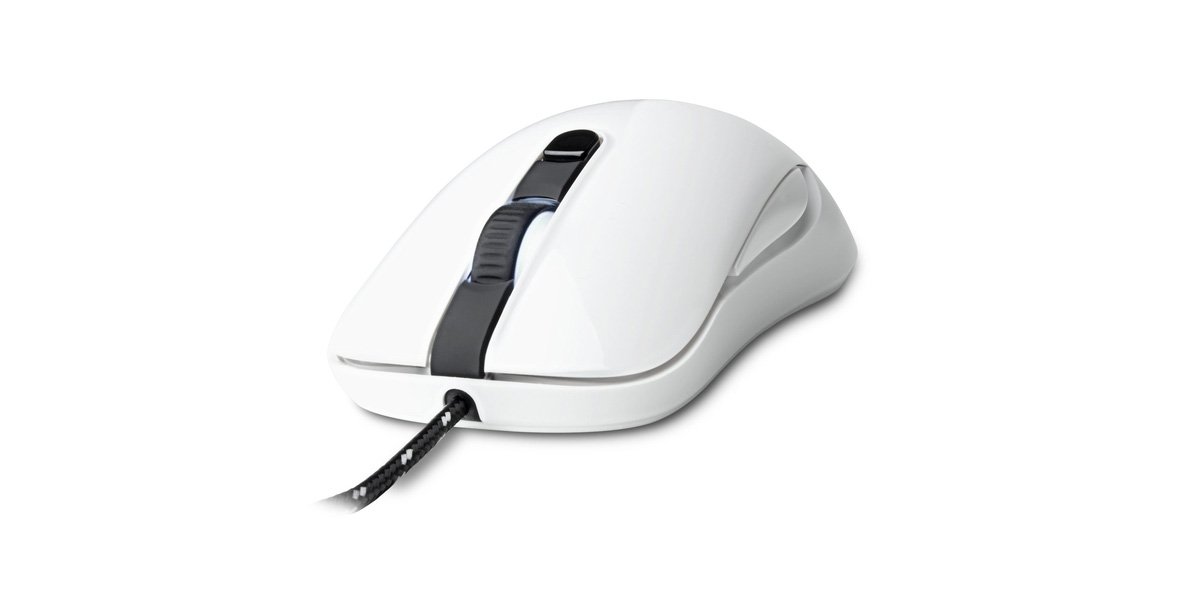
Image of the SteelSeries Kana Optical Gaming Mouse in white, showcasing its ambidextrous design, illuminated scroll wheel, and side buttons.
4. ترتیب کول
4.1 د هارډویر اتصال
- په خپل کمپیوټر کې موجود USB پورټ ومومئ.
- Plug the USB connector of the SteelSeries Kana mouse into the USB port.
- Your operating system should automatically detect and install basic drivers for the mouse.
4.2 Software Installation (SteelSeries Engine)
To unlock the full customization potential of your SteelSeries Kana mouse, including CPI settings, button programming, macros, and LED intensity, install the SteelSeries Engine software.
- Visit the official SteelSeries webسایټ: اسټیلزریګینز / انجینګ
- Download the SteelSeries Engine software compatible with your operating system (Windows or macOS).
- د نصبولو بشپړولو لپاره د پردې پر لارښوونو تعقیب کړئ.
- Once installed, launch the SteelSeries Engine to configure your mouse settings.
د مک کاروونکو لپاره یادونه: Compatibility with macOS versions 10.9 and later for SteelSeries Engine 2.0 (required for Kana) has historically been inconsistent. Please check the official SteelSeries website for the latest software updates and compatibility information before installation.
5. عملیاتي لارښوونې
۵.۱ اساسي فعالیت
- حرکت: Move the mouse across a surface to control the cursor on your screen.
- کلیک کول: Use the left and right buttons for primary and secondary actions.
- سکرول کول: Rotate the scroll wheel to navigate documents and web pages. Press the scroll wheel for its assigned middle-click function.
5.2 Adjusting CPI (Counts Per Inch)
The centrally located CPI toggle button allows you to switch between two pre-defined sensitivity settings instantly. The default CPI settings are optimized for gaming, but can be customized using the SteelSeries Engine software. The maximum CPI supported is 3200.
- Press the CPI toggle button once to switch to the alternate CPI setting.
- Press it again to revert to the previous setting.
5.3 Customizing with SteelSeries Engine
The SteelSeries Engine software provides extensive customization options:
- CPI Settings: Fine-tune or set custom CPI values beyond the pre-defined options.
- د پروګرام کولو تڼۍ: Assign custom functions, keyboard shortcuts, or macros to any of the 6 programmable buttons (including side buttons and scroll wheel click).
- میکرو: Create and assign complex sequences of commands with precise timing control.
- د LED شدت: Adjust the brightness of the illuminated scroll wheel.
- پروfiles: ګڼ شمېر پرو جوړ او خوندي کړئfiles for different games or applications, with automatic switching based on game triggers.
6. ساتنه
۴.۱ د موږک پاکول
To ensure optimal performance and longevity, keep your mouse clean.
- بهر: د نرم، لینټ پاک ټوکر څخه لږ څه کار واخلئampد موږک سطحه د اوبو یا نرم پاکولو محلول سره پاک کړئ ترڅو مسح کړئ. د سختو کیمیاوي موادو یا خړوبونکي موادو څخه ډډه وکړئ.
- نظری سینسر: Gently clean the optical sensor lens on the underside of the mouse with a dry cotton swab or compressed air to remove dust or debris.
- د موږک پښې: Ensure the mouse feet are clean and free of obstructions for smooth gliding.
احتیاط: Do not immerse the mouse in water or any cleaning solution. Avoid spraying liquids directly onto the mouse.
7. ستونزه حل کول
| ستونزه | احتمالي حل |
|---|---|
| Mouse not detected / Not responding |
|
| Inaccurate or erratic tracking |
|
| Buttons not responding or performing incorrectly |
|
| SteelSeries Engine software not recognizing mouse (Mac OS) |
|
8. مشخصات
| برانډ | د فولادو لړۍ |
| د ماډل شمیره | 62029 |
| رنګ | سپین |
| د حرکت کشف ټیکنالوژي | نظري |
| د تڼیو شمیر | ۴ (پروګرام وړ) |
| د لاس لارښوونه | Ambidextrous (Left, Right) |
| د هارډویر پلیټ فارم | PC |
| د کیبل ډول | د نایلان لښتي |
| د توکي وزن | 0.16 کیلوګرامه |
| ځانګړی ځانګړنه | Ergonomic Design, Illuminated Scroll Wheel |
9. تضمین او ملاتړ
9.1 د تضمین معلومات
The SteelSeries Kana Optical Gaming Mouse comes with a د 1 کلن محدود تضمین د پیرود نیټې څخه. دا تضمین د تولید نیمګړتیاوې او د عادي استعمال لاندې کاریګري پوښي. دا د ناوړه ګټې اخیستنې، پیښو، غیر مجاز تعدیلاتو، یا عادي اغوستلو او اوښکو له امله رامینځته شوي زیانونه نه پوښي. مهرباني وکړئ د تضمین ادعاوو لپاره د پیرود ثبوت وساتئ.
9.2 د پیرودونکي ملاتړ
For technical assistance, warranty claims, or further information, please visit the official SteelSeries support webسایټ:
تاسو کولی شئ د دوی په ویب پاڼه کې د پیرودونکو خدماتو لپاره FAQs، د موټر چلوونکي ډاونلوډونه، او د اړیکو معلومات ومومئ. webسایټ