
پیژندنه
This manual provides comprehensive instructions for the setup, operation, and maintenance of your NETUM NT-R3 Mini 1D CCD Bluetooth Barcode Scanner. Please read this guide thoroughly to ensure proper use and to maximize the performance of your device.
د بسته محتويات
د خلاصولو پر مهال، مهرباني وکړئ تصدیق کړئ چې لاندې لیست شوي ټول توکي شتون لري او په ښه حالت کې دي:
- 1 x NETUM Mini Bluetooth Barcode Scanner (NT-R3)
- 1 x د USB چارج کیبل
- 1 x د چټک پیل لارښود
- 1 x 2.4 GHz Adapter
محصول پای ته ورسیدview
The NETUM NT-R3 is a compact and versatile 1D CCD barcode scanner designed for portability and ease of use. Its ring-style design allows for comfortable wear, enhancing productivity in various environments.

Image: The NETUM NT-R3 Mini Barcode Scanner, a small black electronic device with a screen and button, designed to be worn on a finger with an adjustable ring structure.
کلیدي ځانګړتیاوې:
- Ring Design: Magnesium alloy casing and trigger for durability and ease of use.
- 180 ° گردش: Unique rotatable design for scanning from various angles.
- CCD Scanning: Reads 1D barcodes directly from LCD screens of computers or mobile devices, including poorly printed or damaged barcodes.
- د بیسیم اتصال: Supports Bluetooth (SPP, HID) and 2.4 GHz wireless connections.
- پراخه مطابقت: Compatible with Windows XP/7/8/8.1/10, Google Android, iOS, and Mac OS X.
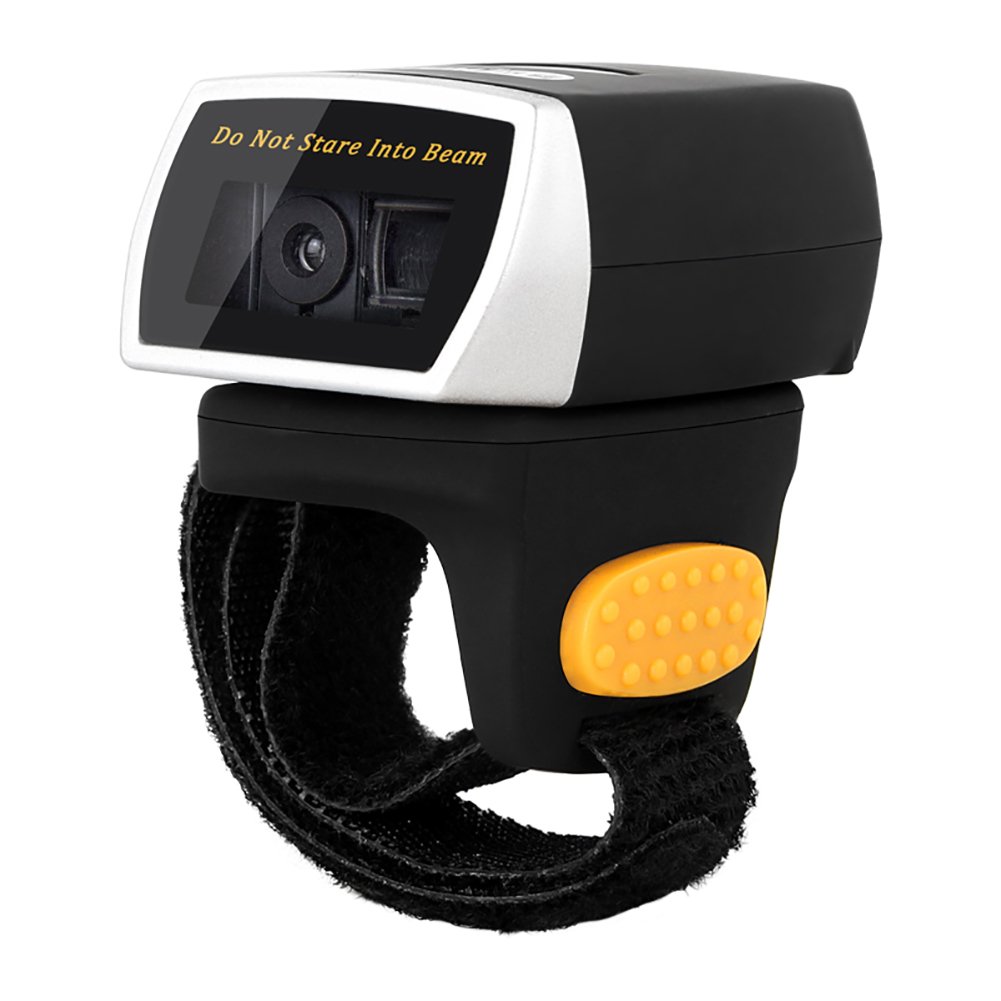
Image: The NETUM NT-R3 Mini Barcode Scanner demonstrating its 180-degree rotation design, allowing for flexible scanning angles.

Image: The NETUM NT-R3 Mini Barcode Scanner held in a hand, illustrating its compact dimensions (50mm x 44mm x 38mm) and light weight (50g), emphasizing its strong compatibility with various devices.
تنظیم او ارتباط
۵.۱. د سکینر چارج کول
Before initial use, fully charge the scanner using the provided USB charging cable. Connect the small end of the USB cable to the scanner's charging port and the other end to a USB power source (e.g., computer, USB wall adapter). The charging indicator light will show the charging status.
2. بریښنا کول/بندول
To power on the scanner, press and hold the trigger button for a few seconds until you hear a beep and see the indicator light. To power off, press and hold the trigger button again until the indicator light turns off.
3. د ارتباط اختیارونه
The NT-R3 scanner offers two primary connectivity methods:
Bluetooth Connection (HID Mode - Keyboard Emulation)
- ډاډ ترلاسه کړئ چې سکینر فعال دی.
- Scan the "Bluetooth HID Mode" barcode (refer to the Quick Start Guide for specific barcodes).
- On your host device (smartphone, tablet, computer), enable Bluetooth and search for available devices.
- Select "NETUM Barcode Scanner" or a similar name from the list of devices.
- The scanner will beep to confirm successful pairing.
In HID mode, scanned barcodes are input directly as keyboard entries into any active text field.
Bluetooth Connection (SPP Mode - Serial Port Profile)
SPP mode is typically used for applications that require direct data communication with the scanner. This mode requires specific software on the host device to interpret the data. Refer to your application's documentation for SPP setup.
- ډاډ ترلاسه کړئ چې سکینر فعال دی.
- Scan the "Bluetooth SPP Mode" barcode (refer to the Quick Start Guide).
- Follow the instructions provided by your specific application for connecting to an SPP device.
2.4 GHz بې سیم اتصال
- Plug the provided 2.4 GHz adapter into a USB port on your computer.
- ډاډ ترلاسه کړئ چې سکینر فعال دی.
- Scan the "2.4G Wireless Mode" barcode (refer to the Quick Start Guide).
- The scanner will automatically connect to the adapter. A successful connection is indicated by a specific beep or light pattern (refer to the Quick Start Guide for details).
The 2.4 GHz connection offers a wireless range of up to 10 meters (30 feet).
عملیاتي طریقې
The NETUM NT-R3 scanner supports two data upload modes:
1. Instant Upload Mode
In this mode, scanned barcodes are immediately transmitted to your connected device. This is suitable for real-time data entry.
۵.۳. د ذخیره کولو حالت
The scanner can store up to 2000 barcodes in its built-in flash memory. This mode is useful when working out of range of your host device. Barcodes can be uploaded later when a connection is established.
Image: A visual representation of the two upload modes. Instant Upload Mode shows barcodes being sent directly to a device. Storage Mode shows barcodes being stored internally and then uploaded later.
To switch between modes, scan the corresponding configuration barcodes found in the Quick Start Guide.
د بارکوډونو سکین کول
د بارکوډ سکین کولو لپاره:
- Hold the scanner with the scanning window facing the barcode.
- Press the trigger button. A red scanning line will appear.
- Align the red scanning line across the entire barcode.
- Once successfully scanned, the scanner will emit a beep, and the indicator light will flash.
The NT-R3 is capable of reading 1D barcodes from various surfaces, including:
- چاپ شوي لیبلونه
- LCD screens (computers, smartphones, tablets)
- Poorly printed or damaged barcodes
ساتنه
د بیټرۍ پاملرنه
- د بیټرۍ د ژوند اوږدولو لپاره، د بیټرۍ په مکرر ډول د بشپړ چارج کولو څخه ډډه وکړئ.
- سکینر په منظم ډول چارج کړئ، حتی که په دوامداره توګه نه کارول کیږي.
- سکینر په یخ او وچ ځای کې وساتئ کله چې د اوږدې مودې لپاره نه کارول کیږي.
پاکول
- Use a soft, dry, lint-free cloth to clean the scanner's exterior.
- د سکین کولو کړکۍ لپاره، د لینز پاکولو ټوکر یا نرم ټوکر په نرمۍ سره وکاروئampد اوبو یا یو نرم، غیر خارښونکي پاکونکي سره مینځل شوی.
- Do not use harsh chemicals, solvents, or abrasive materials, as these can damage the device.
د ستونزو حل کول
| ستونزه | احتمالي لامل | د حل لاره |
|---|---|---|
| سکینر نه چالانېږي. | ټیټ بیټرۍ. | سکینر لږ تر لږه د ۲.۵ ساعتونو لپاره چارج کړئ. |
| سکینر د بلوتوث له لارې نه وصل کیږي. | Incorrect mode selected; device not discoverable; out of range. | Ensure "Bluetooth HID Mode" or "SPP Mode" is scanned. Make sure Bluetooth is enabled on the host device and the scanner is within 10 meters. Try re-pairing. |
| Scanner does not connect via 2.4 GHz adapter. | Adapter not properly inserted; incorrect mode selected. | Ensure the 2.4 GHz adapter is securely plugged in. Scan the "2.4G Wireless Mode" barcode. |
| سکینر بارکوډونه نه لولي. | Barcode is unreadable; scanner not aligned; scanner in storage mode. | Ensure the barcode is clear and well-lit. Align the red line across the entire barcode. If in storage mode, switch to instant upload mode or upload stored data. |
| سکین شوي معلومات په غلط ډول ښکاري. | Keyboard layout mismatch (for HID mode). | Scan the appropriate keyboard layout barcode (e.g., US, UK, French) from the Quick Start Guide. |
تخنیکي مشخصات
| فیچر | تفصیل |
|---|---|
| د ماډل شمیره | NT-R3 |
| د سکین کولو ټیکنالوژي | 1D CCD |
| ارتباط | Bluetooth (SPP, HID), 2.4 GHz Wireless, USB |
| مطابقت لرونکي عملیاتي سیسټمونه | Windows XP/7/8/8.1/10, Google Android, iOS, Mac OS X |
| د سکین کچه | 260 sampپه هره ثانیه کې |
| د ذخیره کولو ظرفیت | تر ۴۰،۰۰۰ بارکوډونو پورې (د ذخیره کولو حالت کې) |
| د بیټرۍ ډول | 1 Lithium metal battery (included) |
| د بریښنا سرچینه | د بیټرۍ چلول |
| د عملیاتو Voltage | 5 ولټه |
| د ذخیره کولو اعظمي حد | 45 درجې سیلسیس |
| تصدیقونه | CE, ISO, RoHS |
| جوړونکی | Guangzhou Netum Electronic Technology Co.,Ltd. |
| د اصلي هیواد | چین |
تضمین او ملاتړ
د راستنیدو پالیسي
دا محصول د پلورونکي د بیرته راستنیدو پالیسۍ سره سم د پیرودلو څخه د 30 ورځو دننه د بیرته ورکولو یا بدلولو وړ دی.
د جوړونکي معلومات
Manufacturer: Guangzhou Netum Electronic Technology Co.,Ltd.
For further assistance or technical support, please refer to the contact information provided in your Quick Start Guide or visit the official NETUM webسایټ
یادونه: د پرزو د شتون او تضمین شوي سافټویر تازه معلوماتو په اړه معلومات اوس مهال شتون نلري.