
1. پیژندنه
The ZEBRONICS ZEB-DB250JP is a versatile Bluetooth wireless gamepad designed for an enhanced gaming experience across multiple platforms. It features 17 buttons, dual analog sticks, dual vibration motors, and quad front triggers for precise control. This gamepad is compatible with Android smartphones, tablets, Android TV boxes, Android TVs, and PCs running Windows 98 / 2000 / ME / XP / NT / VISTA / 7 / 8 / 10. It also supports PS3 consoles. The ergonomic design ensures comfortable use, and a phone mount is included for mobile gaming.
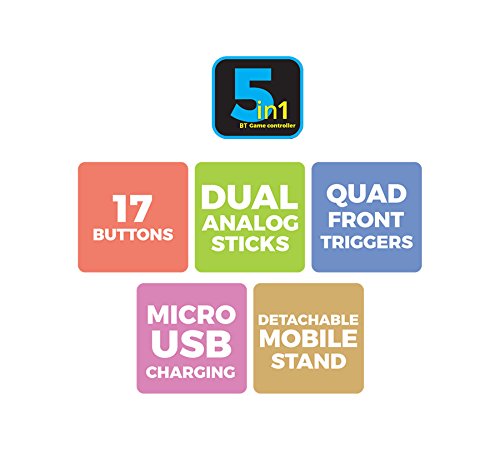
انځور 1: اوورview of ZEB-DB250JP key features including 17 buttons, dual analog sticks, quad front triggers, micro USB charging, and a detachable mobile stand.
۲. په بکس کې څه دي؟
- 1 x ZEB-DB250JP Joypad
- 1 ایکس مایکرو USB چارج کیبل
- 1 x Detachable Phone Mount
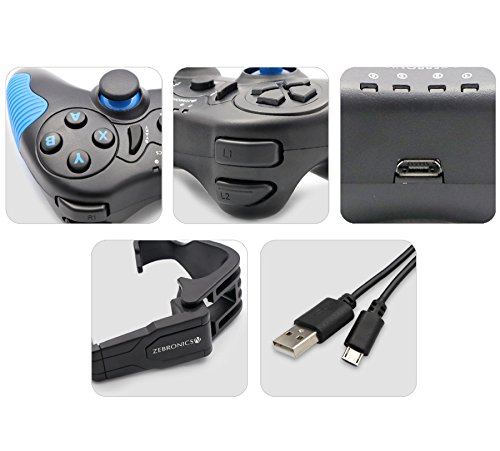
Image 2: A collage showing the ZEB-DB250JP gamepad, its triggers, micro USB port, detachable phone mount, and charging cable.
3. ترتیب کول
۴.۱ د لوبې پیډ چارج کول
Before initial use, fully charge the gamepad. Connect the provided Micro USB cable to the gamepad's charging port and the other end to a USB power source (e.g., computer USB port, USB wall adapter). The built-in 300mAh battery provides extended playtime.

انځور ۴.۱: پورته view of the ZEB-DB250JP gamepad, highlighting the Micro USB charging port located between the L1/R1 and L2/R2 triggers.
3.2 Bluetooth Pairing (Android Devices & PS3)
- ډاډ ترلاسه کړئ چې د لوبې پیډ چارج شوی دی.
- فشار ورکړئ او ونیسئ کور button along with the X button simultaneously until the indicator lights on the gamepad begin to flash, indicating it is in pairing mode.
- On your Android smartphone, tablet, Android TV box, or Android TV, navigate to the Bluetooth settings.
- لټون available devices and select "ZEB-DB250JP" (or similar name) from the list.
- Once connected, the indicator light on the gamepad will become solid. The Bluetooth range is approximately 8 meters.
- For PS3, connect the gamepad via USB cable first, then follow the console's instructions for pairing a new controller.
3.3 د کمپیوټر اتصال
For PC gaming, the ZEB-DB250JP can be connected via the provided USB cable. Simply plug the Micro USB end into the gamepad and the USB-A end into an available USB port on your computer. The gamepad is compatible with Windows 98 / 2000 / ME / XP / NT / VISTA / 7 / 8 / 10 and should be recognized automatically.
3.4 Attaching the Phone Mount
To use the gamepad with your smartphone, attach the included phone mount to the designated slot on the gamepad. Secure your smartphone firmly into the mount.
4. عملیاتي لارښوونې
4.1 د تڼۍ ترتیب
The ZEB-DB250JP features a standard gamepad layout with 17 buttons, including:
- دوه ګونی انلاګ سټیکونه: د دقیق حرکت او کیمرې کنټرول لپاره.
- D-pad: Directional pad for menu navigation and specific game inputs.
- د عمل تڼۍ (A، B، X، Y): د لوبې دننه کړنو لپاره.
- Quad Front Triggers (L1, L2, R1, R2): For additional actions, often used for shooting or accelerating.
- د کور تڼۍ: For power on/off and system functions.
- SELECT/BACK and START/MENU Buttons: For game menus and options.


Image 4: Left side of the ZEB-DB250JP gamepad showing the D-pad and left analog stick. Image 5: Right side of the ZEB-DB250JP gamepad showing the action buttons (A, B, X, Y) and right analog stick.
۸ پاور آن/بند
- د بریښنا د فعالولو لپاره، فشار ورکړئ کور تڼۍ
- د بریښنا بندولو لپاره فشار ورکړئ کور button for a few seconds until the gamepad shuts down.
۳ـ لوبی کول
Once connected, the gamepad should be recognized by compatible games. Refer to your game's settings for controller configuration and button mapping. The dual vibration motors provide haptic feedback for an immersive gaming experience.
5. ساتنه
- پاکول: د لوبې پیډ پاکولو لپاره نرم، وچ ټوکر وکاروئ. د سخت کیمیاوي موادو یا کثافاتو موادو کارولو څخه ډډه وکړئ.
- ذخیره کول: د لوبې پیډ په یخ او وچ ځای کې د مستقیم لمر وړانګو او سختې تودوخې څخه لرې وساتئ.
- د بیټرۍ پاملرنه: د بیټرۍ د ژوند اوږدولو لپاره، د بیټرۍ په مکرر ډول د بشپړ چارج کولو څخه ډډه وکړئ. د لوبې پیډ په منظم ډول چارج کړئ، حتی که د اوږدې مودې لپاره نه کارول کیږي.
6. ستونزه حل کول
- Gamepad not connecting via Bluetooth:
- Ensure the gamepad is charged.
- Make sure the gamepad is in pairing mode (HOME + X).
- Turn off and on Bluetooth on your device.
- Forget the device from your Bluetooth settings and try pairing again.
- Ensure your device is within the 8-meter Bluetooth range. - Buttons unresponsive or delayed input:
- Check battery level and charge if low.
- Ensure there are no obstructions between the gamepad and the connected device.
- For PC, try connecting via USB cable to rule out wireless interference.
- Restart the gamepad and the connected device. - د لوبې پیډ چارج نه کوي:
- Verify the Micro USB cable is securely connected to both the gamepad and the power source.
- Try a different Micro USB cable or power adapter.
- Ensure the power source is functional. - وایبریشن کار نه کوي:
- Check if the game supports vibration feedback.
- Ensure vibration settings are enabled in the game or device settings.
7. مشخصات
| برانډ | زربونیکس |
| د ماډل نوم | انلاګ لرګی |
| مطابقت لرونکې وسیلې | Android, PC, PS3 |
| د کنټرولر ډول | د لوبې پیډ |
| د ارتباط ټیکنالوژي | بلوتوث (v3.0) |
| د محصول ځانګړتیاوې | Wireless, Dual Vibration Motors |
| د تڼۍ مقدار | 17 |
| د ځواک سرچینې ډول | د بیټرۍ چلول |
| بیټرۍ | Built-in 300mAH |
| د بلوتوټ رینج | 8m |
| د توکي وزن | 370 ګرامه |
| د توکي ابعاد | 17 x 12 x 6 سانتي متره |
| رنګ | Red (as per product details, though main image shows black/red) |
| د ماډل شمیره | DB250JP |
8. تضمین او ملاتړ
The ZEBRONICS ZEB-DB250JP Bluetooth Gamepad Joystick comes with a 1 کلن تضمین. For any warranty claims or service, please carry the product to an authorized ZEBRONICS Service Center. For a list of service centers, refer to the product information provided at the time of purchase or visit the official ZEBRONICS webسایټ
For further assistance or technical support, please contact ZEBRONICS customer service.