
Bytech BYTECH Wireless Optical Mouse
د BYTECH بې سیم آپټیکل ماوس کارونکي لارښود
Model: BYTECH Wireless Optical Mouse
پیژندنه
This manual provides detailed instructions for the setup, operation, maintenance, and troubleshooting of your BYTECH Wireless Optical Mouse. Please read this manual thoroughly before using the device to ensure optimal performance and longevity.
محصول پای ته ورسیدview
The BYTECH Wireless Optical Mouse is designed for comfortable and efficient navigation. It features a precise optical sensor, a scroll wheel, and a DPI adjustment button for customizable sensitivity. Its ergonomic design and wireless connectivity provide a clutter-free workspace.

شکل ۱: پورته څخه ښکته view of the BYTECH Wireless Optical Mouse. The mouse is black with a silver stripe along its sides. A scroll wheel and a DPI button are visible on the top surface.
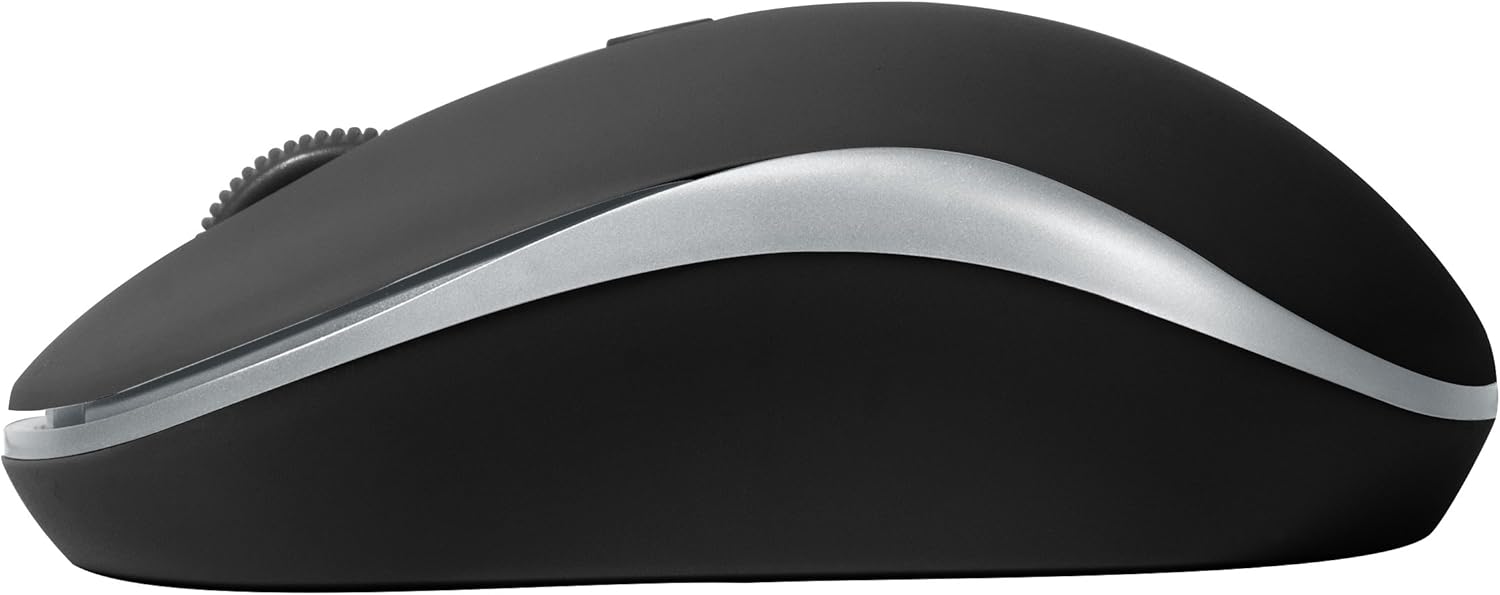
شکل 2: اړخ view of the BYTECH Wireless Optical Mouse. This angle highlights the ergonomic curve and the silver accent line that runs along the side of the mouse.
چمتو کول
1. د بیټرۍ نصب کول
- د موږک لاندې برخه کې د بیټرۍ کڅوړه ومومئ.
- د بیټرۍ کمپارټ پوښ خلاص کړئ.
- Insert one AA battery (not included) into the compartment, ensuring the correct polarity (+/-) as indicated inside.
- د بیټرۍ کمپارټ پوښ په خوندي ډول وتړئ.
۲.۱. د USB رسیور اتصال
- د USB ریسیور د ذخیره کولو سلاټ څخه لرې کړئ، معمولا د بیټرۍ په کڅوړه کې دننه یا نږدې موقعیت لري.
- د USB ریسیور په خپل کمپیوټر یا لپ ټاپ کې موجود USB پورټ کې ولګوئ.
- ستاسو عملیاتي سیسټم باید په اتوماتيک ډول اړین چلوونکي کشف او نصب کړي. دا ممکن یو څو شیبې وخت ونیسي.
3. په بریښنا چالانول
- د موږک په ښکته برخه کې د آن/آف سویچ ومومئ.
- Slide the switch to the "On" position. The mouse should now be ready for use.
عملیاتي لارښوونې
بنسټیز کارونه
- کیڼ کلیک: د توکو د غوره کولو، لینکونو د خلاصولو، یا دندو د فعالولو لپاره کیڼ تڼۍ کېکاږئ.
- ښي کلیک: د شرایطو مینو خلاصولو یا اضافي انتخابونو ته د لاسرسي لپاره ښي تڼۍ فشار ورکړئ.
- سکرول ویل: د اسنادو له لارې سکرول کولو لپاره څرخ پورته یا ښکته کړئ یا web پاڼې. د منځني کلیک فعالیت لپاره د سکرول ویل فشار ورکړئ (د مثال په توګه، په نویو ټبونو کې لینکونه خلاصول).
د DPI تعدیل
The mouse features a DPI (Dots Per Inch) button, typically located behind the scroll wheel. Press this button to cycle through different sensitivity settings. Each press will change the cursor speed, allowing you to find the optimal setting for your task.
- فشار ورکړئ د DPI تڼۍ once to switch to the next sensitivity level.
- Repeat until you find your preferred cursor speed.
د بریښنا خوندي کولو حالت
To conserve battery life, the BYTECH Wireless Optical Mouse is designed to automatically enter a sleep mode after a period of inactivity. To wake the mouse, simply move it or click any button.
ساتنه
پاکول
- ډاډ ترلاسه کړئ چې موږک د پاکولو دمخه بند دی.
- د نرم، لینټ پاک ټوکر څخه لږ څه کار واخلئampد اوبو یا نرم پاکولو محلول سره پای ته رسیدلی.
- Wipe the surface of the mouse gently. Avoid excessive moisture.
- د آپټیکل سینسر لپاره، د وچې کاټن سویب څخه کار واخلئ ترڅو په احتیاط سره هر ډول دوړې یا کثافات لرې کړئ.
- د کثافاتو پاکوونکي، الکول، یا محلولونه مه کاروئ، ځکه چې دا ممکن سطح ته زیان ورسوي.
د بیټرۍ بدلول
When the mouse performance degrades or the cursor becomes erratic, it may be time to replace the battery. Follow the battery installation steps outlined in the "Setup" section.
ذخیره کول
When not in use for an extended period, it is recommended to turn off the mouse to conserve battery life. The USB receiver can be stored in its dedicated slot on the mouse's underside to prevent loss.
د ستونزو حل کول
- موږک ځواب نه ورکوي:
- ډاډ ترلاسه کړئ چې موږک فعال دی.
- د بیټرۍ کچه وګورئ او د اړتیا په صورت کې یې بدل کړئ.
- ډاډ ترلاسه کړئ چې د USB ریسیور په خوندي ډول په کار کونکي USB پورټ کې پلګ شوی دی. یو بل USB پورټ هڅه وکړئ.
- خپل کمپیوټر بیا پیل کړئ.
- Cursor erratic or jumping:
- د موږک په لاندې برخه کې نظري سینسر پاک کړئ.
- ډاډ ترلاسه کړئ چې تاسو موږک په مناسب سطحه کاروئ (غیر انعکاسي، غیر شفاف). د موږک پیډ سپارښتنه کیږي.
- د نورو وسیلو څخه د قوي الکترو مقناطیسي مداخلې لپاره وګورئ.
- د اتصال مسلې:
- د موږک او USB ریسیور ترمنځ فاصله کمه کړئ.
- Remove any large metal objects or electronic devices that might be obstructing the wireless signal.
- If using a USB hub, try connecting the receiver directly to the computer.
مشخصات
| فیچر | تفصیل |
|---|---|
| برانډ | Bytech |
| ماډل | BYTECH Wireless Optical Mouse |
| د ارتباط ټیکنالوژي | بې سیم (USB رسیدونکی) |
| د حرکت کشف ټیکنالوژي | نظري |
| رنګ | تور |
| د بریښنا سرچینه | د بیټرۍ چلول (۱x AA، شامل نه دی) |
| د عملیاتي سیسټم مطابقت | macOS, Android (and generally Windows) |
| د توکي وزن | 3.56 اونس |
| د محصول ابعاد (LxWxH) | ۰.۳۹ x ۰.۳۹ x ۰.۳۹ انچه (تقریبا) |
یادونه: مشخصات پرته له خبرتیا بدلیږي.
تضمین او ملاتړ
Bytech products are manufactured to the highest quality standards. For information regarding warranty coverage, technical support, or service, please refer to the warranty card included with your product or visit the official Bytech webسایټ. د تضمین ادعاوو لپاره د پیرود ثبوت په توګه د پیرود رسید وساتئ.
For further assistance, please contact Bytech customer support through their official channels.
Ask a question about this manual
Ask about setup, troubleshooting, compatibility, parts, safety, or missing instructions. Manuals+ will review the question and use this page’s manual context to help answer it.