
1. پیژندنه او وروستهview
The Glorious GMMK Compact is a 60% mechanical keyboard designed for customization and performance. It features hot-swappable switch sockets, allowing users to easily change mechanical switches without soldering. The keyboard includes per-key 16.8 million RGB lighting, customizable via software or onboard hotkeys. Its durable construction includes a full aluminum metal top plate and an ABS plastic bottom plate. The standard ANSI layout ensures compatibility with a wide range of third-party keycaps.
This keyboard comes with pre-installed Gateron Brown Tactile Mechanical switches, offering a balanced typing experience suitable for both office and gaming environments. The switches are backlit RGB SMD LED compatible, enhancing the visibility and aesthetic of the ABS keycaps.

Figure 1: Glorious GMMK Compact Mechanical Keyboard
۲. په بکس کې څه دي؟
Upon unboxing your Glorious GMMK Compact Mechanical Keyboard, you should find the following items:
- Glorious GMMK Compact Mechanical Keyboard
- USB-C to USB-A Braided Cable
- کیکیپ پلر
- Switch Puller (integrated into the keyboard's underside)
- Additional Keycaps (e.g., standard Escape and Windows keys)
- Extra Rubber Grips

Figure 2: Keyboard with its braided USB-C cable
3. د تنظیم کولو لارښود
Follow these steps to set up your Glorious GMMK Compact Mechanical Keyboard:
- کیبل سره وصل کړئ: Insert the USB-C end of the braided cable into the port on the top-left side of the keyboard. Connect the USB-A end to an available USB port on your computer or gaming console.
- لومړنی بریښنا فعالول: The keyboard's RGB lighting will illuminate in a default pattern upon successful connection, indicating it is powered on and recognized by your system.
- سافټویر نصب کړئ (اختیاري مګر سپارښتنه شوې): For full customization of RGB lighting, key remapping, and macro creation, download the Glorious GMMK software from the official Glorious PC Gaming Race webسایټ
- ارګونومیک تنظیم کړئ: Utilize the built-in flip-out stands on the underside of the keyboard to adjust the typing angle for a more comfortable experience.
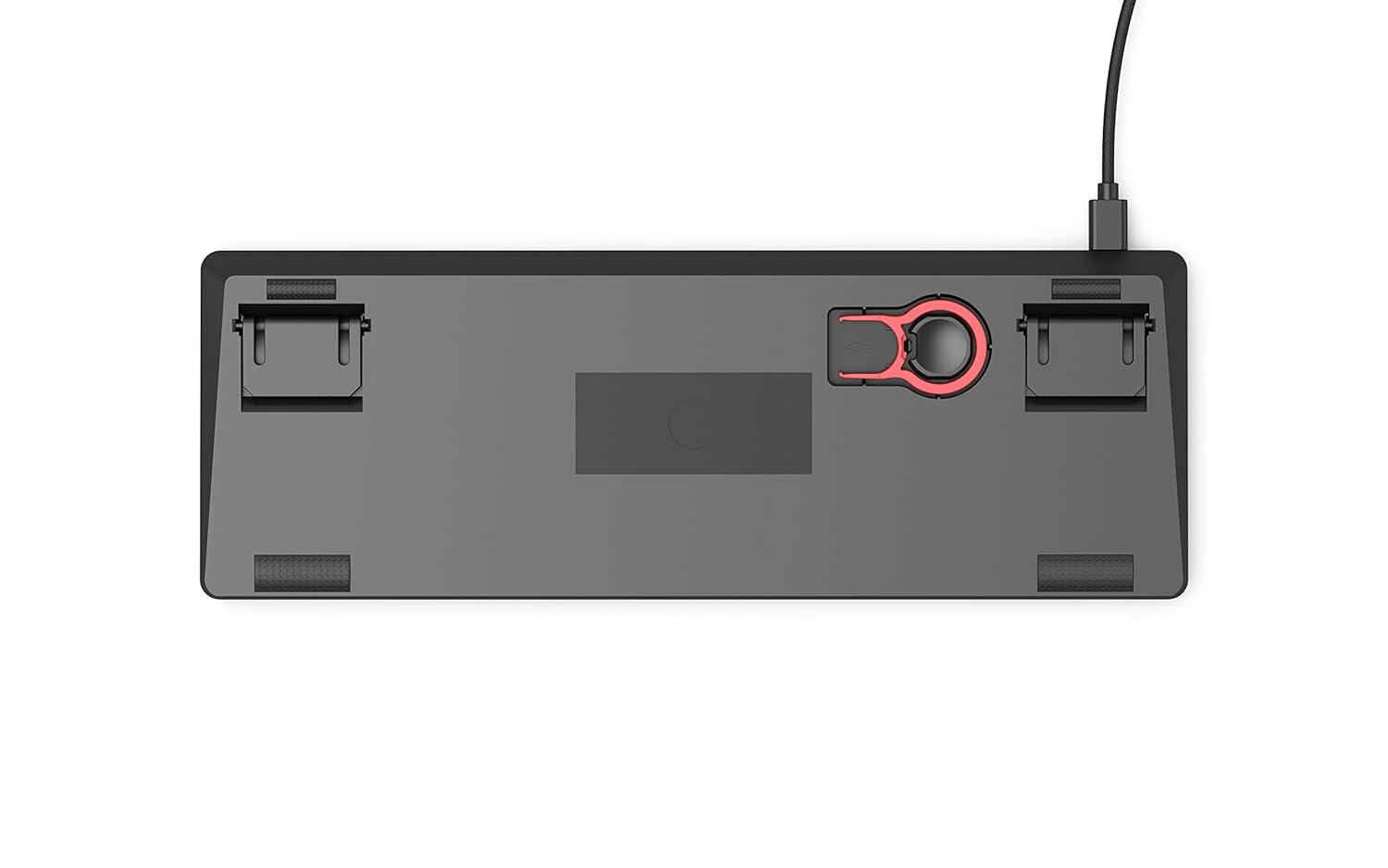
Figure 3: Underside of the keyboard with adjustable stands
4. عملیاتي لارښوونې
The GMMK Compact functions as a standard QWERTY keyboard. Many advanced features and RGB patterns can be controlled directly from the keyboard using hotkeys, typically involving the 'Fn' key in combination with other keys. Refer to the quick start guide included in the box or the Glorious website for a detailed list of hotkey commands.

شکل ۱: پورته څخه ښکته view of the keyboard in operation
5. اصلاح کول
۵.۲. ګرم بدلیدونکي سویچونه
The GMMK Compact features hot-swappable switch sockets, allowing you to change mechanical switches without soldering. This keyboard is compatible with 3-pin mechanical switches from brands like Cherry, Gateron, and Kailh.
- د کیلي کیپ لرې کول: د مطلوب کیلي کیپ لرې کولو لپاره چمتو شوي کیلي کیپ پلر وکاروئ.
- سویچ لرې کړئ: Use the switch puller (located on the underside of the keyboard) to carefully grip and pull the switch straight up from its socket.
- نوی سویچ نصب کړئ: Align the pins of the new 3-pin mechanical switch with the holes in the PCB. Press the switch firmly until it clicks into place. Ensure pins are not bent.
- د کیلي کیپ بدلول: د کیلي کیپ د نوي سویچ په ډډ کې کیږدئ او په نرمۍ سره فشار ورکړئ.

Figure 5: A Gateron Brown mechanical switch
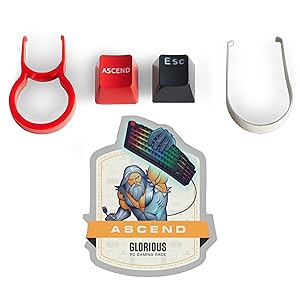
Figure 6: Keyboard PCB showing hot-swappable switch sockets
5.2. Keycap Swapping
You can easily swap out keycaps to personalize your keyboard. The GMMK Compact uses a standard ANSI layout, making it compatible with most third-party keycap sets.
- د کیلي کیپ لرې کول: Use the keycap puller to grip the keycap and pull it straight up.
- Install New Keycap: Align the new keycap with the switch stem and press down firmly until it is seated.
Figure 7: RGB LED keycap detail
۸. د RGB رڼا تنظیمول
The keyboard features per-key 16.8 million RGB lighting. You can customize lighting effects and colors using the Glorious GMMK software or through onboard hotkeys. Consult the quick start guide for specific hotkey combinations to cycle through effects, adjust brightness, and change colors.
Video 1: GMMK Black All Size Side-by-Side RGB ON - Demonstrates various RGB lighting effects on the keyboard.
Video 2: GMMK Compact (Black) Sound Test - Gateron Brown Switches - Provides an audio demonstration of the Gateron Brown switches.
6. ساتنه
Regular maintenance helps prolong the life and performance of your keyboard.
- عمومي پاکول: Use a soft brush or compressed air to remove dust and debris from between the keycaps. Wipe the surface with a slightly damp, lint-free ټوکر.
- ژوره پاکول (کی کیپس): For thorough cleaning, remove the keycaps using the keycap puller and wash them with mild soap and water. Ensure they are completely dry before reattaching.
- Deep Cleaning (Switches): If switches become dirty or sticky, they can be removed using the switch puller for individual cleaning or replacement.
7. ستونزه حل کول
If you encounter issues with your GMMK Compact keyboard, try the following troubleshooting steps:
- کیبورډ ځواب نه ورکوي: Ensure the USB-C cable is securely connected to both the keyboard and your computer. Try connecting to a different USB port or a different computer to rule out port or system issues.
- د RGB رڼا مسلې: If RGB lighting is not functioning correctly, check the settings in the Glorious GMMK software. You can also try resetting the RGB patterns using the onboard hotkeys (refer to your quick start guide).
- هغه کیلي چې راجستر نه کیږي: If a specific key is not working, gently remove its keycap and switch. Re-insert the switch firmly to ensure it is properly seated in the hot-swap socket. If the issue persists, consider replacing the switch.
- سافټویر چې کیبورډ نه کشفوي: Ensure you have the latest version of the Glorious GMMK software installed. Restart your computer and try reconnecting the keyboard.
For further assistance, visit the Glorious PC Gaming Race official website for detailed FAQs, firmware updates, and customer support resources.
8. مشخصات
| د ماډل شمیره | GMMK-COMPACT-BRN |
| د کیبورډ ترتیب | 61 Key Standard QWERTY (ANSI) |
| د سویچ ډول | Tactile (Gateron Brown pre-installed) |
| ارتباط | تار لرونکی (USB-C) |
| شاته رڼا کول | Per-key 16.8 Million RGB LED |
| د رای ورکولو کچه | 1000 Hz |
| د کیبل اوږدوالی | 6 ft. Braided (Removable) |
| کیکیپس | د ABS ډبل شاټ انجیکشن |
| ابعاد (L x W x H) | ۸۳.۸" x ۵۵.۷" x ۴۴.۱" |
| وزن | 816 ګرامه |
| د تړلو موادو | Aluminum, ABS Plastic |
| مطابقت لرونکي عملیاتي سیسټمونه | وینډوز، MacOS، لینکس |
| مطابقت لرونکې وسیلې | PC, Laptop, Gaming Console (PS4, PS5, XBOX) |
9. تضمین او ملاتړ
The Glorious GMMK Compact Mechanical Keyboard comes with a 1-Year Limited Manufacturer Warranty. This warranty covers defects in materials and workmanship under normal use.
For warranty claims, technical support, firmware updates, or to access the latest software, please visit the official Glorious PC Gaming Race website. Their support resources include FAQs, troubleshooting guides, and contact information for direct assistance.