
د مایکروسافټ سرفیس پرو 2017
د مایکروسافټ سرفیس پرو ۱۱ کارن لارښود
Model: Surface Pro 2017 (7Y30)
پیژندنه
This manual provides essential instructions for setting up, operating, maintaining, and troubleshooting your Microsoft Surface Pro 2017. The Surface Pro 2017 is a versatile 2-in-1 device designed to function as both a powerful laptop and a portable tablet, offering a seamless computing experience.
مهرباني وکړئ دا لارښود په دقت سره ولولئ ترڅو د سم استعمال ډاډ ترلاسه کړئ او ستاسو د وسیلې عمر اعظمي کړئ. دا لارښود د راتلونکي حوالې لپاره وساتئ.
په بکس کې څه دي
Upon unboxing your Microsoft Surface Pro 2017, verify that all components are present:
- Microsoft Surface Pro 2017 device
- د AC ځواک اډیپټر
Note: Additional accessories such as the Surface Pen, Type Cover, or Surface Dial are sold separately and may not be included with your device.
چمتو کول
۱. لومړنی بریښنا فعالول او چارج کول
- د بریښنا اډاپټر سره وصل کړئ: Plug the AC power adapter into a wall outlet and then connect the magnetic charging connector to the charging port on your Surface Pro. The LED indicator on the connector will illuminate when charging.
- پاور آن: Press and hold the power button located on the top edge of the device for a few seconds until the Microsoft logo appears on the screen.
۶. د وینډوز تنظیم
Follow the on-screen prompts to complete the initial Windows setup. This process typically includes:
- ستاسو د سیمې او ژبه غوره کول.
- د Wi-Fi شبکې سره وصل کول.
- د جواز تړون منل.
- Creating or signing in with a Microsoft account.
- Setting up security features like Windows Hello (facial recognition) or a PIN.
3. د وای فای سره نښلول
- During Windows setup, you will be prompted to connect to a network. Select your desired Wi-Fi network from the list and enter the password if required.
- If you need to connect later, go to پیل > ترتیبات > شبکه او انټرنیټ > وای فای. وای فای چالان کړئ، خپل شبکه غوره کړئ، او کلیک وکړئ نښلول.
عملیاتي لارښوونې
Basic Device Orientation and Controls
The Surface Pro 2017 features a 12.3-inch PixelSense display with multi-touch support. Key physical controls include:
- د بریښنا تڼۍ: Located on the top edge, used to turn the device on/off, sleep, or wake.
- د حجم تڼۍ: په اړخ کې موقعیت لري، د غږ حجم تنظیمولو لپاره کارول کیږي.
- کیک سټینډ: Integrated on the back, allows for multiple viewزاویې
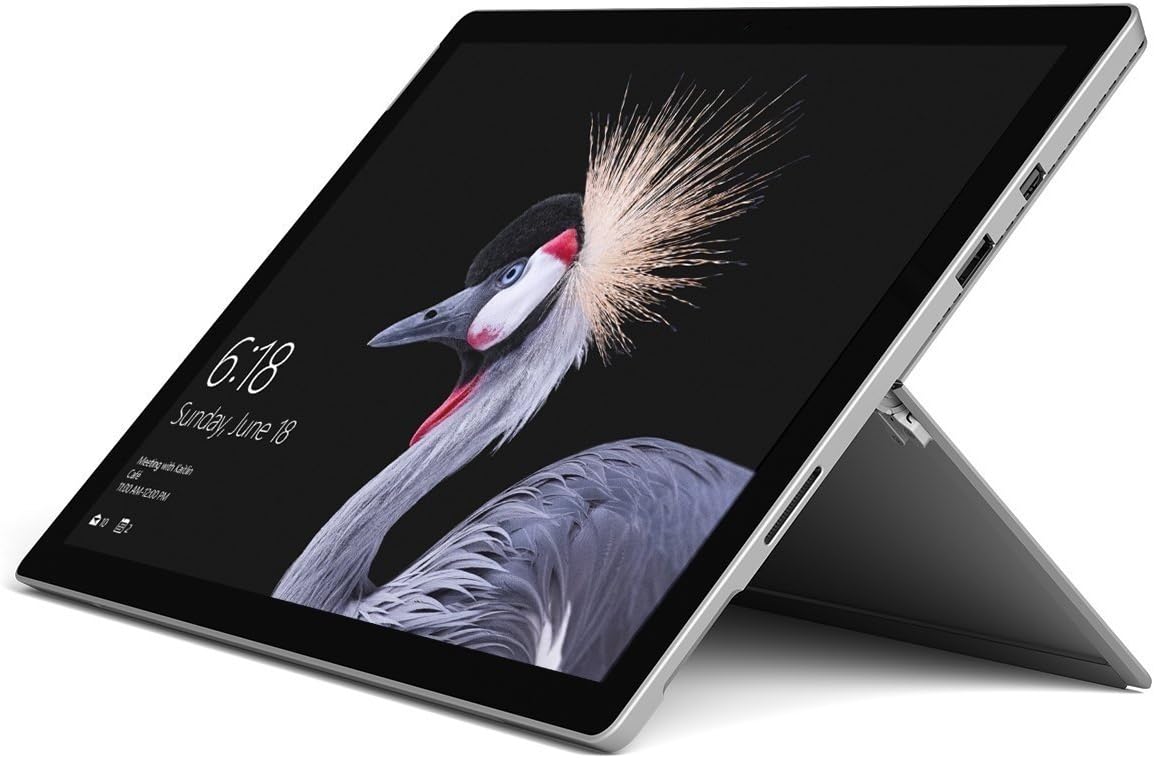
Image: Microsoft Surface Pro 2017 in laptop mode with its kickstand extended, showcasing the device's display.
د Kickstand په کارولو سره
The integrated kickstand allows you to position your Surface Pro at various angles for comfortable viewing, typing, or drawing. Gently pull the kickstand out from the back of the device until it reaches your desired angle.
د بریښنا مدیریت
- د خوب حالت: Briefly press the power button to put the Surface Pro into sleep mode. Press it again to wake the device.
- بندول: ورتګ پیل > ځواک > بندول.
- بیا پیل کول: ورتګ پیل > ځواک > بیا پیل کړئ.
د پردیو سره نښلول
The Surface Pro 2017 includes various ports for connecting external devices:
- د USB 3.0 پورټ: For connecting USB drives, keyboards, mice, and other compatible accessories.
- مینی ډیسپلی پورټ: د بهرنیو مانیټرونو یا پروجیکټرونو سره د نښلولو لپاره.
- د مایکرو ایس ډی کارت ریډر: د ذخیره کولو پراخولو یا لیږدولو لپاره fileد میموري کارتونو څخه.
- د سطحي نښلولو بندر: For power and connecting to Surface Dock accessories.
- د 3.5mm هیډفون جیک: د آډیو تولید لپاره.
بلوتوث: To connect Bluetooth devices (e.g., headphones, mice), go to پیل > ترتیبات > وسایل > بلوتوث او نور وسایل. Ensure Bluetooth is turned on, then select "Add Bluetooth or other device" and follow the pairing instructions.

انځور: سایډ پروfile of the Microsoft Surface Pro 2017, highlighting the various ports available for connectivity.
ساتنه
Cleaning Your Surface Pro
- سکرین: د نرم، لینټ پاک ټوکر څخه لږ څه کار واخلئampened with water or an approved screen cleaner. Avoid harsh chemicals or abrasive materials.
- بدن: Wipe the exterior with a soft, dry cloth. Do not allow liquids to enter openings.
- بندرونه: Keep ports free of dust and debris. Use compressed air carefully if needed, holding the can upright.
د بیټرۍ پاملرنه
- د لوړې تودوخې څخه ډډه وکړئ، ځکه چې دوی کولی شي د بیټرۍ ژوند خراب کړي.
- د بیټرۍ د غوره روغتیا لپاره، د بیټرۍ په دوامداره توګه په بشپړه توګه خارجولو یا د اوږدې مودې لپاره په 100٪ چارج کې ساتلو څخه ډډه وکړئ.
- Use only the official Microsoft AC power adapter or a compatible charger.
د سافټویر تازه معلومات
Regularly update your Windows operating system and device drivers to ensure optimal performance, security, and compatibility. Go to پیل > ترتیبات > تازه کول او امنیت > د وینډوز تازه کول د تازه معلوماتو د کتلو او نصبولو لپاره.
د ستونزو حل کول
دا برخه هغه عامې ستونزې په ګوته کوي چې تاسو ممکن د خپل سرفیس پرو 2017 سره مخ شئ.
Device Will Not Turn On
- ډاډ ترلاسه کړئ چې وسیله چارج شوې ده. د بریښنا اډاپټر سره وصل کړئ او د بریښنا د فعالولو هڅه کولو دمخه څو دقیقې انتظار وکړئ.
- Perform a two-button shutdown: Press and hold the volume-up button and the power button simultaneously for at least 15 seconds, then release both. Wait 10 seconds, then press the power button again to turn on the Surface.
Screen Not Responding to Touch
- وسیله بیا پیل کړئ.
- ډاډ ترلاسه کړئ چې سکرین پاک او له کثافاتو څخه پاک دی.
- Check for available Windows updates, as driver updates can resolve touch issues.
د وای فای اتصال مسلې
- ډاډ ترلاسه کړئ چې وای فای فعال شوی دی ترتیبات > شبکه او انټرنیټ > وای فای.
- Restart your Surface Pro and your Wi-Fi router.
- شبکه هېره کړئ او بیا وصل شئ: لاړ شئ ترتیبات > شبکه او انټرنیټ > وای فای, click on your network, then هېرول. Reconnect and enter the password.
مشخصات
| فیچر | مشخصات |
|---|---|
| د ماډل نوم | سرفیس پرو ۴ |
| د توکي ماډل شمیره | 7Y30 |
| د سکرین اندازه | ۷۸۷ انچه |
| د سکرین ریزولوشن | 2736 x 1824 پکسله |
| پروسیسر | Intel Core m3-7Y30 (1 GHz Intel_Mobile_CPU) |
| RAM | 4 GB DDR4 SDRAM |
| ذخیره کول | 128 GB SSD |
| ګرافیک کارت | Integrated (Intel) |
| عملیاتي سیسټم | وینډوز |
| بې سیم ډول | ۸۰۲.۱۱ابګ |
| د توکي وزن | ۲.۴۵ پونډه |
| د محصول ابعاد | 11.5 x 7.9 x 0.3 انچه |
| رنګ | سره زر |
تضمین او ملاتړ
For detailed warranty information, please refer to the warranty card included with your purchase or visit the official Microsoft support webسایټ. د تضمین شرایط او مقررات ممکن د سیمې او پرچون پلورونکي پورې اړه ولري.
For technical support, driver downloads, and additional resources, please visit the official Microsoft Support webسایټ: ملاتړ.مایکروسافټ.com/سطحه
اړوند اسناد - سرفیس پرو ۴
 |
د مایکروسافټ سرفیس پرو ۵ ټیرډاون: د اجزاو تفصيلي تحلیل او ترمیم وړتیا د دې جامع تخریب لارښود سره د مایکروسافټ سرفیس پرو 5 داخلي جوړښت وپلټئ. د دې د ترمیم وړتیا سکور په اړه مفصل مشخصات، د اجزاو پیژندنه، او بصیرت ومومئ. |
 |
Microsoft Surface Pro 4 Teardown Guide A comprehensive teardown guide for the Microsoft Surface Pro 4, detailing its internal components, disassembly process, and repairability score. This guide provides an in-depth look at the hardware and assembly of the device. |
 |
د سطحې لپاره د مایکروسافټ ME-MPP303 سټایلس قلم - د کارونکي لارښود او مشخصات د مایکروسافټ ME-MPP303 سټایلس قلم لپاره د کارونکي لارښود او مشخصات، چې د مختلفو سطحي وسیلو سره مطابقت لري. په جزیاتو کې د اتوماتیک خوب ځانګړتیا، مواد، او د چاپ کولو مشخصات شامل دي. |
 |
د مایکروسافټ سرفیس پرو ۵ ټیرډاون: د داخلي اجزاو او ترمیم لارښود د iFixit لخوا د مایکروسافټ سرفیس پرو 5 (2017 ماډل) تفصيلي ټوټه ټوټه کول. داخلي برخې، مشخصات، د چپ پیژندنه، او د ترمیم وړتیا نمره وپلټئ. |
 |
د مایکروسافټ سرفیس پرو ۱۱ کارن لارښود د مایکروسافټ سرفیس پرو ۴ لپاره د کارونکي جامع لارښود، چې تنظیم، ځانګړتیاوې، سافټویر، او ستونزې حل کوي. |
 |
د مایکروسافټ سرفیس چارجینګ پورټ بدلولو لارښود د مایکروسافټ سرفیس آر ټي (لومړی نسل) ټابلیټ کې د چارج کولو پورټ بدلولو لپاره تفصيلي ګام په ګام لارښوونې. د هر ترمیم سیسټم اړین وسایل، برخې، او بصري توضیحات پکې شامل دي.tage. |
Ask a question about this manual
Ask about setup, troubleshooting, compatibility, parts, safety, or missing instructions. Manuals+ will review the question and use this page’s manual context to help answer it.