
1. پیژندنه
دا لارښود ستاسو د سم نصب، عملیاتو او ساتنې لپاره اړین معلومات چمتو کوي ViewSonic VX3276-4K-MHD 32 Inch 4K UHD Monitor. Designed with a modern, minimalist style and ultra-thin bezels, this monitor delivers stunning 3840x2160p resolution, HDR10 content support, and versatile connectivity options for both home and office environments. Please read this manual thoroughly before using your monitor to ensure optimal performance and safety.

انځور: د ViewSonic VX3276-4K-MHD monitor displayed on a desk, highlighting its modern aesthetic and ultra-slim profile, suitable for office, graphic design, and home entertainment.

انځور: نږدې انځور view emphasizing the ultra-slim panel of the monitor, contributing to its sleek design.

انځور: د مانیټر نندارهasing its frameless design, providing an expansive viewتجربه
2. د خوندیتوب معلومات
- تل مانیټر په یوه مستحکم او فلیټ سطحه کېږدئ ترڅو د رالویدو مخه یې ونیول شي.
- د هوا د جریان لپاره د مانیټر شاوخوا کافي ځای ډاډمن کړئ.
- یوازې د تولید کونکي لخوا چمتو شوي بریښنا اډاپټر او کیبلونه وکاروئ.
- مانیټر د اوبو، رطوبت او سختې تودوخې څخه لرې وساتئ.
- Avoid exposing the screen to direct sunlight for extended periods.
- د مانیټر د ترمیم هڅه مه کوئ. ټولې خدمتونه وړ خدماتو پرسونل ته راجع کړئ.
- د پاکولو دمخه د بریښنا سایټ څخه مانیټر خلاص کړئ.
۲. په بکس کې څه دي؟
د کڅوړې د پرانیستلو پر مهال، ډاډ ترلاسه کړئ چې لاندې ټول توکي شتون لري:
- ViewSonic VX3276-4K-MHD Monitor
- د بریښنا کیبل
- HDMI کیبل
- د چټک پیل لارښود
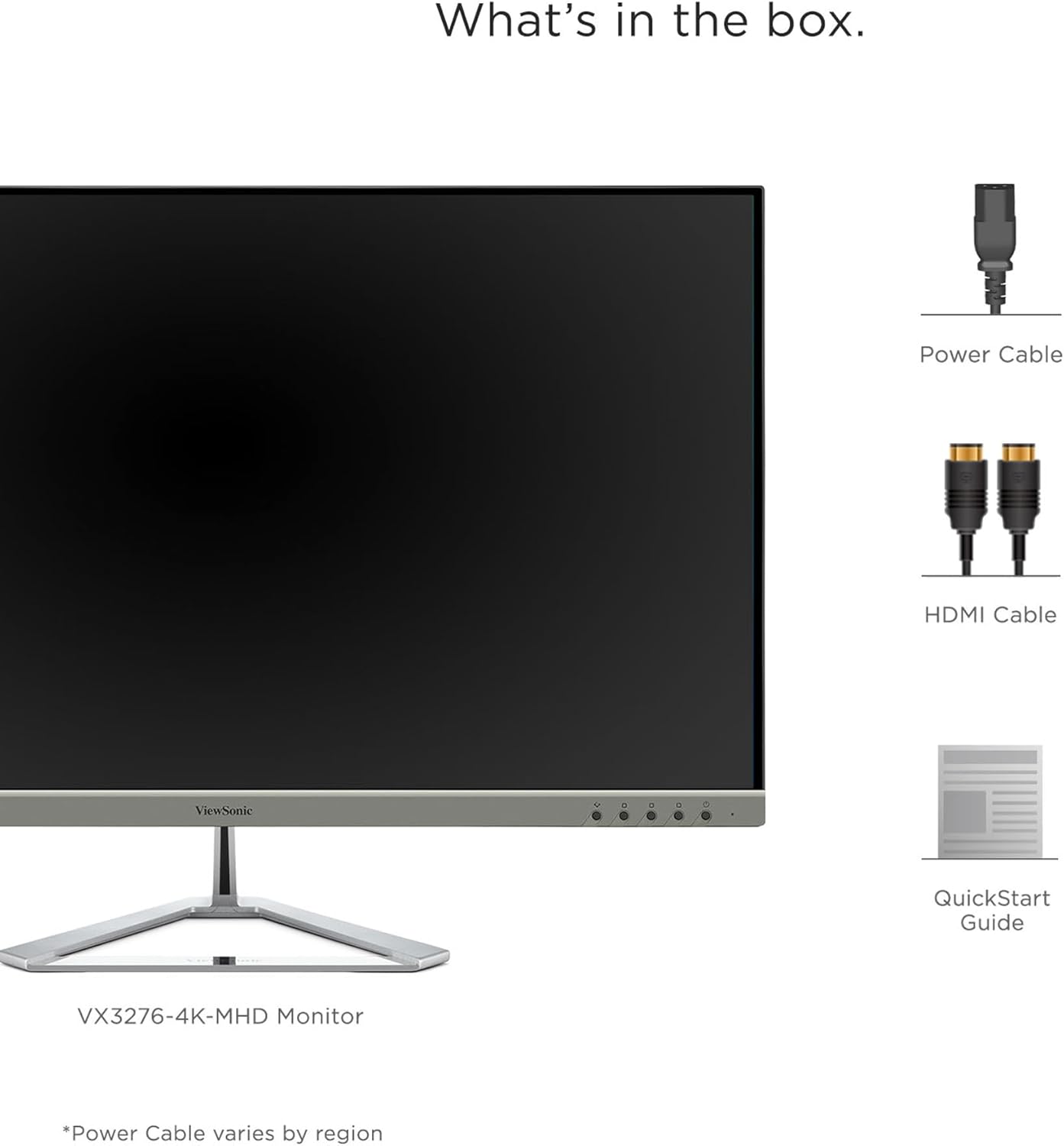
Image: A visual representation of the items included in the ViewSonic VX3276-4K-MHD monitor package.
4. ترتیب کول
۱.۲ د سټینډ راټولول
Carefully remove the monitor and stand components from the packaging. Attach the stand base to the stand neck, then secure the assembled stand to the back of the monitor. Ensure all screws are tightened appropriately.
4.2 د مانیټور سره نښلول
The VX3276-4K-MHD monitor offers versatile connectivity options. Connect your computer or other devices using the appropriate cables:
- HDMI: Use the provided HDMI cable to connect to your computer's HDMI port. The monitor features two HDMI 2.0 inputs.
- ډیسپلی پورټ: Connect using a DisplayPort cable for high-resolution video and audio transmission.
- مینی ډیسپلی پورټ: Use a Mini DisplayPort cable for compatible devices.
- آډیو بهر: Connect external speakers or headphones to the 3.5mm audio out jack.

Image: The back of the monitor displaying the various input ports, including HDMI, DisplayPort, Mini DisplayPort, and Audio Out, along with the integrated 2-Watt speakers.

Image: An illustration highlighting the versatile connectivity options of the monitor, including HDMI, DisplayPort, and Mini DisplayPort.
4.3 د بریښنا نښلول
Connect the power cable to the monitor's AC input and then plug it into a grounded electrical outlet.
۴.۳ د VESA نصب کول (اختیاري)
The monitor is VESA compatible (100x100mm) for wall mounting or use with compatible monitor arms. Ensure you use appropriate VESA-compliant mounting hardware (not included) and follow the mounting instructions provided with your VESA mount.

Image: The VESA compatible mounting points on the rear of the monitor, allowing for flexible installation options.
5. عملیاتي لارښوونې
5.1 بریښنا کول / بندول
Press the power button located on the lower left side of the monitor to turn it on or off. The power LED will indicate the monitor's status.
۳.۱ د پردې پرده ښودنه (OSD) مینو
Use the physical buttons on the back of the monitor to navigate and adjust settings within the On-Screen Display (OSD) menu. These buttons allow you to control various display parameters such as brightness, contrast, color settings, and input selection.
5.3 Optimized View ترتیبات (Viewفیشن)
The monitor features exclusive ViewMode presets to optimize screen performance for different applications. These presets include "Game," "Movie," "Web," "Text," and "Mono." Select the appropriate mode for your current activity to enhance your viewتجربه

Image: An illustration demonstrating the different ViewMode settings (Game, Movie, Web, Text, Mono) that optimize the display for specific content.
5.4 Display Quality and HDR10 Support
Experience stunning 4K UHD (3840x2160p) resolution with the MVA panel technology, offering ultra-wide viewing angles and vibrant colors. HDR10 content support delivers a high dynamic range for deep contrast, rich color, and detailed visuals.

Image: A visual comparison highlighting the clarity and detail provided by the 4K Ultra HD resolution.

Image: A comparison demonstrating the superior contrast and vibrant colors achieved with HDR10 content support compared to conventional display.

Image: An illustration demonstrating the wide 178-degree viewing angles provided by MVA Panel Technology.
5.5 ښه شوی Viewing Comfort (Eye-Care)
The monitor incorporates Flicker-Free technology and a Blue Light Filter to reduce eye fatigue during prolonged use, promoting a more comfortable viewتجربه

Image: A simulated comparison showing the benefits of Flicker-Free and Blue Light technology in reducing eye strain.
۴.۵ مدغم سپیکرونه
The monitor includes dual integrated 2-Watt speakers for audio output. You can also connect external audio devices via the Audio Out port.

Image: An illustration indicating the location and function of the dual integrated 2-Watt speakers on the monitor.
5.7 Multi-Tasking and Productivity
The large 32-inch screen and 4K resolution provide ample screen real estate for multi-tasking, allowing you to open multiple windows side-by-side for enhanced productivity.

Image: The monitor set up in a home office, demonstrating its capability to display multiple applications simultaneously for efficient multi-tasking.
6. ساتنه
۵.۱ د پردې پاکول
د سکرین پاکولو لپاره، په نرمۍ سره یې د نرم، لینټ نه پاک ټوکر سره پاک کړئ. د سختو نښو لپاره، په نرمۍ سرهampټوکر د اوبو یا یو نرم، غیر خارښونکي سکرین کلینر سره ومینځئ. هیڅکله مایع په مستقیم ډول په سکرین مه سپری کوئ.
۸.۲ د C پاکولasing
د مانیټر پاکولو لپاره نرم، وچ ټوکر وکاروئ casing. Avoid using strong detergents or abrasive cleaners, as they may damage the surface.
7. ستونزه حل کول
۸.۱ په سکرین کې هیڅ انځور نشته
- ډاډ ترلاسه کړئ چې د بریښنا کیبل په خوندي ډول د مانیټر او بریښنا سایټ دواړو سره وصل دی.
- Verify that the video cable (HDMI, DisplayPort, Mini DisplayPort) is firmly connected to both the monitor and your computer.
- وګورئ چې ایا د OSD مینو کې د ننوتلو سمه سرچینه غوره شوې ده.
- ډاډ ترلاسه کړئ چې ستاسو کمپیوټر چالان دی او د خوب حالت کې نه دی.
۷.۲ انځور تیاره یا تحریف شوی دی
- په خپل کمپیوټر کې د نندارې ریزولوشن د مانیټر اصلي ریزولوشن (3840x2160) سره تنظیم کړئ.
- د هر ډول زیان یا خلاص اړیکو لپاره د ویډیو کیبل وګورئ.
- د OSD مینو له لارې مانیټر د فابریکې ډیفالټ ترتیباتو ته بیا تنظیم کړئ.
۵.۳ له سپیکرونو څخه هیڅ غږ نشته
- Ensure the volume on the monitor and your computer is not muted and is set to an audible level.
- Verify that the audio output is correctly configured on your computer to use the monitor's speakers.
- If using an external audio device, ensure it is properly connected to the Audio Out port.
8. مشخصات

Image: A diagram illustrating the physical dimensions of the ViewSonic VX3276-4K-MHD monitor, including screen size and overall measurements.
| فیچر | تفصیل |
|---|---|
| برانډ | Viewسونیک |
| د ماډل شمیره | VX3276-4K-MHD |
| د سکرین اندازه | ۷۸۷ انچه |
| قرارداد | ۲K UHD (۲۰۴۸x۱۱۵۲p) |
| د اړخ نسبت | 16:9 |
| د تازه کولو نرخ | 60 Hz |
| د غبرګون وخت | 4 ملی ثانیه |
| د ښودلو ډول | LED LCD (MVA Panel Technology) |
| روښانتیا | 300 cd/m2 |
| د تناسب تناسب | 2500:1 |
| Viewزاویه | 178 درجې |
| ارتباط | 2x HDMI, 1x DisplayPort, 1x Mini DisplayPort |
| آډیو | Dual Integrated 2W Speakers, 1x Audio Out |
| ځانګړي ځانګړتیاوې | HDR10 Support, Flicker-Free, Blue Light Filter, ViewMode Presets, Anti-Glare Screen, FreeSync |
| د نصب کولو ډول | VESA Compatible (100x100mm) |
| ابعاد (D x W x H) | ۱۶"د x ۲۶"وچ x ۴۷"ح |
| د توکي وزن | 15 پونډه |
| د بریښنا مصرف | 56 واټ |
9. تضمین او ملاتړ
9.1 د تضمین معلومات
د ViewSonic VX3276-4K-MHD monitor comes with a Three-year limited warranty on parts, labor, and backlightمهرباني وکړئ د تضمین ادعاوو لپاره د پیرود ثبوت وساتئ.
9.2 د پیرودونکي ملاتړ
For technical assistance, product registration, or further information, please visit the official Viewسونیک website or contact their customer support. Refer to the Quick Start Guide for specific contact details or scan the QR code on the back of your monitor for support resources.
ویډیو: یو چارواکی Viewد سونیک ویډیو خپرونهasing the features and design of the ViewSonic 32 Inch VX3276-4K-MHD Monitor. This video provides a general overview د محصول.