
Microsoft QJW-00001
د مایکروسافټ سرفیس پرو کیبورډ کارونکي لارښود
Model: QJW-00001
پیژندنه
This manual provides essential information for the setup, operation, maintenance, and troubleshooting of your Microsoft Surface Pro Keyboard. Designed for seamless integration with Surface Pro X and Surface Pro 8 devices, this keyboard offers a full mechanical keyset, backlit keys, and a large trackpad for an optimal typing experience.
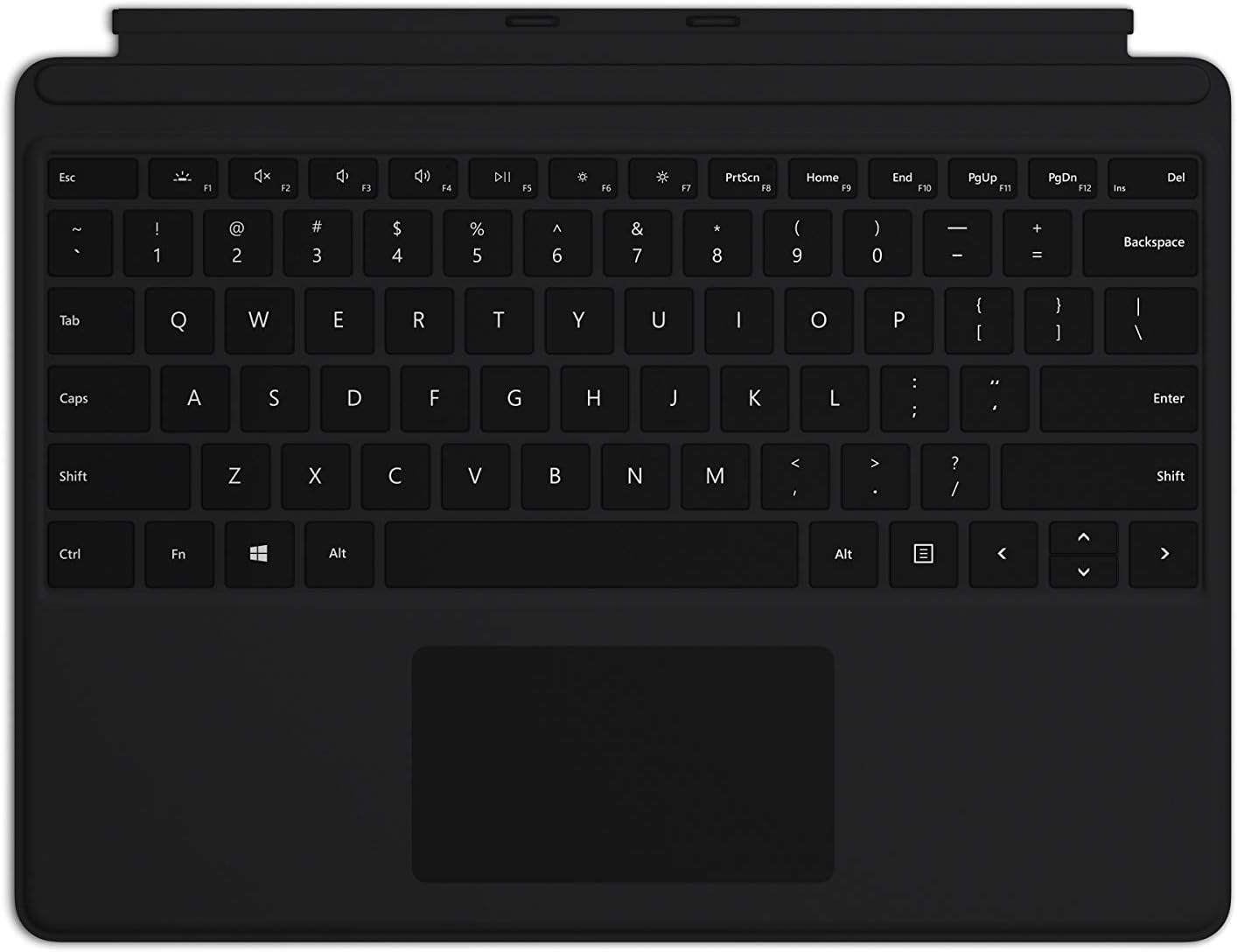
Image: The Microsoft Surface Pro Keyboard in black, showcasing its full QWERTY layout and integrated trackpad.
چمتو کول
د بسته محتويات
- د سرفیس پرو کیبورډ
د کیبورډ سره نښلول
The Microsoft Surface Pro Keyboard connects instantly to your compatible Surface device via magnetic stability. Ensure your Surface Pro X or Surface Pro 8 device is powered on.
- Align the magnetic connector edge of the keyboard with the corresponding port at the bottom edge of your Surface Pro X or Surface Pro 8 device.
- Gently push the keyboard towards the device until it clicks securely into place. The magnetic connection will guide it.
- Once connected, the keyboard will be recognized automatically by your Surface device.
The keyboard is designed to adjust to almost any angle, providing a stable typing experience. It also serves as a protective cover for your screen when closed, helping to conserve battery life.

انځور: له پورته څخه ښکته view of the Microsoft Surface Pro Keyboard, illustrating its compact design and how it integrates with a Surface device.
د کیبورډ چلول
Typing and Navigation
The keyboard features a full mechanical keyset with optimal key spacing for fast and fluid typing. The large trackpad provides precise navigation and control, supporting multi-touch gestures as configured in your Surface device's settings.
د بیک لیټ کیلي
The keys are backlit, allowing for comfortable use in low-light conditions. The backlight intensity can typically be adjusted through your Surface device's display settings or via dedicated function keys (if present on your specific model).
Protective and Power Saving Features
When not in use, fold the keyboard over the screen of your Surface device. This action protects the screen from scratches and helps conserve battery power by putting the device into a low-power state. To use your Surface as a tablet, fold the keyboard completely back behind the device.
ساتنه
پاکول
To maintain the appearance and functionality of your keyboard, clean it regularly:
- د نرم، لینټ پاک ټوکر څخه لږ څه کار واخلئampened with water or a mild cleaning solution (e.g., isopropyl alcohol diluted with water) to wipe the surface of the keys and trackpad.
- په کیبورډ باندې مستقیم مایعات مه سپری کوئ.
- د کیلي ګانو ترمنځ د دوړو او کثافاتو لپاره، فشار شوي هوا وکاروئ.
- Ensure the keyboard is completely dry before reattaching it to your Surface device.
ذخیره کول
When storing the keyboard separately from your Surface device, keep it in a clean, dry environment away from extreme temperatures and direct sunlight.
د ستونزو حل کول
کیبورډ ځواب نه ورکوي
- پیوستون چیک کړئ: Ensure the keyboard is securely attached to your Surface device. Detach and reattach it firmly.
- وسیله بیا پیل کړئ: Restart your Surface Pro X or Surface Pro 8. This can often resolve minor software glitches.
- د تازه معلوماتو لپاره وګورئ: Ensure your Surface device's operating system and drivers are up to date. Go to Windows Update settings.
- په بل وسیله ازموینه: If possible, test the keyboard with another compatible Surface device to determine if the issue is with the keyboard or the device.
Backlight کار نه کوي
- روښانتیا تنظیم کړئ: Try adjusting the backlight brightness using the function keys or through Windows display settings.
- د بریښنا خوندي کولو حالت: Ensure your device is not in a power-saving mode that might disable the backlight.
Trackpad Issues
- پاک ټریک پیډ: Ensure the trackpad surface is clean and free of debris.
- ترتیبات چیک کړئ: Verify trackpad settings in Windows (Settings > Devices > Touchpad).
- د موټر چلوونکي بیا نصبول: In Device Manager, try uninstalling and reinstalling the trackpad driver.
مشخصات
| فیچر | تفصیل |
|---|---|
| برانډ | مایکروسافټ |
| د ماډل شمیره | QJW-00001 |
| مطابقت لرونکې وسیلې | Surface Pro X, Surface Pro 8 |
| د ارتباط ټیکنالوژي | Magnetic (Physical Connection) |
| د کیبورډ توضیحات | Full mechanical keyset, backlit keys, large trackpad |
| رنګ | تور |
| د توکي وزن | 11.8 اونس (نږدې 334.5 ګرامه) |
| د محصول ابعاد (LxWxH) | ۲.۶۴ x ۲.۳۲ x ۲.۷۶ انچه (تقریبا ۶.۷ x ۵.۹ x ۷ سانتي متره) |
| د کلیدونو شمیر | 79 |
| د کیبورډ شاته رڼا کول | واحد رنګ LED |
تضمین او ملاتړ
For warranty information and technical support, please refer to the documentation included with your Surface Pro X or Surface Pro 8 device, or visit the official Microsoft Support website. You can typically find support resources, FAQs, and contact options at ملاتړ. مایکروسافټ. com.
مهرباني وکړئ د تضمین ادعاګانو لپاره د پیرود ثبوت وساتئ.
Ask a question about this manual
Ask about setup, troubleshooting, compatibility, parts, safety, or missing instructions. Manuals+ will review the question and use this page’s manual context to help answer it.