
1. پیژندنه
This manual provides detailed instructions for the setup, operation, maintenance, and troubleshooting of your Sharkoon Light² 200 Gaming Mouse. Please read this manual thoroughly before using the device to ensure optimal performance and longevity.
2. د بسته محتويات
ډاډ ترلاسه کړئ چې ټول توکي په کڅوړه کې شتون لري:
- Sharkoon Light² 200 Gaming Mouse
- Interchangeable Solid Top Cover (7g)
- Set of Replacement PTFE Glide Feet
- د لارښوونې لارښود
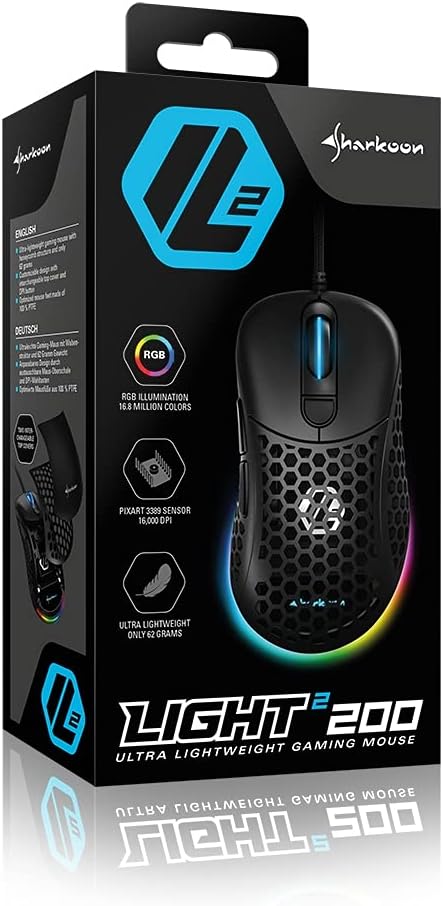
Image: The retail packaging for the Sharkoon Light² 200 Gaming Mouse, showing the mouse and its key features.
3. ترتیب کول
۳.۲ د موږک سره نښلول
- Unpack the Sharkoon Light² 200 Gaming Mouse from its packaging.
- Plug the USB connector of the mouse cable into an available USB port on your computer.
- عملیاتي سیسټم به په اتوماتيک ډول اړین چلوونکي کشف او نصب کړي.

Image: The Sharkoon Light² 200 Gaming Mouse with its USB cable, ready for connection to a computer.
3.2 د سافټویر نصب کول
For full customization and access to all features, download and install the Sharkoon gaming software from the official Sharkoon website. The software allows for DPI adjustments, button programming, and RGB lighting control.
- Visit the official Sharkoon webسایټ
- Navigate to the support or downloads section for the Light² 200 Gaming Mouse.
- Download the latest version of the gaming software.
- د نصبولو بشپړولو لپاره د پردې پر لارښوونو تعقیب کړئ.
۴. د موږک چلول
4.1 اساسي دندې
The Light² 200 features standard mouse buttons and a scroll wheel:
- کیڼ کلیک: د لومړني عمل تڼۍ.
- ښي کلیک: د عمل ثانوي تڼۍ، معمولا د شرایطو مینو لپاره.
- سکرول ویل: For vertical scrolling. Can also be pressed for a middle-click function.
- د غاړې تڼۍ: Two buttons located on the left side, typically for 'forward' and 'back' navigation.
- د DPI تڼۍ: Located behind the scroll wheel, used to cycle through DPI settings.

انځور: اړخ view of the Sharkoon Light² 200 Gaming Mouse, highlighting the two programmable side buttons and the honeycomb structure.
4.2 د DPI تعدیل
The optical PixArt sensor supports up to 16,000 DPI. You can adjust the DPI sensitivity using the dedicated DPI button behind the scroll wheel or through the Sharkoon gaming software. The RGB lighting on the scroll wheel and rear of the mouse indicates the current DPI profile.
4.3 د پروګرام وړ بټن
The Light² 200 features six programmable buttons. Use the Sharkoon gaming software to assign custom functions, macros, or key bindings to these buttons for an optimized gaming experience.
۳.۲ د RGB رڼا تنظیمول
The mouse features adjustable RGB illumination on the scroll wheel and the back end. The gaming software allows you to customize colors, effects, and brightness to match your preferences or gaming setup.
4.5 Modular Design: Changing the Top Cover
The Light² 200 has a modular design, allowing you to change the top surface. The default honeycomb top cover can be replaced with a closed 7-gram alternative for a different feel or aesthetic.
- Gently lift the rear edge of the honeycomb top cover to detach it. It is held by magnets.
- Align the replacement solid top cover with the mouse body and gently press it down until the magnets secure it in place.

Image: The Sharkoon Light² 200 Gaming Mouse with its honeycomb top cover removed, revealing the internal structure and magnetic attachment points.
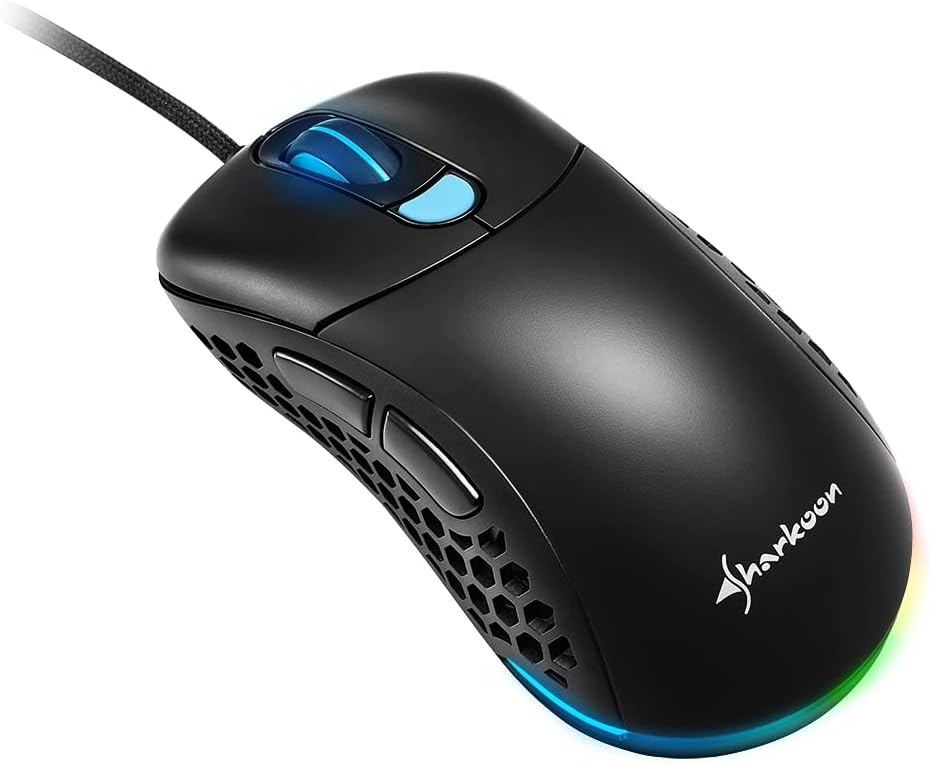
Image: The Sharkoon Light² 200 Gaming Mouse with the alternative solid top cover installed, providing a different aesthetic and feel.
5. ساتنه
۵.۱ د موږک پاکول
د غوره فعالیت ساتلو لپاره، په منظم ډول خپل موږک پاک کړئ:
- موږک له خپل کمپیوټر څخه جلا کړئ.
- د موږک سطحه د پاکولو لپاره نرم، وچ ټوکر وکاروئ.
- د سختې خاورې لپاره، لږ څهampټوکر د اوبو یا نرم پاکولو محلول سره ومینځئ. د سختو کیمیاوي موادو څخه ډډه وکړئ.
- Use compressed air to clear dust from the honeycomb structure and around buttons.
- Clean the optical sensor area with a cotton swab lightly dampد isopropyl الکول سره ختم شوی.
5.2 Replacing PTFE Glide Feet
The PTFE glide feet ensure smooth movement. If they become worn, replace them using the included spare set:
- د یوې پتلې، غیر خړوبونکې وسیلې په کارولو سره د زړو PTFE پښو په احتیاط سره لرې کړئ.
- هغه سطحه پاکه کړئ چیرې چې پښې تړل شوې وې ترڅو ډاډ ترلاسه شي چې هیڅ پاتې شوني پاتې نشي.
- Peel the new PTFE feet from their backing and carefully apply them to the corresponding areas on the mouse's underside.
- د مناسب چپکولو ډاډ ترلاسه کولو لپاره په کلکه فشار ورکړئ.

Image: The underside of the Sharkoon Light² 200 Gaming Mouse, showing the optical sensor, the DPI switch, and the four white PTFE glide feet.
6. ستونزه حل کول
- موږک ځواب نه ورکوي:
- Ensure the USB cable is securely connected to a working USB port.
- Try connecting the mouse to a different USB port or another computer to rule out port or system issues.
- خپل کمپیوټر بیا پیل کړئ. - د DPI ترتیبات نه بدلیږي:
- Ensure the Sharkoon gaming software is installed and running.
- Check if the DPI button is functioning correctly. - د RGB رڼا کار نه کوي یا غلطه ده:
- Verify that the Sharkoon gaming software is installed and that lighting settings are configured correctly.
- Ensure the mouse is properly connected. - Mouse movement is erratic or imprecise:
- Clean the optical sensor on the underside of the mouse.
- Ensure you are using the mouse on a suitable surface (e.g., a mouse pad).
- Check for any physical obstructions around the sensor. - تڼۍ ځواب نه ورکوي:
- Check button assignments in the Sharkoon gaming software.
- Ensure no physical debris is obstructing the button mechanism.
7. مشخصات
| فیچر | تفصیل |
|---|---|
| د ماډل نوم | رڼا² 200 |
| د توکي ماډل شمیره | 4044951029013 |
| د محصول ابعاد | 4.72 x 2.6 x 1.65 انچه (120 x 66 x 42 mm) |
| د توکي وزن | 2.19 اونس (62 ګرامه) |
| د حرکت کشف ټیکنالوژي | Optical (PixArt Sensor) |
| Max DPI | 16,000 DPI |
| د پروګرام وړ تڼۍ | 6 |
| د ارتباط ټیکنالوژي | USB |
| ځانګړی ځانګړنه | RGB LED Lights, Modular Design |
| جوړونکی | شارکون ټیکنالوژي |
8. تضمین او ملاتړ
8.1 د تضمین معلومات
Sharkoon products are covered by a manufacturer's warranty against defects in materials and workmanship. The specific warranty period and terms may vary by region. Please retain your proof of purchase for warranty claims.
8.2 تخنیکي ملاتړ
For technical assistance, driver downloads, or further information, please visit the official Sharkoon webسایټ:
- Webسایټ: www.sharkoon.com
You may also find FAQs and troubleshooting guides on their support pages.