
1. پیژندنه
Thank you for choosing the iClever GK08 Wireless Keyboard and Mouse Combo. This full-size keyboard with a numeric keypad and a silent mouse offers a stable 2.4 GHz connection, USB-C recharging, and dual-layout compatibility for Mac and Windows systems. This manual provides detailed instructions to help you set up, operate, and maintain your new device.
2. د خوندیتوب معلومات
- وسیله د اوبو، اور او لوړې تودوخې څخه لرې وساتئ.
- د وسیلې د جلا کولو یا ترمیم کولو هڅه مه کوئ.
- د چارج کولو لپاره یوازې چمتو شوي USB-C کیبل وکاروئ.
- د قوي تاثیراتو سره د وسیله له مینځه وړلو یا تابع کولو څخه ډډه وکړئ.
- د بیټرۍ او الکترونیکي اجزاو د ځایی مقرراتو سره سم په مسؤلیت سره تصفیه کړئ.
3. د تنظیم کولو لارښود
3.1 د بسته محتويات
- د iClever GK08 بې سیم کیبورډ
- iClever Wireless Mouse
- USB-A Nano Receiver (stored inside the mouse)
- د USB-C چارج کیبل
- Washable Dust Cover
- د کارن لارښود
3.2 ابتدايي چارج کول
Before first use, ensure both the keyboard and mouse are fully charged.
- Connect the provided USB-C charging cable to the keyboard's USB-C port (located on the top edge).
- د کیبل بل پای د USB بریښنا سرچینې سره وصل کړئ (د مثال په توګه، د کمپیوټر USB پورټ، د USB دیوال اډاپټر).
- په کیبورډ کې د چارج کولو شاخص څراغ به د چارج کولو پرمهال روښانه شي او کله چې په بشپړ ډول چارج شي نو بند شي.
- For the mouse, connect the USB-C cable to its charging port. The mouse also has an indicator light.
- A full charge takes approximately 2 hours and provides up to 45 days of use for the keyboard.
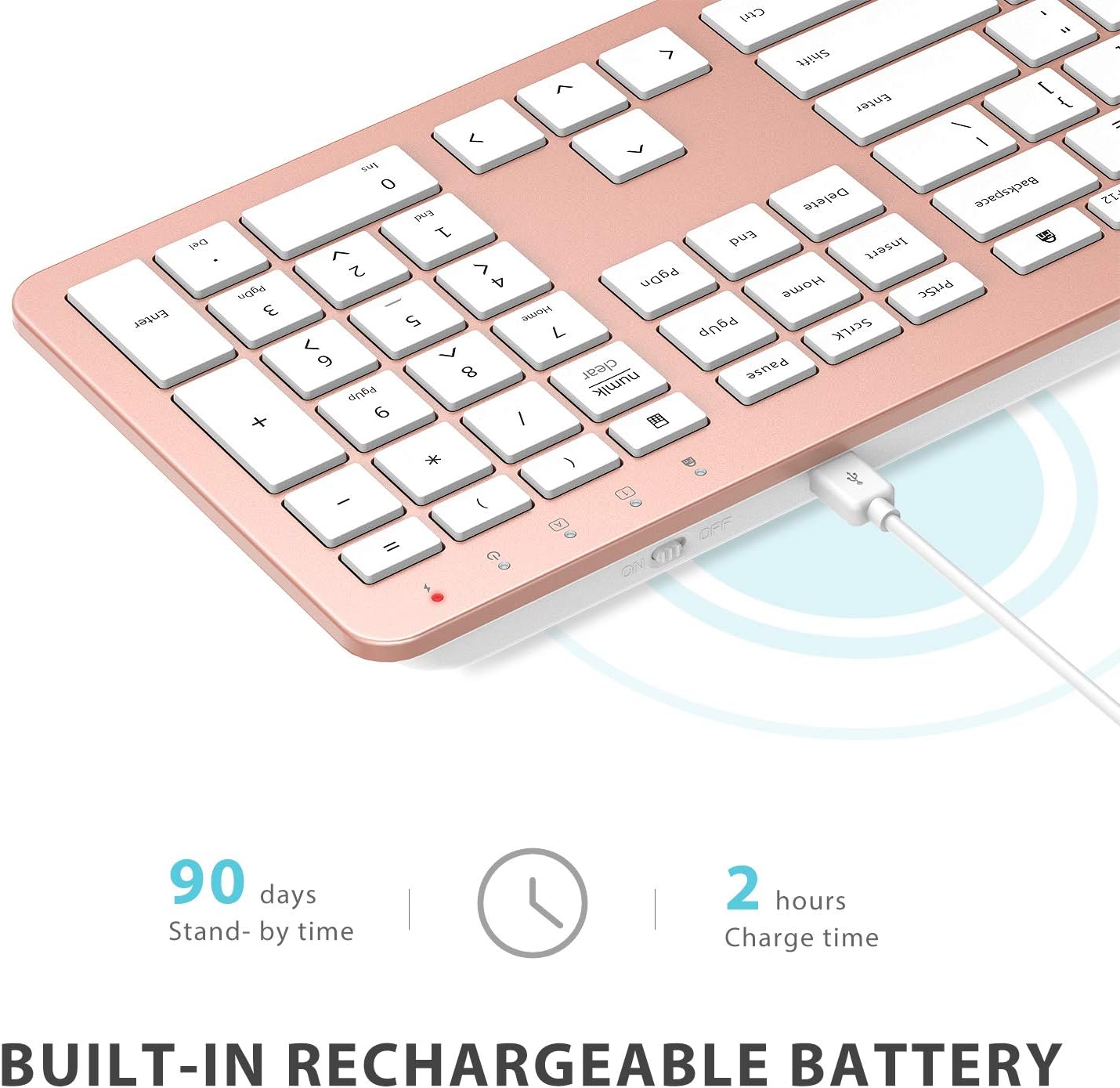
Image: The iClever GK08 keyboard connected to a USB-C charging cable, illustrating the charging process and battery life indicators.
3.3 Connecting to Your Computer (2.4 GHz Wireless)
The keyboard and mouse connect via a single 2.4 GHz USB-A nano receiver.
- Locate the USB-A nano receiver. It is typically stored in a compartment on the underside of the mouse.
- Plug the nano receiver into an available USB-A port on your computer.
- Turn on the keyboard using the ON/OFF switch (usually on the top edge).
- Turn on the mouse using the ON/OFF switch (located on the underside).
- Your computer should automatically detect and install the necessary drivers. The devices are ready for use once recognized.
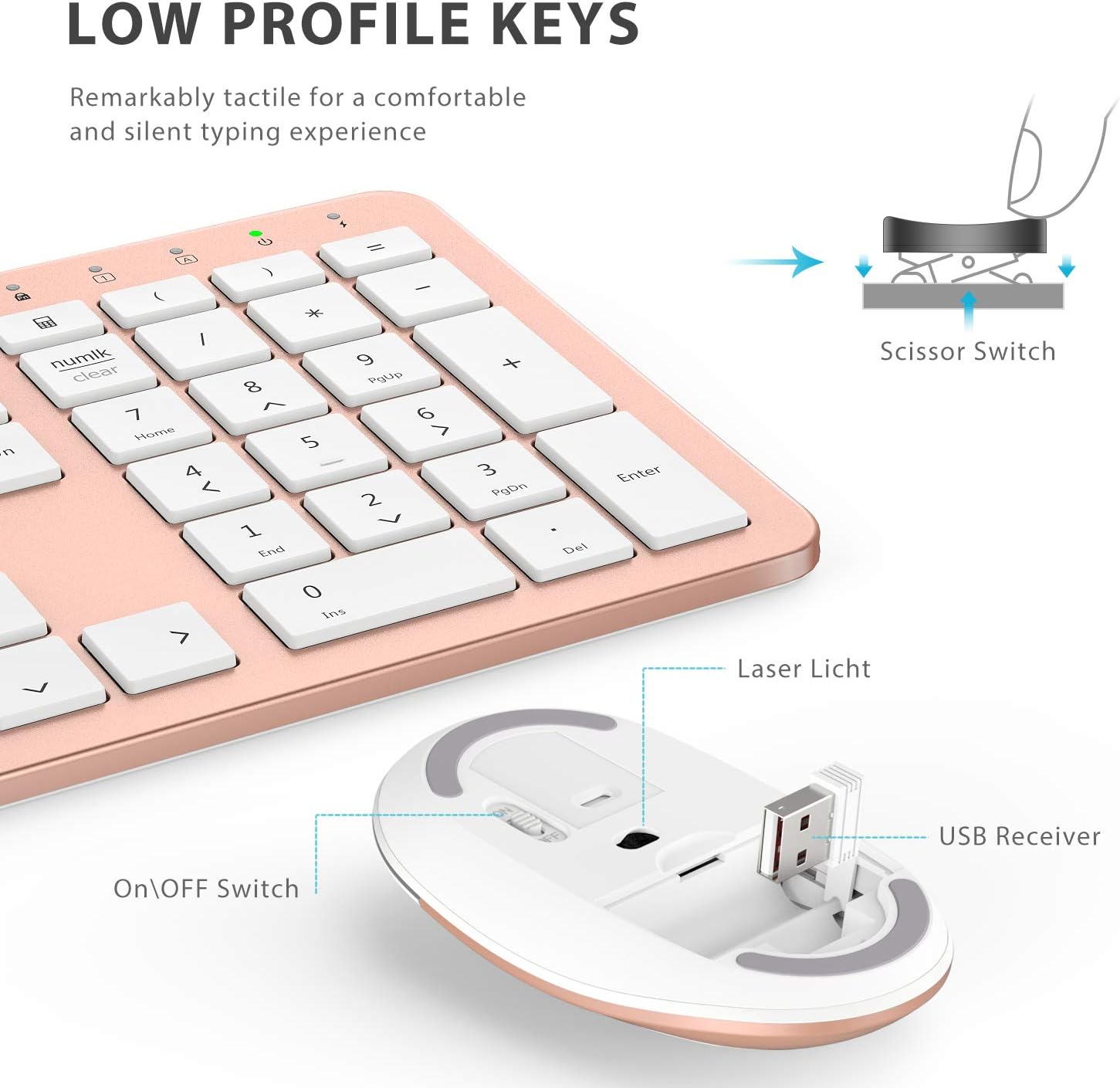
انځور: نږدې انځور view of the iClever mouse, highlighting the compartment where the USB nano receiver is stored for convenience.
۱.۱ د مطابقت چک
This combo requires an available USB-A port for the nano receiver. For newer Macs with only USB-C ports, a USB-C to USB-A adapter (not included) is required. It is compatible with:
- Windows 10/11 PC & laptop
- macOS desktops / notebooks with USB-A port (e.g., iMac Retina 4K/5K, MacBook Air/Pro ≤ 2017)
- کروم OS

Image: A visual representation emphasizing the requirement of a USB-A port for the 2.4G wireless receiver, with a note about USB-C adapters for newer devices.
4. عملیاتي لارښوونې
4.1 د کیبورډ دندې
- د بشپړې اندازې ترتیب: The keyboard features a 110-key layout with a dedicated numeric keypad for efficient data entry.
- Quiet Scissor-Switch Keys: Enjoy a comfortable and quiet typing experience with low-profile keys that produce less than 50 dB of sound.
- Media Shortcuts: Access common media functions directly from the keyboard.
- Dual-Layout Compatibility: The keyboard has clearly printed Mac and PC legends.
Switching Between Mac and Windows Layouts:
- لپاره وینډوز: پریس Fn + W to activate Win, Alt, NumLK functions.
- لپاره Mac OS: پریس Fn + Q to activate Alt (Option), Cmd, Clear functions.

Image: The iClever GK08 keyboard displaying the dual Mac and Windows key legends, with instructions for switching between operating system layouts using the Fn key combinations.
۴.۳ د موږک دندې
- خاموش کلیک: The mouse is designed for quiet operation, minimizing distractions.
- د تنظیم وړ DPI: The mouse features 3 adjustable DPI levels (800/1200/1600) to customize cursor sensitivity. Press the DPI button (usually located near the scroll wheel) to cycle through the settings.

Image: A visual demonstrating the quiet operation of the iClever mouse and the three adjustable DPI settings (800, 1200, 1600) for varied precision needs.
۵.۲ د اتومات خوب ځانګړتیا
To conserve battery life, both the keyboard and mouse will enter an auto-sleep mode after 10 minutes of inactivity. To wake them up, simply press any key on the keyboard or move the mouse.
Video: A seller-provided video demonstrating the plug-and-play functionality and long battery life of the iClever Wireless Keyboard and Mouse. This video highlights the ease of setup and extended usage between charges.
5. ساتنه
- پاکول: یو نرم استعمال کړئ، دamp cloth to clean the surfaces of the keyboard and mouse. Avoid harsh chemicals.
- د دوړو پوښ: Utilize the included washable dust cover to protect the keyboard from dust and spills when not in use.
- ذخیره کول: When not in use for extended periods, turn off both devices to conserve battery. Store the USB receiver inside the mouse.
6. ستونزه حل کول
- هیڅ اړیکه:
- Ensure both keyboard and mouse are turned ON.
- Verify the USB nano receiver is securely plugged into a working USB-A port on your computer.
- هڅه وکړئ چې ریسیور په بل USB-A پورټ کې ولګوئ.
- Check if the devices are charged.
- ځنډ یا وقفه ای اړیکه:
- Ensure the devices are within the 33 ft / 10 m operating range of the receiver.
- Avoid placing the receiver near strong interference sources (e.g., other wireless devices, large metal objects).
- Re-pair the devices by unplugging and re-plugging the receiver.
- Keyboard Not Typing Correctly (Mac/Windows):
- Ensure you have selected the correct operating system layout using Fn + W د وینډوز لپاره یا Fn + Q د ماک لپاره.
- د موږک کرسر ټوپ وهي یا ناسم دی:
- د موږک د DPI تڼۍ په کارولو سره د DPI ترتیب تنظیم کړئ.
- Ensure the mouse sensor is clean and free from obstructions.
- موږک په مناسب سطحه وکاروئ (نه ډیر انعکاس کوونکی او نه شفاف).
7. مشخصات
| فیچر | تفصیل |
|---|---|
| برانډ | iClever |
| د ماډل شمیره | GK08 |
| رنګ | د سرو زرو ګلاب |
| د ارتباط ټیکنالوژي | 2.4 GHz wireless (USB-A nano receiver) |
| د بیسیم رینج | تر 33 فوټ / 10 متر پورې |
| د کیبورډ ترتیب | QWERTY, Full-size 110-key with Numpad |
| کلیدي ډول | Scissor Switch (Quiet typing < 50 dB) |
| د بریښنا سرچینه | Rechargeable Lithium Ion Battery (Keyboard) |
| د چارج کولو بندر | USB-C |
| د چارج کولو وخت | نږدې 2 ساعته |
| د بیټرۍ ژوند (کی بورډ) | تر ۲۱ ورځو پورې (معمولي استعمال) |
| د موږک DPI ترتیبات | 800 / 1200 / 1600 DPI |
| مطابقت لرونکي عملیاتي سیسټمونه | Windows 8/10/11, macOS, Chrome OS |
| ځانګړي ځانګړتیاوې | Dual Mac/Windows layout, 10-min auto-sleep, Washable dust cover |
8. تضمین او ملاتړ
iClever products typically come with a standard manufacturer's warranty. Please refer to the warranty card included in your product packaging or visit the official iClever webد تضمین د تفصيلي شرایطو او مقرراتو لپاره سایټ.
د تخنیکي ملاتړ، د ستونزو حل کولو مرستې، یا د محصول پورې اړوند هر ډول پوښتنو لپاره، مهرباني وکړئ د iClever پیرودونکي خدماتو سره د دوی د رسمي له لارې اړیکه ونیسئ. webسایټ یا ستاسو د محصول اسنادو کې چمتو شوي د اړیکو معلومات.
آنلاین ملاتړ: www.iclever.com/support