
پیژندنه
The Lenovo ThinkVision M14t is a 14-inch Full-HD mobile monitor designed to enhance productivity and flexibility. Featuring a 10-point touch functionality and an active pen, it offers an intuitive interface for various tasks. Its slim and lightweight design makes it ideal for on-the-go use, providing an additional display for compatible USB-C devices, including Lenovo Think family laptops and smartphones. The monitor incorporates TÜV Rheinland Low Blue Light technology to minimize eye strain during extended use.
په بکس کې څه دي
Upon unpacking your ThinkVision M14t monitor, please verify that all components are present:
- 1 x ThinkVision M14t Monitor
- 1 x USB Type-C to Type-C cable (1.0m)
- 1 x Active Pen with battery
- 1 x Quick setup guide
- 1 x Customized sleeve for protection
- 1 x L-shaped dongle for vertical deployment and cable management
د تنظیم کولو لارښوونې
Follow these steps to set up your ThinkVision M14t mobile monitor:
1. Unfold the Stand
Gently unfold the integrated stand at the base of the monitor. The stand allows for adjustable tilt and lift to achieve an optimal viewزاویه.

Image: The ThinkVision M14t monitor with its integrated stand extended, ready for use.
۴. له یوې وسیلې سره وصل شئ
The M14t features two USB 3.2 Type-C ports. Use the provided USB Type-C to Type-C cable to connect the monitor to a compatible device (laptop, smartphone, etc.). The monitor supports power pass-through, allowing you to charge your connected device through the monitor if a power adapter is connected to the monitor's second USB-C port.
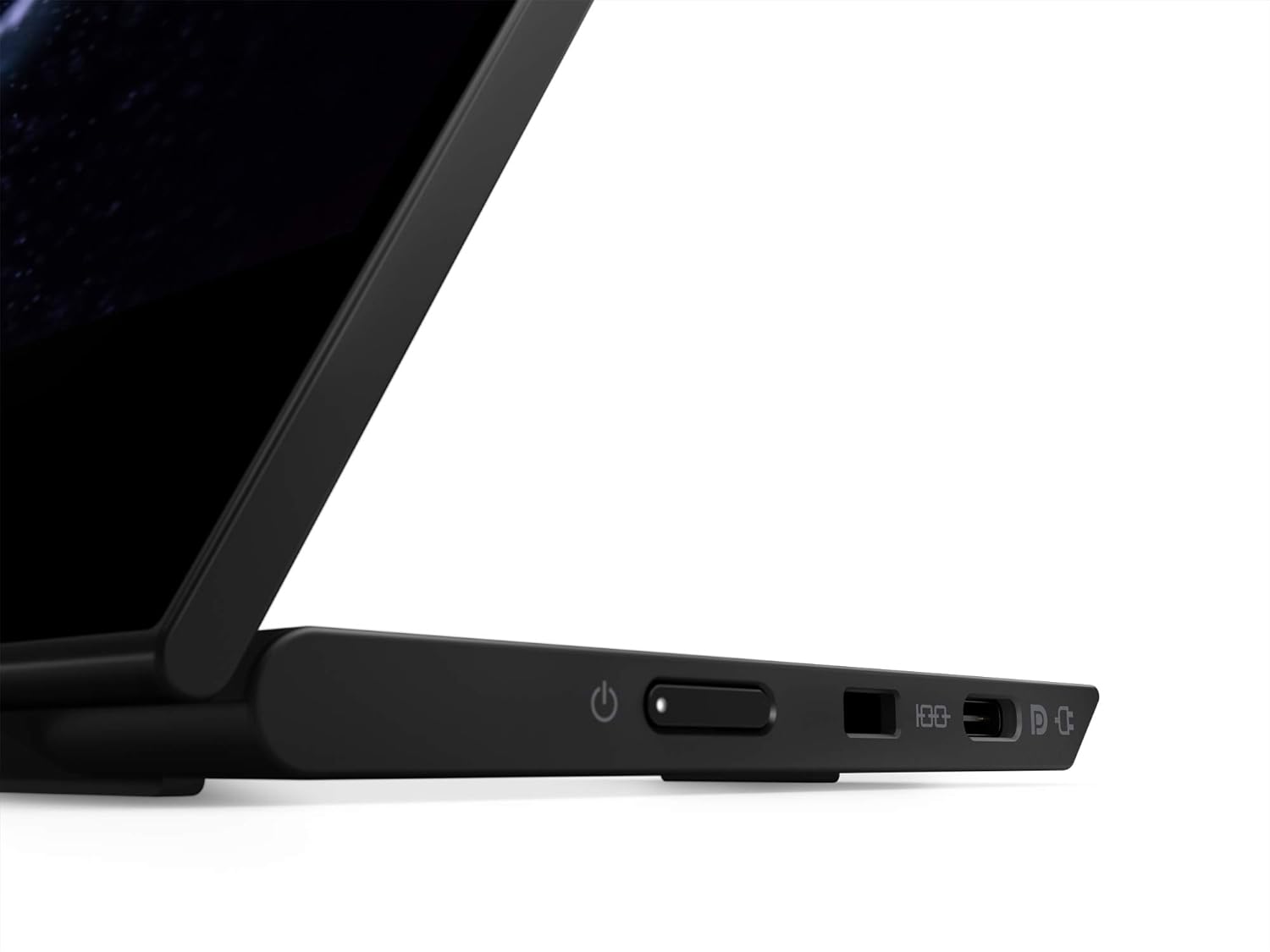
Image: Detail of the monitor's left side, highlighting the USB-C ports and power button.

Image: The ThinkVision M14t connected to a laptop, extending the display.

Image: The ThinkVision M14t connected to a smartphone, displaying content in portrait orientation.
3. بریښنا فعاله کړئ
Press the power button located on the side of the monitor to turn it on. The monitor should automatically detect the input from your connected device.

Image: Detail of the monitor's right side, showing control buttons for brightness and menu navigation.
عملیاتي لارښوونې
د ټچ سکرین فعالیت
The ThinkVision M14t supports 10-point touch input, allowing for intuitive interaction with your content. Simply use your fingers to navigate, select, zoom, and interact with applications on the screen. Ensure your connected device supports touch input for external displays.
Using the Active Pen
The included active pen provides precise input for drawing, writing, and annotating. It is pressure-sensitive, offering a natural writing experience. The pen requires an AAAA battery (included). To use, simply touch the pen tip to the screen. For optimal performance, ensure the pen battery is charged.

Image: The active pen being used on the ThinkVision M14t monitor for annotations.
د ښودلو ترتیبات
Adjust brightness and other display settings using the buttons on the side of the monitor. The M14t features TÜV Rheinland Low Blue Light certification, which helps reduce eye strain during prolonged use. This feature is typically enabled by default or can be adjusted through the monitor's on-screen display (OSD) menu.
ساتنه
To ensure the longevity and optimal performance of your ThinkVision M14t monitor, follow these maintenance guidelines:
- د سکرین پاکول: د نرم، لینټ پاک ټوکر څخه په روښانه توګه کار واخلئampد اوبو یا غیر خړوبونکي سکرین کلینر سره مینځل شوی. د سختو کیمیاوي موادو یا خړوبونکي موادو څخه ډډه وکړئ چې کولی شي د سکرین سطح ته زیان ورسوي.
- د سي پاکولasing: مانیټر پاک کړئ جasing د نرم، وچ ټوکر سره.
- ذخیره کول: When not in use or during transport, store the monitor in its customized sleeve to protect it from scratches and impacts.
- د چاپیریال شرایط: د مانیټر د سختې تودوخې، لوړې رطوبت، یا مستقیم لمر وړانګو سره د مخ کیدو څخه ډډه وکړئ.
د ستونزو حل کول
If you encounter issues with your ThinkVision M14t monitor, refer to the following common problems and solutions:
| ستونزه | احتمالي حل |
|---|---|
| Monitor does not power on or display an image. |
|
| Touchscreen or Active Pen is not responsive. |
|
| Display is dim or colors appear incorrect. |
|
| Monitor disconnects intermittently. |
|
مشخصات
| برانډ | Lenovo |
| د ماډل شمیره | 62A3UAR1WW |
| د سکرین اندازه | ۷۸۷ انچه |
| قرارداد | د FHD ۱۰۸۰p (۱۹۲۰x۱۰۸۰) |
| د اړخ نسبت | 16:9 |
| د ښودلو ډول | IPS |
| د تازه کولو نرخ | 60 Hz |
| د غبرګون وخت | 6 ملی ثانیه |
| روښانتیا | 300 cd/m² |
| د تناسب تناسب | 700:1 |
| Viewزاویه | 178 درجې |
| ارتباط | 2 x USB 3.2 ډول-C |
| اضافي ځانګړتیاوې | Touchscreen, Active Pen Support, Low Blue Light |
| د بریښنا مصرف | 9 واټ |
| د توکي وزن | 698 ګرامه |
| د توکي ابعاد (D x W x H) | ۱۶"د x ۲۶"وچ x ۴۷"ح |
تضمین او ملاتړ
The Lenovo ThinkVision M14t monitor comes with a د تولید کونکي 3 کلن تضمین. This warranty typically covers basic under-warranty troubleshooting and repairs. For dedicated technical assistance and end-to-end case management, Premier Support benefits may be available.
For further support, please visit the official Lenovo support webسایټ یا د دوی پیرودونکي خدمت سره اړیکه ونیسئ.
تنظیمي معلومات
This section provides important regulatory and environmental information for your ThinkVision M14t monitor.
د EU انرژي لیبل
The EU Energy Label provides information on the energy efficiency of the product.

Image: EU Energy Label for the Lenovo ThinkVision M14t monitor.
For more details, you can access the product information sheet online: https://eprel.ec.europa.eu/qr/363233
Product Information Sheet (Spanish)
A detailed product information sheet, including technical specifications and regulatory compliance, is available in Spanish.

Image: Product Information Sheet for the Lenovo ThinkVision M14t monitor (Spanish).