
پیژندنه
This manual provides comprehensive instructions for the Attoe Bluetooth Wireless Mouse, Model XYH20. This device offers versatile connectivity options, customizable RGB lighting, and an ergonomic design for extended use. Please read this manual thoroughly to ensure proper setup and operation of your new mouse.
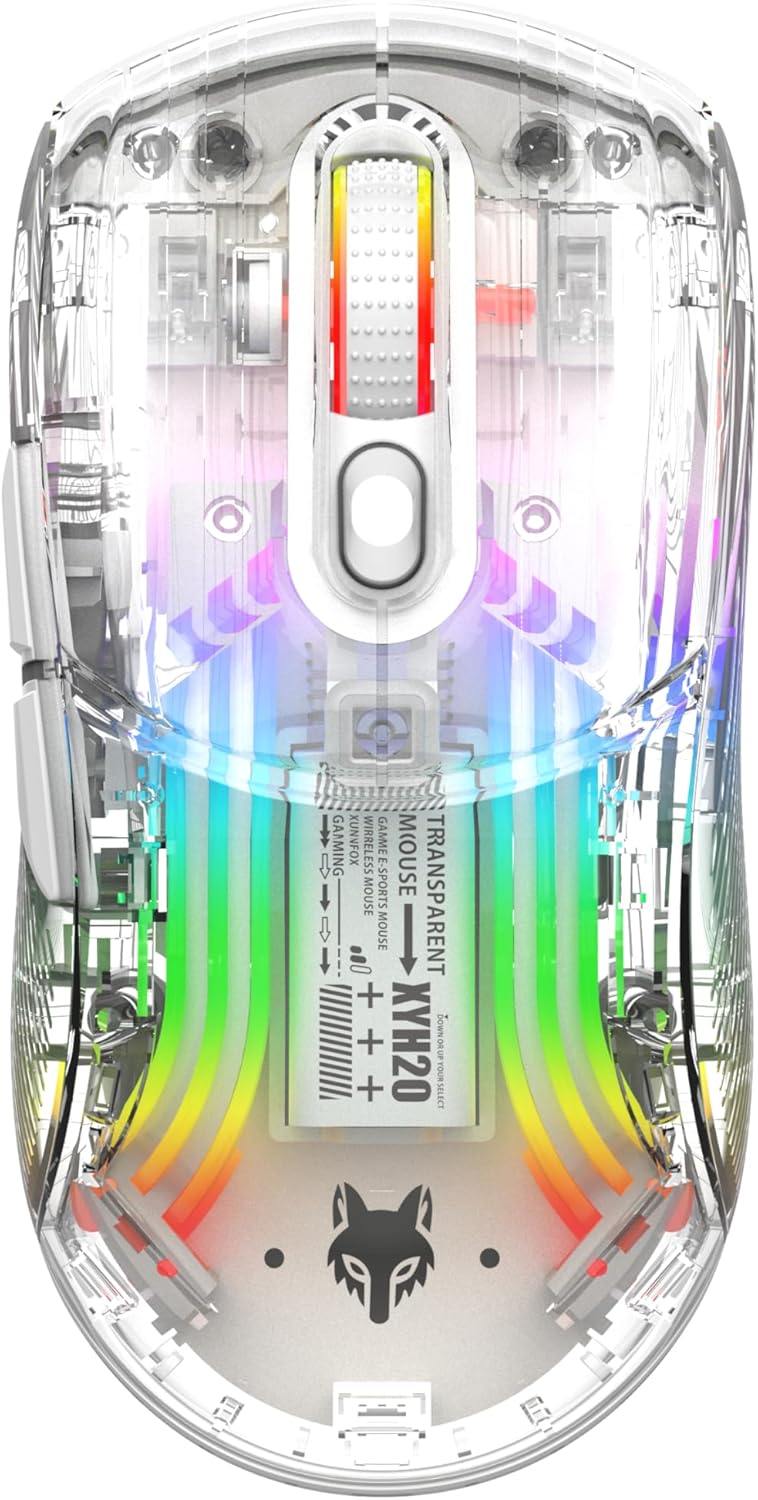
انځور: پورته view of the Attoe Bluetooth Wireless Mouse, showcasing its transparent casing and vibrant internal RGB lighting.
د محصول ځانګړتیاوې
- شفاف شیل ډیزاین: Unique transparent casing with internal components visible.
- دوه ګونی حالت اتصال: Supports 2.4GHz wireless via USB receiver and Bluetooth connection.
- د RGB شاته رڼا: Multiple adjustable RGB lighting effects.
- ارګونومیک ډیزاین: Shaped for comfortable grip during prolonged use.
- Quiet Click Buttons: Designed for silent operation.
- د تنظیم وړ DPI: 5-speed DPI settings (800-1200-1600-2000-2400) for precise control.
- د چارج وړ بیټرۍ: Built-in 500mAh large capacity rechargeable battery with Type-C charging.
- پراخه مطابقت: Compatible with Windows 7/8/10/XP, Vista 7/8, Linux, and Mac OS. (Note: Two left side buttons are not available in Mac OS).
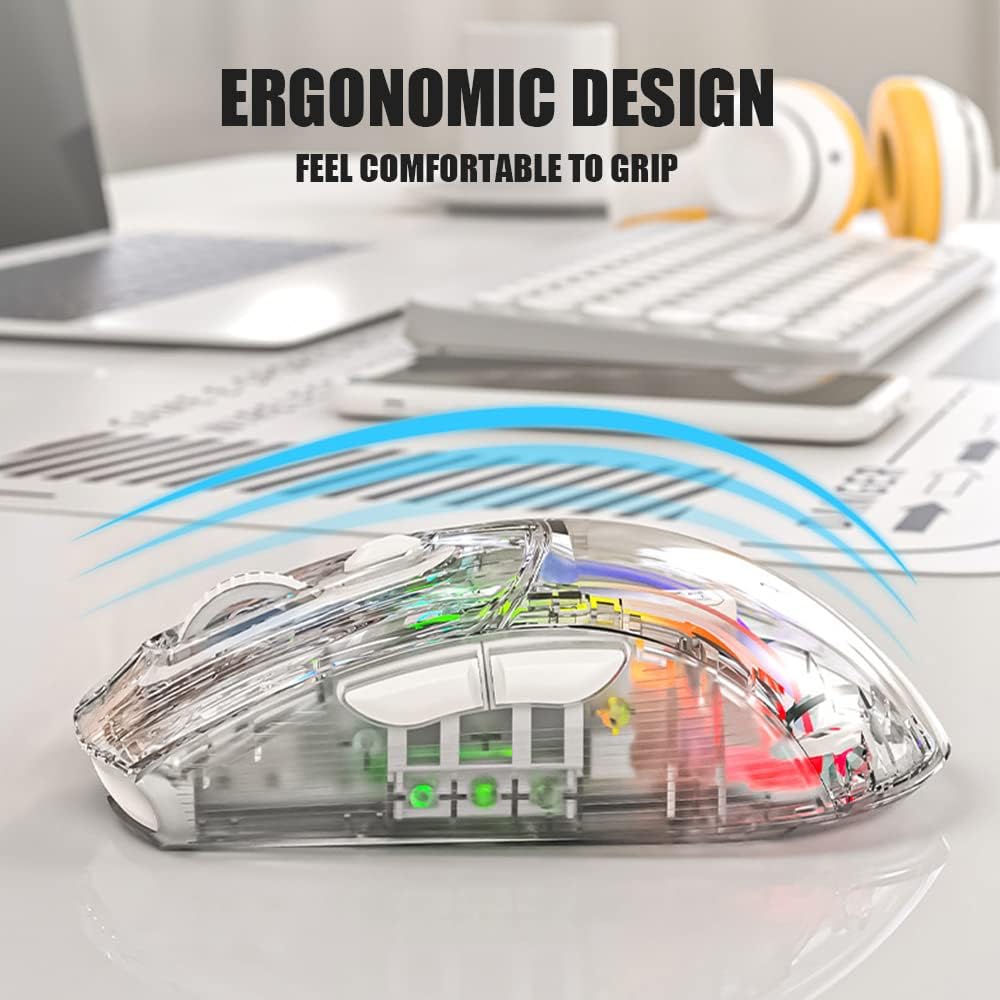
انځور: اړخ view of the Attoe Bluetooth Wireless Mouse, illustrating its ergonomic contour for comfortable handling.
په بکس کې څه دي
- Attoe Bluetooth Wireless Gaming Mouse
- د USB ډول - سي چارج کیبل
- د کارونکي لارښود (دا لاسوند)
چمتو کول
The Attoe Bluetooth Wireless Mouse offers three connection modes: 2.4GHz wireless, Bluetooth, and wired via USB-C cable.
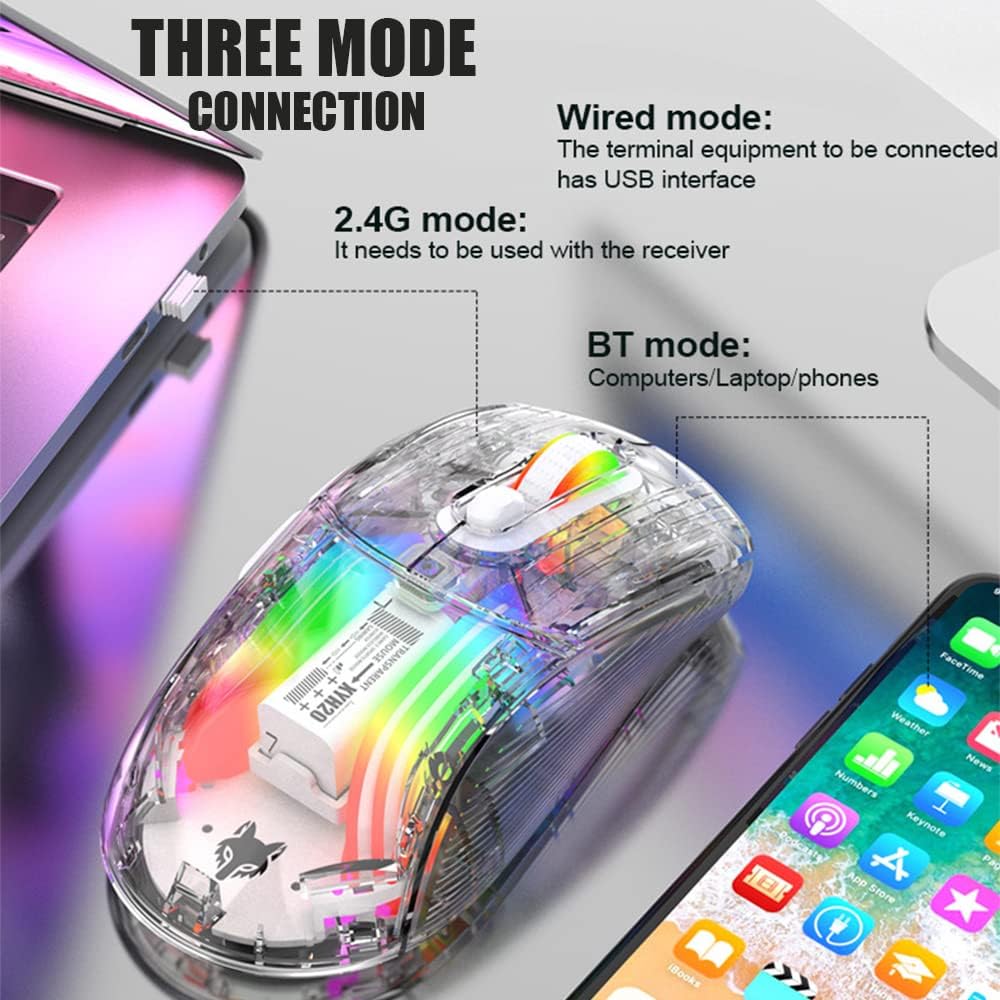
Image: Diagram illustrating the three connection modes: 2.4G wireless, Bluetooth, and wired USB, with exampد وسایلو شمیر.
2.4GHz بې سیم پیوستون
- Locate the USB receiver stored in the bottom compartment of the mouse.
- د USB ریسیور په خپل کمپیوټر کې موجود USB پورټ کې ولګوئ.
- Set the mode switch on the bottom of the mouse to the 2.4G position.
- موږک باید په اتوماتيک ډول وصل شي.
بلوتوث پیوستون
- Set the mode switch on the bottom of the mouse to the Bluetooth position.
- Long press the Left, Middle (scroll wheel), and Right buttons simultaneously for 4 seconds to enter pairing mode. The mouse's indicator light will flash.
- په خپل کمپیوټر یا وسیله کې، د بلوتوټ ترتیبات خلاص کړئ او د نویو وسایلو لټون وکړئ.
- Select "Attoe Mouse" (or similar name) from the list of available devices to pair.
- یوځل چې جوړه شي، د شاخص څراغ به ځلیدل ودروي.
د بریښنا پيوستون
You can also use the mouse in wired mode while charging or as an alternative connection. Simply connect the provided USB Type-C cable from the mouse to a USB port on your computer.
عملیاتي لارښوونې

Image: Detailed diagram of the Attoe mouse, labeling its buttons, receiver storage, charging port, and switches.
د تڼۍ دندې
- کیڼ تڼۍ (۱): معیاري کیڼ کلیک فعالیت.
- ښي تڼۍ (2): د ښي کلیک کولو معیاري فعالیت.
- Scroll Button (3): Scroll wheel for vertical navigation; also functions as a middle-click button.
- د DPI تڼۍ (4): د DPI ترتیباتو له لارې تیریږي.
- د مخته تګ تڼۍ (۴): مخ په وړاندې ځي web براوزرونه یا file سپړونکي
- Back Button (6): شاته نیویګیټ کوي web براوزرونه یا file سپړونکي
د DPI تعدیل
The mouse features 5 adjustable DPI (Dots Per Inch) settings to control cursor sensitivity and speed. Press the DPI Button (4) located below the scroll wheel to cycle through the following settings:
- 800 DPI
- 1200 DPI
- 1600 DPI
- 2000 DPI
- 2400 DPI

Image: The Attoe mouse highlighting the DPI button and its 5-speed adjustment range from 800 to 2400.
د RGB رingا کنټرول
The mouse features various RGB lighting effects. To adjust or turn off the lighting, use the Light Switch (10) located on the bottom of the mouse.

Image: The Attoe mouse displaying its vibrant RGB lighting effects, with an inset showing the location of the light switch on the shell bottom.
Quiet Click Feature
The mouse is designed with mute buttons, providing a quiet clicking experience suitable for environments where noise reduction is desired.

Image: The Attoe mouse with an overlay indicating its quiet click functionality, designed not to disturb others.
چارج او بیټرۍ
The Attoe Bluetooth Wireless Mouse is equipped with a 500mAh rechargeable battery. Use the provided USB Type-C cable to charge the mouse.
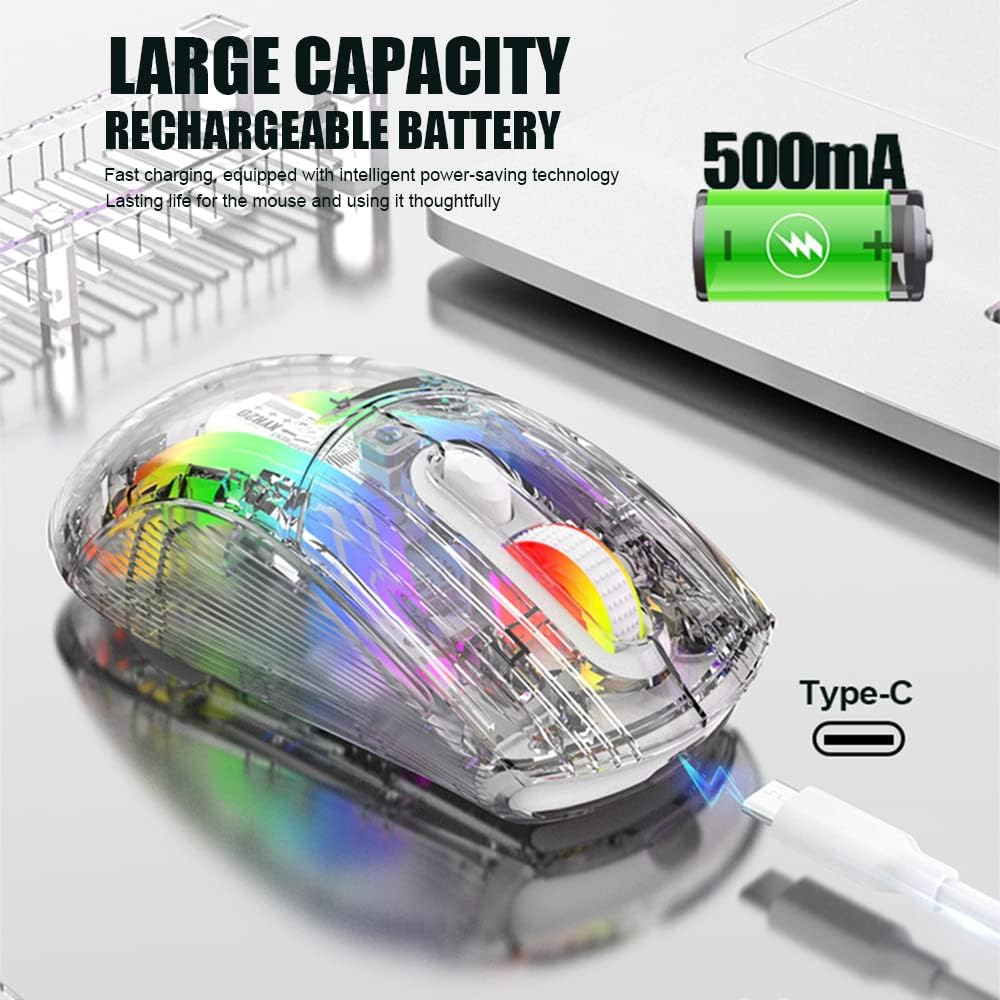
Image: The Attoe mouse connected via a Type-C cable for charging, with an icon indicating its 500mAh rechargeable battery capacity.
- Connect the Type-C end of the charging cable to the Charging Port (11) on the front of the mouse.
- د چارج کولو کیبل د USB-A پای د USB بریښنا سرچینې سره وصل کړئ (د مثال په توګه، د کمپیوټر USB پورټ، د USB دیوال اډاپټر).
- The mouse can be used while charging in wired mode.
ساتنه
To ensure the longevity and optimal performance of your Attoe Bluetooth Wireless Mouse, follow these maintenance guidelines:
- پاکول: د موږک سطحه د پاکولو لپاره نرم، وچ ټوکر وکاروئ. د سختې خاورې لپاره، لږ څهampټوکر د اوبو یا نرم پاکولو محلول سره ومینځئ. د سختو کیمیاوي موادو یا خړوبونکو موادو څخه ډډه وکړئ.
- د سینسر پاملرنه: د موږک په ښکته برخه کې نظري سینسر پاک او د دوړو یا کثافاتو څخه پاک وساتئ ترڅو دقیق تعقیب ډاډمن شي.
- ذخیره کول: کله چې د اوږدې مودې لپاره نه کارول کیږي، موږک په یخ او وچ ځای کې وساتئ.
- د بیټرۍ پاملرنه: Avoid fully discharging the battery frequently. Charge the mouse when the battery level is low.
د ستونزو حل کول
| ستونزه | احتمالي لامل | د حل لاره |
|---|---|---|
| Mouse not connecting (2.4GHz) | USB receiver not properly inserted; mouse not in 2.4G mode; low battery. | Ensure receiver is fully inserted. Set mode switch to 2.4G. Charge the mouse. Try a different USB port. |
| موږک نه نښلي (بلوتوث) | Mouse not in pairing mode; Bluetooth disabled on device; low battery; device incompatibility. | Set mode switch to Bluetooth. Long press Left/Middle/Right buttons for 4s to enter pairing. Ensure device Bluetooth is on. Charge the mouse. Check device compatibility (Mac OS side buttons not supported). |
| د RGB څراغونه کار نه کوي | Lights turned off; low battery. | Press the Light Switch on the bottom of the mouse to cycle through modes or turn on. Charge the mouse. |
| د کرسر حرکت بې نظمه یا غیر ځواب ویونکی دی | ناپاک نظري سینسر؛ نامناسب سطح؛ ټیټ بیټرۍ. | Clean the optical sensor. Use a mouse pad or a smooth, non-reflective surface. Charge the mouse. |
| Side buttons not working on Mac OS | د عملیاتي سیسټم محدودیت. | This is a known limitation; the two left side buttons are not available in Mac OS. |
مشخصات
| فیچر | تفصیل |
|---|---|
| ماډل | XYH20 |
| د محصول ابعاد | 4.8 x 2.8 x 0.04 انچه (12.6 x 6.2 x 3.85 سانتي متره) |
| د توکي وزن | 3.52 اونس (110 ګرامه) |
| د ارتباط ټیکنالوژي | Bluetooth, 2.4GHz Wireless, Wired (USB Type-C) |
| د حرکت کشف ټیکنالوژي | نظري |
| د DPI تنظیمات | ۱، ۲، ۵، ۶، ۸ |
| ځانګړي ځانګړتیاوې | Ergonomic Design, LED Lights (RGB), Portable, Rechargeable, Soundless (Quiet Click), Wireless |
| د بیټرۍ ظرفیت | 500mAh |
| د چارج کولو بندر | د USB ډول-C |
| مطابقت | Windows 7/8/10/XP, Vista 7/8, Linux, Mac OS (Note: Left side buttons not available in Mac OS) |
تضمین او ملاتړ
Attoe products are designed for reliability and performance. For any issues or questions regarding your Attoe Bluetooth Wireless Mouse, please contact our customer support. We are committed to providing assistance and ensuring your satisfaction.
Please refer to your purchase documentation for specific warranty details. If you encounter problems, you can contact us at any time; we provide 24-hour after-sales service.