
1. پیژندنه
Thank you for choosing the IMICE X6 Wired USB Gaming Mouse. This manual provides essential information for setting up, operating, and maintaining your new gaming mouse. Please read it carefully to ensure optimal performance and longevity of your device.
2. د خوندیتوب معلومات
- وسیله د مایعاتو او ډیر رطوبت څخه لرې وساتئ.
- د سخت تودوخې څخه ډډه وکړئ.
- د موږک د جلا کولو یا بدلولو هڅه مه کوئ. دا ممکن ستاسو تضمین باطل کړي او زیان ورسوي.
- د پاکولو لپاره نرم، وچ ټوکر وکاروئ.
3. د بسته محتويات
کڅوړه باید لاندې توکي ولري:
- IMICE X6 Wired USB Gaming Mouse
- د کارونکي لارښود (دا لاسوند)
4. محصول ختم شوview
The IMICE X6 gaming mouse features an ergonomic design with multiple programmable buttons and adjustable DPI settings for a customized gaming experience.
4.1 Button Functions and Working Modes
The mouse supports two working modes: Normal mode and Multimedia mode. You can switch between these modes by long-pressing the DPI button for more than 5 seconds.
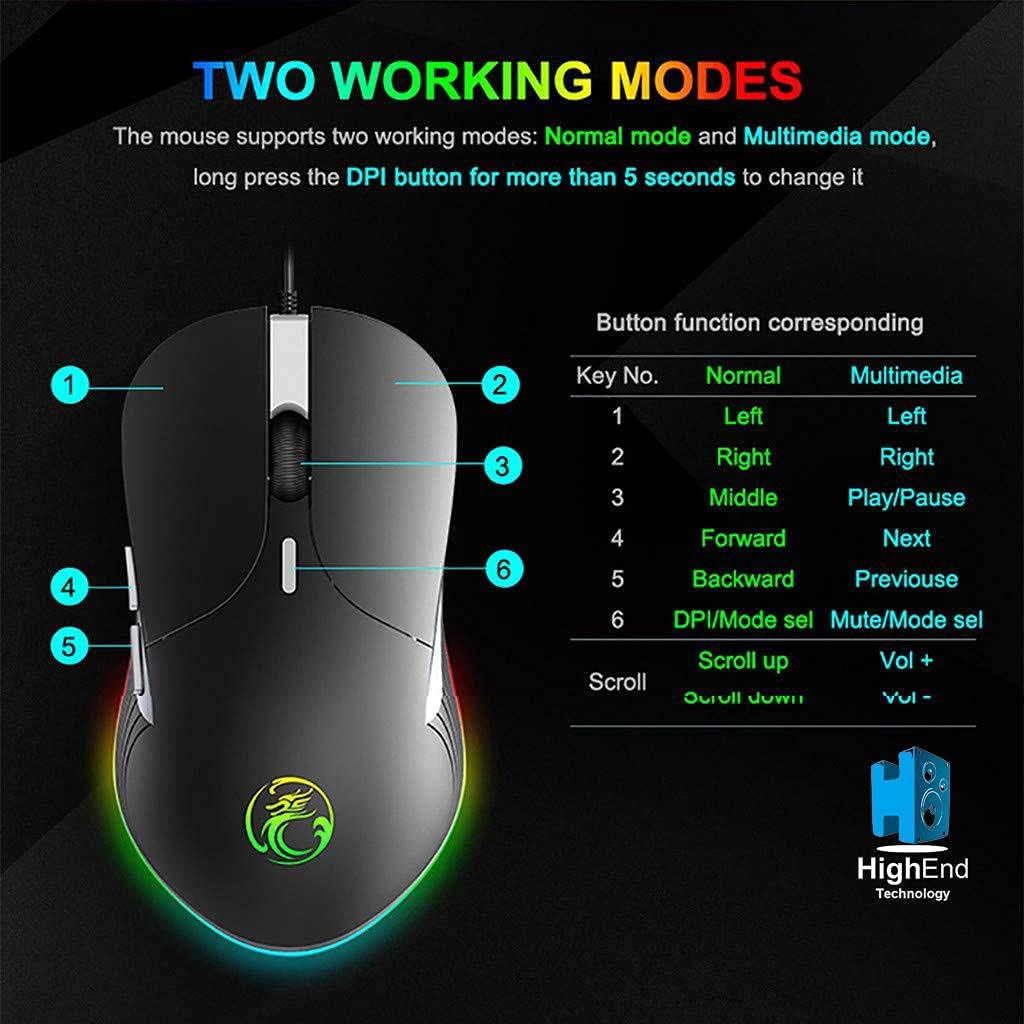
انځور 4.1: Button layout and function table for IMICE X6 mouse. The image displays the mouse from a top-down perspective, highlighting six numbered buttons. A table next to it lists the default functions for each button in 'Normal' mode (Left, Right, Middle, Forward, Backward, DPI/Mode select) and 'Multimedia' mode (Left, Right, Play/Pause, Next, Previous, Mute/Mode select). The scroll wheel also has functions for 'Scroll up' (Vol +) and 'Scroll down' (Vol -).
۲.۲ د موږک اجزا
Familiarize yourself with the main components of your IMICE X6 mouse.

انځور 4.2: Labeled components of the IMICE X6 mouse. This image shows a side-angle view of the mouse, pointing out the 'Right click' button, 'Scroll' wheel, 'DPI switch', 'Left click' button, 'Forward' button, and 'Backward' button. The text also mentions that software can be used to implement functions like lighting and button functions, utilizing a built-in memory chip.
5. ترتیب کول
Setting up your IMICE X6 mouse is a simple plug-and-play process.
- د USB کیبل سره وصل کړئ: Plug the USB connector of the mouse into an available USB port on your computer or laptop.
- د ډرایور نصب کول: Your operating system (Windows, macOS, Linux) should automatically detect and install the necessary drivers. No additional software installation is typically required for basic functionality.
- د ازموینې فعالیت: Once connected, move the mouse and click the buttons to ensure it is working correctly.
6. عملیاتي لارښوونې
6.1 بنسټیز عملیات
- کیڼ کلیک: Primary button for selecting items, activating functions.
- ښي کلیک: Secondary button for context menus and special functions.
- سکرول ویل: د اسنادو له لارې پورته یا ښکته سکرول کړئ او web مخونه. د منځني کلیک فعالیت لپاره هم فشار ورکول کیدی شي.
- مخکی / شاته تڼۍ: نیول web pages or folders (default function).
۳.۲ د DPI حساسیت تنظیم کول
The IMICE X6 mouse features 6 adjustable DPI levels, allowing you to change cursor speed and precision on the fly. The DPI button is typically located behind the scroll wheel.
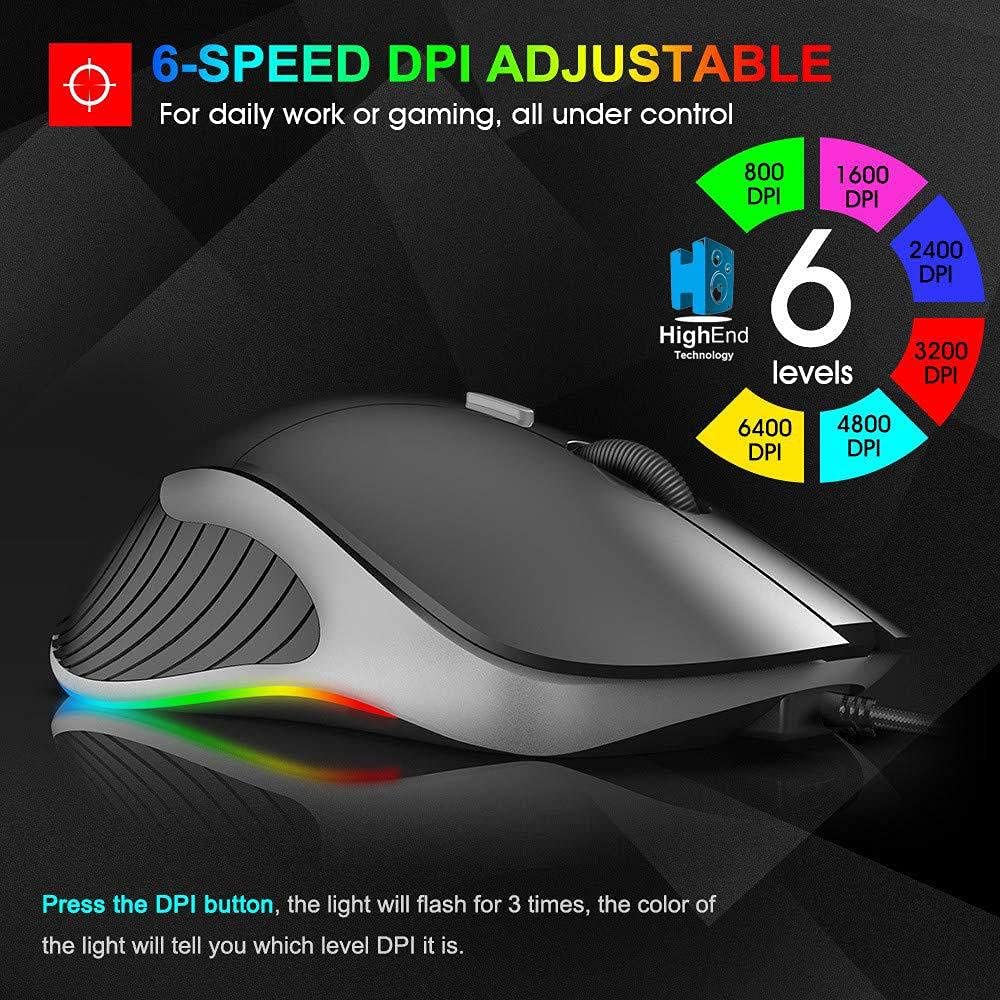
انځور 6.1: 6-Speed DPI Adjustment. This image shows the mouse from a side-top view, with six colored circles indicating DPI levels: 800, 1600, 2400, 3200, 4800, and 6400 DPI. The text explains that pressing the DPI button will make the light flash 3 times, and the color of the light indicates the current DPI level.
د DPI بدلولو لپاره:
- فشار ورکړئ د DPI تڼۍ (Button 6 in Image 4.1).
- The mouse's LED lighting will flash 3 times, and the color will indicate the current DPI level.
- Continue pressing the DPI button to cycle through the available DPI settings: 800, 1600, 2400, 3200, 4800, and 6400 DPI.
6.3 Switching Working Modes
As mentioned in Section 4.1, the mouse has two working modes:
- نورمال حالت: Standard mouse functions for general use and gaming.
- ملټي میډیا حالت: Buttons are remapped for media control (e.g., Play/Pause, Next, Previous, Volume).
To switch modes, long-press the DPI button for more than 5 seconds. The mouse will indicate the mode change, typically through a change in LED behavior.
7. ساتنه
مناسب ساتنه ستاسو د موږک اوږد عمر او فعالیت تضمینوي.
- پاکول: Use a soft, lint-free cloth to wipe the surface of the mouse. For stubborn dirt, slightly dampټوکر د اوبو سره. د سختو کیمیاوي موادو یا خړوبونکو موادو څخه ډډه وکړئ.
- د سینسر ساتنه: د موږک په لاندې برخه کې نظري سینسر پاک او د دوړو یا کثافاتو څخه پاک وساتئ ترڅو دقیق تعقیب ډاډمن شي.
- د کیبل پاملرنه: د زیان څخه د مخنیوي لپاره د USB کیبل د تیزو کږو یا ډیر کشولو څخه ډډه وکړئ.
8. ستونزه حل کول
If you encounter issues with your IMICE X6 mouse, try the following solutions:
| ستونزه | د حل لاره |
|---|---|
| موږک ځواب نه ورکوي |
|
| د کرسر حرکت بې نظمه یا ناڅاپي دی |
|
| د DPI ترتیب نه بدلیږي |
|
9. مشخصات
Key technical specifications for the IMICE X6 Gaming Mouse:
- نښه: IMICE
- ماډل: X6
- رنګ: تور
- د ارتباط ټیکنالوژي: USB (ویر شوی)
- د حرکت کشف: نظري
- Maximum Mouse Sensitivity (DPI): 6400 DPI
- د تنظیم وړ DPI کچه: 800, 1600, 2400, 3200, 4800, 6400 DPI
- د تڼیو شمیر: 5
- د لاسونو لارښوونه: متضاد
- وړاندیز شوی کارول: لوبې کول
- مطابقت لرونکي وسایل: کمپیوټر، لپ ټاپ
- د بریښنا سرچینه: Plug-in Electric (USB powered)
- بیټرۍ ته اړتیا ده: نه
10. تضمین او ملاتړ
Your IMICE X6 Gaming Mouse comes with a standard manufacturer's warranty. Please refer to the warranty card included with your purchase or contact your retailer for specific warranty terms and conditions.
For technical support or further assistance, please contact the vendor or visit the official IMICE support webسایټ (که شتون ولري).