
1. پیژندنه
This manual provides detailed instructions for the setup, operation, and maintenance of your CHERRY DW 9100 Slim Wireless Keyboard and Mouse Set. This rechargeable desktop set offers both 2.4 GHz wireless and Bluetooth connectivity, featuring a slim design and silent keystroke SX Scissor Mechanism for comfortable and efficient use in various environments.

Image 1.1: The CHERRY DW 9100 Slim Wireless Keyboard and Mouse Set, including the USB nano receiver.
2. د بسته محتويات
مهرباني وکړئ د کڅوړې د خلاصولو پر مهال د کڅوړې محتويات وګورئ ترڅو ډاډ ترلاسه کړئ چې ټولې برخې شتون لري:
- CHERRY DW 9100 Slim Wireless Keyboard
- CHERRY DW 9100 Slim Wireless Mouse
- د USB نانو ترلاسه کونکی
- د USB-C چارج کیبل
- د کارونکي لارښود (دا لاسوند)
3. ترتیب کول
۳.۱ د وسایلو چارج کول
کیبورډ او موږک دواړه د چارج وړ لیتیم بیټرۍ سره سمبال دي.
- Connect the supplied USB-C charging cable to the USB-C port on the keyboard and mouse.
- د کیبل بل پای د بریښنا شوي USB پورټ سره وصل کړئ (د مثال په توګه، کمپیوټر، د USB دیوال اډاپټر).
- The status LED on each device will indicate the charging status. A full charge is indicated when the LED changes color or turns off (refer to Section 4.3 for LED indicators).
3.2 Connecting via 2.4 GHz Wireless
For a stable and fast wireless connection, use the included USB nano receiver.
- Locate the USB nano receiver.
- د USB نانو ریسیور په خپل کمپیوټر کې موجود USB پورټ کې ولګوئ.
- On both the keyboard and mouse, locate the connectivity switch. Set the switch to the 2.4 GHz position (often indicated by a receiver icon or "RF").
- وسایل باید په اتوماتيک ډول ستاسو کمپیوټر سره وصل شي.
3.3 د بلوتوث له لارې نښلول
The set supports Bluetooth connectivity for devices that have Bluetooth capabilities.
- On both the keyboard and mouse, locate the connectivity switch. Set the switch to the بلوتوث position (often indicated by a Bluetooth icon).
- په خپل کمپیوټر یا وسیله کې، د بلوتوث ترتیبات خلاص کړئ.
- Initiate the pairing process on your device. The keyboard and mouse should appear in the list of discoverable devices (e.g., "CHERRY DW 9100 Keyboard", "CHERRY DW 9100 Mouse").
- Select each device to pair them. Follow any on-screen prompts, such as entering a pairing code for the keyboard.
یادونه: The keyboard and mouse can be paired with multiple Bluetooth devices. Use the connectivity switch to toggle between paired devices or 2.4 GHz mode.
4. عملیاتي لارښوونې
4.1 د کیبورډ دندې
The CHERRY DW 9100 Slim Keyboard features a full-size layout with an SX Scissor Mechanism for silent and precise keystrokes.
- معیاري کیلي: ټول معیاري الفانومیریک او سمبول کیلي د تمې سره سم کار کوي.
- د فعالیت کیلي (F1-F12): These keys may have secondary functions (e.g., media control, volume, brightness) accessible by pressing the Fn key simultaneously. Refer to your operating system's settings for specific function key behavior.
- عددي کیپډ: Provides dedicated number entry.

انځور ۴.۱: سایډ پروfile of the CHERRY DW 9100 Slim Keyboard, highlighting its thin design.

Image 4.2: Visual representation of the CHERRY SX Scissor Mechanism, responsible for silent and precise keystrokes.
۴.۳ د موږک دندې
The CHERRY DW 9100 Slim Mouse features 6 buttons and a scroll wheel for versatile navigation.
- کیڼ/ښي کلیک: د موږک معیاري تڼۍ.
- سکرول ویل: For vertical scrolling and as a middle click button.
- د غاړې تڼۍ: معمولا د مخ په وړاندې / شاته نیویګیشن لپاره کارول کیږي web لټونګر.
- DPI سویچ: A button, usually near the scroll wheel, allows adjustment of the mouse's sensitivity (DPI - Dots Per Inch). Pressing this button cycles through different DPI settings, indicated by the mouse's status LED.

انځور ۴.۱: پورته view of the CHERRY DW 9100 Slim Mouse, showing the left/right click buttons, scroll wheel, and DPI switch.
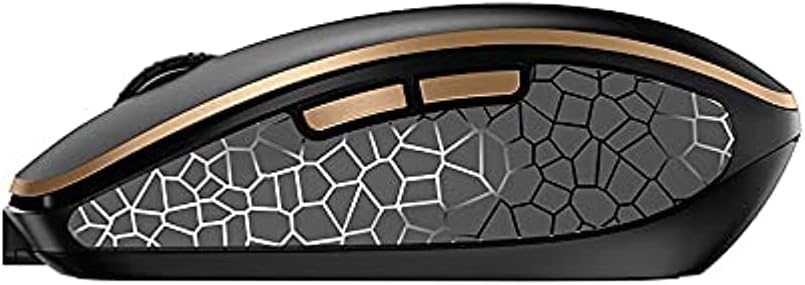
انځور ۵.۱: اړخ view of the CHERRY DW 9100 Slim Mouse, illustrating the ergonomic design and side buttons.
4.3 حالت LEDs
Both the keyboard and mouse feature status LEDs to provide information on battery level, charging status, and mouse resolution.
- ټیټ بیټرۍ: The LED will flash or illuminate in a specific color (e.g., red) when the battery level is low, indicating that charging is required.
- چارج کول: The LED will illuminate while charging and typically change color or turn off when fully charged.
- Mouse Resolution (DPI): When adjusting the DPI, the mouse LED may briefly flash to indicate the current setting.
5. ساتنه
5.1 پاکول
To maintain the performance and appearance of your devices:
- د پاکولو دمخه وسایل له خپل کمپیوټر څخه جلا کړئ.
- د نرم، لینټ پاک ټوکر څخه لږ څه کار واخلئampد اوبو یا نرم پاکولو محلول سره پای ته رسیدلی.
- د سختو کیمیاوي موادو، خړوبونکو پاکوونکو، یا محلولونو کارولو څخه ډډه وکړئ، ځکه چې دا کولی شي سطحې ته زیان ورسوي.
- د کیبورډ لپاره، د کیليونو ترمنځ د دوړو او کثافاتو لرې کولو لپاره فشار شوي هوا وکاروئ.
5.2 د بیټرۍ پاملرنه
The integrated lithium batteries are designed for long-term use.
- Recharge the devices when the low battery indicator appears.
- د بیټریو د عمر د اوږدولو لپاره د هغوی د بار بار بشپړ چارج کولو څخه ډډه وکړئ.
- If storing the devices for an extended period, charge them to approximately 50% before storage.
6. ستونزه حل کول
If you encounter issues with your CHERRY DW 9100 Slim set, refer to the following common solutions:
۵.۳ د اتصال مسلې
- No Connection (2.4 GHz):
- Ensure the USB nano receiver is securely plugged into a working USB port.
- Verify the keyboard and mouse connectivity switches are set to the 2.4 GHz موقعیت
- هڅه وکړئ چې ریسیور په بل USB پورټ کې ولګوئ.
- Ensure the devices are sufficiently charged.
- هیڅ اړیکه نشته (بلوتوث):
- Ensure the keyboard and mouse connectivity switches are set to the بلوتوث موقعیت
- Confirm Bluetooth is enabled on your computer/device.
- Remove previous pairings from your device's Bluetooth settings and attempt to re-pair.
- Ensure the devices are sufficiently charged.
۴.۱ د بریښنا او چارج کولو مسلې
- هغه وسایل چې چارج نه کوي:
- Check that the USB-C charging cable is properly connected to both the device and the power source.
- Try a different USB-C cable or a different USB power source.
- ډاډ ترلاسه کړئ چې د بریښنا سرچینه فعاله ده.
- د بیټرۍ لنډ ژوند:
- ډاډ ترلاسه کړئ چې وسایل د کارولو دمخه په بشپړ ډول چارج شوي دي.
- Battery life can vary based on usage patterns.
6.3 Mouse Tracking Issues
- Inaccurate or No Tracking:
- ډاډ ترلاسه کړئ چې د موږک سینسر پاک او له کثافاتو پاک دی.
- Use the mouse on a suitable surface (e.g., mouse pad). Highly reflective or transparent surfaces may cause issues.
- د موږک د DPI سویچ په کارولو سره د DPI ترتیب تنظیم کړئ.
7. مشخصات
| فیچر | تفصیل |
|---|---|
| د ماډل شمیره | JD-9100US-2 |
| د محصول ابعاد | 17.32 x 5.12 x 0.59 انچه |
| د توکي وزن | ۲.۴۵ پونډه |
| بیټرۍ | Rechargeable Lithium (USB-C) |
| د ارتباط ټیکنالوژي | Bluetooth, 2.4 GHz Radio Frequency (USB) |
| ځانګړی ځانګړنه | Rechargeable, Silent Keystroke (SX Scissor Mechanism) |
| مطابقت لرونکې وسیلې | شخصي کمپیوټر |
| جوړونکی | چیری |
Note on Batteries: The product description indicates USB-C rechargeable lithium batteries. The specification "1 AA batteries required. (included)" in the source data appears to be a discrepancy. Please rely on the USB-C rechargeable feature for this model.
8. تضمین او ملاتړ
CHERRY products are manufactured to high-quality standards. For detailed warranty information, including terms and conditions, please refer to the official CHERRY webسایټ یا د تضمین کارت چې ستاسو محصول سره شامل دی.
For technical support, troubleshooting assistance beyond this manual, or to inquire about replacement parts, please visit the official CHERRY support portal or contact their customer service directly.
- Official CHERRY Webسایټ: www.cherry.de/en/ (or regional equivalent)
- د پیرودونکي ملاتړ: ته مراجعه وکړئ webد تماس جزیاتو لپاره سایټ.