
plustek 8200i SE
د پلسټیک آپټیک فلم 8200i SE فلم او سلایډ سکینر کارونکي لارښود
Model: 8200i SE | Brand: Plustek
پیژندنه
This manual provides comprehensive instructions for the setup, operation, and maintenance of your Plustek OpticFilm 8200i SE Film & Slide Scanner. The OpticFilm 8200i SE is designed for high-resolution scanning of 35mm negative film and mounted slides, featuring a built-in infrared channel for dust and scratch detection and removal.

Image: The Plustek OpticFilm 8200i SE scanner shown with included 35mm negative film stripe holders and a mounted slide holder.
د بسته محتويات
ډاډ ترلاسه کړئ چې لاندې ټول توکي ستاسو په بسته کې شامل دي:
- Plustek OpticFilm 8200i SE Scanner
- د بریښنا اډاپټر
- USB کیبل
- 35mm Negative Film Stripe Holder (x2 kits, total 4 holders)
- Mounted Slide Holder
- ګړندي لارښود
- Software DVD (SilverFast SE Plus 8)
- د بار وړلو کڅوړه
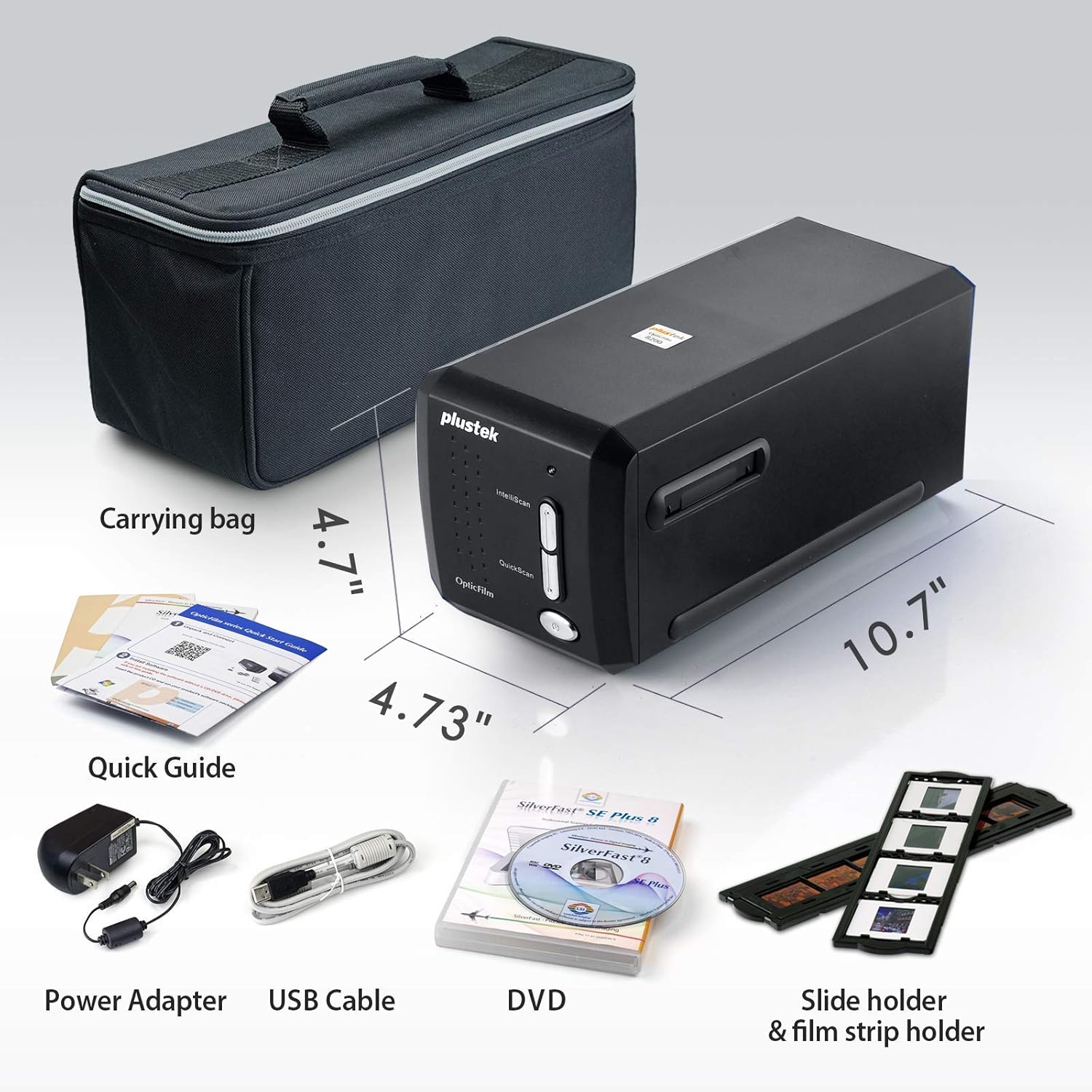
Image: All components included in the Plustek OpticFilm 8200i SE package, including the scanner, power adapter, USB cable, software DVD, quick guide, carrying bag, and film/slide holders.
چمتو کول
- د هارډویر پیوستون:
- د بریښنا اډاپټر د سکینر سره وصل کړئ او بیا د بریښنا آوټ لیټ سره.
- د سکینر څخه USB کیبل په خپل کمپیوټر کې موجود USB پورټ سره وصل کړئ.
- د سافټویر نصب کول:
- Insert the provided SilverFast SE Plus 8 software DVD into your computer's optical drive.
- Follow the on-screen instructions to install the software and necessary drivers.
- If your computer does not have an optical drive, or for the latest drivers, download them from the official Plustek website. The scanner supports Windows 7/8/10/11 and Mac OS 10.12 ~ 11.x.
- SilverFast License Registration:
- After installation, launch the SilverFast software.
- You will be prompted to register your free SilverFast license. Follow the steps provided, which typically involve entering your scanner's hardware serial number.

Image: A visual guide demonstrating the steps for registering the SilverFast software license, including locating the serial number and inputting registration details.
عملیاتي لارښوونې
Loading Film/Slides:
- For 35mm negative film strips, carefully insert the film into the 35mm Negative Film Stripe Holder. Ensure the film is flat and correctly aligned.
- For mounted slides, place the slide into the Mounted Slide Holder.
- Insert the loaded holder into the scanner's film slot.

Image: Two 35mm negative film holders, designed to securely hold film strips for scanning with the OpticFilm 8200i SE.
Scanning Process with SilverFast:
- Launch the SilverFast SE Plus 8 software.
- Select the appropriate film type (negative or slide) and film profile د سافټویر دننه.
- له مخکې څخه ګټه پورته کړئview function to adjust scanning area and settings.
- iSRD (Infrared Smart Removal of Defects): The scanner features a built-in infrared channel to detect and remove dust and scratches. Enable this function in the SilverFast software for optimal results.
- Multi-Exposure Function: For improved image quality and dynamic range, enable the Multi-Exposure feature in the software. This captures multiple exposures to enhance detail in highlights and shadows.
- Adjust other settings such as resolution (up to 7200 dpi), color depth (48-bit input), and image enhancements as needed.
- Initiate the scan. The scanned image will appear in the software interface.
- Save your scanned image in your desired format (e.g., TIFF, JPEG).

Image: A diagram illustrating how the infrared channel detects dust and scratches on film, showing the original source image, infrared scan, marker for defects, and the final corrected result.

Image: Screenshot of the SilverFast SE Plus 8 software interface, highlighting the iSRD (Infrared Dust and Scratch Removal) feature and its controls.

انځور: Examples demonstrating the effects of SilverFast NegaFix for film profiles, iSRD for defect removal, and Multi-Exposure for increased dynamic range, showing before and after comparisons.
ساتنه
- د سکینر پاکول: Use a soft, lint-free cloth to gently wipe the exterior of the scanner. Do not use liquid cleaners or abrasive materials.
- Cleaning Film/Slides: Before scanning, ensure your film and slides are free of dust and fingerprints. Use a soft brush or compressed air designed for photographic materials. Avoid touching the film surface directly.
- ذخیره کول: When not in use, store the scanner in a clean, dry, and dust-free environment, preferably in its original packaging or the provided carrying bag.
د ستونزو حل کول
عام مسایل او حل لارې:
- سکینر ندی موندل شوی:
- ډاډ ترلاسه کړئ چې USB کیبل په خوندي ډول د سکینر او کمپیوټر دواړو سره وصل دی.
- ډاډ ترلاسه کړئ چې د بریښنا اډاپټر وصل دی او سکینر فعال دی.
- د پلسټیک څخه د سکینر چلوونکي بیا نصب کړئ webسایټ
- په خپل کمپیوټر کې یو بل USB پورټ هڅه وکړئ.
- Dust/Scratches on Scans:
- Ensure the film/slides are clean before scanning.
- Activate and properly configure the iSRD (Infrared Smart Removal of Defects) function in the SilverFast software. This feature is specifically designed to address dust and scratches.
- Poor Image Quality (Low Dynamic Range, Lack of Detail):
- Ensure the film/slide is correctly loaded and flat in the holder.
- Utilize the Multi-Exposure function in SilverFast to capture more detail in highlights and shadows.
- Check and adjust exposure, contrast, and color settings in the SilverFast software.
- Ensure you are scanning at an appropriate resolution for your needs (e.g., 7200 dpi for maximum detail).
- د سافټویر خرابېدل یا کنګل کېدل:
- Ensure your operating system meets the minimum system requirements (Windows 7 or later, Mac OS 10.12 or later).
- Update your SilverFast software and scanner drivers to the latest versions from the Plustek webسایټ
- د سکین کولو پرمهال نور اړین غوښتنلیکونه بند کړئ.
مشخصات
| فیچر | تفصیل |
|---|---|
| د ماډل نوم | OpticFilm 8200i SE |
| د سکینر ډول | Film (35mm Negative & Mounted Slides) |
| نظری حل | 7200 dpi |
| متحرک سلسله | Up to 3.6 Dmax |
| د رنګ ژوروالی | ۴۸-بټ ان پټ، ۲۴/۴۸-بټ آوټ پټ |
| د رڼا سرچینه | LED |
| د سینسر ډول | CCD |
| ارتباط | USB |
| Infrared Channel | Yes (for dust and scratch removal) |
| ملاتړ شوی OS | Windows 7/8/10/11, Mac OS 10.12 ~ 11.x |
تضمین او ملاتړ
د تضمین په اړه د تفصيلي معلوماتو لپاره، مهرباني وکړئ د خپل محصول سره شامل شوي تضمین کارت ته مراجعه وکړئ یا رسمي پلسټیک ته مراجعه وکړئ. website. Plustek provides technical support and driver updates through their webسایټ
Official Plustek Webسایټ: www.plustek.com
It is recommended to regularly check the Plustek website for the latest software updates and support resources to ensure optimal performance of your scanner.
Ask a question about this manual
Ask about setup, troubleshooting, compatibility, parts, safety, or missing instructions. Manuals+ will review the question and use this page’s manual context to help answer it.