
1. پیژندنه
Welcome to the HyperX Armada 25 Gaming Monitor user manual. This document provides essential information for setting up, operating, maintaining, and troubleshooting your new monitor. The HyperX Armada 25 is designed for competitive gaming, featuring a 24.5-inch Full HD (1920x1080) IPS panel, a 240Hz refresh rate, and a 1ms response time, ensuring smooth and responsive visuals. It also includes NVIDIA G-SYNC compatibility to eliminate screen tearing and minimize input latency. A desk mount is included for convenient setup and to maximize desk space.
کلیدي ځانګړتیاوې:
- ټول په یوه بسته: Includes an ergonomic arm and desk mount for easy setup and space-saving.
- د تازه کولو لوړه کچه او د غبرګون وخت: 240Hz refresh rate and 1ms response time for ultra-smooth gaming.
- Vibrant IPS Panel: 24.5-inch Full HD (1920x1080) IPS panel delivers stunning visuals with accurate colors and wide viewزاویې
- د NVIDIA G-SYNC سره مطابقت لري: Eliminates screen tearing and reduces stuttering for a fluid gaming experience.

د محصول رسمي ویډیو:
2. ترتیب کول
This section guides you through the initial setup of your HyperX Armada 25 Gaming Monitor, including assembly and connection to your computer.
2.1. Assembling the Desk Mount
The HyperX Armada 25 comes with an integrated ergonomic desk mount. Follow the instructions provided in the separate quick start guide for detailed assembly steps. The monitor head easily snaps into the arm, allowing for quick and secure installation.

2.2. د مانیټور سره نښلول
Connect the monitor to your computer using the appropriate cables. The HyperX Armada 25 supports both HDMI and DisplayPort connections.
- د HDMI یا DisplayPort کیبل یوه پای د خپل کمپیوټر د ګرافیک کارت اړوند پورټ سره وصل کړئ.
- Connect the other end of the cable to an available HDMI 2.0 or DisplayPort 1.4 port on the back of your monitor.
- Connect the power cord to the monitor and then to a power outlet.
- په مانیټور کې د بریښنا تڼۍ فشار ورکړئ ترڅو دا فعال کړئ.

3. د مانیټر چلول
This section covers basic operation and navigation of the monitor's On-Screen Display (OSD) menu.
۲. د پردې پر مخ ښودنه (OSD) نیویګیشن
The OSD menu is controlled using a joystick located on the back of the monitor. This joystick allows you to power on/off the monitor and navigate through various settings.
- جوی سټیک فشار ورکړئ: د OSD مینو خلاصولو یا انتخاب تاییدولو لپاره.
- Move the joystick Up/Down/Left/Right: To navigate through menu options and adjust settings.
- Hold the joystick: To power off the monitor.

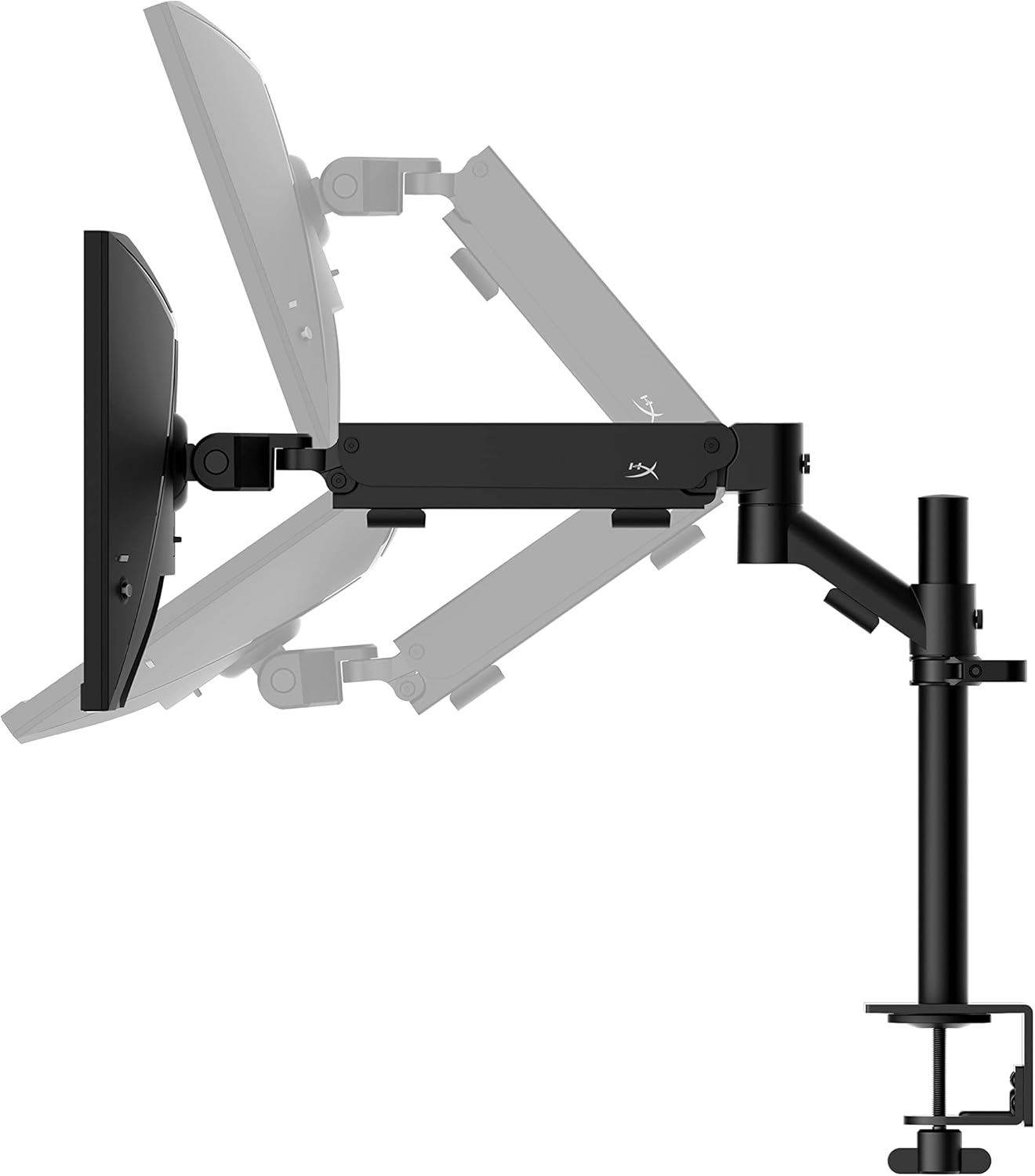
۵.۱. د مانیټر موقعیت تنظیمول
The ergonomic desk mount allows for flexible positioning of your monitor. You can adjust the height, tilt, swivel, and pivot to find your optimal viewزاویه.

4. ساتنه
Proper maintenance ensures the longevity and optimal performance of your HyperX Armada 25 Gaming Monitor.
- د سکرین پاکول: د نرم، لینټ پاک ټوکر څخه په روښانه توګه کار واخلئampened with water or a specialized screen cleaner. Avoid using harsh chemicals, abrasive materials, or direct spraying onto the screen.
- د سي پاکولasing: مانیټر پاک کړئ جasing د نرم، وچ ټوکر سره.
- وینټیلیشن: ډاډ ترلاسه کړئ چې د مانیټر د هوا د تودوخی د مخنیوي لپاره د هوا د تودوخی دروازې بندې نه وي.
- کله چې په استعمال کې نه وي بریښنا بند کړئ: کله چې مانیټر د اوږدې مودې لپاره نه کارول کیږي نو بند کړئ ترڅو انرژي خوندي کړئ او د هغې عمر اوږد کړئ.
5. ستونزه حل کول
که تاسو د خپل مانیټر سره ستونزې سره مخ شئ، نو لاندې عام د ستونزو حل کولو مرحلو ته مراجعه وکړئ.
- ځواک نشته:
- وګورئ چې ایا د بریښنا کیبل په خوندي ډول د نظارت او بریښنا سایټ دواړو سره وصل دی.
- ډاډ ترلاسه کړئ چې د بریښنا رسۍ په سمه توګه کار کوي.
- په مانیټور کې د بریښنا تڼۍ فشار ورکړئ.
- هیڅ سیګنال نشته:
- ډاډ ترلاسه کړئ چې د HDMI یا DisplayPort کیبل په خوندي ډول د مانیټر او ستاسو کمپیوټر دواړو سره وصل دی.
- ډاډ ترلاسه کړئ چې ستاسو کمپیوټر چالان دی او د خوب حالت کې نه دی.
- د OSD مینو په کارولو سره د ننوتلو سمه سرچینه غوره کړئ.
- Flickering Screen or Image Issues:
- Check the display cable for damage or loose connections.
- ډاډ ترلاسه کړئ چې ستاسو د ګرافیک کارت چلوونکي تازه دي.
- د خپل کمپیوټر د ښودنې ترتیباتو کې د تازه کولو کچه تنظیم کړئ.
- If G-SYNC is enabled, try disabling it temporarily to see if the issue persists.
- Buttons Not Responding (OSD Joystick):
- ډاډ ترلاسه کړئ چې مانیټر فعال دی.
- Try restarting the monitor by unplugging and replugging the power cable.
- Clean around the joystick to ensure no debris is obstructing its movement.
6. مشخصات
Detailed technical specifications for the HyperX Armada 25 Gaming Monitor.
| فیچر | تفصیل |
|---|---|
| د محصول ابعاد | 21.94 x 25.79 x 31.12 انچه؛ 16.98 پونډه |
| د توکي ماډل شمیره | HyperX Armada 25 |
| نیټه لومړی شتون لري | د اګست ۷، ۲۰۲۴ |
| جوړونکی | HP Inc. |
| ASIN | B0B2C1G356 |
| د ښودلو اندازه | 24.5 انچه دیګونال |
| قرارداد | FHD (1920x1080) |
| د تازه کولو نرخ | 240Hz |
| د پینل ډول | د IPS پینل |
| د غبرګون وخت | 1ms |
| هممهاله ټیکنالوژي | NVIDIA® G-SYNC® مطابقت لري |
| Included Mount | Desk Mount Included |
| ارتباط | HDMI and Display Port |
7. تضمین او ملاتړ
For warranty information, technical support, or to access additional resources, please visit the official HyperX webسایټ یا د دوی پیرودونکي خدمت سره اړیکه ونیسئ.
- رسمي هایپر ایکس Webسایټ: www.hyperx.com
- د محصول ملاتړ پاڼه: Refer to the support section on the HyperX webستاسو د ځانګړي ماډل لپاره سایټ.