
پیژندنه
This manual provides detailed instructions for the setup, operation, maintenance, and troubleshooting of your Keychron V5 Wired Custom Mechanical Keyboard. The Keychron V5 is a 96% layout keyboard featuring QMK/VIA programmability, hot-swappable switches, double-shot PBT keycaps, and compatibility with macOS, Windows, and Linux systems.
د بسته محتويات
مهرباني وکړئ تصدیق کړئ چې ټول توکي ستاسو په کڅوړه کې شتون لري:
- Keychron V5 وائرډ ګمرک میخانیکي کیبورډ
- USB-C ته USB-C کیبل
- USB-A ته USB-C اډاپټر
- کیکیپ پلر
- سویچ پلر
- Additional Keycaps for Windows/macOS
چمتو کول
د کیبورډ سره نښلول
To connect your Keychron V5 keyboard:
- د کیبورډ په شا کې د USB-C پورټ ومومئ.
- Connect one end of the provided USB-C to USB-C cable to the keyboard.
- Connect the other end of the cable to a USB-C port on your computer. If your computer only has USB-A ports, use the provided USB-A to USB-C adapter.
- کیبورډ به ستاسو د عملیاتي سیسټم لخوا په اتوماتيک ډول وپیژندل شي.
System Toggle (Mac/Windows)
The Keychron V5 includes a system toggle switch to ensure full compatibility with both macOS and Windows operating systems. This switch is typically located on the back or side of the keyboard.
To switch between operating systems:
- Locate the 'Win/Mac' toggle switch.
- Slide the switch to the 'Mac' position for macOS or 'Win' position for Windows.
- The keyboard will adjust its key mappings accordingly.

انځور: اړخ view of the Keychron V5 keyboard, highlighting the system toggle switch and USB-C port for system compatibility.
Ergonomic Angle Adjustment
The keyboard features adjustable feet to customize the typing angle for improved ergonomics.
To adjust the typing angle:
- د لاندې برخې پښو ته د لاسرسي لپاره کیبورډ وګرځوئ.
- Gently pull out the feet to extend them to your desired angle. There are usually two levels of adjustment.

Image: The Keychron V5 keyboard with its adjustable feet extended, demonstrating the ergonomic angle design.
عملیاتي لارښوونې
کلیدي دندې او ترتیب
The Keychron V5 features a 96% layout with 97 keys, efficiently retaining function keys and a num pad while saving desk space. The keyboard comes with pre-installed double-shot PBT keycaps in an OSA profile, designed for a comfortable fingertip feel and excellent oil resistance.
انځور: یو بشپړ view of the Keychron V5 keyboard, showcasing its 96% layout and keycap design.
د QMK/VIA اصلاح کول
The Keychron V5 supports QMK/VIA firmware, allowing for comprehensive customization of key mappings, macros, and backlight effects. VIA is a graphical user interface that simplifies the programming process.
د خپل کی بورډ غوره کولو لپاره:
- د VIA سافټویر د رسمي کیکرون څخه ډاونلوډ کړئ website or the VIA GitHub repository.
- Connect your keyboard to your computer.
- Launch the VIA software. The software should automatically detect your Keychron V5.
- Use the intuitive interface to remap keys, create macros, and adjust lighting settings across multiple layers.
For detailed instructions on using QMK/VIA, refer to the official Keychron documentation or community guides.

Image: A visual representation of the VIA software interface, demonstrating how users can customize key layouts and macros for the Keychron V5.
Programmable Knob
The Keychron V5 features a programmable rotary knob, which can be customized via QMK/VIA to control various functions such as volume, zoom, or scrolling.
To customize the knob's function:
- Open the VIA software.
- Navigate to the knob customization section.
- Assign desired functions for clockwise rotation, counter-clockwise rotation, and pressing the knob.

انځور: نږدې انځور view of the programmable rotary knob on the Keychron V5 keyboard, highlighting its textured surface.
د ګرم بدلیدونکي سویچونه
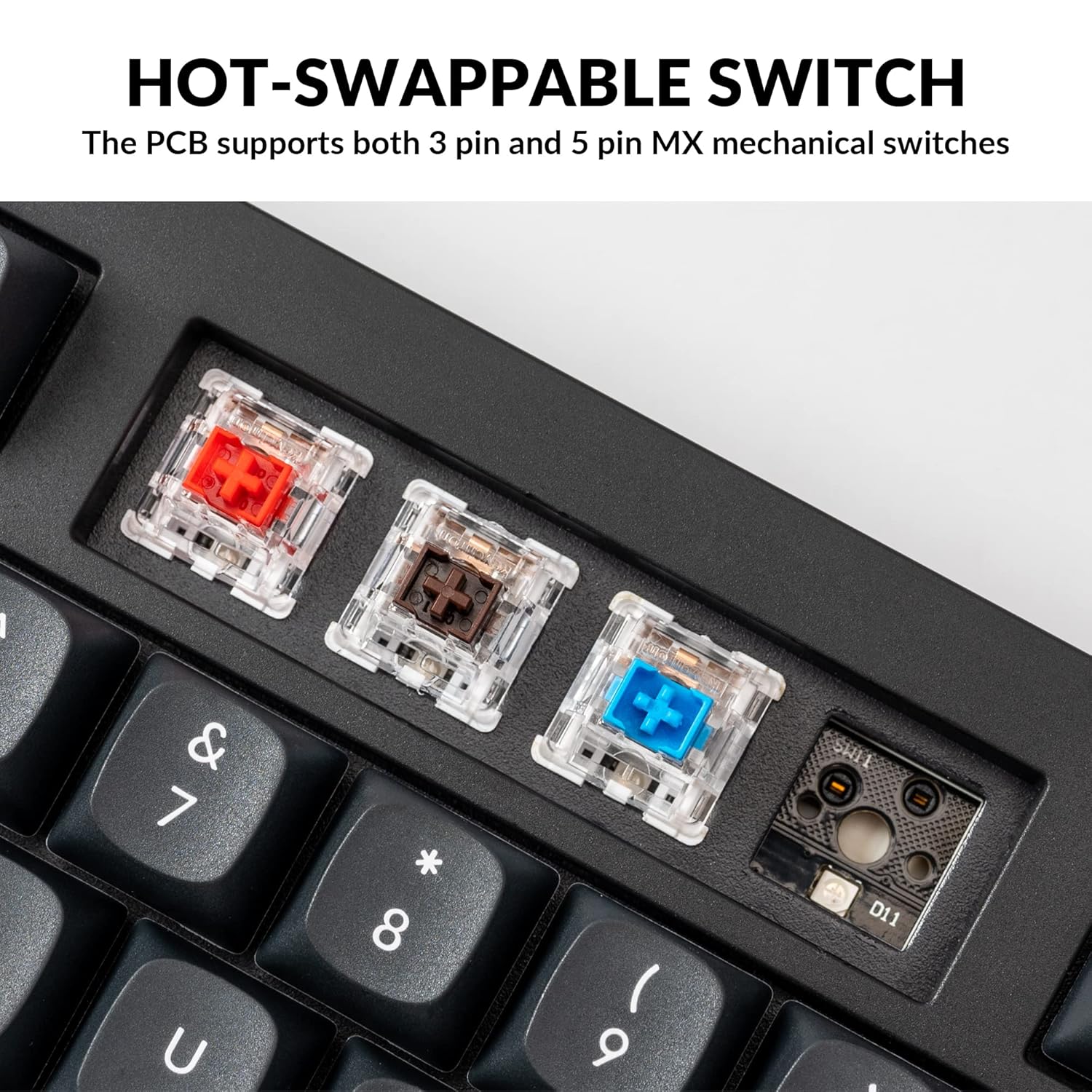
The Keychron V5 is equipped with hot-swappable sockets, allowing you to change mechanical switches without soldering. It supports most 3-pin and 5-pin MX mechanical switches (e.g., Cherry, Gateron, Kailh, Panda).
The keyboard comes with pre-lubed K Pro Red linear switches, offering a smooth and responsive typing experience with a lifespan of up to 50 million keystrokes.
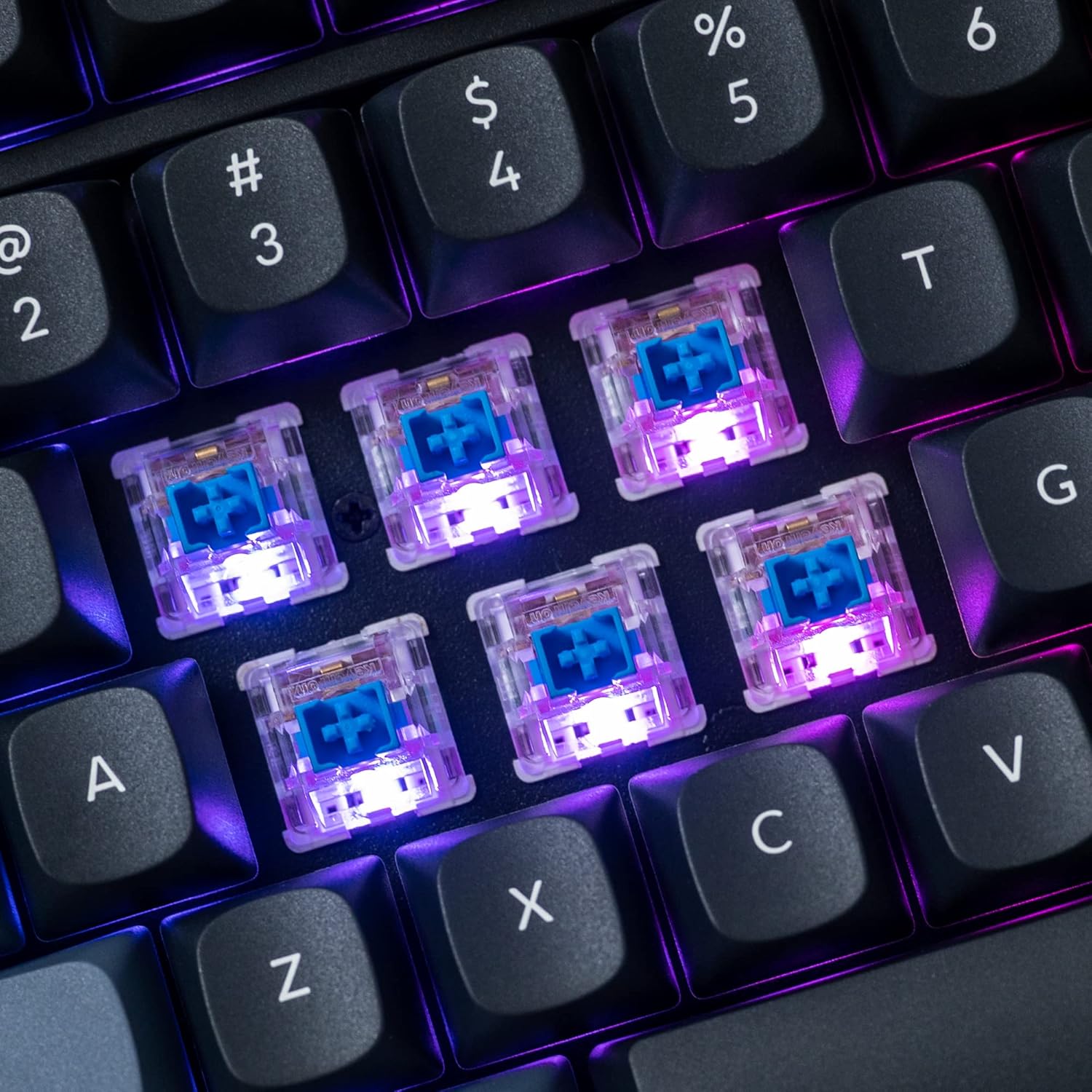
انځور: یو مفصل view of the hot-swappable mechanical switches on the Keychron V5 keyboard, illuminated by RGB backlighting.
شاته رڼا کول
The V5 features south-facing RGB backlighting, designed to better illuminate the keyboard from the typist's angle and prevent interference when using Cherry-profile keycaps. You can customize the backlight effects and colors using the VIA software.

Image: A close-up of the double-shot PBT keycaps on the Keychron V5 keyboard, showcasing their texture and legends.
ساتنه
پاکول
To maintain the cleanliness and longevity of your keyboard:
- کلیدونه: د کیلي کیپونو د لرې کولو لپاره د کیلي کیپ کشونکي څخه کار واخلئ. د نرم صابون محلول او نرم ټوکر سره یې پاک کړئ، بیا یې د بیا نښلولو دمخه په ښه توګه وینځئ او وچ کړئ.
- د کیبورډ بدن: د کیبورډ بدن په نرم، d سره پاک کړئamp ټوکر د سختو کیمیاوي موادو یا خړوبونکي موادو کارولو څخه ډډه وکړئ.
- دوړې: د کیلي کیپسونو او سویچونو ترمنځ د دوړو او کثافاتو لرې کولو لپاره د فشار شوي هوا څخه کار واخلئ.
د بدلون بدلول
د سویچ بدلولو لپاره:
- د ورکړل شوي کیلي کیپ پلر په کارولو سره، کیلي کیپ په احتیاط سره له هغه سویچ څخه لرې کړئ چې تاسو یې بدلول غواړئ.
- Insert the switch puller tool around the top and bottom clips of the switch.
- Gently squeeze the clips and pull the switch straight up to remove it from the PCB.
- د نوي سویچ پنونه د PCB سوریو سره سم کړئ. ډاډ ترلاسه کړئ چې پنونه مستقیم دي.
- Press the new switch firmly into place until it clicks. Ensure it is seated properly and not bent.
- د کیلي کیپ بیا وصل کړئ.
د کیلي کیپ بدلول
To replace keycaps:
- Use the keycap puller to gently remove the existing keycap by hooking it onto the keycap and pulling upwards.
- Align the new keycap with the cross-shaped stem of the switch.
- Press the new keycap firmly down until it is fully seated.
د ستونزو حل کول
- کیبورډ ځواب نه ورکوي:
Ensure the USB cable is securely connected to both the keyboard and the computer. Try a different USB port or cable. Verify the system toggle switch is set correctly for your operating system. - هغه کیلي چې راجستر نه کیږي:
If specific keys are not working, the switch might be faulty or not fully seated. Try removing and re-inserting the switch. If the issue persists, replace the switch. - د شاليد روښانه کولو ستونزې:
Check VIA software settings to ensure backlighting is enabled and configured correctly. If only certain LEDs are not working, it might indicate a faulty LED or switch. - د QMK/VIA سافټویر کیبورډ نه کشفوي:
Ensure the keyboard is connected via USB. Close and reopen the VIA software. Make sure you have the correct firmware loaded if you have flashed custom firmware. - Keycaps Feel Loose:
Ensure keycaps are fully pressed onto the switch stems. If a keycap consistently feels loose, the switch stem might be damaged, or the keycap's cross-mount might be worn.
مشخصات
| فیچر | مشخصات |
|---|---|
| برانډ | کیکرون |
| ماډل | V5 |
| د کیبورډ توضیحات | میخانیکي |
| د کیبورډ ترتیب | QWERTY, 96% Layout (97 Keys) |
| د ارتباط ټیکنالوژي | تار لرونکی (USB-C) |
| مطابقت لرونکې وسیلې | کمپیوټر (ماکوس، وینډوز، لینکس) |
| د سویچ ډول | Linear (K Pro Red) |
| Hot-swappable Support | Yes (3-pin and 5-pin MX mechanical switches) |
| کیکیپس | ډبل شاټ PBT، OSA پروfile |
| شاته څراغ | جنوب ته مخامخ RGB |
| د تړلو موادو | پولی بوتیلین ټیرفتهالیټ، سیلیکون |
| اضافي ځانګړتیاوې | QMK/VIA Programmable, Programmable Knob, Screw-in Stabilizers |
تضمین او ملاتړ
Keychron products are typically covered by a limited warranty. For specific warranty terms, duration, and conditions, please refer to the warranty information provided with your product packaging or visit the official Keychron webسایټ
For technical support, troubleshooting assistance, or to inquire about replacement parts, please contact Keychron customer service through their official website's support portal. When contacting support, please have your product model (Keychron V5) and purchase details ready.