
1. پیژندنه
This manual provides detailed instructions for the RisoPhy Wireless Mechanical Keyboard. This keyboard offers versatile connectivity options, customizable RGB backlighting, and programmable keys, designed for both gaming and everyday use. Please read this manual thoroughly to ensure proper setup and operation of your device.
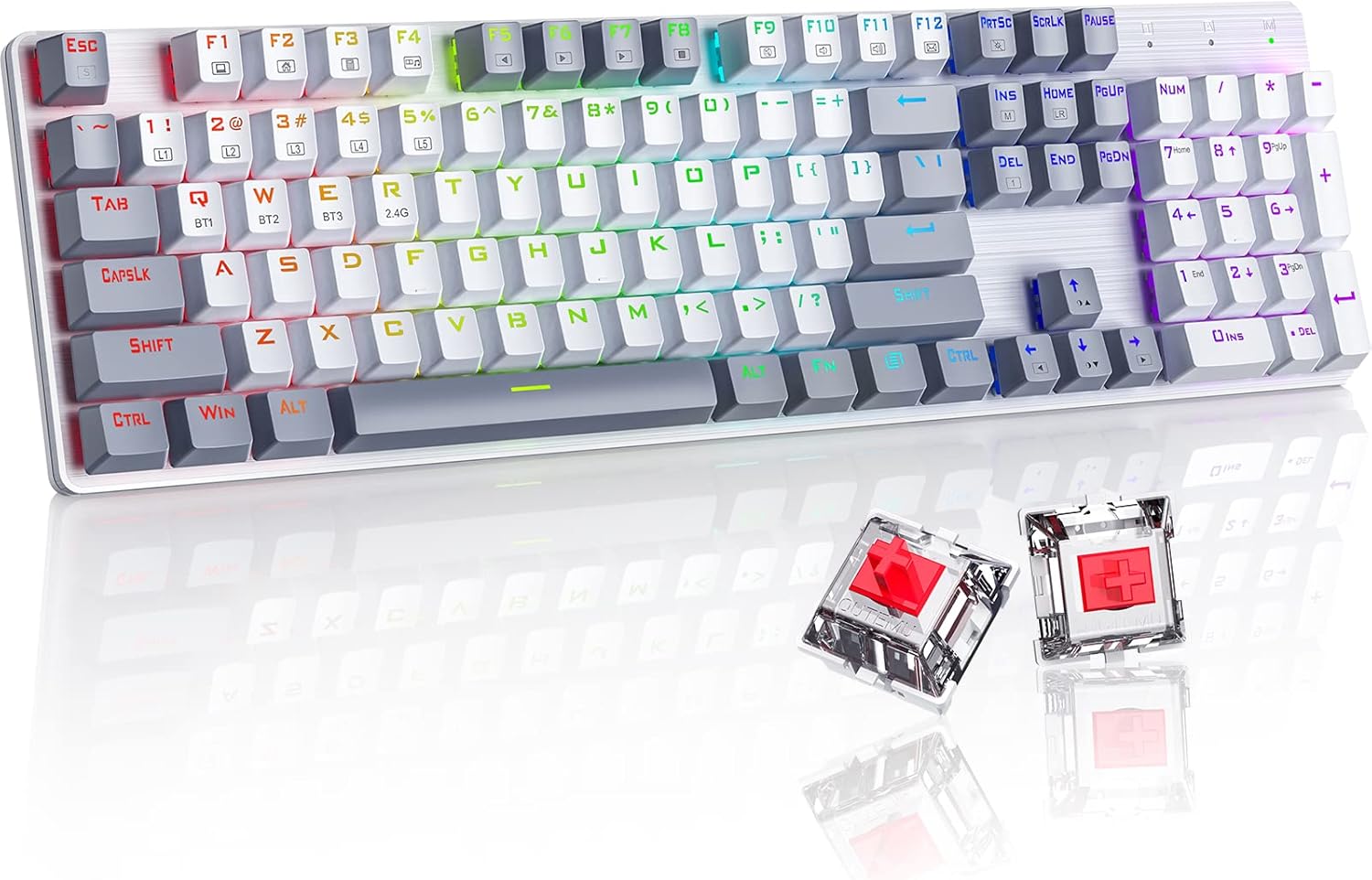
Image: The RisoPhy Wireless Mechanical Keyboard, showcasing its full 104-key layout, RGB backlighting, and two red mechanical switches detached for display.
2. د بسته محتويات
ډاډ ترلاسه کړئ چې ټول توکي ستاسو په کڅوړه کې شتون لري:
- 1 x RisoPhy Wireless Mechanical Keyboard
- 1 x USB ډول-C کیبل
- 1 x 2.4GHz USB رسیدونکی
- ۱ x د کارونکي لارښود (دا سند)
- 1 x کیکیپ پلر

Image: A visual representation of the package contents, including the keyboard, USB-C cable, 2.4GHz receiver, user manual, and keycap puller.
3. تنظیم او ارتباط
The RisoPhy keyboard supports three connection modes: Wired (USB-C), 2.4GHz Wireless, and Bluetooth. You can connect up to 5 devices simultaneously (1 via 2.4G, 3 via Bluetooth, 1 via Wired).

Image: An illustration demonstrating the three connectivity modes: Bluetooth 5.0, 2.4G Wireless, and Wired Mode, with the keyboard connected to a PC, laptop, and tablet.
۴.۴ وایرډ موډ
- Connect the provided USB Type-C cable to the keyboard's port and the other end to your computer's USB port.
- کیبورډ به په اتوماتيک ډول وپیژندل شي او د کارولو لپاره چمتو شي.
۳.۱.۲ ۲.۴GHz بېسیم حالت
- Locate the 2.4GHz USB receiver in the keyboard's storage compartment (usually on the underside).
- د USB ریسیور په خپل کمپیوټر کې موجود USB پورټ کې ولګوئ.
- Switch the keyboard's mode selector to 2.4G. The keyboard will connect automatically.
3.3 بلوتوث حالت
کیبورډ تر دریو پورې بلوتوث وسیلو (BT1، BT2، BT3) ملاتړ کوي.
- Switch the keyboard's mode selector to Bluetooth.
- To pair a new device, press and hold FN + Q (BT1), FN + W (BT2)، یا ایف این + ای (BT3) د 3-5 ثانیو لپاره تر هغه چې اړونده کیلي (Q، W، یا E) په چټکۍ سره روښانه شي. دا د جوړه کولو حالت په ګوته کوي.
- On your device (PC, laptop, tablet, phone), enable Bluetooth and search for new devices.
- Select "RisoPhy Keyboard" (or similar name) from the list of available devices to complete pairing.
- Once paired, the key (Q, W, or E) will stop flashing and remain steadily lit.
۴.۱ د وصل شویو وسیلو ترمنځ بدلول
To switch between paired Bluetooth devices or the 2.4G connection:
- For Bluetooth devices: Briefly press FN + Q, FN + W، یا FN + E to switch to the corresponding paired device.
- For 2.4G Wireless: Ensure the mode selector is set to 2.4G.
۳. عملیاتي ځانګړتیاوې
۵.۲ د RGB شاته رڼا کنټرول
The keyboard features 20 RGB backlight modes, 16.8 million colors, and 5 brightness levels. Use the following FN key combinations to control the backlighting:
- FN + INS: Switch Backlight Mode (cycle through 20 modes).
- FN +: Increase Backlight Brightness.
- FN +: Decrease Backlight Brightness.
- FN +: Speed Down Backlight Effect.
- FN +: Speed Up Backlight Effect.
- FN + DEL: Switch Backlight Color (for modes that support color changes).
- FN + PRTSC: Turn On/Off Backlight.

Image: A close-up of the keyboard's right side, highlighting the FN key combinations for controlling RGB backlight modes, brightness, speed, and color.
4.2 Custom Lighting Modes
The keyboard offers 5 custom lighting modes (FN+1 to FN+5).
- مطبوعاتي ایف این + ۱~۶ to enter one of the custom lighting modes.
- While in a custom mode, press FN + کور to begin customizing the light.
- Press each key you wish to customize to set its light to your preferred color.
- After customization, press FN + کور again to save the settings for that custom mode.
۶.۱ د پروګرام وړ کیلي او میکرو
All 104 keys can be reassigned, and macros can be created using the dedicated driver software. This allows for personalized key functions and complex command sequences for enhanced productivity or gaming.
- Download the RisoPhy keyboard driver software from the official webسایټ
- په خپل کمپیوټر کې سافټویر نصب کړئ.
- Use the software interface to remap keys, create macros, and fine-tune RGB lighting effects.

Image: A screenshot of the RisoPhy keyboard's software interface, showing options for backlight customization, programmable key settings, and macro creation.
۴.۲ ملټي میډیا او فعالیت کیلي
The keyboard includes dedicated FN key combinations for multimedia control and system functions:
| کلیدي ترکیب | فعالیت |
|---|---|
| FN + F1 | زما کمپیوټر |
| FN + F2 | کور پاڼه |
| FN + F3 | محاسبه کوونکی |
| FN + F4 | د رسنیو پلیر |
| FN + F5 | پخوانۍ سندره |
| FN + F6 | راتلونکی سندره |
| FN + F7 | پلی/ودرول |
| FN + F8 | لوبې کول بند کړئ |
| FN + F9 | خاموش |
| FN + F10 | حجم ښکته |
| FN + F11 | حجم پورته |
| FN + F12 | ایمیل |

Image: A visual guide to the FN key combinations (F1-F12) and their corresponding multimedia and system functions.
5. ساتنه
۷.۲ د کیبورډ پاکول
منظم پاکول د کیبورډ فعالیت او بڼه ساتلو کې مرسته کوي.
- د پاکولو دمخه کیبورډ د ټولو بریښنا سرچینو څخه جلا کړئ.
- د نرم، لینټ پاک ټوکر څخه لږ څه کار واخلئampد کیلي کیپس او چیسس پاکولو لپاره د اوبو یا نرم پاکولو محلول سره مینځل شوی.
- د کیلي ګانو ترمنځ د دوړو او کثافاتو لپاره، فشار شوي هوا وکاروئ.
- د سختو کیمیاوي موادو یا خړوبولو موادو کارولو څخه ډډه وکړئ.
۳.۲ د کیلي کیپ لرې کول او بدلول
The keyboard features durable PBT keycaps. You can remove them for deeper cleaning or customization using the provided keycap puller.
- Gently attach the keycap puller to the keycap you wish to remove.
- Pull upwards with steady, even pressure until the keycap detaches from the switch stem.
- To replace, align the keycap with the switch stem and press down firmly until it clicks into place.

Image: A close-up showing keycaps removed from the keyboard, revealing the mechanical switches underneath, alongside a keycap puller tool.
6. ستونزه حل کول
If you encounter issues with your RisoPhy keyboard, refer to the following common solutions:
| ستونزه | احتمالي حل |
|---|---|
| کیبورډ په بېسیم حالت کې ځواب نه ورکوي. | Ensure the keyboard is charged. Check if the 2.4G receiver is properly plugged in or if Bluetooth is paired. Switch to wired mode to confirm basic functionality. |
| د بلوتوث اتصال ستونزې. | Ensure the keyboard is in Bluetooth mode and the correct BT channel (Q, W, or E) is selected. Forget the device on your computer/phone and re-pair. Ensure your device's Bluetooth is enabled. |
| د شا رڼا کار نه کوي یا غلطه ده. | مطبوعاتي FN + PRTSC د شاته روښانتیا بدلولو لپاره. روښانتیا د سره تنظیم کړئ FN + ↑/↓. Cycle modes with FN + INS. |
| Keys double-typing or not registering. | Clean under the keycaps. If the issue persists, it might indicate a switch problem. Contact customer support if under warranty. |
| کیبورډ نه چارج کیږي. | Ensure the USB Type-C cable is securely connected to both the keyboard and a working USB port. Try a different cable or USB port. |
7. مشخصات
- ماډل: RisoPhy
- ارتباط: ۲.۴ جي بېسیم، بلوتوث ۵.۰، USB-C وایرډ
- کلیدي شمیره: 104 کیلي
- د بدلولو ډول: Mechanical Red Switches
- کلیدونه: Bicolor PBT Keycaps
- شاته رڼا کول: RGB (20 modes, 16.8 million colors, 5 brightness levels)
- د پروګرام وړتیا: All keys programmable, macro support via driver
- د غیبت ضد: N-کیلي رول اوور
- مطابقت لرونکي وسایل: PC, Laptop, Gaming Console, Phone, Tablet
- مواد: اکریلونایتریل بوټاډین سټیرین (ABS)
- د توکي وزن: نږدې 2.01 پونډه (0.91 کیلو ګرامه)
- د بسته ابعاد: 17.68 x 5.91 x 2.17 انچه (44.9 x 15 x 5.5 سانتي متره)

Image: A close-up of the mechanical red switches, detailing their specifications such as 80 million click life, 40g force, and 2.0mm distance, along with a force-travel diagram.
8. تضمین او ملاتړ
RisoPhy products are designed for reliability and performance. For warranty information, please refer to the documentation included with your purchase or visit the official RisoPhy website. If you require technical assistance or have questions not covered in this manual, please contact RisoPhy customer support.
تاسو کولی شئ نور معلومات او د اړیکو جزئیات په لاندې لینک کې ومومئ RisoPhy Store.

Image: A customer support representative wearing a headset, symbolizing available assistance for product inquiries.