
keenetic KN-3710-01-EU
Keenetic Sprinter AX1800 Mesh Wi-Fi 6 Router/Extender User Manual
Model: KN-3710-01-EU | Brand: Keenetic
1. پیژندنه
The Keenetic Sprinter AX1800 is a high-performance Mesh Wi-Fi 6 Router/Extender designed to provide fast, reliable, and secure internet connectivity for your home or office. This device supports Wi-Fi 6 (802.11ax) technology, offering dual-band operation (2.4 GHz and 5 GHz) with speeds up to 1800 Mbps. It features four Gigabit Ethernet ports for stable wired connections and can seamlessly switch between router and extender modes. This manual provides essential information for setting up, operating, maintaining, and troubleshooting your Keenetic Sprinter AX1800.
2. د خوندیتوب معلومات
- یوازې د وسیلې سره چمتو شوي بریښنا اډاپټر وکاروئ.
- Do not expose the device to water, fire, high humidity, or extreme temperatures.
- د تودوخې سرچینو ته نږدې یا مستقیم لمر کې د وسیله ځای په ځای کولو څخه ډډه وکړئ.
- د ډیر تودوخې مخنیوي لپاره د وسیلې شاوخوا مناسب هوا ورکول ډاډمن کړئ.
- هڅه مه کوئ چې وسیله پخپله جلا کړئ یا ترمیم کړئ. ټولې خدمتونه وړ پرسونل ته راجع کړئ.
3. د بسته محتويات
ډاډ ترلاسه کړئ چې ټول توکي ستاسو په کڅوړه کې شتون لري:
- Keenetic Sprinter AX1800 Device
- د بریښنا اډاپټر
- ایترنیټ کیبل
- Telephone Cable (if applicable)
- DSL Splitter (if applicable)
- Multi-language Quick Start Guide
4. محصول ختم شوview
Familiarize yourself with the physical components of your Keenetic Sprinter AX1800.

شکل 4.1: مخکی view of the Keenetic Sprinter AX1800 router, showing the LED indicators for power, internet, Wi-Fi, and network activity.
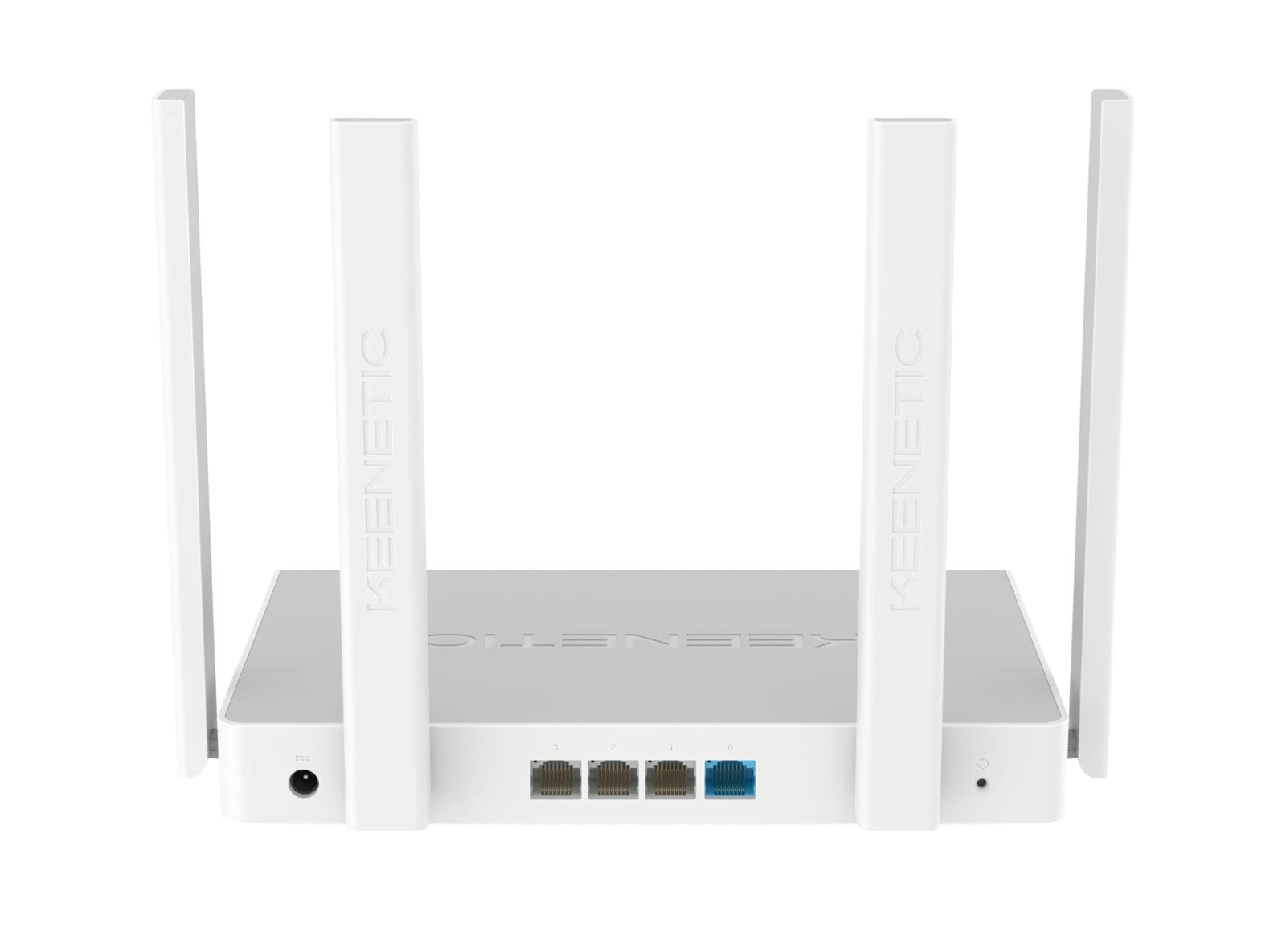
شکل 4.2: شاته view of the Keenetic Sprinter AX1800 router, highlighting the power input, four Gigabit Ethernet ports (one blue for WAN/LAN, three yellow for LAN), and the reset button.
د LED شاخصونه:
- د بریښنا LED: د ځواک حالت په ګوته کوي.
- د انټرنیټ LED: د انټرنیټ اتصال حالت په ګوته کوي.
- وای فای LED: د وای فای فعالیت په ګوته کوي.
- LAN LEDs: په اړوندو ایترنیټ بندرونو کې فعالیت په ګوته کړئ.
بندرونه او تڼۍ:
- د بریښنا ننوتل: د بریښنا اډاپټر سره نښلوي.
- Gigabit Ethernet Ports (4): One port can function as WAN or LAN, others are LAN.
- د بیا تنظیم تڼۍ: د فابریکې ترتیباتو د بیا رغولو لپاره کارول کیږي.
- د حالت بدلول: Physical switch to toggle between Router and Extender modes.
5. ترتیب کول
۳.۱ لومړنۍ اړیکه
- پاور آن: Connect the power adapter to the router's power input and plug it into a power outlet. Wait for the Power LED to stabilize.
- د انټرنیټ پیوستون: Connect your modem's Ethernet cable to the blue WAN/LAN port on the router.
- تار لرونکي وسایل (اختیاري): Connect your computer or other wired devices to any of the yellow LAN ports using an Ethernet cable.
- بې سیم وسایل: Locate the default Wi-Fi network name (SSID) and password printed on the label at the bottom of the router. Connect your wireless devices to this network.
5.2 Configuration (Web Interface / Mobile App)
You can configure your router using either the web interface or the Keenetic mobile app.
Web انٹرفیس:
- خلاص a web په وصل شوي وسیله براوزر.
- ننوتل
my.keenetic.netor192.168.1.1په ادرس بار کې او Enter فشار ورکړئ. - Follow the on-screen instructions to complete the initial setup, including setting up your administrator password and Wi-Fi network details.
د موبایل اپلیکیشن:
- Download the free Keenetic app from your device's app store (Android/iOS).
- Open the app and follow the instructions to discover and set up your Keenetic device.
5.3 Router/Extender Mode Switching
The Keenetic Sprinter AX1800 features a physical switch to easily change its operating mode:
- راوټر حالت: The device acts as the primary internet gateway for your network.
- د توزیع کولو حالت: The device extends an existing Wi-Fi network, providing broader coverage.
To switch modes, locate the physical switch on the device and move it to the desired position. The device will reboot and apply the new settings.
6. چلول
6.1 Wi-Fi 6 AX1800 Dual-Band Connectivity
The router supports the latest Wi-Fi 6 standard, providing enhanced speeds and efficiency for multiple devices simultaneously. It operates on two frequency bands:
- 2.4 GHz: Up to 574 Mbps, ideal for wider coverage and older devices.
- 5 GHz: Up to 1201 Mbps, ideal for high-bandwidth activities like 4K streaming and online gaming.
6.2 ګیګابایټ ایترنیټ بندرونه
The four Gigabit Ethernet ports provide stable and high-speed wired connections for devices such as PCs, smart TVs, gaming consoles, and network-attached storage (NAS) devices. These ports ensure minimal latency and maximum throughput for critical connections.
6.3 پرمختللی ځانګړتیاوې
- VPN and Multi-WAN: Supports OpenVPN, WireGuard, L2TP/IPsec, and Multi-WAN for load balancing and automatic failover, enhancing network flexibility and reliability.
- IntelliQoS Bandwidth Control: Automatically prioritizes network traffic for applications like streaming, gaming, and video conferencing to prevent interruptions.
- Integrated Security Features: Includes SPI Firewall, SafeDNS parental controls, and AdGuard ad blocker for comprehensive network protection.
- Guest Network with Captive Portal: Provides a separate, secure network for guests with customizable access options.
- لرې مدیریت: Manage your router remotely via the Keenetic mobile app or a secure web interface (HTTPS), including KeenDNS support.
7. ساتنه
7.1 د فرم ویئر تازه معلومات
Regularly update your router's firmware to ensure optimal performance, security, and access to new features. Firmware updates can be performed via the web interface or the Keenetic mobile app.
7.2 پاکول
To clean the device, use a soft, dry cloth. Do not use liquid cleaners or aerosol sprays. Ensure the device is powered off and unplugged before cleaning.
7.3 ځای پرځای کول
Optimal placement of your router is crucial for Wi-Fi performance. Place the router in a central location, away from obstructions and sources of interference (e.g., microwaves, cordless phones).
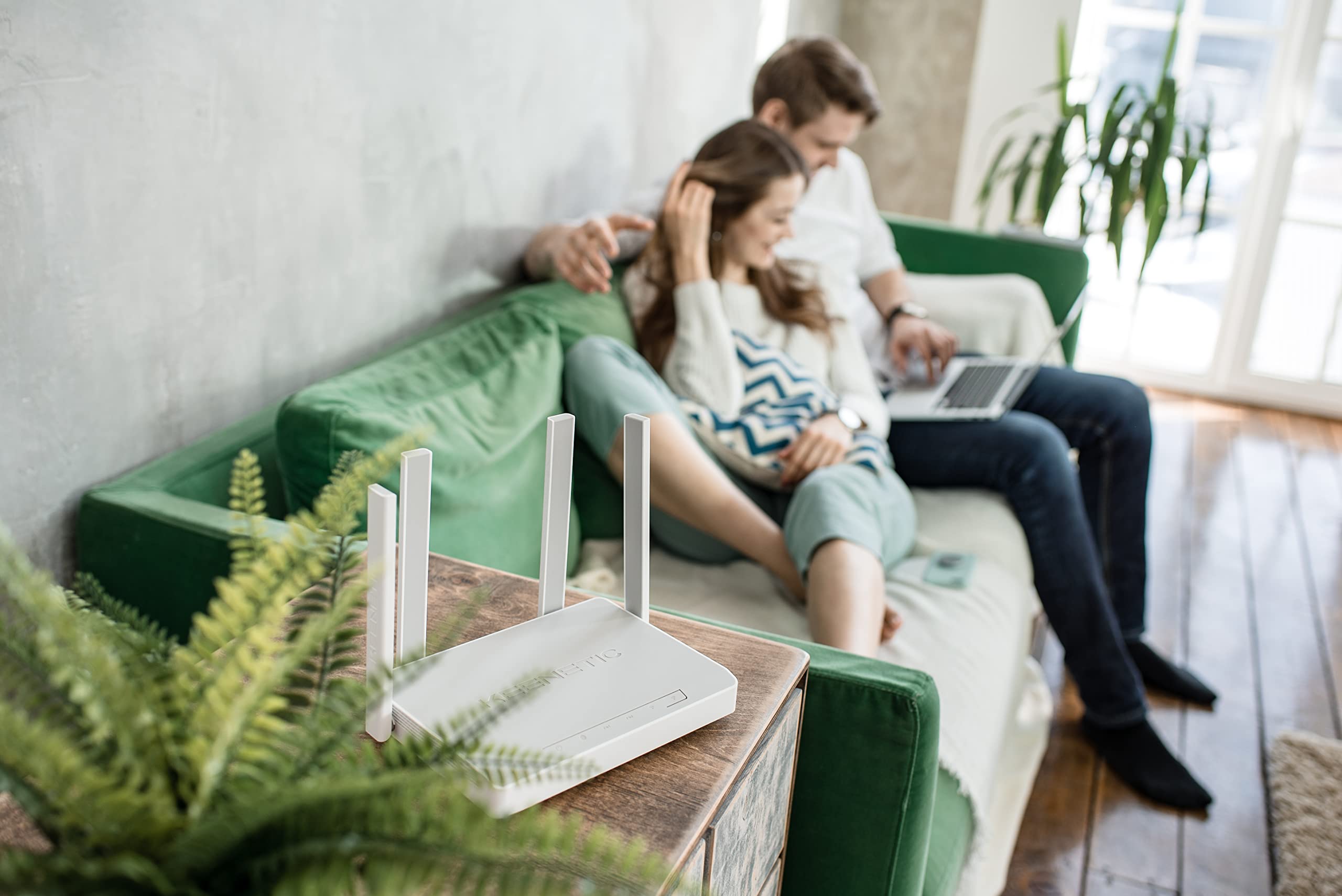
شکل 7.1: مثالample of the Keenetic Sprinter AX1800 router mounted vertically on a wall, demonstrating flexible placement options.

شکل 7.2: مثالample of the Keenetic Sprinter AX1800 router placed horizontally on a table, illustrating typical desktop placement.
8. ستونزه حل کول
عام مسایل او حل لارې:
- د انټرنیټ اتصال نشته:
- Check if the Internet LED is lit.
- Ensure the Ethernet cable from your modem is securely connected to the blue WAN/LAN port.
- خپل موډیم او روټر بیا پیل کړئ.
- د روټر په کمپیوټر کې د خپل انټرنیټ خدماتو چمتو کونکي (ISP) ترتیبات تایید کړئ. web انٹرفیس
- د وای فای کمزوری سیګنال:
- روټر یو ډیر مرکزي موقعیت ته واړوئ.
- Avoid placing the router near large metal objects or electronic devices that may cause interference.
- Consider using the device in Extender mode or adding another Keenetic device for a Mesh Wi-Fi system.
- لاسرسی نشم کولی Web انٹرفیس:
- ډاډ ترلاسه کړئ چې ستاسو وسیله د روټر شبکې سره وصل ده (تار یا بېسیم).
- د خپل براوزر کیش پاکولو یا بل براوزر کارولو هڅه وکړئ.
- Verify the router's IP address (default is 192.168.1.1).
- Forgotten Administrator Password:
- Perform a factory reset by pressing and holding the Reset button for 10 seconds while the device is powered on. Note that this will erase all custom settings.
9. مشخصات
| فیچر | تفصیل |
|---|---|
| د ماډل نوم | KN-3710 |
| بيسيم ستندرد | 802.11ax (وائی فای 6) |
| د فریکونسی بانډ ټولګی | دوه ګونی بینډ (2.4 GHz او 5 GHz) |
| اعظمي بېسیم سرعت | AX1800 (په 2.4 GHz کې 574 Mbps، په 5 GHz کې 1201 Mbps) |
| ایترنیټ بندرونه | 4 x 10/100/1000M Gigabit Ethernet (1 WAN/LAN, 3 LAN) |
| انتن | 4 خارجي انتن |
| ځانګړي ځانګړتیاوې | QoS, VPN, Multi-WAN, Mesh Support, Guest Network, Parental Control |
| د محصول ابعاد | 24 x 69 x 2.5 سانتي متره |
| د توکي وزن | 400 ګرامه |
| جوړونکی | Keenetic Limited |
10. تضمین او ملاتړ
For warranty information and technical support, please refer to the official Keenetic webسایټ ته مراجعه وکړئ یا د دوی د پیرودونکو خدماتو سره اړیکه ونیسئ. د تضمین ادعاوو لپاره د پیرود ثبوت په توګه د پیرود رسید وساتئ.
آنلاین سرچینې: Visit the Keenetic support page for FAQs, firmware downloads, and additional documentation.
د ملاتړ سره اړیکه: Refer to the contact information provided in your Quick Start Guide or on the Keenetic official webسایټ
Ask a question about this manual
Ask about setup, troubleshooting, compatibility, parts, safety, or missing instructions. Manuals+ will review the question and use this page’s manual context to help answer it.