
Alula RE667W-R-Pro
د الولا RE667W-R-Pro ټچ پیډ سلم لاین پرو کارونکي لارښود
Model: RE667W-R-Pro
پیژندنه
The Alula Slimline Touchpad PRO provides modern and intuitive control for your smart security system. Featuring a 7-inch full-color touchscreen, this device can be wall-mounted or placed on a tabletop, offering complete control of your security system from anywhere within your premises. It allows you to arm and disarm the system, view cameras, control smart devices, and initiate scenes. Its interface mirrors the Alula Smart Security app, ensuring ease of use and a familiar experience.

Figure 1: Alula Slimline Touchpad Pro main interface.
د بسته محتويات
- Alula Slimline Touchpad PRO
- د وال ماونټ بریکٹ
- ټابلیټاپ سټینډ
- 110V Plug-in Transformer
- چارجر
تنظیم او نصب کول
The Slimline Touchpad PRO offers flexible installation options, including wall mounting or tabletop placement. Ensure the device is placed within Wi-Fi range for optimal performance.
د وال ماونټ نصب کول
- Choose a suitable location on a wall, preferably near a power outlet.
- Secure the wall mount bracket to the wall using appropriate screws (not included).
- Connect the 12V direct wire or use the 110V plug-in transformer to power the device.
- Carefully attach the touchpad to the mounted bracket, ensuring it clicks securely into place.
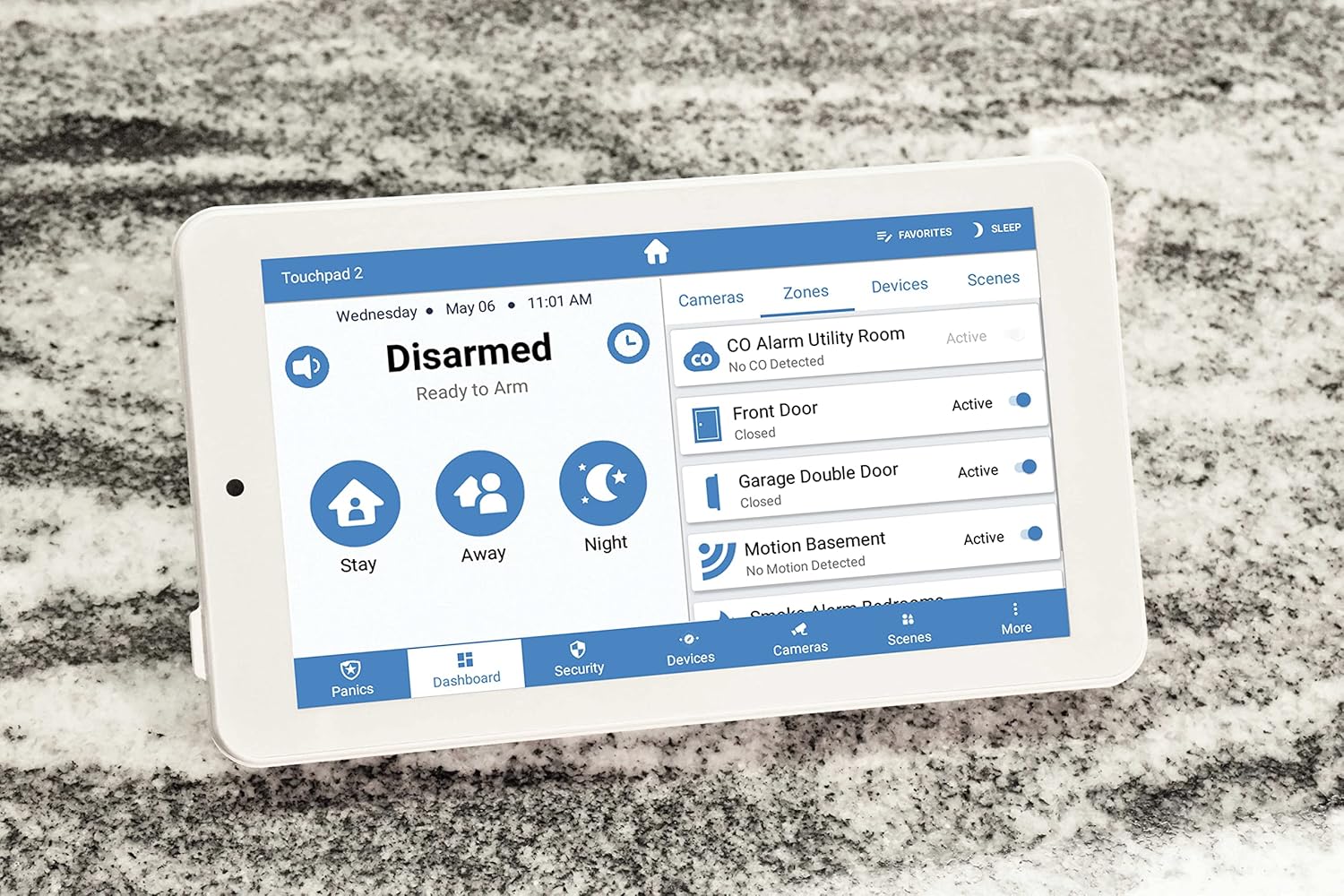
Figure 2: Touchpad in tabletop configuration, showing device and zone management.
د ټابلیټ سټنډ نصب کول
- Attach the tabletop stand to the back of the touchpad.
- Place the touchpad on a flat, stable surface.
- Connect the 110V plug-in transformer to the touchpad and plug it into a power outlet.
Initial Power-Up and Wi-Fi Connection
- Once powered, the touchpad will boot up.
- Follow the on-screen prompts to connect to your home Wi-Fi network.
- خپل Wi-Fi پټنوم دننه کړئ کله چې غوښتنه وشي.
- The touchpad will then attempt to connect to your Alula smart security system.
عملیاتي لارښوونې
The Slimline Touchpad PRO provides comprehensive control over your Alula smart security system.
وسله کول او بې وسلې کول
- د بازو پاتې کیدل: Tap the "Stay" icon to arm the system with interior motion sensors bypassed. Ideal for when you are home.
- لاس لرې: Tap the "Away" icon to arm all sensors. Ideal for when you leave the premises.
- Arm Night: Tap the "Night" icon for a customized arming mode, typically similar to "Stay" but with specific zones armed.
- بې وسلې کول: Tap the "Disarmed" area and enter your user code to disarm the system.
Controlling Smart Devices and Scenes
- Navigate to the "Devices" or "Scenes" tab on the bottom menu.
- From the "Devices" tab, you can control connected smart home devices such as lights, locks, and thermostats.
- From the "Scenes" tab, you can activate pre-configured scenes that control multiple devices simultaneously (e.g., "Good Morning" scene).

Figure 3: Touchpad displaying a scenic background in disarmed state.
دوه اړخیزه آډیو اړیکه
The touchpad supports two-way audio, allowing communication with monitoring stations or other connected devices if configured within your system.
ساتنه
To ensure the longevity and optimal performance of your Alula Slimline Touchpad PRO, follow these maintenance guidelines:
- پاکول: Use a soft, dry, lint-free cloth to clean the touchscreen. For stubborn smudges, slightly dampen the cloth with water. Avoid abrasive cleaners, solvents, or aerosol sprays.
- د سافټویر تازه معلومات: Ensure your touchpad's software is kept up-to-date. Updates are typically pushed automatically via your Wi-Fi connection.
- د بریښنا رسول: Always use the original Alula power adapter. Do not use third-party adapters.
- ځای په ځای کول: Avoid placing the touchpad in direct sunlight, near heat sources, or in areas with extreme humidity.
د ستونزو حل کول
| ستونزه | احتمالي لامل | د حل لاره |
|---|---|---|
| Touchpad not powering on. | بریښنا نشته، اډاپټر خراب دی، یا اړیکه خرابه ده. |
|
| د وائی فای سره وصل نشو. | غلط پټنوم، د حد څخه بهر، یا د روټر ستونزه. |
|
| د ټچ سکرین بې ځوابه. | د سافټویر لنډمهاله ستونزه یا فزیکي زیان. |
|
| سیسټم نه وسله وال کیږي/بې وسلې کیږي. | Incorrect user code, system fault, or communication issue. |
|
مشخصات
| فیچر | تفصیل |
|---|---|
| د ماډل شمیره | RE667W-R-Pro |
| د سکرین اندازه | 7 انچه |
| قرارداد | 1024 x 600px |
| رنګ | سپین |
| د بریښنا سرچینه | 110V (with included transformer) or 12V direct wire |
| ارتباط | بې سیم (وائی فای) |
| د کنټرول طریقه | لمس |
| آډیو | دوه طرفه آډیو |
| ابعاد (L x W x H) | 9 x 6 x 4 انچه |
| د لګولو ډول | دیوال ماونټ، د میز ټاپ |
| مطابقت لرونکې وسیلې | Smartphone (via Alula Smart Security app) |
| UPC | 810044990607 |
تضمین او ملاتړ
For warranty information and technical support, please refer to the official Alula website or contact your authorized Alula dealer. Keep your purchase receipt as proof of purchase.
Alula Support: alula.com/support
Ask a question about this manual
Ask about setup, troubleshooting, compatibility, parts, safety, or missing instructions. Manuals+ will review the question and use this page’s manual context to help answer it.