
پیژندنه
This manual provides comprehensive instructions for the WREANU Wireless Bluetooth Mouse, designed for seamless connectivity and comfortable use across various devices. Please read this manual carefully before using the product to ensure optimal performance and longevity.
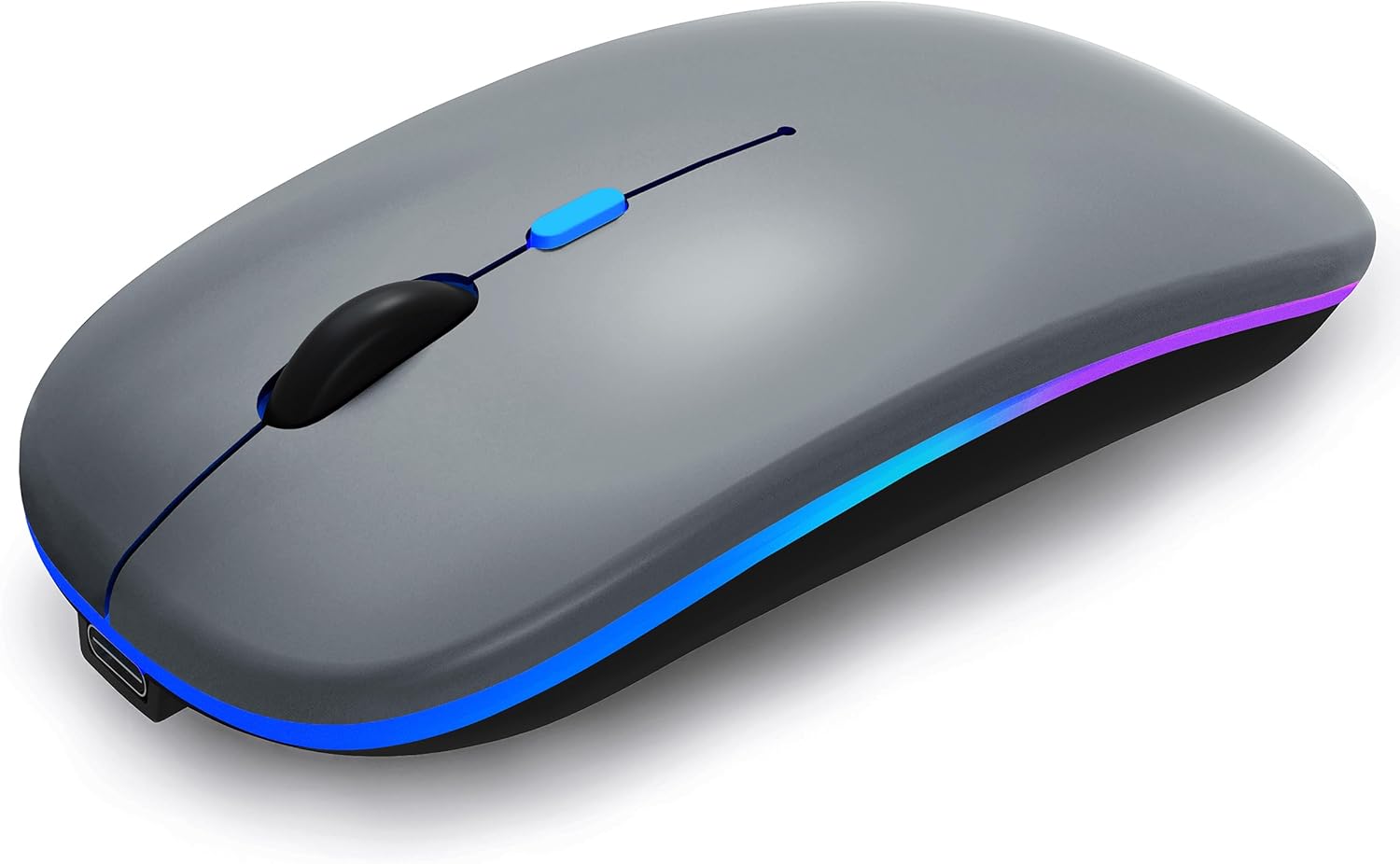
Figure 1: The WREANU Wireless Bluetooth Mouse.
د بسته محتويات
- 1 x Dual Mode Optical Computer Mouse
- 1 x 2.4G USB Receiver (Stored inside the back of the mouse)
- 1 x USB Charging Cable (Note: Do not use a high power or fast charger)
- 1 x د کارونکي لارښود
چمتو کول
1. د موږک چارج کول
Before initial use, fully charge the mouse. Connect the included USB charging cable to the mouse's charging port and to a standard USB power source (e.g., computer USB port, low-power USB wall adapter). A full charge takes approximately 2 hours and provides up to 7 days of working time or 30 days of standby time.
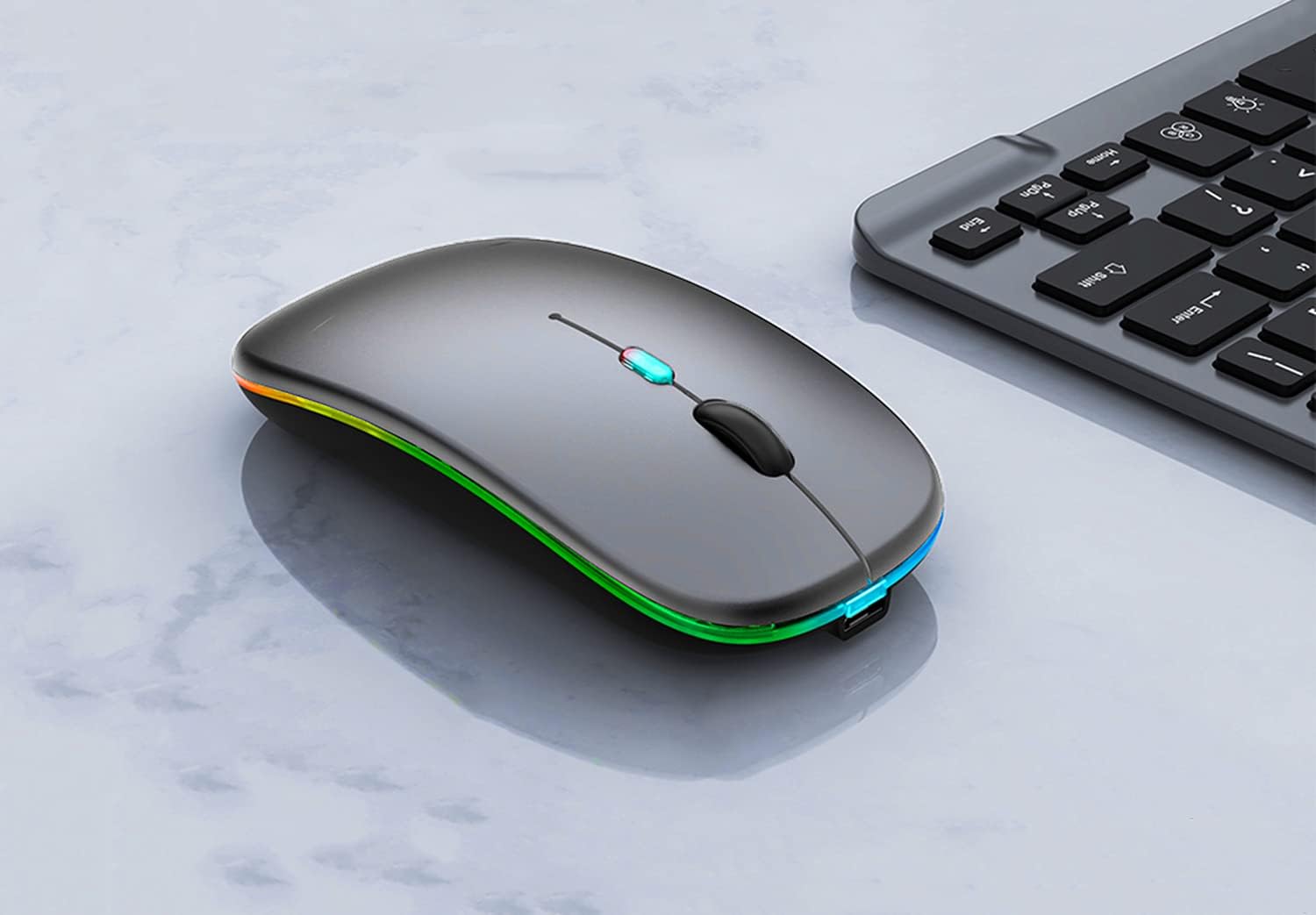
Figure 2: Mouse connected to USB charging cable.
2. Connecting the Mouse (Dual Mode)
The WREANU mouse supports two connection modes: Bluetooth (BT5.2/3.0) and 2.4G Wireless (via USB receiver). You cannot use both modes simultaneously.
2.1. 2.4G Wireless Mode (USB Receiver)
- Locate the 2.4G USB receiver. It is stored in a compartment on the underside of the mouse.
- د USB ریسیور په خپل کمپیوټر یا وسیله کې موجود USB پورټ کې دننه کړئ.
- On the underside of the mouse, slide the mode switch to the "2.4G" position. The mouse will automatically connect to the receiver.

Figure 3: Underside of the mouse with the 2.4G USB receiver and mode switch.
2.2. Bluetooth Mode (BT5.2/3.0)
- On the underside of the mouse, slide the mode switch to the "BT" position.
- The mouse's LED lights will begin to flash, indicating it is in pairing mode.
- On your device (laptop, iPad, tablet, etc.), go to Bluetooth settings and search for new devices.
- Select "Wireless Mouse" or a similar name from the list of available devices to pair.
- Once paired, the mouse's LED lights will stop flashing and remain steadily lit.

Figure 4: Dual mode switch for Bluetooth and 2.4G wireless connectivity.
عملیاتي لارښوونې
۴.۴. د DPI سمون
The mouse features 3 adjustable DPI levels (800 / 1200 / 1600) to customize cursor sensitivity. Press the DPI switch button located below the scroll wheel to cycle through the settings. This allows for precise tracking on various surfaces and adapts to different tasks, from general browsing to detailed work.

شکل ۵: د DPI تنظیم کولو تڼۍ او کچې.
۳.۳. د خاموش کلیک ځانګړتیا
The mouse is designed with silent click technology, significantly reducing click noise. This feature is ideal for quiet environments, ensuring you can focus on your work without disturbing others.

Figure 6: Silent click operation for a quiet working environment.
3. Colorful LED Breathing Light
The mouse features 7 different LED colorful breathing lights that change randomly during use, creating a soothing visual effect. This adds an aesthetic element to your workspace.

Figure 7: Mouse with active LED breathing lights.
4. د بریښنا خوندي کولو حالت
To conserve battery life, the mouse will enter a sleep state after 5 minutes of inactivity. To wake the mouse, simply click any button.
ساتنه
1. د بیټرۍ پاملرنه
- د بیټرۍ روغتیا ساتلو لپاره موږک په منظم ډول چارج کړئ.
- Avoid using high-power or fast chargers, as this can damage the internal battery. Use the provided USB cable and a standard USB port or low-power adapter.
- If the mouse will not be used for an extended period, fully charge it before storage and recharge every few months to prevent deep discharge.
2. پاکول
- Wipe the mouse surface with a soft, dry cloth.
- د سختې خاورې لپاره، په روښانه توګه دampen the cloth with water or a mild, non-abrasive cleaner. Ensure no liquid enters the mouse's internal components.
- The anti-fingerprint surface is designed for easy cleaning and comfort.
د ستونزو حل کول
| ستونزه | احتمالي لامل | د حل لاره |
|---|---|---|
| موږک ځواب نه ورکوي/نښلوي. | Low battery; Incorrect mode selected; USB receiver not properly inserted; Bluetooth not paired. | Charge the mouse; Ensure the mode switch is set to the correct position (2.4G or BT); Re-insert the USB receiver; Re-pair via Bluetooth settings. |
| د کرسر حرکت بې نظمه یا ناسم دی. | Low battery; DPI setting too high/low; Dirty optical sensor; Unsuitable surface. | Charge the mouse; Adjust DPI settings using the DPI button; Clean the optical sensor on the underside; Use on a clean, non-reflective surface or mouse pad. |
| موږک ډېر ژر د خوب حالت ته ننوځي. | دا د بریښنا سپمولو ځانګړتیا ده. | Click any button to wake the mouse. This is normal operation to extend battery life. |
| LED lights are not working or are dim. | ټیټ بیټرۍ. | موږک چارج کړئ. |
مشخصات
| فیچر | تفصیل |
|---|---|
| د ماډل شمیره | بې سیم بلوتوټ ماوس |
| د محصول ابعاد | 4.4 x 2.3 x 0.1 انچه |
| د توکي وزن | 2.3 اونس |
| د ارتباط ټیکنالوژي | BT 3.0/5.2, Bluetooth, Radio Frequency, USB, Wireless |
| د حرکت کشف ټیکنالوژي | نظري |
| د DPI کچه | 800 / 1200 / 1600 |
| بیټرۍ | 500mAh د چارج وړ |
| د چارج کولو وخت | نږدې 2 ساعته |
| د عملیاتي لړۍ | تر 10 مترو پورې (33 فوټ) |
| مطابقت | Android, Chromebook, Windows, Vista, Linux, Notebook, Mac OS, iPad, iPhone |

Figure 8: Mouse dimensions and component overview.
تضمین او ملاتړ
For any issues or inquiries regarding your WREANU Wireless Bluetooth Mouse, please contact WREANU customer support. Refer to the product packaging or the retailer's webد ځانګړي تضمین معلوماتو او اړیکو توضیحاتو لپاره سایټ.
WREANU is committed to providing quality products and customer satisfaction.