
1. پیژندنه
The Intelbras GX 3000 is a multifunction wireless mesh router designed to provide high-speed internet connectivity via 5G/4G networks and Wi-Fi 6. This device integrates advanced Qualcomm technology for both its 5G modem and Wi-Fi 6 solution, ensuring high performance and reliability. It supports up to 128 devices simultaneously on the Wi-Fi network and offers wired connectivity options. The GX 3000 is suitable for various environments, from home to office, providing robust network performance.
This manual provides instructions for setting up, operating, and maintaining your Intelbras GX 3000 router. Please read it carefully before use.
2. Package Contents & Device Overview
2.1. د بسته محتويات
- Intelbras GX 3000 Wireless Mesh Router
- د بریښنا اډاپټر
- د شبکې کیبل
- د چټک پیل لارښود (په دې لارښود کې شامل نه دی)
2.2. وسیله ختمه شوهview
شکل 1: مخکی View of the GX 3000 Router
This image displays the front of the Intelbras GX 3000 router, showing its sleek white design and LED indicators for 5G, 4G, call status, Wi-Fi, and WPS button.

Figure 2: GX 3000 Router with Highlighted Indicators and Ports
This image provides a closer look at the router, emphasizing the LED indicators on the front (5G, 4G, Call, Wi-Fi, WPS) and the various ports located on the rear panel, including LAN, WAN, and TEL ports.
۴.۳. د شا پینل پورټونه

Figure 3: Rear Panel of the GX 3000 Router
This image shows the rear panel of the router, clearly displaying the LAN, WAN, and TEL ports for wired connections.
- د لین بندرونه: د تار لرونکو وسیلو لکه کمپیوټرونو، سمارټ تلویزیونونو، یا د لوبو کنسولونو سره د نښلولو لپاره.
- د وان بندر: For connecting to an external modem or internet source (if not using 5G/4G).
- TEL پورټ: For voice services (if supported by your service provider).
- د بریښنا ننوتل: د شامل شوي بریښنا اډاپټر سره وصل کیږي.
2.2.2. Bottom Panel Features

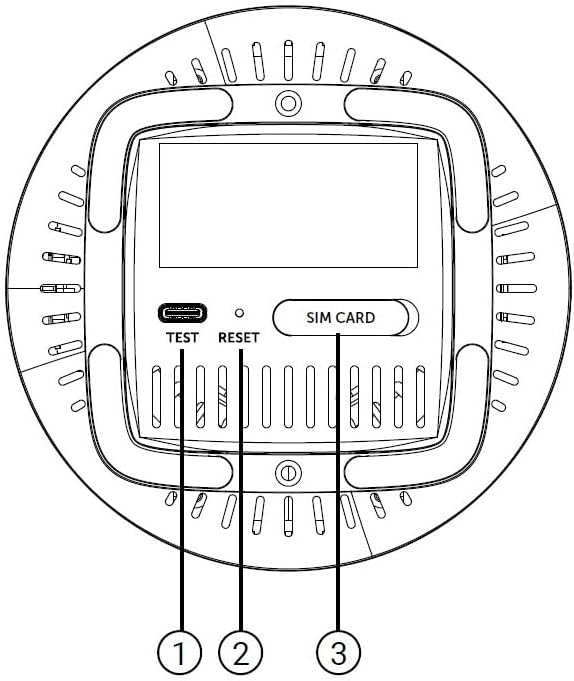
Figure 4: Bottom Panel Features of the GX 3000 Router
This diagram illustrates the bottom panel of the router, highlighting the TEST port, RESET button, and SIM CARD slot.
- TEST Port: For diagnostic purposes.
- د ری سیٹ تڼۍ: Used to restore factory default settings. Press and hold for 10 seconds while the device is powered on.
- SIM CARD Slot: Insert your 5G/4G SIM card here for mobile broadband connectivity.
3. ترتیب کول
۲. لومړنی ځای پرځای کول
Place the router in a central location within your desired coverage area, away from obstructions, metal objects, and other electronic devices that may cause interference. Ensure good ventilation around the device.
3.2. د سیم کارت داخلول
- ډاډ ترلاسه کړئ چې روټر بند دی.
- Locate the SIM CARD slot on the bottom panel of the router (refer to Figure 4).
- Insert your activated 5G/4G SIM card into the slot with the gold contacts facing down and the notched corner oriented correctly. Push until it clicks into place.
- د لرې کولو لپاره، سیم کارت په نرمۍ سره بیا دننه کړئ تر هغه چې راووځي.
3.3. د نښلولو بریښنا
- Connect one end of the power adapter to the Power Input port on the rear of the router.
- د بریښنا اډاپټر بله پای په معیاري بریښنایی آوټ لیټ کې ولګوئ.
- The router will power on automatically. Wait for the LED indicators to stabilize.
3.4. Wired Connections (Optional)
If you wish to connect devices via Ethernet:
- Connect one end of the provided network cable to a LAN port on the rear of the router.
- Connect the other end of the network cable to the Ethernet port of your computer, smart TV, or other wired device.
۵. د وای فای لومړنی اتصال
The default Wi-Fi network name (SSID) and password are usually printed on a label on the bottom of the router. Follow these steps to connect:
- په خپل بېسیم وسیله (سمارټ فون، لپ ټاپ، ټابلیټ) کې، د وای فای ترتیبات پرانیزئ.
- Scan for available networks and select the SSID corresponding to your GX 3000 router.
- کله چې غوښتنه وشي، د وای فای ډیفالټ پټنوم دننه کړئ.
- Once connected, you can access the router's web interface to customize settings.
4. عملیاتي لارښوونې
4.1. د LED شاخصونه
د مخکینۍ پینل LEDs د وضعیت معلومات چمتو کوي:
- 5G LED: د 5G شبکې حالت په ګوته کوي.
- 4G LED: د 4G شبکې حالت په ګوته کوي.
- Call LED: Indicates voice service status.
- وای فای LED: د وای فای شبکې فعالیت په ګوته کوي.
- WPS LED: د WPS فعالیت حالت په ګوته کوي.
Refer to the full user manual (if provided separately) for detailed LED behavior (e.g., solid, blinking, color) and their meanings.
4.2. ته لاسرسی Web سمبالښت برسیر
To configure advanced settings, manage your network, or change Wi-Fi credentials, access the router's web انٹرفیس:
- Ensure your device is connected to the GX 3000's Wi-Fi network or via an Ethernet cable.
- خلاص a web براوزر (د مثال په توګه، کروم، فایرفاکس، ایج).
- په پته بار کې، د روټر ډیفالټ IP پته ولیکئ (معمولا
192.168.1.1or192.168.0.1) and press Enter. This information is usually on the label on the bottom of the router. - د ډیفالټ کارن نوم او پټنوم دننه کړئ (د روټر لیبل کې هم موندل کیږي).
- You will now be in the router's management interface, where you can customize settings such as Wi-Fi name, password, security protocols, and more.
4.3. Wi-Fi Protected Setup (WPS)
WPS allows you to connect Wi-Fi devices without entering the password manually:
- Press the WPS button on the front of the GX 3000 router (refer to Figure 1). The WPS LED will start blinking.
- Within two minutes, press the WPS button on your client device (e.g., Wi-Fi adapter, printer).
- وسایل به په اتوماتيک ډول وصل شي.
Note: WPS is a convenient feature but may be less secure than manual password entry.
4.4. Mesh Network Expansion
The GX 3000 supports mesh networking to expand Wi-Fi coverage. You can add other compatible Intelbras Qi5 line products to create a seamless mesh network. Each additional Wi-Fi 6 router can extend coverage by up to 300 m². It is recommended to use up to 6 routers in the same mesh network for optimal performance.
Refer to the specific instructions provided with additional mesh units for pairing and configuration.
5. ساتنه
5.1. د آلې پاکول
- Ensure the router is powered off and unplugged before cleaning.
- د وسیلې بهر پاکولو لپاره نرم او وچ ټوکر وکاروئ.
- Do not use liquid cleaners, aerosols, or solvents, as they may damage the casing یا داخلي برخې.
- د هوا د بهېدو دروازې له دوړو او کثافاتو څخه پاکې وساتئ.
5.2. د فرم ویئر تازه معلومات
Periodically check the Intelbras official webد فرم ویئر تازه معلوماتو لپاره سایټ. د فرم ویئر تازه معلومات کولی شي فعالیت ښه کړي، نوي ځانګړتیاوې اضافه کړي، او امنیت لوړ کړي. د فرم ویئر تازه کولو کڅوړې سره چمتو شوي لارښوونې په دقت سره تعقیب کړئ.
۶.۲. د فابریکې ډیفالټ ته بیا تنظیم کول
If you encounter persistent issues or forget your login credentials, you can reset the router to its factory default settings:
- With the router powered on, locate the RESET button on the bottom panel (refer to Figure 4).
- Using a paperclip or a similar pointed object, press and hold the RESET button for approximately 10 seconds.
- Release the button. The router will restart with all settings restored to their original factory defaults.
- You will need to reconfigure your Wi-Fi settings and any other custom configurations after a factory reset.
6. ستونزه حل کول
| ستونزه | احتمالي لامل | د حل لاره |
|---|---|---|
| No power / Router not turning on | د بریښنا اډاپټر نه دی وصل شوی یا خراب شوی؛ د بریښنا آوټ لیټ کار نه کوي. |
|
| No internet connection (5G/4G) | SIM card not inserted correctly; SIM card not activated; No 5G/4G signal; Service provider issue. |
|
| د وائی فای سره وصل نشو | Incorrect Wi-Fi password; Wi-Fi disabled; Device too far from router. |
|
| د انټرنېټ سرعت ورو دی | Network congestion; Poor signal strength; Interference; Outdated firmware. |
|
| هېر شوی web د انٹرفیس پټنوم | Password forgotten or changed. |
|
7. مشخصات
| فیچر | تفصیل |
|---|---|
| برانډ | Intelbras |
| ماډل | GX 3000 |
| د ارتباط ټیکنالوژي | 5G, 4G, Wi-Fi 6 (802.11a/b/g/n/ac/ax) |
| د فریکونسی بانډ ټولګی | دوه ګونی بند |
| د بې سیمه مواصلاتو معیار | 802.11a |
| د معلوماتو د لیږد کچه | په یوه ثانیه کې تر ۳۰۰ میګابایټ پورې |
| د LAN پورټ بینډ ویت | ۱۰۰۰ ایم بی پی ایس (ګیګابایټ ایترنیټ) |
| د انتن ډول | داخلي |
| مطابقت لرونکې وسیلې | Computer, Notebook, Tablet, Smart TV |
| ځانګړي ځانګړتیاوې | Remote Access, Mesh Wi-Fi capability |
| رنګ | سپین |
| د توکي وزن | 1000 ګرامه |
| شاملې برخې | Power supply, Network cable |
| Anatel Homologation Number | 13571-22-00180 |
8. تضمین او ملاتړ
8.1. د تضمین معلومات
Intelbras products are covered by a limited warranty. For specific warranty terms and conditions, please refer to the warranty card included with your product or visit the official Intelbras webسایټ. د تضمین ادعاوو لپاره د پیرود ثبوت وساتئ.
8.2. تخنیکي ملاتړ
If you require technical assistance or have questions not covered in this manual, please contact Intelbras customer support. You can find contact information (phone numbers, email, support portal) on the official Intelbras webسایټ:
Intelbras Official Webسایټ: www.intelbras.com.br
When contacting support, please have your product model (GX 3000) and serial number ready.