
Keenetic KN-2112-01TR
Keenetic Extra DSL AC1200 Wi-Fi Mesh VDSL2/ADSL2+ Modem Gigabit Fiber Router User Manual
Model: KN-2112-01TR
پیژندنه
This manual provides comprehensive instructions for the setup, operation, maintenance, and troubleshooting of your Keenetic Extra DSL AC1200 Wi-Fi Mesh VDSL2/ADSL2+ Modem Gigabit Fiber Router. Please read this manual carefully before using the device to ensure optimal performance and safety.
The Keenetic Extra DSL AC1200 is a versatile networking device designed to provide high-speed internet access and robust Wi-Fi coverage. It supports VDSL2/ADSL2+ connections and features Gigabit Ethernet ports for wired connectivity, along with dual-band Wi-Fi for seamless wireless networking.
د بسته محتويات
مخکې له دې چې تنظیم پیل کړئ، مهرباني وکړئ تصدیق کړئ چې ټول توکي ستاسو په کڅوړه کې شتون لري:
- Keenetic Extra DSL AC1200 Router (KN-2112-01TR)
- د بریښنا اډاپټر
- ایترنیټ کیبل
- د DSL کیبل
- د چټک پیل لارښود (دا لارښود د تفصيلي لارښود په توګه کار کوي)
فزیکي پایview
Familiarize yourself with the various ports and indicators on your Keenetic Extra DSL router.

شکل 1: مخکینۍ خوا view of the Keenetic Extra DSL AC1200 Router, showing its compact design and antenna configuration.
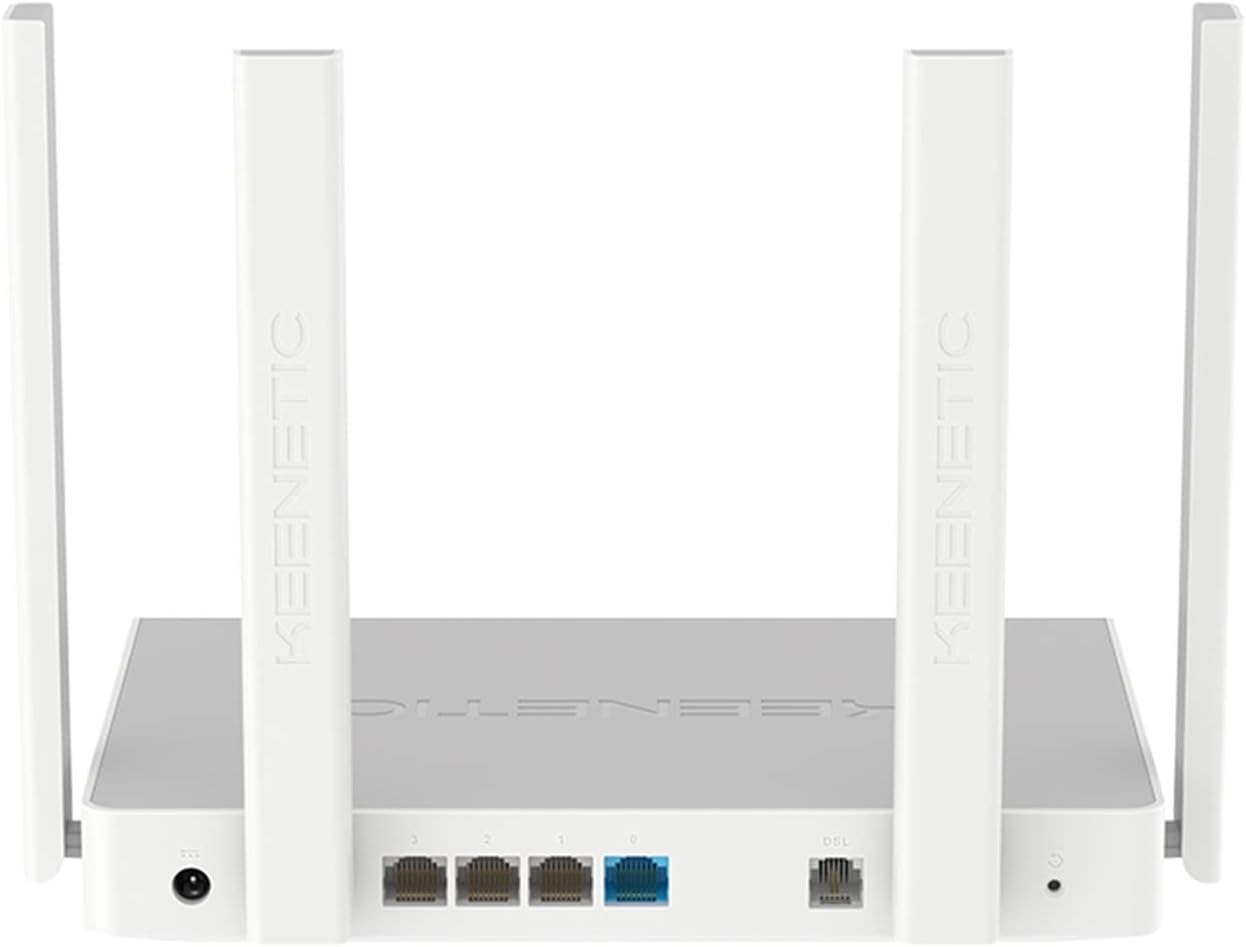
شکل 2: شاته view of the Keenetic Extra DSL AC1200 Router, highlighting the DSL port, four Gigabit Ethernet ports, and the USB 2.0 port.
- د DSL پورټ: Connects to your VDSL2/ADSL2+ line.
- Ethernet Ports (LAN/WAN): Four 1Gbit/s ports for wired devices or WAN connection.
- د USB 2.0 پورټ: For connecting external storage or 3G/4G modems.
- د بریښنا ننوتل: د ورکړل شوي بریښنا اډاپټر سره وصل کیږي.
- د بیا تنظیم تڼۍ: د فابریکې ډیفالټ ترتیباتو بیرته راګرځولو لپاره کارول کیږي.
چمتو کول
1. د هارډویر اتصال
- د DSL لاین سره وصل کړئ: Plug one end of the DSL cable into the DSL port on the router and the other end into your wall's DSL jack.
- د بریښنا سره نښلول: د بریښنا اډاپټر د روټر د بریښنا ان پټ سره وصل کړئ او بیا یې د بریښنا آوټ لیټ سره وصل کړئ. روټر به په اتوماتيک ډول فعال شي.
- د تار لرونکي وسایل وصل کړئ (اختیاري): Use an Ethernet cable to connect your computer or other wired devices to any of the Gigabit Ethernet ports on the router.
- د پیل لپاره انتظار وکړئ: Allow a few minutes for the router to boot up and establish a connection. The indicator lights on the front panel will show the status of the connection.
2. ابتدايي ترتیب
The Keenetic Extra DSL features a user-friendly interface for easy setup.
- ته لاسرسی Web انٹرفیس: خلاص a web browser on a device connected to the router (either wired or wirelessly using the default Wi-Fi name and password found on the router's label). Type
my.keenetic.netor192.168.1.1د پتې پټې ته ننوځي او په هغې کې فشار ورکړئ. - د تنظیم وزرډ تعقیب کړئ: The first time you access the interface, a setup wizard will guide you through the initial configuration steps, including setting up your internet connection (VDSL/ADSL parameters), Wi-Fi network name (SSID), and password.
- د مدیر پټنوم تنظیم کړئ: د روټر ترتیباتو ته د لاسرسي لپاره یو قوي مدیر پټنوم جوړ کړئ.
- ترتیبات خوندي کړئ: After configuring, save your settings and restart the router if prompted.
د روټر چلول
د وائی فای ارتباط
The router supports dual-band Wi-Fi (2.4 GHz and 5 GHz) for optimal wireless performance.
- د نښلولو وسایل: On your wireless device, search for available Wi-Fi networks. Select your configured network name (SSID) and enter the password.
- Wi-Fi Mesh: This router supports Wi-Fi Mesh technology. For extending coverage, additional Keenetic devices can be added to create a seamless mesh network. Refer to the Keenetic website for detailed instructions on mesh setup.
پرمختللي ځانګړتیاوې
The Keenetic OS provides a wide range of features accessible through the web انٹرفیس:
- د میلمه وای فای شبکه: Create a separate Wi-Fi network for guests to isolate them from your main network.
- د والدینو کنټرول: د ځانګړو وسیلو یا کاروونکو لپاره د انټرنیټ لاسرسی اداره کړئ.
- د پور لیږدول: Configure rules for specific applications or services.
- د VPN سرور/مراجع: Establish secure connections.
- د USB غوښتنلیکونه: Utilize the USB 2.0 port for file sharing (FTP/SMB), connecting a printer, or using a 3G/4G USB modem as a backup internet source.
ساتنه
- د فرم ویئر تازه معلومات: په منظم ډول د روټر له لارې د فرم ویئر تازه معلومات وګورئ او نصب کړئ web انٹرفیس. تازه معلومات اکثرا د فعالیت ښه والی، امنیتي پیچونه، او نوي ځانګړتیاوې لري.
- د روټر ځای پرځای کول: روټر په مرکزي ځای کې ځای په ځای کړئ، د خنډونو او مداخلې سرچینو څخه لرې (د بیلګې په توګه، مایکروویو، بې تار تلیفونونه) ترڅو د وای فای پوښښ اعظمي کړئ.
- پاکول: روټر پاک او له دوړو څخه پاک وساتئ. د پاکولو لپاره نرم او وچ ټوکر وکاروئ. د مایع پاکوونکو څخه کار مه اخلئ.
- بیا پیل کول: که تاسو د شبکې ستونزې تجربه کوئ، نو د روټر بیا پیلولو هڅه وکړئ د 10 ثانیو لپاره د بریښنا اډاپټر خلاصولو سره او بیا یې بیرته ولګوئ.
د ستونزو حل کول
| ستونزه | احتمالي لامل | د حل لاره |
|---|---|---|
| انټرنیټ ته لاسرسی نشته | DSL line not connected, incorrect ISP settings, modem not synced. | Check DSL cable connection. Verify ISP settings in the router's web interface. Restart the router and wait for DSL sync. Contact your ISP if the issue persists. |
| د وای فای کمزوری سیګنال | د روټر ځای پرځای کول، مداخله، ډیر وسایل. | Relocate the router to a central, open area. Avoid placing near other electronics. Consider adding a Keenetic Wi-Fi Mesh extender. |
| روټر ته لاسرسی نشم کولی Web انٹرفیس | Incorrect IP address, network configuration issues. | Ensure your device is connected to the router. Try my.keenetic.net or 192.168.1.1. Clear browser cache. Try a different browser. If all else fails, perform a factory reset (see below). |
| د انټرنیټ سرعت ورو | Network congestion, outdated firmware, ISP issues. | Update router firmware. Limit bandwidth-intensive activities. Perform a speed test directly connected to the router. Contact your ISP. |
د فابریکې ری سیٹ
If you encounter persistent issues, you may need to perform a factory reset. This will erase all custom settings and restore the router to its default configuration.
- د روټر په فعالولو سره، ومومئ بیا تنظیم کړئ button (usually a small pinhole button) on the back panel.
- Use a paperclip or a thin object to press and hold the Reset button for approximately 10 seconds until the system LED blinks rapidly.
- Release the button and wait for the router to restart. You will then need to reconfigure the router from scratch.
مشخصات
| فیچر | تفصیل |
|---|---|
| د ماډل نوم | KN-2112-01TR |
| برانډ | کینیټیک |
| بيسيم ستندرد | ۸۰۲.۱۱ac، ۸۰۲.۱۱n |
| د فریکونسی بانډ ټولګی | دوه ګونی بند |
| کلیدي ځانګړتیاوې | Wi-Fi Mesh, User-Friendly Interface |
| ایترنیټ بندرونه | 4 x Gigabit (1Gbit/s) |
| USB بندرونه | 1 x USB 2.0 |
| ابعاد (L x W x H) | 37 x 28.6 x 6.2 سانتي متره |
| وزن | 1 کیلوګرامه |
| رنګ | سپین |
| د اصلي هیواد | چین |
تضمین او ملاتړ
For warranty information and technical support, please refer to the official Keenetic website or contact Keenetic customer service. Specific warranty terms may vary by region and retailer.
Note: No specific warranty duration or detailed support contact information was provided in the product data. Please consult your purchase documentation or the manufacturer's official resources for the most accurate and up-to-date information.
Ask a question about this manual
Ask about setup, troubleshooting, compatibility, parts, safety, or missing instructions. Manuals+ will review the question and use this page’s manual context to help answer it.