
1. پیژندنه
This manual provides detailed instructions for the setup, operation, and maintenance of your INPHIC M6Pro Wireless Tri-Mode Ergonomic Mouse. Please read this manual thoroughly before using the product to ensure proper functionality and longevity.
2. محصول ختم شوview
The INPHIC M6Pro is a versatile wireless mouse designed for comfort and efficiency. It features multiple connectivity options, customizable performance, and smart features to enhance your computing experience.
کلیدي ځانګړتیاوې:
- دوه اړخیز ارتباط: Supports both 2.4G wireless and Bluetooth 5.0 connections for flexible device pairing.
- ارګونومیک ډیزاین: Right-handed design with a 39mm height, wide thumb rest, and non-slip grips for enhanced comfort and stability during extended use.
- Customizable Performance: Offers 5-speed DPI adjustment ranging from 800 to 2400 DPI, allowing you to tailor cursor sensitivity. Features silent click buttons for quiet operation.
- سمارټ ځانګړتیاوې: Includes RGB lighting effects, a stepped battery indicator, and optimized three-dimensional side buttons designed to prevent accidental clicks.
- د بریښنا موثریت: Equipped with a 500mAh rechargeable battery and a convenient Type-C charging port for prolonged use.
3. د بسته محتويات
- INPHIC M6Pro Wireless Mouse
- د USB رسیور (په موږک کې زیرمه شوی)
- د USB-C چارج کیبل
- د کارن لارښود
4. ترتیب کول
۳.۱ د موږک چارج کول
Before first use, fully charge the mouse. Connect the provided USB-C charging cable to the Type-C port on the front of the mouse and to a USB power source.

Image: The INPHIC M6Pro mouse being charged via its Type-C port. The battery indicator lights are visible, showing charging status.
The battery indicator lights will flash in a cycle while charging. Once fully charged, all battery indicator lights will remain steadily lit.
Video: Demonstrates the mouse charging process, showing the battery indicator lights flashing during charging and remaining solid when fully charged.
۳.۲.۱ ۲.۴ جي بېسیم اتصال
- Locate the USB receiver stored in the compartment at the bottom of the mouse.
- د USB ریسیور په خپل کمپیوټر کې موجود USB پورټ کې ولګوئ.
- Turn on the mouse using the ON/OFF switch located at the bottom.
- Ensure the mode switch at the bottom is set to the '2.4G' position (red light will be on). The mouse should automatically connect to your device.
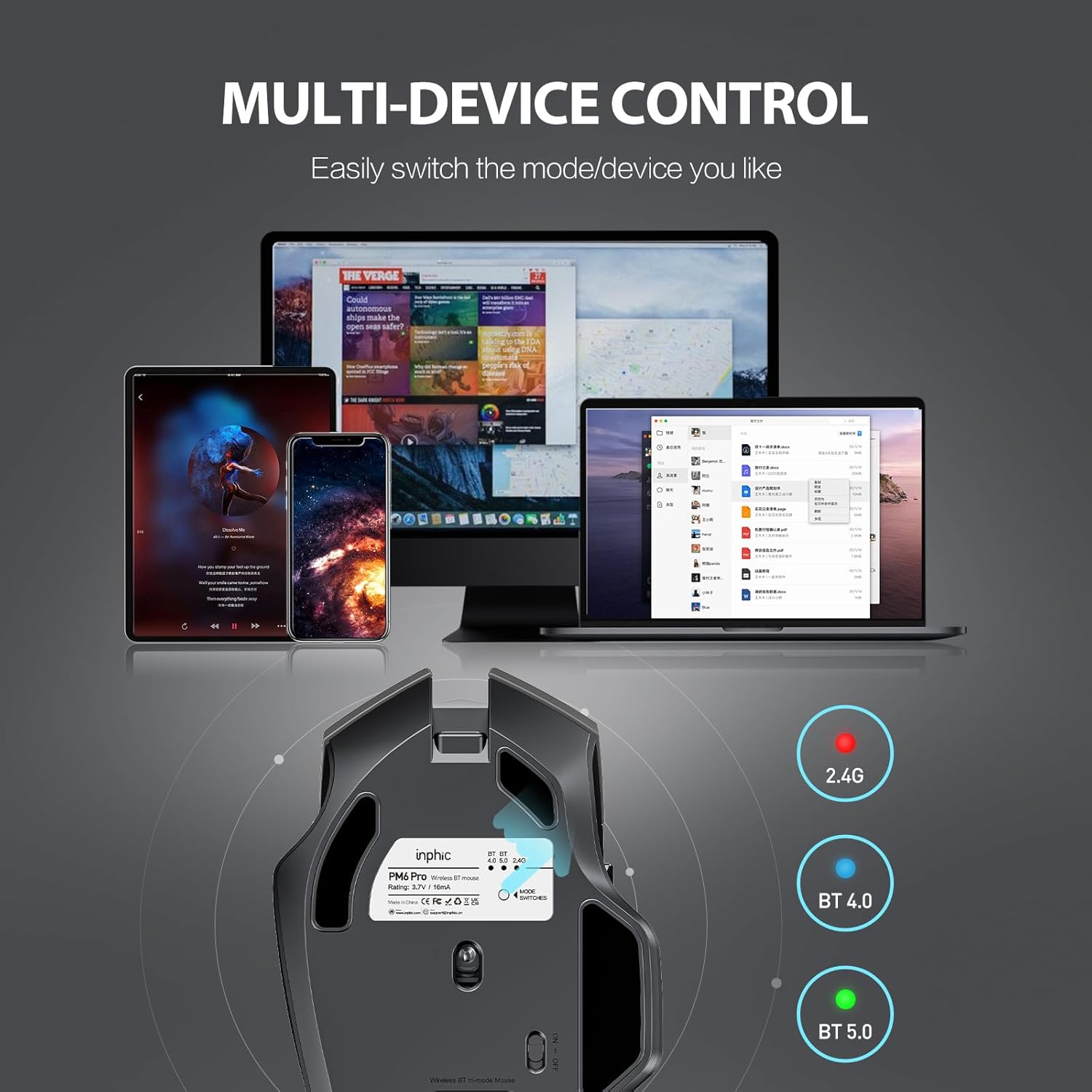
Image: The underside of the mouse, highlighting the USB receiver storage and the mode switch for 2.4G, BT 4.0, and BT 5.0 connections.
4.3 Bluetooth Connection (BT 5.0 / BT 4.0)
- Turn on the mouse using the ON/OFF switch at the bottom.
- Short-press the 'MODE SWITCHES' button at the bottom to cycle through connection modes until the desired Bluetooth indicator (BT 5.0 or BT 4.0) lights up.
- For pairing, long-press the 'MODE SWITCHES' button until the selected Bluetooth indicator light flashes rapidly. This indicates the mouse is in pairing mode.
- On your device (computer, tablet, etc.), go to Bluetooth settings and search for new devices. Select 'INPHIC M6Pro' (or similar name) to pair.
Video: Demonstrates how to switch between 2.4G and Bluetooth modes (BT 4.0, BT 5.0) and enter pairing mode by pressing the mode switch button on the mouse's underside.
5. عملیاتي لارښوونې
5.1 د DPI تعدیل
The mouse features a DPI switch button located behind the scroll wheel. Press this button to cycle through 5 DPI settings (800, 1200, 1600, 2000, 2400 DPI) to adjust cursor sensitivity to your preference.

Image: A diagram illustrating the location of the DPI switch button and other buttons on the mouse.
5.2 د تڼۍ دندې
The INPHIC M6Pro mouse is equipped with 6 buttons:
- کی Key کیلي: معیاري کیڼ کلیک فعالیت.
- ښی کیلي: د ښي کلیک کولو معیاري فعالیت.
- سکرول ویل: پورته/ښکته سکرول کوي، او د منځني کلیک تڼۍ په توګه کار کوي.
- DPI سویچ: د کرسر حساسیت (DPI) تنظیموي.
- د وړاندې کولو تڼۍ: مخ په وړاندې ځي web براوزرونه یا file سپړونکي
- شاته تڼۍ: شاته نیویګیټ کوي web براوزرونه یا file سپړونکي

انځور: تفصیلي view of the mouse's underside, showing the power switch, LED indicator, and USB receiver slot.
5.3 Ergonomic Design and Silent Operation
The mouse features a curved, skin-like material design for a comfortable grip, reducing hand strain during prolonged use. The widened thumb rest further enhances comfort and control.
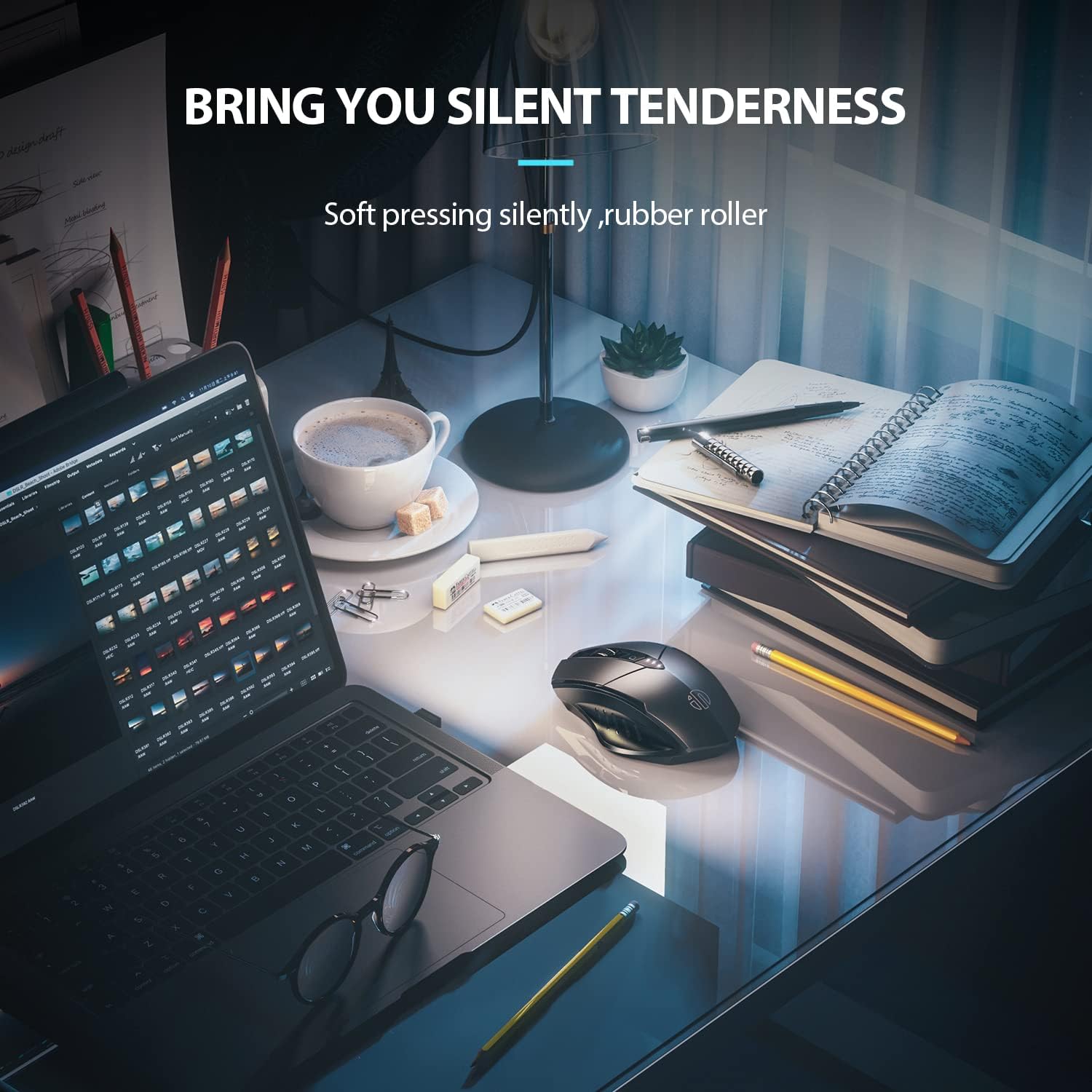
Image: The ergonomic shape of the mouse, designed for a comfortable user experience.

Image: A close-up showing the widened thumb rest for a more comfortable grip.
The left and right click buttons are designed for silent operation, allowing you to work without disturbing others.

Image: Illustrates the silent click feature of the mouse, ideal for quiet environments.
6. ساتنه
To ensure the longevity and optimal performance of your INPHIC M6Pro mouse, follow these maintenance guidelines:
- پاکول: د موږک د پاکولو لپاره نرم، وچ ټوکر وکاروئ. د سختې خاورې لپاره، لږ څهampټوکر د اوبو یا نرم پاکولو محلول سره ومینځئ. د سختو کیمیاوي موادو یا خړوبونکو موادو څخه ډډه وکړئ.
- ذخیره کول: کله چې د اوږدې مودې لپاره نه کارول کیږي، د بیټرۍ ژوند ساتلو لپاره موږک بند کړئ. دا په یخ او وچ ځای کې د مستقیم لمر وړانګو او سخت تودوخې څخه لرې وساتئ.
- د بیټرۍ پاملرنه: Avoid fully discharging the battery frequently. Charge the mouse when the battery indicator shows low power.
- د USB ترلاسه کوونکی: Keep the USB receiver in its designated storage slot at the bottom of the mouse when traveling to prevent loss.
7. ستونزه حل کول
If you encounter issues with your INPHIC M6Pro mouse, refer to the following common solutions:
| ستونزه | احتمالي لامل | د حل لاره |
|---|---|---|
| موږک ځواب نه ورکوي (2.4G) | USB receiver not properly connected or mouse is off. | Ensure the USB receiver is securely plugged into a USB port. Turn on the mouse and ensure the mode switch is set to 2.4G. Try a different USB port. |
| موږک ځواب نه ورکوي (بلوتوث) | Not paired, out of range, or incorrect Bluetooth mode selected. | Ensure the mouse is in the correct Bluetooth mode (BT 5.0 or BT 4.0) and in pairing mode (flashing light). Re-pair the mouse with your device. Ensure the mouse is within 10 meters of your device. |
| د کرسر حرکت بې نظمه یا ورو دی | Low battery, incorrect DPI setting, or dirty sensor. | Charge the mouse. Adjust the DPI setting using the DPI button. Clean the optical sensor at the bottom of the mouse with a soft cloth. |
| Buttons not clicking or unresponsive | Low battery or connection issue. | Charge the mouse. Re-establish the connection (2.4G or Bluetooth). |
| بیټرۍ چارج نه کوي | غلط کیبل یا د بریښنا سرچینه. | Try a different USB-C cable and a different USB power source. Ensure the cable is properly connected to the mouse's Type-C port. |
8. مشخصات
| فیچر | تفصیل |
|---|---|
| د ماډل شمیره | M6Pro |
| د ارتباط ټیکنالوژي | 2.4G Wireless, Bluetooth 5.0, Bluetooth 4.0 (Tri-Mode) |
| د حرکت کشف ټیکنالوژي | نظري |
| د DPI تنظیمات | ۱، ۲، ۵، ۶، ۸ |
| تڼۍ | ۶ (کیڼ، ښي، سکرول ویل، د DPI سویچ، مخکې، شاته) |
| د بیټرۍ ډول | Rechargeable Lithium Polymer (500mAh) |
| د چارج کولو بندر | ټایپ-سي |
| د محصول ابعاد | 4.65 x 1.57 x 0.04 انچه |
| د توکي وزن | 3.35 اونس |
| مطابقت لرونکي عملیاتي سیسټمونه | Windows Vista/7 and above, Mac OS X 10.10 and above, iOS 13 and above, Android 5.0 and above, Linux kernel 2.6+, Chrome OS |
9. تضمین او ملاتړ
INPHIC products are designed for reliability and performance. For warranty information or technical support, please refer to the contact details provided with your product packaging or visit the official INPHIC webسایټ. د تضمین ادعاوو لپاره د پیرود ثبوت په توګه د پیرود رسید وساتئ.