
1. پیژندنه
This manual provides instructions for the proper setup, operation, and maintenance of your Tera 3106-2 1D USB Wired Barcode Scanner. Please read this manual thoroughly before using the device to ensure optimal performance and longevity.
2. محصول ختم شوview
The Tera 3106-2 is a high-speed, accurate 1D barcode scanner designed for various applications including retail, small businesses, libraries, and warehouses. It features a plug-and-play USB connection and supports multiple customization options.

شکل 2.1: The Tera 3106-2 scanner is designed to be eye-safe, operating without a visible laser.
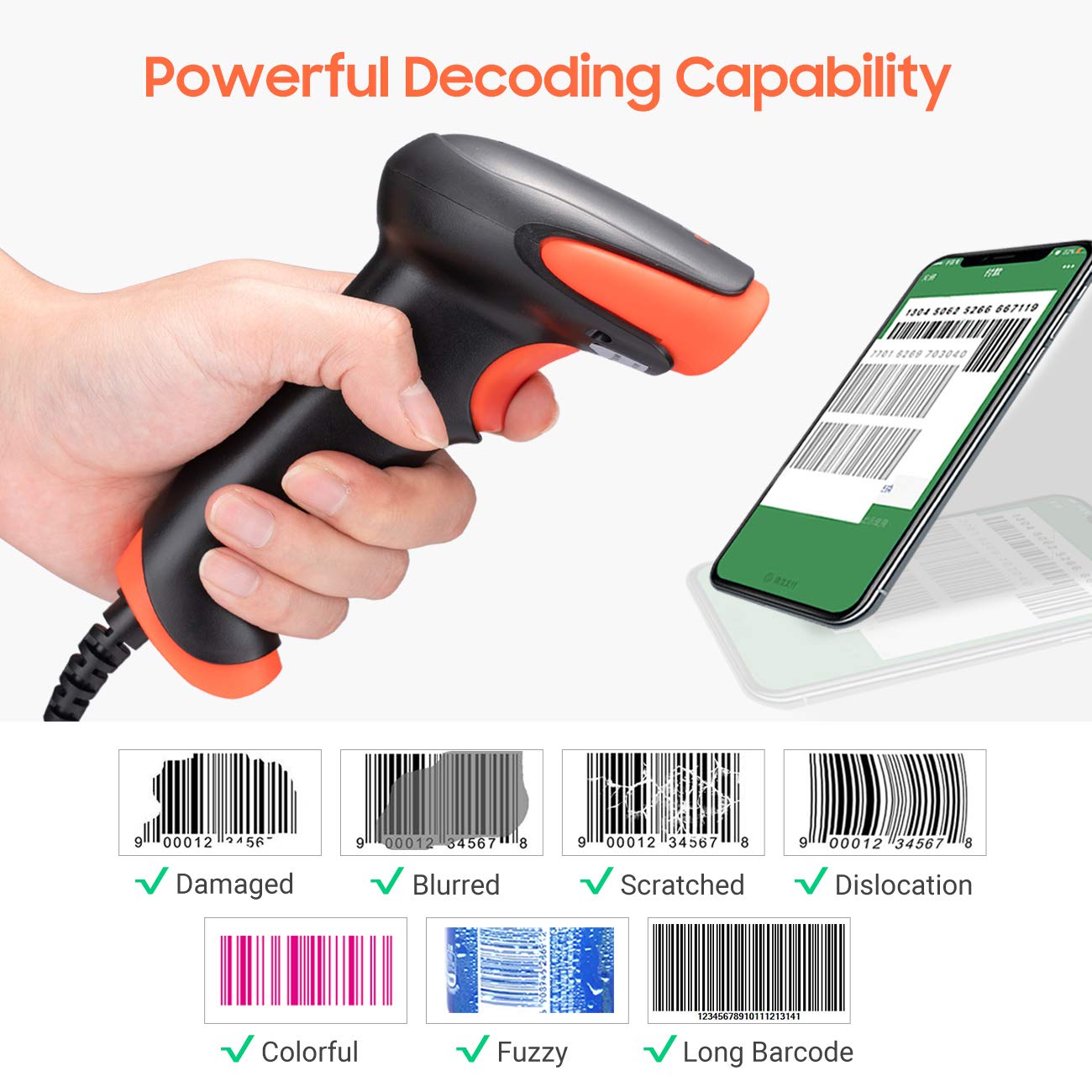
شکل 2.2: The scanner offers powerful decoding capabilities, accurately reading damaged, blurred, scratched, dislocated, colorful, fuzzy, and long 1D barcodes.
3. د بسته محتويات
- Tera 3106-2 Barcode Scanner x1
- د کارن لارښود x1
4. ترتیب کول
The Tera 3106-2 barcode scanner is designed for simple plug-and-play operation. No additional drivers or software installation is required for most systems.
- د USB کیبل سره وصل کړئ: Plug the USB cable of the scanner into an available USB 2.0 port on your computer (desktop or laptop).
- د سیسټم پیژندنه: Your operating system (Windows, Linux, macOS, iOS, Android) will automatically detect and install the necessary device drivers. This process may take a few moments.
- د استعمال لپاره چمتو: Once the system indicates that the device is ready, the scanner can be used with applications such as Word, Excel, Novell, or other common software that accepts keyboard input.

شکل 4.1: The scanner is compatible with various devices and operating systems, including Windows, Linux, macOS, iOS, and Android.
5. عملیاتي لارښوونې
۴.۱ اساسي سکین کول
To scan a barcode, aim the scanner's light beam at the center of the barcode. A successful scan will typically be indicated by an audible beep and/or a visual confirmation (e.g., LED indicator). The decoded data will appear in the active input field on your connected device.
۳.۶.۳ د سکین کولو طریقې
سکینر د سکین کولو دوه لومړني طریقې ملاتړ کوي:
- لاسي سکین کول: د سکین پیل کولو لپاره د ټریګر تڼۍ فشار ورکړئ. دا ډیفالټ حالت دی.
- Auto Continuous Scanning: The scanner continuously emits a scan beam, automatically reading barcodes presented to it without needing to press the trigger.
To switch between these modes, refer to the configuration barcodes provided in the supplementary user guide or quick start sheet that came with your scanner. Scan the appropriate barcode to change the mode.
6. د اصلاح کولو اختیارونه
The Tera 3106-2 scanner offers various customization settings to adapt to your specific needs. These settings are typically configured by scanning special barcodes found in the included user guide.
- مختاړی/لاسوهنه: د سکین شوي معلوماتو دمخه یا وروسته دودیز حروف اضافه کړئ.
- حجم: Adjust the sound level of the scan confirmation beep.
- ختمونکی: Configure the character sent after the barcode data (e.g., Carriage Return, Tab).
- Upper/Lower Case: Convert scanned data to all uppercase or all lowercase.
- د کیبورډ ژبه: Select the appropriate keyboard layout for your region. Supported languages include English, Spanish, German, French, Italian, Japanese, and more.
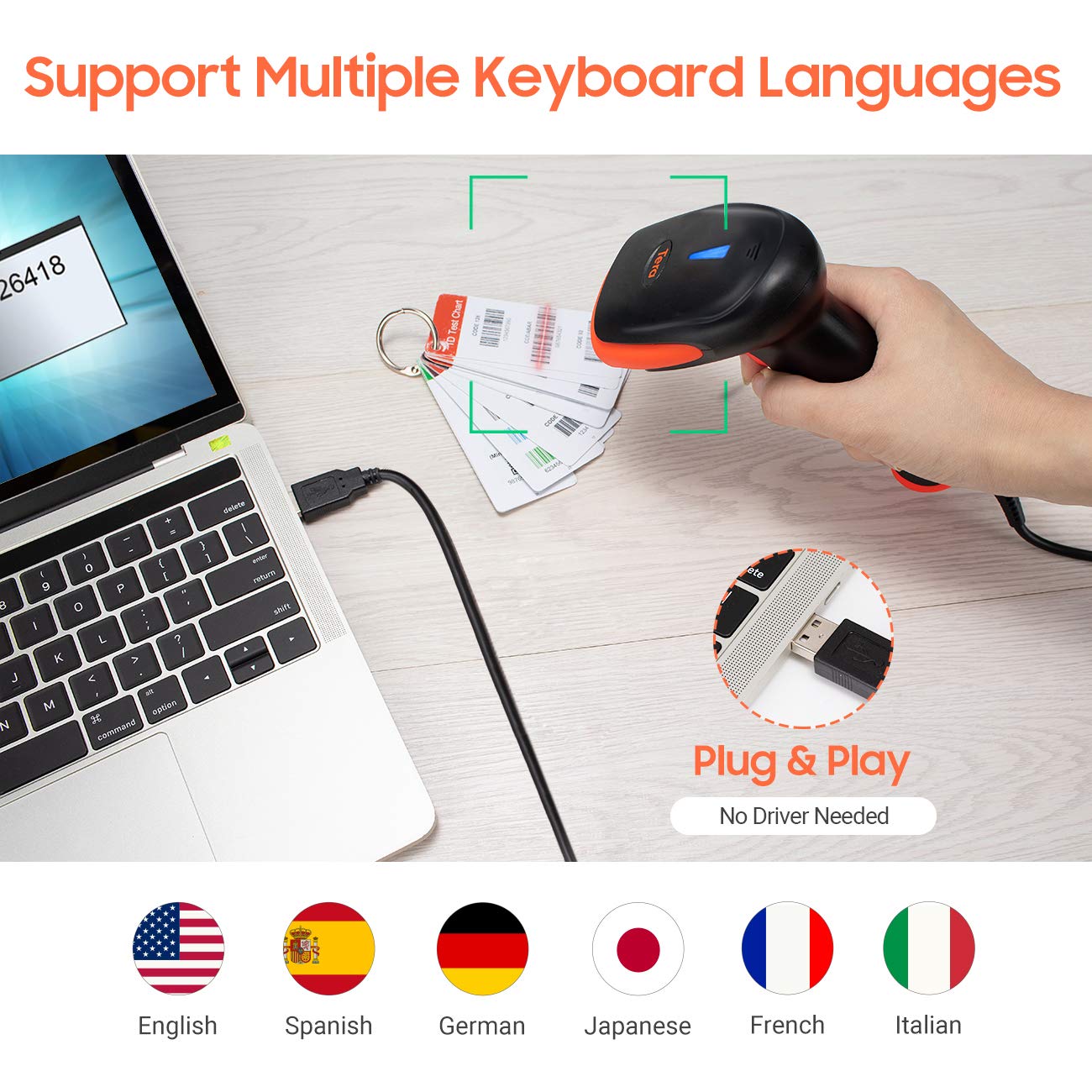
شکل 6.1: The scanner supports multiple keyboard languages for diverse international use.

شکل 6.2: Customize barcode output by adding prefixes, suffixes, or hiding specific digits.
7. Supported Barcodes
This scanner is compatible with a wide range of 1D barcode symbologies, including but not limited to:
- UPC&EAN (UPC-A, UPC-E, EAN-8, EAN-13)
- Code 39, CODE32, Code 93, CODE11, Code 128, UCC-EAN128
- ISSN, ISBN
- CODABAR, MSI
- Interleaved 2 of 5, Matrix 2 of 5, Industrial 2 of 5
- او نور.
The scanner also supports reading 1D barcodes directly from digital screens.
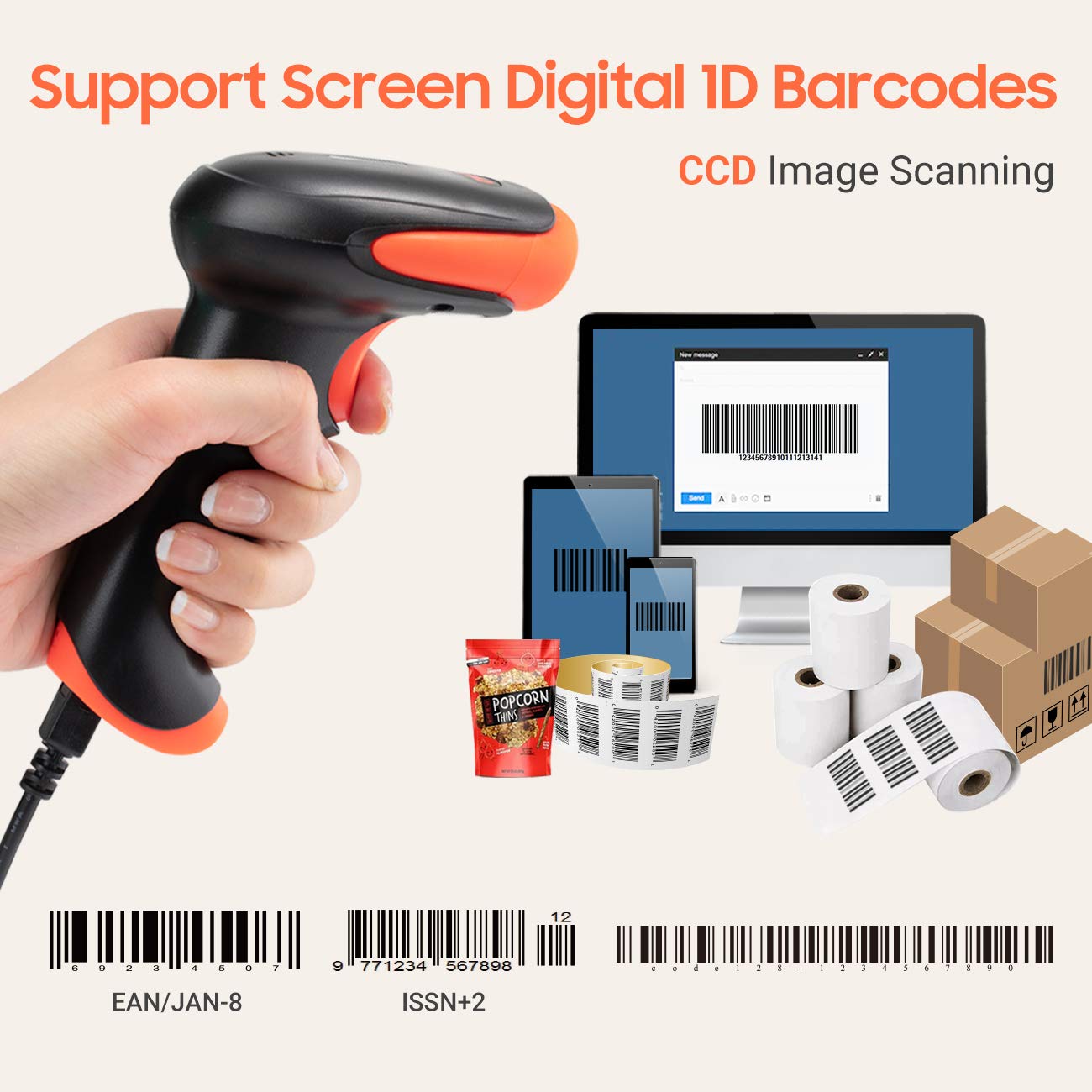
شکل 7.1: The scanner supports reading 1D barcodes from various sources, including digital screens and printed labels.
8. ساتنه
- پاکول: د سکینر بهرنۍ برخه پاکولو لپاره نرم، وچ ټوکر وکاروئ. د سکین کولو کړکۍ لپاره، نرم، لینټ نه پاک ټوکر وکاروئ په نرمۍ سرهampened with water or a mild, non-abrasive cleaner. Avoid harsh chemicals.
- ذخیره کول: سکینر په یخ او وچ ځای کې د مستقیم لمر وړانګو او سختې تودوخې څخه لرې وساتئ.
- سمبالول: Avoid dropping the scanner or subjecting it to strong impacts. Do not attempt to disassemble the device.
9. ستونزه حل کول
| ستونزه | احتمالي لامل | د حل لاره |
|---|---|---|
| سکینر نه چالانېږي یا ځواب نه ورکوي. | د USB کیبل په سمه توګه نه دی وصل شوی یا د USB پورټ خراب دی. | Ensure the USB cable is securely plugged into both the scanner and the computer. Try a different USB port. |
| Scanner reads barcodes slowly or inaccurately. | Barcode is damaged, blurred, or poorly printed. Insufficient lighting. Scanner window is dirty. | Ensure the barcode is clear and well-lit. Clean the scanner window. Try scanning from a different angle or distance. |
| Scanner does not read barcodes from digital screens. | Screen brightness is too low or glare is present. | Increase screen brightness. Adjust the angle of the scanner to minimize glare. Ensure the barcode is fully displayed on the screen. |
| Scanned data appears incorrectly (e.g., wrong characters, missing digits). | Incorrect keyboard language setting. Prefix/suffix or other data formatting settings are active. | Verify the keyboard language setting matches your computer's keyboard layout. Review and adjust prefix/suffix or other data formatting settings using the configuration barcodes. |
| سکینر غږ کوي خو هیڅ معلومات نه لیږدول کیږي. | Application not in focus or not accepting input. | Ensure the cursor is in the desired input field of your application. Test with a simple text editor like Notepad. |
10. مشخصات
| فیچر | تفصیل |
|---|---|
| ماډل | 3106-2 |
| د سکینګ ډول | 1D Laser (Eye Safe) |
| ارتباط | USB Wired (USB 2.0) |
| د سکین سرعت | په هره ثانیه کې تر ۱،۱۲۰ سکینونو پورې |
| د تېروتنې کچه | 1 in 5 million scans |
| مطابقت لرونکې وسیلې | ډیسټاپ، لپ ټاپ |
| مطابقت لرونکي سیسټمونه | Windows, Linux, macOS, iOS, Android |
| د بریښنا سرچینه | د بریښنا تار (د USB له لارې) |
| د محصول ابعاد (د x څلویښتم x څلویښتم) | 7.9 x 19.3 x 10.4 سانتي متره |
| Supported 1D Barcodes | UPC&EAN, UPC-A, UPC-E, Code 39, CODE32, Code 93, CODE11, Code 128, UCC-EAN128, EAN-8, EAN-13, ISSN, ISBN, CODABAR, MSI, Interleaved 2 of 5, Matrix 2 of 5, Industrial 2 of 5, etc. |
11. تضمین او ملاتړ
For warranty information, technical support, or service inquiries, please refer to the contact details provided with your purchase documentation or visit the official Tera webسایټ. مهرباني وکړئ د تضمین ادعاوو لپاره د پیرود ثبوت وساتئ.