
1. پیژندنه
This manual provides detailed instructions for the setup, operation, and maintenance of your TECURS 2.4G Wireless Gaming Keyboard. This keyboard is designed for versatile use across various operating systems and devices, featuring a comfortable ergonomic design, adjustable backlighting, and a built-in phone/tablet holder.

Figure 1: TECURS 2.4G Wireless Gaming Keyboard with integrated phone/tablet holder.
2. د بسته محتويات
مهرباني وکړئ تصدیق کړئ چې ټول توکي ستاسو په کڅوړه کې شتون لري:
- 1 x TECURS 2.4G Wireless Gaming Keyboard
- 1 x USB-A/Type-C 2.4G Wireless Dongle (with Type-C adapter)
- 1 x د USB ډول-C چارج کیبل
- ۱ x د کارونکي لارښود (دا سند)
3. ترتیب کول
3.1. د کیبورډ چارج کول
Before first use, fully charge the keyboard using the provided USB Type-C charging cable. Connect the Type-C end of the cable to the keyboard's charging port and the USB-A end to a compatible USB power source (e.g., computer USB port, USB wall adapter). The battery indicator light will show charging status.
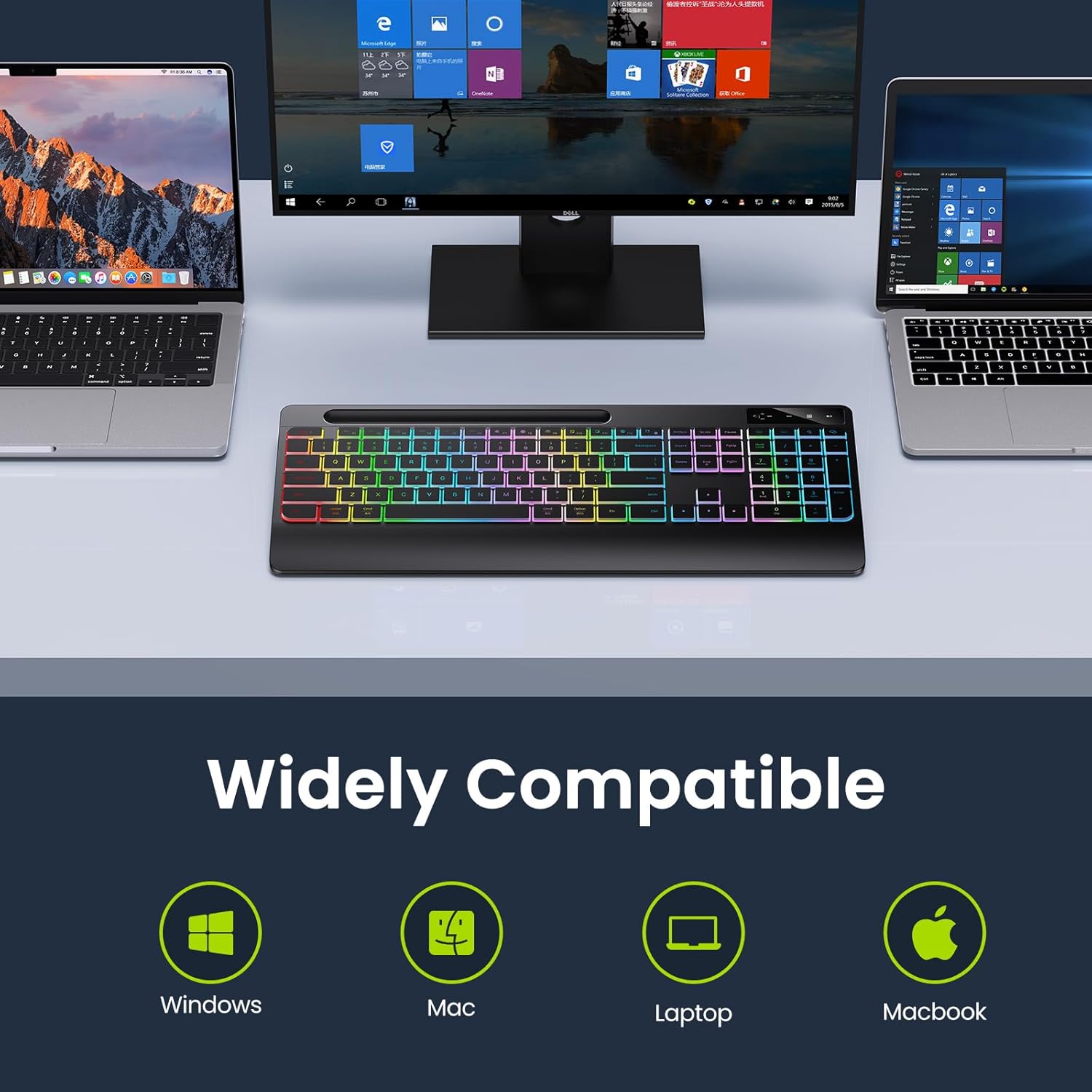
Figure 2: Connecting the USB Type-C charging cable to the keyboard.
3.2. ستاسو د آلې سره نښلول
The keyboard connects wirelessly via a 2.4 GHz USB dongle. No drivers are required for installation.
- Locate the 2.4 GHz USB dongle, typically stored in a compartment on the underside of the keyboard.
- If your device has a USB-A port, plug the dongle directly into it.
- If your device has a USB-C port, attach the included Type-C adapter to the USB-A dongle, then plug the assembly into the USB-C port.
- Turn on the keyboard using the ON/OFF switch located on the top right side of the keyboard.
- کیبورډ باید په اتوماتيک ډول ستاسو وسیله سره وصل شي.

Figure 3: Wireless dongle and compatibility with USB-A and Type-C ports.
ویډیو ۱: پایview of the TECURS Wireless Keyboard features, including connectivity and ergonomic design.
4. عملیاتي لارښوونې
4.1. د backlight کنټرول
The keyboard features adjustable LED backlighting with multiple brightness levels.
- ته turn on/off the backlight or adjust brightness: پریس Fn + پای repeatedly to cycle through brightness levels (Low, Medium, High, Off).
- د فعالولو لپاره تل په بیک لایټ کې: پریس Fn + Esc.

Figure 4: Backlight brightness adjustment controls.
4.2. Phone/Tablet Holder
The integrated slot at the top of the keyboard serves as a convenient holder for your smartphone or tablet, allowing for easy viewد ټایپ کولو پر مهال.

Figure 5: Using the integrated phone/tablet holder.
۵.۲. د سیسټم بدلول
The keyboard supports both Windows and Mac operating systems. Use the dedicated system indicator buttons to switch between modes:
- فشار ورکړئ وګټل button to activate Windows mode.
- فشار ورکړئ MAC button to activate Mac mode.
4.4. Ergonomic ډیزاین
The keyboard features an 8-degree tilt angle and a wrist rest to promote a more comfortable typing posture and reduce strain during extended use.

Figure 6: Ergonomic design with 8-degree tilt.
4.5. Silent Flat Keys
The keyboard is equipped with responsive low-profile keys designed to minimize typing noise, providing a quiet and comfortable input experience.

Figure 7: Silent flat keys for quiet operation.
5. ساتنه
د خپل کیبورډ د اوږد عمر او غوره فعالیت ډاډمن کولو لپاره، د ساتنې دا لارښوونې تعقیب کړئ:
- پاکول: د کیبورډ سطحې د پاکولو لپاره یو نرم، وچ، له لینټ څخه پاک ټوکر وکاروئ. د سختې خاورې لپاره، یو څه لږampټوکر د اوبو یا یو نرم، غیر خارښونکي پاکونکي سره ومینځئ. د ډیر رطوبت څخه ډډه وکړئ.
- د دوړو لرې کول: د کیلي ګانو ترمنځ د دوړو او کثافاتو د لرې کولو لپاره د فشار شوي هوا څخه کار واخلئ.
- ذخیره کول: کله چې د اوږدې مودې لپاره نه کارول کیږي، کیبورډ په یخ او وچ ځای کې د مستقیم لمر وړانګو او سخت تودوخې څخه لرې وساتئ.
- د بیټرۍ پاملرنه: Avoid fully discharging the battery frequently. Recharge the keyboard when the low battery indicator appears.
6. ستونزه حل کول
If you encounter issues with your keyboard, please refer to the following common problems and solutions:
| ستونزه | احتمالي لامل | د حل لاره |
|---|---|---|
| کیبورډ ځواب نه ورکوي | Low battery; Dongle not properly connected; Keyboard OFF. | Charge the keyboard; Re-insert the USB dongle; Ensure keyboard is ON. |
| Backlight کار نه کوي | د شا څراغ بند دی؛ ټیټ بیټرۍ. | Press Fn + End to cycle backlight modes; Charge the keyboard. |
| Input lag or intermittent connection | Interference; Dongle too far from keyboard. | Move closer to the dongle (within 33 feet); Avoid placing near other wireless devices. |
| Keys rubbing off | د وخت په تیریدو سره عادي خرابیدل. | This is a cosmetic issue and does not affect functionality. Consider keycap stickers if desired. |
7. مشخصات
- د ماډل شمیره: TCK-2.4G-WRIST-PHONE-HLDR
- د ارتباط ټیکنالوژي: 2.4 GHz Wireless (USB-A, USB-C compatible dongle)
- د کیبورډ توضیحات: جھلی
- د کلیدونو شمیر: 109
- ځانګړي ځانګړتیاوې: Backlit, Rechargeable, Wrist Rest, Phone Holder
- د کیبورډ شاته رڼا کولو رنګ ملاتړ: Single Color (Rainbow effect)
- د بریښنا سرچینه: 1 لیتیم آئن بیټرۍ (شامل ده)
- د بیټرۍ ظرفیت: 1000 mAh (approximate, based on typical usage)
- د بیټرۍ ژوند: Up to 15 days (no backlight), Up to 10 hours (with backlight)
- مطابقت لرونکي وسایل: Laptop, PC, iPad, Smart TV, Tablet, Smartphone
- عملیاتي سیسټمونه: وینډوز، ماک
- رنګ: تور
- د توکي وزن: ۱.۹ پونډه (تقریبا ۰.۸۶ کیلوګرامه)
- د بسته ابعاد: ۲.۶۴ x ۲.۳۲ x ۲.۷۶ انچه (تقریبا ۶.۷ x ۵.۹ x ۷ سانتي متره)
8. تضمین او ملاتړ
For warranty information and customer support, please refer to the documentation included with your product packaging or visit the official TECURS website. You can also visit the TECURS store on Amazon for more product details and support resources: