
1. پیژندنه
This manual provides comprehensive instructions for the Hyperkin Pixel Art Bluetooth Controller, Tetris™ Edition (Model M01328-TETS). This limited-edition wireless controller is designed for use with various gaming platforms, offering a blend of retro aesthetics and modern functionality. Please read this manual thoroughly before use to ensure proper setup and operation.

Image 1.1: The Hyperkin Pixel Art Bluetooth Controller, Tetris™ Edition, showcasing its unique Tetris-themed design.
2. د بسته محتويات
ډاډ ترلاسه کړئ چې ټول توکي ستاسو په کڅوړه کې شتون لري:
- Hyperkin Pixel Art Bluetooth Controller (Tetris™ Edition)
- د USB-C چارج کیبل
- د کارونکي لارښود (دا لاسوند)
۳. د کنټرولر ترتیب
Familiarize yourself with the buttons and features of your controller:

انځور 3.1: مخکی view of the controller, displaying the D-pad, analog sticks, action buttons (A, B, X, Y), SELECT, START, and Tetris™ logo.
- D-pad: لارښوونه.
- کیڼ/ښي انلاګ سټیکونه: Precise 360-degree movement.
- د عمل تڼۍ (A، B، X، Y): Primary interaction buttons.
- د انتخاب تtonۍ: Function varies by platform/game.
- د پیل تڼۍ: Function varies by platform/game.
- د اوږو تڼۍ (L1، R1): پورته نصب شوي تڼۍ.
- Trigger Buttons (L2, R2): Bottom-mounted analog triggers.
- د کور تڼۍ: Returns to system menu (functionality varies by platform).
- د توربو تڼۍ: Activates/deactivates turbo function for selected buttons.
- د USB-C پورټ: د چارج کولو او تار لرونکي اتصال لپاره.

انځور 3.2: شاته view of the controller, showing the ergonomic grip and product label.
4. ترتیب کول
4.1. د کنټرولر چارج کول
Before initial use, fully charge the controller. Connect the included USB-C charging cable to the controller's USB-C port and the other end to a USB power source (e.g., computer, USB wall adapter). The charging indicator light will show charging status and turn off when fully charged.
4.2. د بلوتوث جوړه کول
The controller supports wireless connection via Bluetooth up to 30 feet. Follow these general steps for pairing:
- ډاډ ترلاسه کړئ چې کنټرولر چارج شوی.
- Turn on the controller (specific method may vary, typically holding the Home button).
- Activate pairing mode on the controller (refer to specific platform instructions below, usually a combination of buttons or a dedicated pairing button). The indicator lights will flash rapidly.
- On your device (Nintendo Switch, PC, Mac, Android, iOS), navigate to the Bluetooth settings.
- لټون available devices and select "Hyperkin Pixel Art Controller" or similar.
- Once paired, the indicator lights on the controller will become solid.
4.2.1. Pairing with Nintendo Switch/OLED Model
- From the HOME Menu, select "Controllers" > "Change Grip/Order."
- While on this screen, press and hold the pairing button on the Hyperkin controller until the indicator lights flash.
- Once paired, the controller will appear on the screen, and the player indicator will light up.
4.2.2. Pairing with PC (Windows 10/11)
- Go to "Settings" > "Devices" > "Bluetooth & other devices."
- Turn on Bluetooth and click "Add Bluetooth or other device."
- Select "Bluetooth" and then choose "Hyperkin Pixel Art Controller" from the list.
4.2.3. Pairing with Mac
- Open "System Settings" (or "System Preferences") > "Bluetooth."
- Ensure Bluetooth is on. The controller should appear in the list of devices.
- Click "Connect" or "Pair" next to "Hyperkin Pixel Art Controller."
4.2.4. Pairing with Android/iOS Devices
- Go to your device's "Settings" > "Bluetooth."
- Turn on Bluetooth. The controller should appear in the list of available devices.
- Tap on "Hyperkin Pixel Art Controller" to pair.

Image 4.1: The controller demonstrating wireless connectivity with a Nintendo Switch console, highlighting its Bluetooth capability.
5. عملیاتي لارښوونې
۶.۱. اساسي کنټرولونه
The controller functions as a standard gamepad. Button mapping may vary depending on the game and platform. Refer to your game's instructions for specific control schemes.
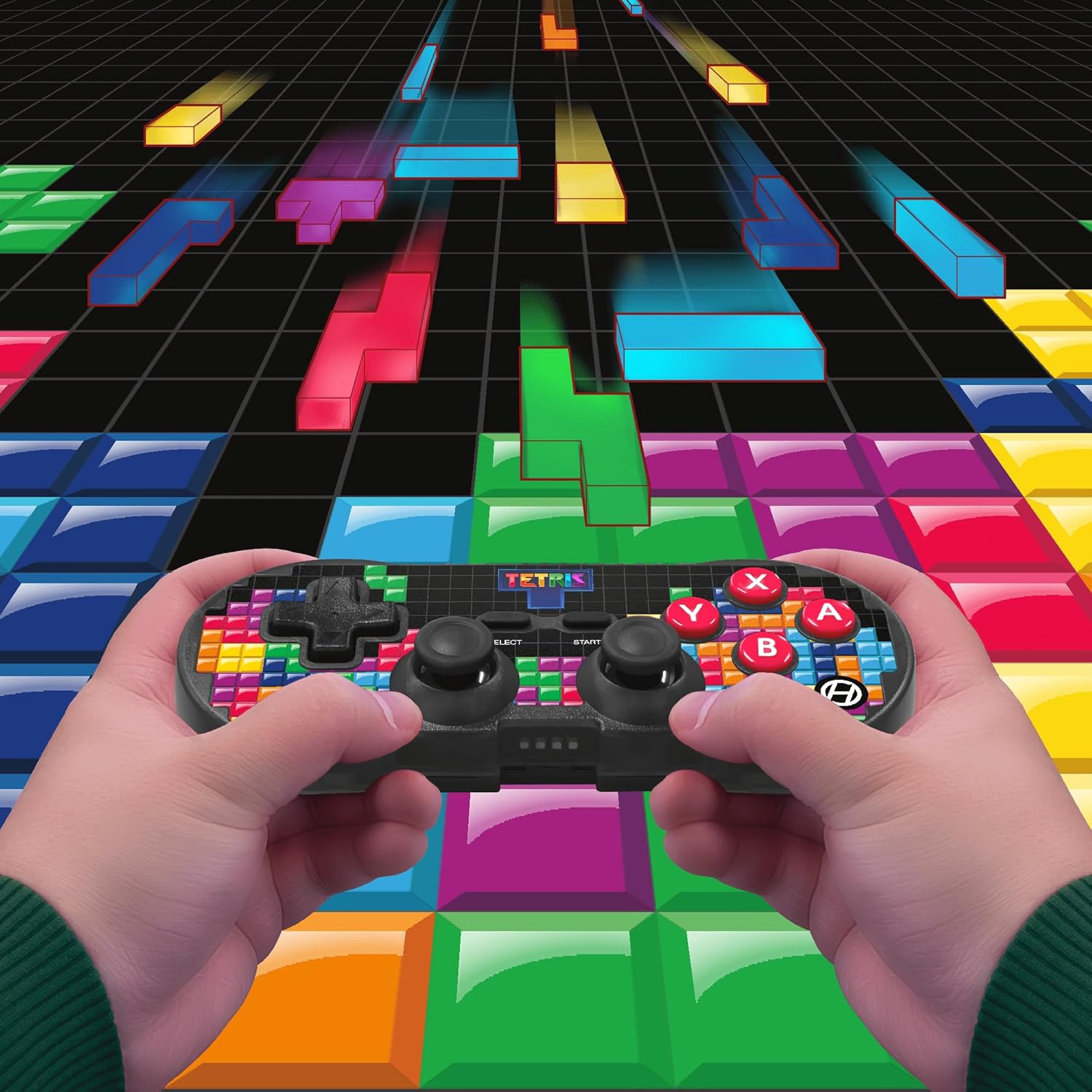
Image 5.1: A user holding the controller, illustrating its use during gameplay.
۲. د ټربو فعالیت
The controller features a turbo function for rapid button presses. To activate or deactivate turbo for a specific button:
- فشار ورکړئ او ونیسئ د ټربو ت buttonۍ.
- While holding the Turbo button, press the desired د عمل تڼۍ (A, B, X, Y, L1, R1, L2, R2) you wish to apply turbo to.
- Release both buttons. The selected action button will now have turbo enabled.
- To disable turbo for that button, repeat the process.
6. مطابقت
The Hyperkin Pixel Art Bluetooth Controller is compatible with a wide range of platforms:
- د نینټینډو سویچ
- Nintendo Switch OLED Model
- وینډوز 10/11 کمپیوټر
- ماک
- د Android وسایل
- iOS وسایل
- بھاپ
- Raspberry Pi
- Amazon Games
- ایمیزون لونا
- ټیسلا

Image 6.1: Visual representation of the controller's broad compatibility across multiple gaming and computing platforms.
7. ساتنه
د خپل کنټرولر د اوږد عمر او غوره فعالیت ډاډمن کولو لپاره:
- پاکول: د کنټرولر پاکولو لپاره نرم، وچ ټوکر وکاروئ. د کثافاتو پاکوونکو یا محلولونو څخه ډډه وکړئ.
- ذخیره کول: کنټرولر په یخ او وچ ځای کې د مستقیم لمر وړانګو او سختې تودوخې څخه لرې وساتئ.
- د بیټرۍ پاملرنه: Do not attempt to replace the internal Lithium Polymer battery. Avoid fully discharging the battery for extended periods.
- له څاڅکو ډډه وکړئ: کنټرولر د څاڅکو او اغیزو څخه خوندي کړئ، کوم چې کولی شي داخلي برخو ته زیان ورسوي.
8. ستونزه حل کول
If you encounter issues with your Hyperkin Pixel Art Bluetooth Controller, refer to the following common problems and solutions:
| ستونزه | احتمالي حل |
|---|---|
| کنټرولر نه چالانېږي. | ډاډ ترلاسه کړئ چې کنټرولر په بشپړ ډول چارج شوی دی. د USB-C کیبل په کارولو سره یې د بریښنا سرچینې سره وصل کړئ. |
| Controller does not pair via Bluetooth. |
|
| د ننوتلو ځنډ یا پرې شوی اړیکه. |
|
| تڼۍ غیر ځواب ویونکي یا بندې دي. | Clean around the buttons with a soft, dry cloth. Avoid liquid cleaners. If the issue persists, contact support. |
9. مشخصات
| فیچر | تفصیل |
|---|---|
| د ماډل شمیره | M01328-TETS |
| ارتباط | Bluetooth (Wireless up to 30 ft.), USB-C (Wired) |
| مطابقت | Nintendo Switch/OLED, Windows 10/11 PC, Mac, Android, iOS, Steam, Raspberry Pi, Amazon Games, Amazon Luna, Tesla |
| ځانګړي ځانګړتیاوې | Turbo function, Retro design with modern ergonomics, High-quality symmetrical sticks, Responsive action buttons, Reliable triggers |
| د بیټرۍ ډول | ۱ لیتیم پولیمر بیټرۍ (داخلي) |
| د کڅوړې ابعاد | 7.24 x 5 x 2.48 انچه |
| د توکي وزن | 9.9 اونس |
| جوړونکی | Hyperkin |
10. تضمین او ملاتړ
For warranty information and technical support, please visit the official Hyperkin webسایټ ته مراجعه وکړئ یا د دوی د پیرودونکو خدماتو څانګې سره اړیکه ونیسئ. د تضمین ادعاوو لپاره د پیرود ثبوت وساتئ.
Hyperkin Official Webسایټ: www.hyperkin.com