
1. پیژندنه
Thank you for choosing the Maxfree P1S 12-inch FHD Portable Monitor. This manual provides essential information for setting up, operating, and maintaining your new portable display. Designed for versatility and portability, the P1S monitor enhances your productivity and entertainment experience across various devices.
The Maxfree P1S features a 12-inch FHD IPS panel, offering a clear and vibrant visual experience with wide viewing angles. Its lightweight and slim design, coupled with a smart cover, makes it an ideal companion for travel, remote work, or expanding your desktop workspace. Enjoy seamless connectivity with USB-C and Mini HDMI ports, supporting a wide range of devices including laptops, smartphones, gaming consoles, and more.

Image: Maxfree P1S Portable Monitor demonstrating multiple applications, such as extending a laptop display, connecting to a smartphone, and enhancing a gaming setup.
2. د بسته محتويات
مهرباني وکړئ تصدیق کړئ چې ټول توکي ستاسو په کڅوړه کې شتون لري:
- Maxfree P1S 12-inch Portable Monitor
- سمارټ محافظتي پوښ
- USB-C to USB-C Cable (Full-featured)
- مینی HDMI ته HDMI کیبل
- USB-A ته د USB-C بریښنا کیبل
- د کارونکي لارښود (دا لاسوند)
3. محصول ختم شوview
Familiarize yourself with the ports and buttons on your Maxfree P1S portable monitor:

انځور: تفصیلي view of the Maxfree P1S monitor's side, highlighting two USB-C ports, one Mini HDMI port, and control buttons (Menu -, Menu +, Power).
- د USB-C پورټونه (x2): For power and video signal transmission. One port is typically full-featured (power, video, data), while the other might be for power only or specific functions. Refer to your device's compatibility.
- مینی HDMI پورټ: For video signal input from devices supporting HDMI output.
- Menu - Button: Navigates down in the OSD menu or decreases values.
- Menu + Button: Navigates up in the OSD menu or increases values.
- د بریښنا تڼۍ: Turns the monitor on/off and confirms selections in the OSD menu.
4. تنظیم او ارتباط
The Maxfree P1S monitor offers flexible connectivity options. Ensure your device has the necessary ports for optimal performance.
4.1 Connecting via USB-C (Full-featured)
If your laptop, smartphone, or tablet has a full-featured USB-C port (which supports DisplayPort Alternate Mode and power delivery), you can connect the monitor with a single USB-C to USB-C cable for both power and video signal.
- Connect one end of the USB-C to USB-C cable to your device's full-featured USB-C port.
- Connect the other end to one of the USB-C ports on the Maxfree P1S monitor.
- مانیټر باید په اتوماتيک ډول سیګنال کشف کړي او بریښنا یې فعاله کړي.

Image: A Maxfree P1S monitor connected to a laptop using a single USB-C cable, demonstrating a streamlined setup.
4.2 Connecting via Mini HDMI and USB-A (for power)
If your device does not have a full-featured USB-C port, or if you prefer to use HDMI, you will need two cables: one for video and one for power.
- Connect one end of the Mini HDMI to HDMI cable to the Mini HDMI port on the monitor.
- د HDMI کیبل بل پای د خپل وسیله HDMI پورټ سره وصل کړئ.
- Connect the USB-C end of the USB-A to USB-C power cable to a USB-C port on the monitor.
- Connect the USB-A end of the power cable to a USB-A port on your device or a compatible power adapter (5V/2A or higher, not included).
- The monitor should power on and display the signal.

Image: A Maxfree P1S monitor connected to a laptop using separate HDMI and USB-A cables for video and power, respectively.
4.3 Connecting to Gaming Consoles (Xbox, PlayStation, Switch)
The Maxfree P1S is compatible with various gaming consoles. Use the Mini HDMI to HDMI cable for video and the USB-A to USB-C power cable for power.
- Connect the Mini HDMI to HDMI cable from the monitor to your gaming console.
- Connect the USB-A to USB-C power cable from the monitor to a USB port on your console or a power adapter.
- Ensure the console is powered on and configured to output video via HDMI.

Image: The Maxfree P1S monitor set up for gaming, showcasing compatibility with Xbox, PlayStation, and Nintendo Switch consoles.
4.4 Connecting to Smartphones
For smartphones with full-featured USB-C ports, a single USB-C to USB-C cable can provide both power and video. For other phones, an adapter (not included) may be required.
- Connect your smartphone to the monitor using a full-featured USB-C to USB-C cable.
- The phone's display should mirror or extend to the monitor.
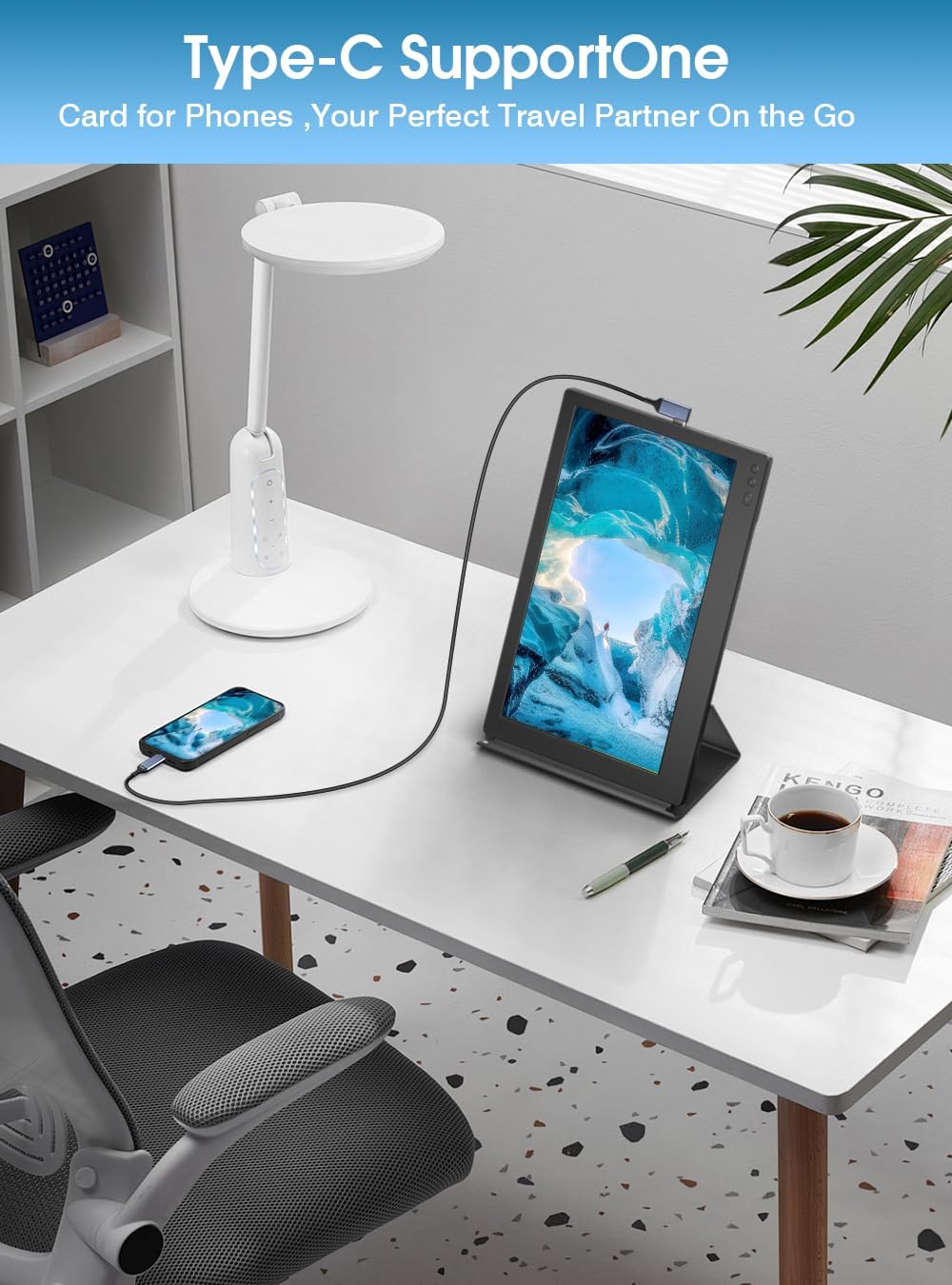
Image: A Maxfree P1S monitor connected to a smartphone via a USB-C cable, demonstrating its use as an extended display for mobile devices.
5. عملیاتي لارښوونې
۸ پاور آن/بند
- د بریښنا د فعالولو لپاره: د بریښنا تڼۍ فشار ورکړئ.
- د بریښنا بندولو لپاره: د بریښنا تڼۍ د 3 ثانیو لپاره فشار ورکړئ او ونیسئ.
۴.۲ د ښودلو طریقې (وینډوز/ماکوس)
Once connected, you can configure the display mode on your operating system:
- د تمدید حالت: Allows you to have separate applications open on each screen, increasinستاسو د کار ځای.
- د عکس حالت: ستاسو د لومړني سکرین مینځپانګه په پورټ ایبل مانیټر کې نقل کوي، د پریزنټیشنونو یا شریکولو مینځپانګې لپاره مثالی.
- د انځور حالت: The smart cover allows the monitor to be used in portrait orientation, which can be configured in your device's display settings.

Image: The Maxfree P1S monitor used in a business setting for screen sharing, displaying charts and data alongside a laptop.

Image: The Maxfree P1S monitor positioned vertically next to a laptop, demonstrating its flexible orientation capabilities.
۳.۱ د پردې پرده ښودنه (OSD) مینو
Use the Menu -, Menu +, and Power buttons to navigate and adjust settings in the OSD menu.
- To enter OSD: Press the Power button briefly when the monitor is on.
- نیویگیشن: Use Menu - and Menu + to move through options.
- انتخاب/تصدیق: Press the Power button to select an option or confirm a setting.
- Exit OSD: Navigate to the 'Exit' option or wait for the menu to time out.
د OSD عام ترتیبات پدې کې شامل دي:
- روښانتیا/ تضاد: د نندارې د روښانتیا او برعکس کچه تنظیم کړئ.
- د رنګ ترتیبات: د رنګ تودوخه، رنګ، او اشباع تعدیل کړئ.
- د ننوتلو سرچینه: Manually select between USB-C and Mini HDMI inputs.
- د نیلي رڼا فلټر: Activate the blue light protection technology to reduce eye strain during prolonged use.
- د اړخ نسبت: Adjust the display aspect ratio (e.g., 16:9).
6. ساتنه
6.1 د مانیټر پاکول
- تل د مانیټر بریښنا بنده کړئ او د پاکولو دمخه ټول کیبلونه منقطع کړئ.
- د نرم، لینټ پاک ټوکر څخه په روښانه توګه کار واخلئampد اوبو یا غیر خارښونکي سکرین کلینر سره مینځل شوی.
- مایع په مستقیم ډول په سکرین یا چوکاټ مه سپری کوئ.
- د الکولو، امونیا، یا د کثافاتو پاکوونکو کارولو څخه ډډه وکړئ، ځکه چې دوی کولی شي د سکرین سطح ته زیان ورسوي.
6.2 ذخیره کول او سمبالول
- When not in use, keep the monitor protected by its smart cover.
- په یخ او وچ ځای کې د مستقیم لمر وړانګو او خورا تودوخې څخه لرې وساتئ.
- په مانیټور کې د درنو شیانو له ایښودلو ډډه وکړئ.
- Handle with care to prevent drops or impacts.
7. ستونزه حل کول
If you encounter issues with your Maxfree P1S monitor, please refer to the following common solutions:
- هیڅ سیګنال نشته:
- ډاډ ترلاسه کړئ چې ټول کیبلونه په خوندي ډول د مانیټر او ستاسو وسیله دواړو سره وصل دي.
- Verify that your device's output settings are configured correctly (e.g., extended or duplicate display).
- If using USB-C, confirm your device's USB-C port supports video output (DisplayPort Alternate Mode).
- Try selecting the input source manually via the OSD menu.
- ځواک نشته:
- Ensure the power cable is connected and receiving power from a sufficient source (laptop USB port or power adapter).
- If using a single USB-C cable, ensure your device can provide enough power. Some devices may require an external power source for the monitor.
- Try a different USB-C port or power adapter.
- Display Flickering or Unstable Image:
- د کیبل اتصالونه د نرموالي یا زیان لپاره وګورئ.
- ډاډ ترلاسه کړئ چې ستاسو د وسیلې ګرافیک ډرایورونه تازه دي.
- Reduce the display resolution or refresh rate on your device if necessary.
- Incorrect Color or Brightness:
- د OSD مینو له لارې روښانتیا، برعکس، او رنګ تنظیمات تنظیم کړئ.
- Reset display settings to factory defaults in the OSD menu.
For further assistance, please contact Maxfree customer support.
8. مشخصات
| فیچر | مشخصات |
|---|---|
| د ماډل شمیره | P1S |
| د سکرین اندازه | ۷۸۷ انچه |
| د ښودلو ریزولوشن | 1366 x 768 (FHD) |
| د پینل ډول | IPS |
| د تازه کولو نرخ | 60 Hz |
| د غبرګون وخت | 1 ملی ثانوی |
| روښانتیا | 300 نیټ |
| د تناسب تناسب | 1000:1 |
| Viewزاویه | 178 درجې |
| د اړخ نسبت | 16:9 |
| د سکرین سطحه | چمکۍ |
| ارتباط | 2x USB Type-C, 1x Mini HDMI |
| ځانګړي ځانګړتیاوې | Blue Light Protection, Height Adjustment (via smart cover) |
| ابعاد (L x W x H) | ۷۱.۲ x ۲۷.۶ x ۴۵.۹ سانتي متره (تقریبا) |
| وزن | ۵.۴۴ کیلوګرامه (۱۲ پونډه) |
9. تضمین او ملاتړ
The Maxfree P1S Portable Monitor comes with a یو کلن تضمین د پیرود نیټې څخه. سربیره پردې، موږ وړاندیز کوو a 30-day hassle-free return policy.
Should you encounter any issues related to connectivity, compatibility, or product quality, our dedicated customer support team is available to provide prompt and efficient technical assistance.
For warranty claims, technical support, or general inquiries, please contact Maxfree customer service through the platform where you purchased the product or visit our official webد اړیکو معلوماتو لپاره سایټ.