
FMOUSE B0CSPT61TF
د FMOUSE شفاف بې سیم موږک کارونکي لارښود
Model: B0CSPT61TF
1. پیژندنه
This user manual provides detailed instructions for the FMOUSE Transparent Wireless Mouse (Model: B0CSPT61TF). This device features a unique transparent design, multi-mode connectivity, and customizable settings for enhanced user experience.
کلیدي ځانګړتیاوې:
- درې ګونی حالت اتصال: Supports Dual Bluetooth 5.1 and 2.4GHz wireless connections, allowing connection to up to three devices.
- Transparent Magnetic Shell: Unique design with a removable magnetic cover for easy access to receivers.
- Rechargeable with LED Lighting: Built-in rechargeable battery with Type-C charging port and cool LED light ring.
- د تنظیم وړ DPI: Four adjustable DPI levels (800/1200/1600/2400) for precise cursor control.
- خاموش کلیکونه: د خاموش عملیاتو لپاره ډیزاین شوی.
- پراخه مطابقت: Compatible with Windows XP, Vista, 7, 8, 10, 11, Windows ME, Mac OS, and more.
2. ترتیب کول
۲.۱ په بکس کې څه دي
د بسته بندۍ پرانستلو سره، ډاډ ترلاسه کړئ چې ټولې برخې شتون لري:
- 1 x Wireless Bluetooth Tri-mode Mouse
- 1 x USB Receiver (USB-A)
- 1 x د ډول-C ترلاسه کونکی
- 1 x د USB چارج کولو کیبل (ډول-C)
- 1 x د کارونکي لارښود
۳.۱ د موږک چارج کول
The mouse is equipped with a built-in rechargeable battery. Before first use, or when the battery indicator shows low power, charge the mouse using the provided USB Type-C cable.
- Locate the Type-C charging port on the front of the mouse.
- Connect one end of the USB charging cable to the mouse and the other end to a USB power source (e.g., computer USB port, USB wall adapter).
- The LED lights on the mouse will indicate charging status. A full charge typically takes approximately 2 hours and can provide 5-10 days of heavy use.

Image: The FMOUSE Transparent Wireless Mouse connected to a USB-C charging cable, illustrating the charging process.
Video: Demonstrates the charging process and various features of the FMOUSE Wireless Bluetooth transparent mouse.
2.3 Connecting the Mouse (Tri-mode)
The mouse supports three connection modes: 2.4GHz wireless (via USB-A or Type-C receiver) and two separate Bluetooth 5.1 connections (BT1 and BT2).
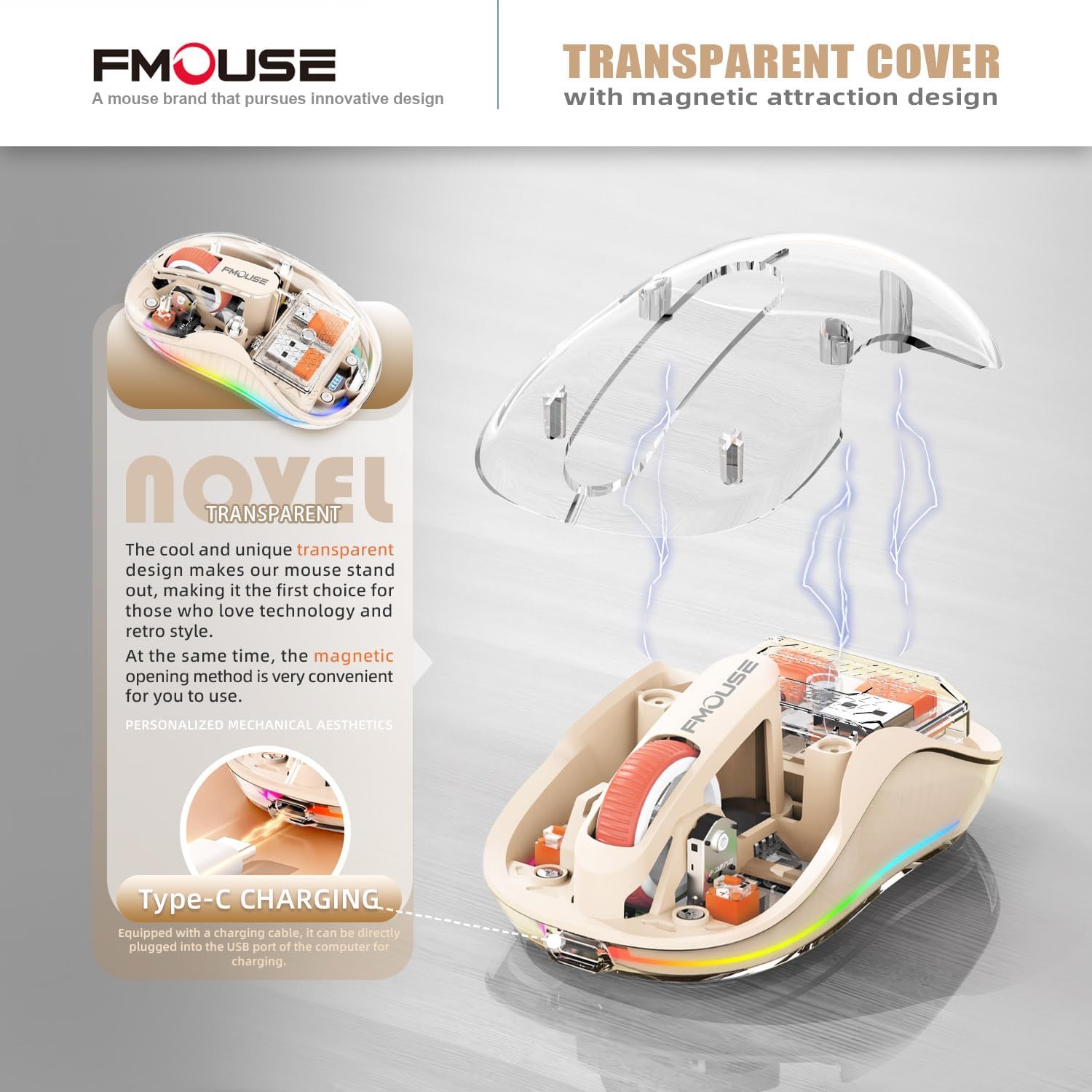
Image: A visual representation of the mouse's tri-mode connectivity, highlighting the USB-A, Type-C, and Bluetooth options for connecting to multiple devices.

انځور: یوه چاودنه شوې view of the mouse showing the internal storage for the USB-A and Type-C receivers, which are magnetically held under the transparent cover.
۳.۲.۱ ۲.۴GHz بېسیم اتصال
- Open the magnetic transparent cover of the mouse to access the USB-A and Type-C receivers.
- Select the appropriate receiver (USB-A or Type-C) for your device and plug it into an available port on your computer or laptop.
- د بریښنا سویچ په کارولو سره موږک چالان کړئ چې په ښکته برخه کې موقعیت لري.
- Switch the mode button on the bottom of the mouse to the "2.4G" position. The mouse should automatically connect to your device.
۳.۲.۲ د بلوتوټ اتصال (BT1 / BT2)
- د بریښنا سویچ په کارولو سره موږک چالان کړئ چې په ښکته برخه کې موقعیت لري.
- Switch the mode button on the bottom of the mouse to either "BT1" or "BT2" position.
- For first-time pairing, press and hold the mode button for approximately 3-5 seconds until the LED lights on the mouse start flashing rapidly, indicating pairing mode.
- On your device (computer, laptop, tablet, or smartphone), go to Bluetooth settings and search for new devices.
- Select "FMOUSE" or a similar name from the list of available devices to pair.
- Once paired, the LED lights on the mouse will stop flashing and remain solid.
- To switch between paired Bluetooth devices or the 2.4G connection, simply press the mode button on the bottom of the mouse to cycle through BT1, BT2, and 2.4G.
3. عملیاتي لارښوونې
۵.۱ د فعالیت تڼۍ پورتهview
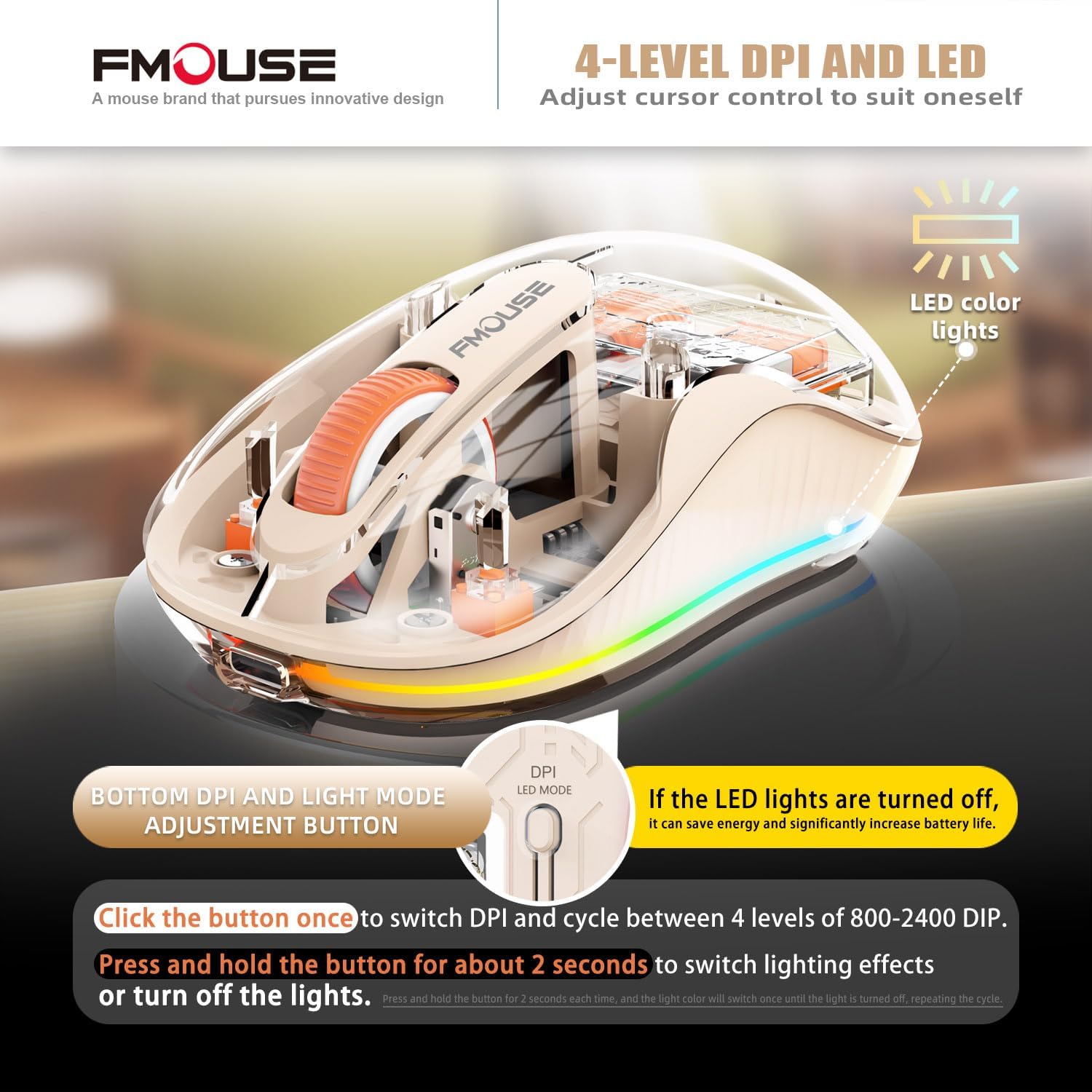
Image: The underside of the mouse, highlighting the power switch, the tri-mode connection switch, and the DPI/LED mode adjustment button.
- د بریښنا سویچ: Located on the bottom, slides to ON/OFF.
- Tri-mode Switching Button: Located on the bottom, allows quick switching between 2.4G, BT1, and BT2 connections.
- DPI/LED Mode Adjustment Button: Located on the bottom, near the power indicator.
۵.۲ د DPI تنظیم کول (حساسیت)
The mouse offers four adjustable DPI levels to suit different tasks and preferences.
- Press the DPI/LED Mode Adjustment button once to cycle through the DPI settings: 800, 1200, 1600, and 2400 DPI.
- Each press will change the cursor speed, allowing you to find your preferred sensitivity.
۶.۳ د LED څراغونو کنټرول
The mouse features a cool LED light ring that illuminates when the mouse is stationary and turns off when it moves to conserve battery.
- To turn off the LED lights completely and extend battery life, press and hold the DPI/LED Mode Adjustment button for approximately 2 seconds.
- Repeat the action to turn the LED lights back on.
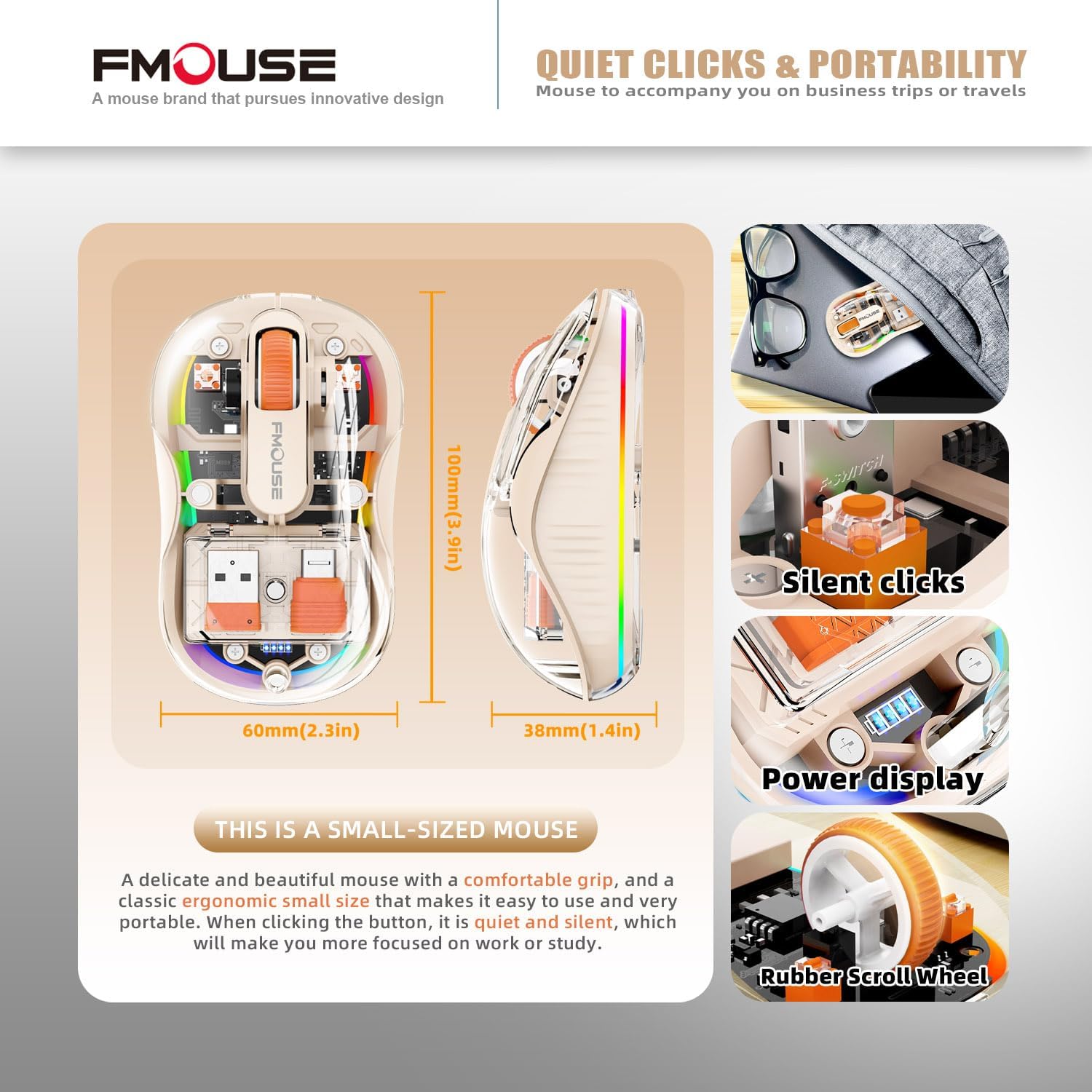
Image: The mouse demonstrating its LED lighting effects and the button used to control them, emphasizing the option to turn lights off for battery saving.
۳.۲ خاموش کلیکونه
The mouse is designed with silent click technology, minimizing noise during use. This feature is integrated into the mouse's buttons and does not require specific activation.
۳.۳ د سطحې مطابقت
The optical sensor technology allows the mouse to operate effectively on a variety of surfaces without the need for a mouse pad.
- Compatible surfaces include wood, metal, leather, glass, and fabric.

Image: The mouse shown on different surfaces (wood, metal, leather, fabric) to illustrate its broad surface compatibility without a mouse pad.
4. ساتنه
Proper maintenance ensures the longevity and optimal performance of your FMOUSE Transparent Wireless Mouse.
- پاکول: د موږک بهرنۍ برخه د پاکولو لپاره نرم، وچ، له لینټ څخه پاک ټوکر وکاروئ. د سختې خاورې لپاره، یو څه نرمampټوکر د اوبو سره ومینځئ. د سختو کیمیاوي موادو، محلولونو، یا د کثافاتو پاکوونکو کارولو څخه ډډه وکړئ.
- د سینسر پاملرنه: د موږک په ښکته برخه کې نظري سینسر پاک او د دوړو یا کثافاتو څخه پاک وساتئ ترڅو دقیق تعقیب ډاډمن شي.
- ذخیره کول: When not in use for extended periods, store the mouse in a cool, dry place. The included cloth carrying bag is ideal for travel and protection.
- د بیټرۍ پاملرنه: Avoid fully discharging the battery frequently. Charge the mouse when the power indicator shows low battery.
5. ستونزه حل کول
If you encounter issues with your mouse, refer to the following common troubleshooting steps:
| ستونزه | احتمالي لامل | د حل لاره |
|---|---|---|
| موږک ځواب نه ورکوي | Low battery; Incorrect connection mode; Receiver not properly plugged in (2.4G); Bluetooth not paired. |
|
| د کرسر حرکت بې نظمه یا ورو دی | Dirty optical sensor; Unsuitable surface; Low battery; Incorrect DPI setting. |
|
| د LED څراغونه کار نه کوي | LEDs turned off; Low battery. |
|
| د بلوتوث له لارې نشي نښلول کیدی | Mouse not in pairing mode; Device Bluetooth off; Interference. |
|
6. مشخصات
| فیچر | تفصیل |
|---|---|
| د محصول ابعاد | 3.94 x 2.36 x 0.1 انچه |
| د توکي وزن | 2.68 اونس |
| د ارتباط ټیکنالوژي | Bluetooth 5.1 (Dual), 2.4GHz Wireless |
| د حرکت کشف ټیکنالوژي | نظري |
| د DPI کچه | 800 / 1200 / 1600 / 2400 |
| د بیټرۍ ډول | 1 لیتیم آئن بیټرۍ (شامل ده) |
| د چارج کولو بندر | ټایپ-سي |
| د بیسیم رینج | Up to 10m (33ft) for Bluetooth |
| مطابقت | Windows XP/Vista/7/8/10/11, Windows ME, Mac OS, etc. |
| ځانګړي ځانګړتیاوې | Transparent magnetic shell, Cool LED Lights, Silent Clicks, USB-A & Type-C Receivers |
۹. ملاتړ او نور معلومات
For additional support or detailed documentation, please refer to the official user guide or contact FMOUSE customer service.
- د کارونکي رسمي لارښود (PDF): PDF ډاونلوډ کړئ
- FMOUSE Store: Visit FMOUSE Store on Amazon
Ask a question about this manual
Ask about setup, troubleshooting, compatibility, parts, safety, or missing instructions. Manuals+ will review the question and use this page’s manual context to help answer it.