
محصول پای ته ورسیدview
The Newmight 7-in-1 USB C Docking Station is a versatile multiport adapter designed to expand the connectivity of your USB-C enabled devices. It features dual HDMI ports for extended display, multiple USB 3.0 ports for high-speed data transfer, and a 100W Power Delivery (PD) charging port. This compact and portable device aims to streamline your workspace and enhance productivity across various operating systems and devices.
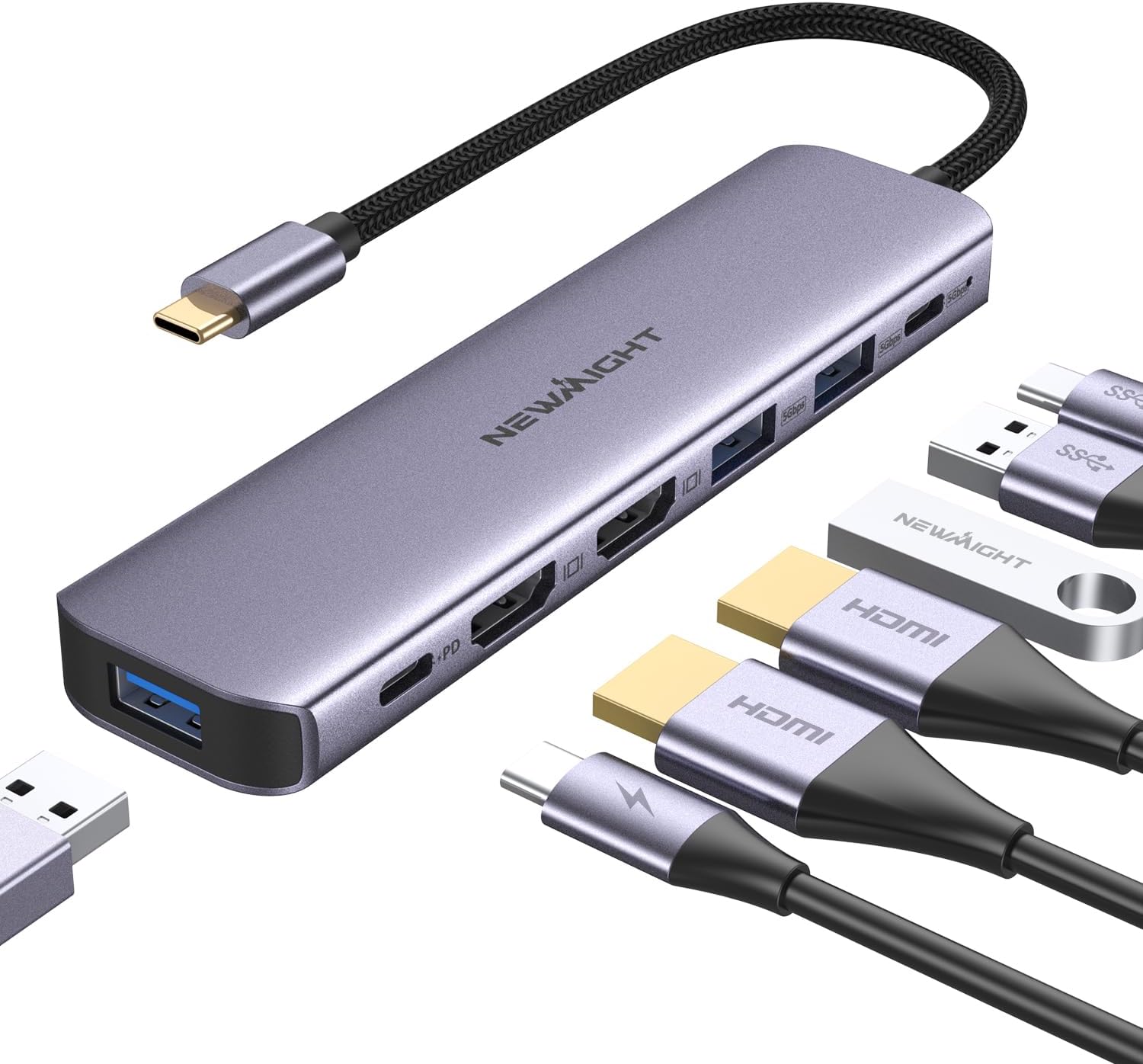
Figure 1: Newmight 7-in-1 USB C Docking Station
کلیدي ځانګړتیاوې
- ۱۰-په-۱ اړیکه: Equipped with 2 HDMI ports, 3 USB-A 3.0 ports, 1 PD 100W Charging port, and 1 USB-C 3.0 port, allowing simultaneous use of all ports.
- Gorgeous 4K HD Experience: HDMI ports support resolutions up to 4K@30Hz, providing realistic details and colors with excellent audio and display synchronization. (Note: Actual resolution depends on your device and video source. Ensure your laptop, monitor, and HDMI cable support 4K@30Hz.)
- USB 3.0 Data Transfer & PD 100W: Three USB 3.0 ports offer data transfer speeds up to 5Gbps. The PD port supports up to 100W fast charging for host devices.
- پراخه مطابقت: Works with most Type C laptops with Thunderbolt 3/4, including MacBook Pro/Air (2023/2022/2021/2020/M1/M2, etc.), iPad Pro 2020/2021, iMac models from 2017 onwards, iPhone 15 Series, Dell XPS, HP Spectre X360, Surface Book 2, Huawei P20 Pro, Google Chromebook Pixel, and more. Supports macOS, Windows, Linux, Android, and iOS.
- Alloy Material & Portable Design: Made of aluminum alloy anodized for durability, scratch resistance, and efficient heat dissipation. Compact dimensions (5.91*1.38*0.51in) and lightweight (0.15lbs) for easy portability.

شکل 2: مفصل view of the 7-in-1 USB C Hub ports.
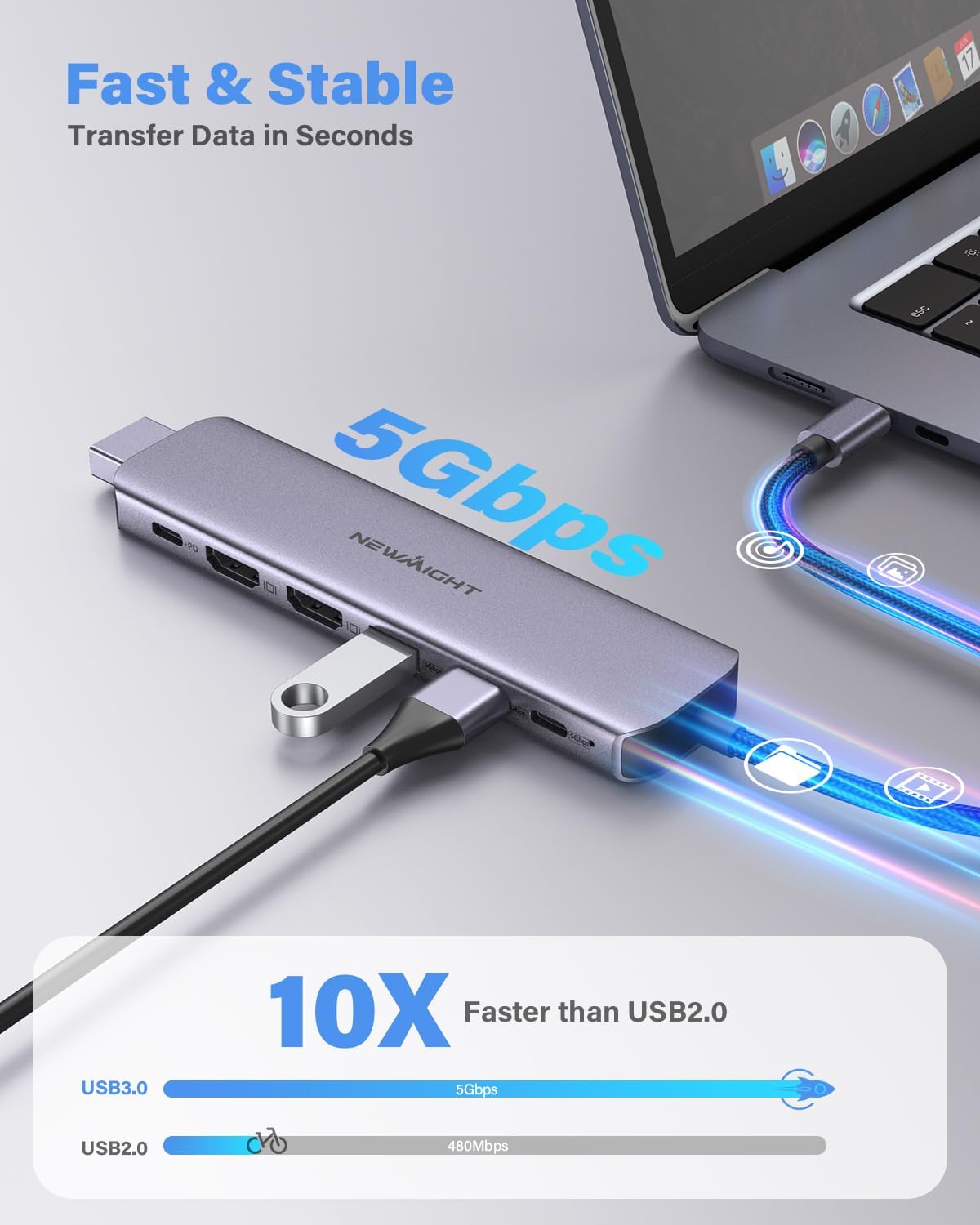
Figure 3: High-speed USB 3.0 data transfer capability.

Figure 4: Power Delivery (PD) port providing 100W charging.
د تنظیم کولو لارښود
Setting up your Newmight 7-in-1 USB C Docking Station is a simple plug-and-play process. No driver installation is required for most compatible operating systems.
- Connect the Docking Station: Plug the USB-C cable of the docking station into a compatible USB-C port (Thunderbolt 3/4 or with DP Alt Mode) on your laptop or device.
- د نښلولو ښودنې: Use HDMI cables to connect your monitors to the HDMI ports on the docking station. The docking station supports dual HDMI displays.
- پرفیریلز وصل کړئ: Plug your USB devices (e.g., mouse, keyboard, external hard drives, USB flash drives) into the available USB 3.0 ports.
- د بریښنا رسولو (اختیاري): If your laptop requires charging, connect your laptop's original USB-C power adapter to the PD 100W port on the docking station.
شکل 5: مثالample setup with a Windows laptop and dual monitors.
Video 1: Demonstration of connecting the USB-C docking station to a laptop and dual HDMI monitors. This video illustrates the ease of setup and the immediate display output.
عملیاتي طریقې
د ډاکینګ سټیشن ستاسو د عملیاتي سیسټم پورې اړه لري د ښودلو مختلف حالتونه ملاتړ کوي:
د وینډوز عملیاتي سیسټم:
- Mirror Mode (A-A-A): All connected displays (laptop and external monitors) show the same content.
- Extend Mode (A-B-C): Each connected display shows different content, allowing for a multi-tasking workspace.
macOS Operating System:
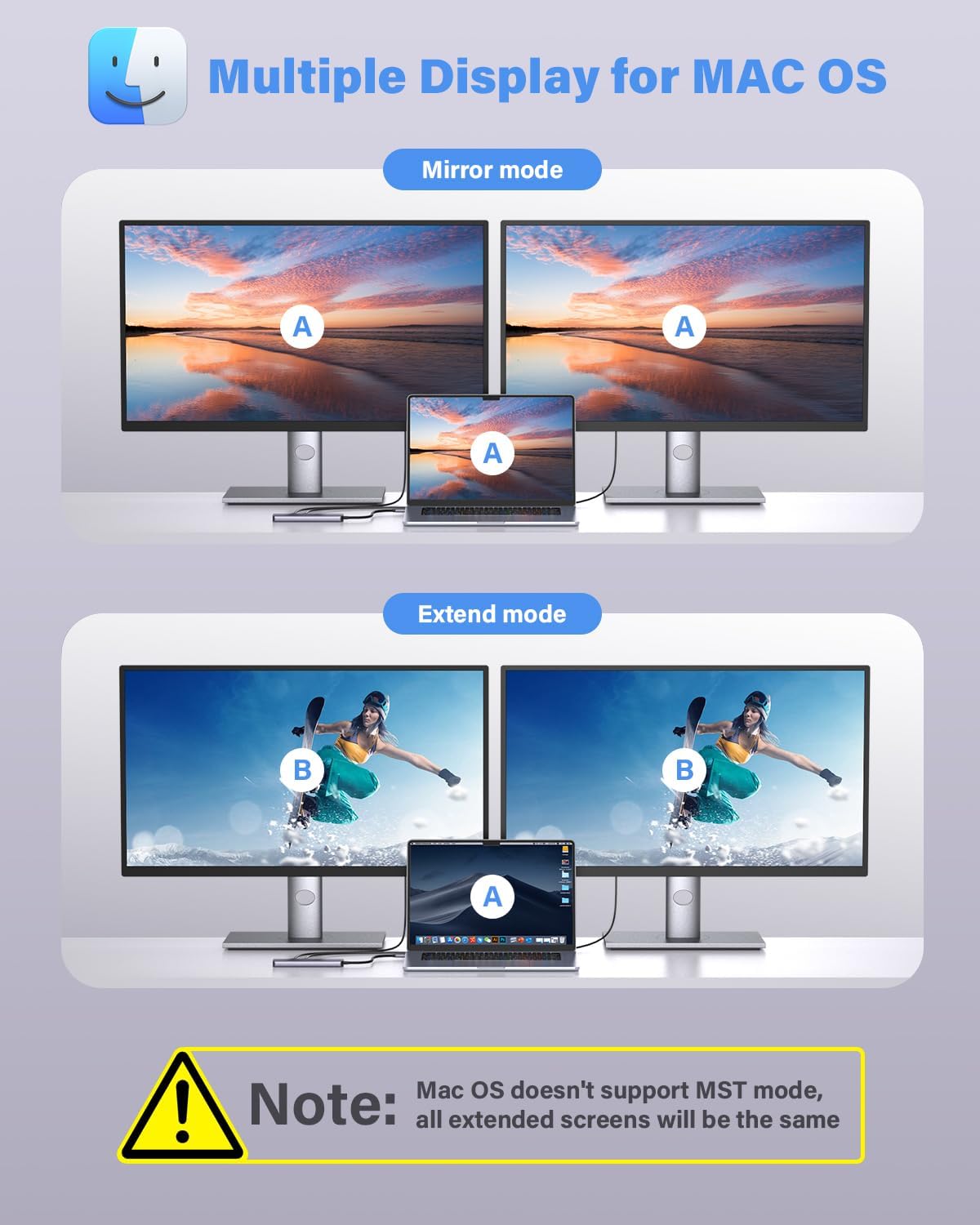
- Mirror Mode (A-A-A): All connected displays show the same content.
- Extend Mode (A-B-B): Due to macOS limitations, when connecting two external monitors, both external monitors will display the same content, which is different from the laptop's display. macOS does not support Multi-Stream Transport (MST) for distinct extended displays.
Figure 6: Windows multiple display modes.

Figure 7: Mac OS multiple display modes with MST limitation note.
مطابقت
د پیرودلو دمخهasing and using the docking station, please confirm that the USB-C port on your laptop supports video output (DisplayPort Alternate Mode) and Power Delivery if you intend to use these features. Not all USB-C ports have full functionality.
Supported Host Devices:
- MacBook Pro/Air (2023/2022/2021/2020/M1/M2, etc.)
- iPad پرو 2020/2021
- iMac models from 2017 onwards
- د آی فون 15 لړۍ
- Samsung Chromebook Pro
- ډیل ایکس پی ایس ۱۳/۱۵
- Lenovo Yoga 900/910
- HP Spectre X360
- د سطحې کتاب 2
- Huawei P20 Pro
- Google Chromebook Pixel
ملاتړ شوي عملیاتي سیسټمونه:
- macOS
- وینډوز
- لینکس
- Android
- iOS

Figure 8: Verify your laptop's USB-C port functionality.

Figure 9: Broad compatibility across devices and systems.
ساتنه او پالنه
To ensure the longevity and optimal performance of your Newmight 7-in-1 USB C Docking Station, follow these maintenance guidelines:
- پاکول: Use a soft, dry cloth to wipe the surface of the docking station. Avoid liquid cleaners or abrasive materials.
- ذخیره کول: وسیله په یخ او وچ ځای کې د مستقیم لمر وړانګو او سختې تودوخې څخه لرې وساتئ.
- سمبالول: د ډاکینګ سټیشن په احتیاط سره سمبال کړئ. د غورځولو یا قوي ټکانونو سره یې مخ کولو څخه ډډه وکړئ.
- د بندر ساتنه: When not in use, consider using dust caps for the ports to prevent dust and debris accumulation.
- د تودوخې ضایع کول: د المونیم الیاژ جasing is designed for efficient heat dissipation. Ensure the device has adequate ventilation during use.
د ستونزو حل کول
If you encounter issues with your Newmight 7-in-1 USB C Docking Station, please refer to the following common troubleshooting steps:
- د ښودلو محصول نشته:
- ډاډ ترلاسه کړئ چې ستاسو د لیپ ټاپ USB-C پورټ د DisplayPort بدیل حالت ملاتړ کوي.
- Check all cable connections (USB-C to laptop, HDMI to monitors) to ensure they are secure.
- Verify that your monitors are set to the correct input source (HDMI 1, HDMI 2, etc.).
- خپل لپ ټاپ بیا پیلولو هڅه وکړئ.
- For macOS users, remember that both external monitors will mirror each other (A-B-B mode) due to system limitations, not A-B-C.
- د چارج کولو مسلې:
- Ensure your power adapter is connected to the PD 100W port on the docking station.
- تایید کړئ چې ستاسو د بریښنا اډاپټر کافي واټ چمتو کويtage for your laptop and the docking station. An insufficient power supply can lead to charging errors or non-detection of monitors.
- د معلوماتو د لیږد ورو سرعت:
- ډاډ ترلاسه کړئ چې تاسو د غوره سرعت لپاره د USB 3.0 مطابقت لرونکي وسایل او کیبلونه کاروئ.
- Avoid connecting too many high-power consumption devices simultaneously to the USB ports.
- موقتي اړیکه:
- د تړلو اړیکو لپاره وګورئ.
- Ensure the docking station is not overheating. The aluminum casing helps, but excessive load in a confined space can cause issues.
مشخصات
| فیچر | تفصیل |
|---|---|
| د ماډل شمیره | WT-C-011 |
| د محصول ابعاد | 5.91 x 1.34 x 0.51 انچه |
| د توکي وزن | 2.12 اونس |
| رنګ | فضا خړ |
| د HDMI ریزولوشن | تر 4K@30Hz پورې |
| د USB 3.0 لیږد سرعت | تر 5Gbps پورې |
| د بریښنا تحویل (PD) | تر 100W پورې |
| هډوتري برسیر | USB 3.0 Type C, HDMI, USB 3.0, Thunderbolt |
| ځانګړی ځانګړنه | پلګ او پلی کړئ |
| مطابقت لرونکې وسیلې | Monitors, Laptops |
تضمین او ملاتړ
Newmight provides a 12-month warranty period for your 7-in-1 dual monitor docking station. We are committed to ensuring your long-term satisfaction with your purchase.
If you experience any product-related problems during this period, please feel free to contact our friendly customer service. We are dedicated to resolving your issues in a timely manner.
For support, please refer to the contact information provided in your product packaging or visit the official Newmight webسایټ