
Keychron K10 Max
کیکرون K10 میکس بې سیم ګمرک میخانیکي کیبورډ کارونکي لارښود
ماډل: K10 Max
1. پیژندنه
This manual provides detailed instructions for the Keychron K10 Max Wireless Custom Mechanical Keyboard. The K10 Max is a full-sized (108-key) mechanical keyboard designed for versatility, offering 2.4 GHz, Bluetooth, and wired connectivity options. It features QMK open-source firmware for extensive customization and is compatible with Mac, Windows, and Linux operating systems.

Image 1.1: Keychron K10 Max Wireless Mechanical Keyboard with a close-up of a Keychron Super Brown switch.
2. د بسته محتويات
Verify that all items are present in your Keychron K10 Max package:
- Keychron K10 Max بې سیم دودیز میخانیکي کیبورډ
- Type-A to Type-C Cable (x1)
- Type-A 2.4GHz Receiver (x1)
- Extension Adapter for Receiver (x1)
- Keycap-Switch Puller (x1)
- Hex Key & Screwdriver (x1)
- Additional Keycaps for Windows OS

Image 2.1: Included accessories with the Keychron K10 Max keyboard.
3. ترتیب کول
۱. ابتدايي چارج کول
Before first use, connect the keyboard to a USB power source using the provided Type-A to Type-C cable to ensure it is fully charged.
۳.۲. د عملیاتي سیسټم سویچ
Locate the OS switch on the side of the keyboard. Toggle it to either 'Mac' or 'Windows' depending on your operating system. This ensures correct key mapping for multimedia and function keys.

Image 3.1: Operating system switch on the Keychron K10 Max.
۳.۱. د اتصال طریقې
The K10 Max supports three connectivity modes: 2.4 GHz wireless, Bluetooth 5.1, and wired USB-C.
- ۲.۴ GHz بېسیم: For high-performance gaming and low-latency connection. Insert the Type-A 2.4GHz receiver into an available USB port on your device. The keyboard will automatically connect.
- بلوتوث 5.1: Allows connection to up to three devices simultaneously. To pair, switch the keyboard to Bluetooth mode, then press and hold fn+1 (or 2, 3) until the key flashes, indicating pairing mode. Select 'Keychron K10 Max' on your device's Bluetooth settings.
- تار لرونکی USB-C: Connect the keyboard directly to your device using the provided USB-C cable. This mode also charges the keyboard.
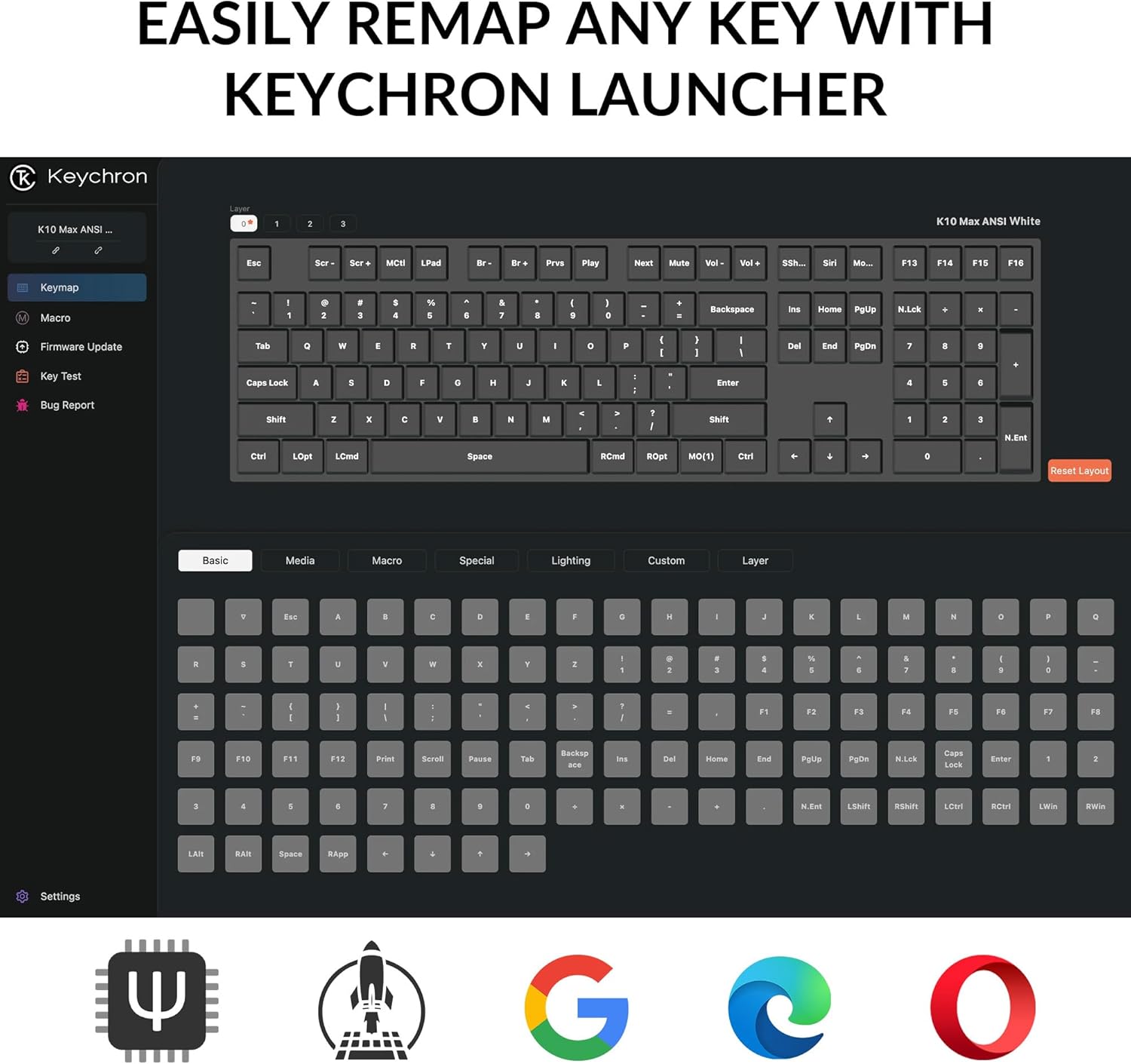
Image 3.2: Connectivity options for the Keychron K10 Max.
4. عملیاتي لارښوونې
4.1. Key Remapping and Customization (QMK Firmware)
The Keychron K10 Max runs on QMK open-source firmware, allowing for extensive key remapping and macro creation. Use the Keychron Launcher web application to customize key functions, lighting effects, and create custom layers.
- د کیکرون لانچر ته د a له لارې لاسرسی ومومئ web براوزر
- Connect your keyboard in wired mode to ensure proper communication with the Launcher.
- Follow the on-screen instructions within the Launcher to remap keys, set macros, and update firmware.

Image 4.1: Keychron Launcher interface for key remapping.
4.2. د backlight کنټرول
The keyboard features a white backlight with south-facing LEDs for enhanced visibility and compatibility with most keycaps. Use the dedicated backlight keys (usually Fn + light bulb icon or similar) to cycle through various lighting effects and adjust brightness.

Image 4.2: South-facing white backlight illumination.
5. ساتنه
5.1. پاکول
To clean the keyboard, disconnect it from all power sources. Use a soft, lint-free cloth slightly dampد اوبو یا نرم پاکولو محلول سره مینځل. په مستقیم ډول په کیبورډ باندې د مایعاتو سپری کولو څخه ډډه وکړئ. د کی کیپونو ترمنځ د پاکولو لپاره، د فشار شوي هوا یا کوچني برش څخه کار واخلئ.
۵.۲. ګرم بدلیدونکي سویچونه
The K10 Max features hot-swappable sockets, allowing you to change mechanical switches without soldering. Use the included keycap-switch puller tool for this process.
- Gently remove the keycap using the keycap puller.
- Insert the switch puller around the switch, ensuring it grips the top and bottom clips.
- Pull the switch straight up to remove it.
- د نوي سویچ پنونه د PCB سوریو سره سم کړئ او په کلکه فشار ورکړئ تر هغه چې دا په خپل ځای کې راشي. ډاډ ترلاسه کړئ چې پنونه کږ شوي نه دي.
- د کیلي کیپ بدل کړئ.

Image 5.1: Hot-swappable Keychron Super switches.
6. ستونزه حل کول
- کیبورډ ځواب نه ورکوي: Ensure the keyboard is charged. Check the connectivity mode switch (2.4 GHz, Bluetooth, or wired) and ensure it matches your connection method. For wired mode, try a different USB-C cable or port.
- د بلوتوث اتصال ستونزې: Ensure the keyboard is in Bluetooth pairing mode (Fn + 1/2/3 flashing). Remove the keyboard from your device's Bluetooth list and attempt to re-pair. Ensure no other devices are interfering.
- 2.4 GHz wireless issues: Ensure the 2.4 GHz receiver is securely plugged into a working USB port. Try moving the receiver closer to the keyboard or using the included extension adapter.
- Keys not working or incorrect output: Verify the OS switch is set correctly (Mac/Windows). If you have remapped keys using Keychron Launcher, ensure the correct layer is active or reset to default settings within the software. Check for bent switch pins if you recently swapped switches.
- د شا څراغ کار نه کوي: Ensure the keyboard is charged. Cycle through backlight modes and brightness levels using the designated function keys.
If issues persist, refer to the official Keychron support resources or contact customer service.
7. مشخصات
| ماډل | Keychron K10 Max |
| ابعاد | 17.61 x 5.5 انچه (447.37 mm x 139.82 mm) |
| د توکي وزن | ۶.۸ پونډه (۲۲۱۵ ګرامه ± ۱۰ ګرامه) |
| د چوکاټ مواد | ABS پلاستيک |
| کیکیپس | OSA Double-shot PBT Keycaps |
| سویچونه | Keychron Super Mechanical Switch (Hot-swappable with 3-pin & 5-pin MX Mechanical Switches) |
| ثبات کوونکی | د PCB سټیبلائزر سکرو ان |
| شاته څراغ | South-facing White Backlight |
| MCU | د ARM Cortex-M4 32-bit STM32F402 (256KB فلش) |
| د رای ورکولو کچه | ۱۰۰۰ هرټز (۲.۴ GHz او وایرډ) / ۹۰ هرټز (بلوتوث حالت) |
| N-Key رول اوور (NKRO) | هو |
| ارتباط | 2.4 GHz / Bluetooth 5.1 / Type-C Wired |
| مطابقت لرونکې وسیلې | لپ ټاپ، کمپیوټر، سمارټ فون، ټابلیټ |
| د عملیاتي سیسټم مطابقت | ماکوس / وینډوز / لینکس |
| بیټرۍ | 1 لیتیم آئن بیټرۍ (شامل ده) |

انځور ۷.۱: د محصول تفصيلي مشخصات.
8. تضمین او ملاتړ
For warranty information, please refer to the documentation included with your purchase or visit the official Keychron website. For technical support, frequently asked questions, or additional assistance, please visit the په ایمیزون کې د کیکرون پلورنځی or the official Keychron support page.
Ask a question about this manual
Ask about setup, troubleshooting, compatibility, parts, safety, or missing instructions. Manuals+ will review the question and use this page’s manual context to help answer it.