
پیژندنه
The Keychron M7 is a versatile wireless gaming optical mouse designed for optimal performance and comfort. It features tri-mode connectivity (2.4 GHz wireless, Bluetooth 5.1, and wired USB), a high-precision PixArt 3395 sensor, and a lightweight ergonomic design. This manual provides instructions for setting up, operating, maintaining, and troubleshooting your Keychron M7 mouse.

Figure 1: Keychron M7 Wireless Gaming Optical Mouse (White)
د بسته محتويات
Please ensure all the following items are included in your Keychron M7 package:
- کیکرون M7 بې سیم موږک
- Type-C 2.4 GHz Receiver
- د ټایپ-A ۲.۴ GHz ریسیور
- د چارج وړ بیټرۍ (مخکې نصب شوې)
- USB-C to USB-A Cable (for charging and wired connection)
د محصول ځانګړتیاوې
- درې اړخیزه اړیکه: Seamlessly switch between 2.4 GHz wireless, Bluetooth 5.1, and wired USB connections.
- د لوړ دقیق سینسر: Equipped with the PixArt 3395 sensor, offering up to 26,000 DPI and 650 IPS for accurate tracking.
- سپک وزن ایرګونومیک ډیزاین: Weighing only 63 grams with an ergonomic curved design and grip patterns for comfortable extended use.
- د اصلاح وړ تڼۍ: Programmable macro buttons and settings via the Keychron Engine software.
- د بیټرۍ اوږد ژوند: Up to 70 hours of continuous use on a single charge with an 800mAh battery.
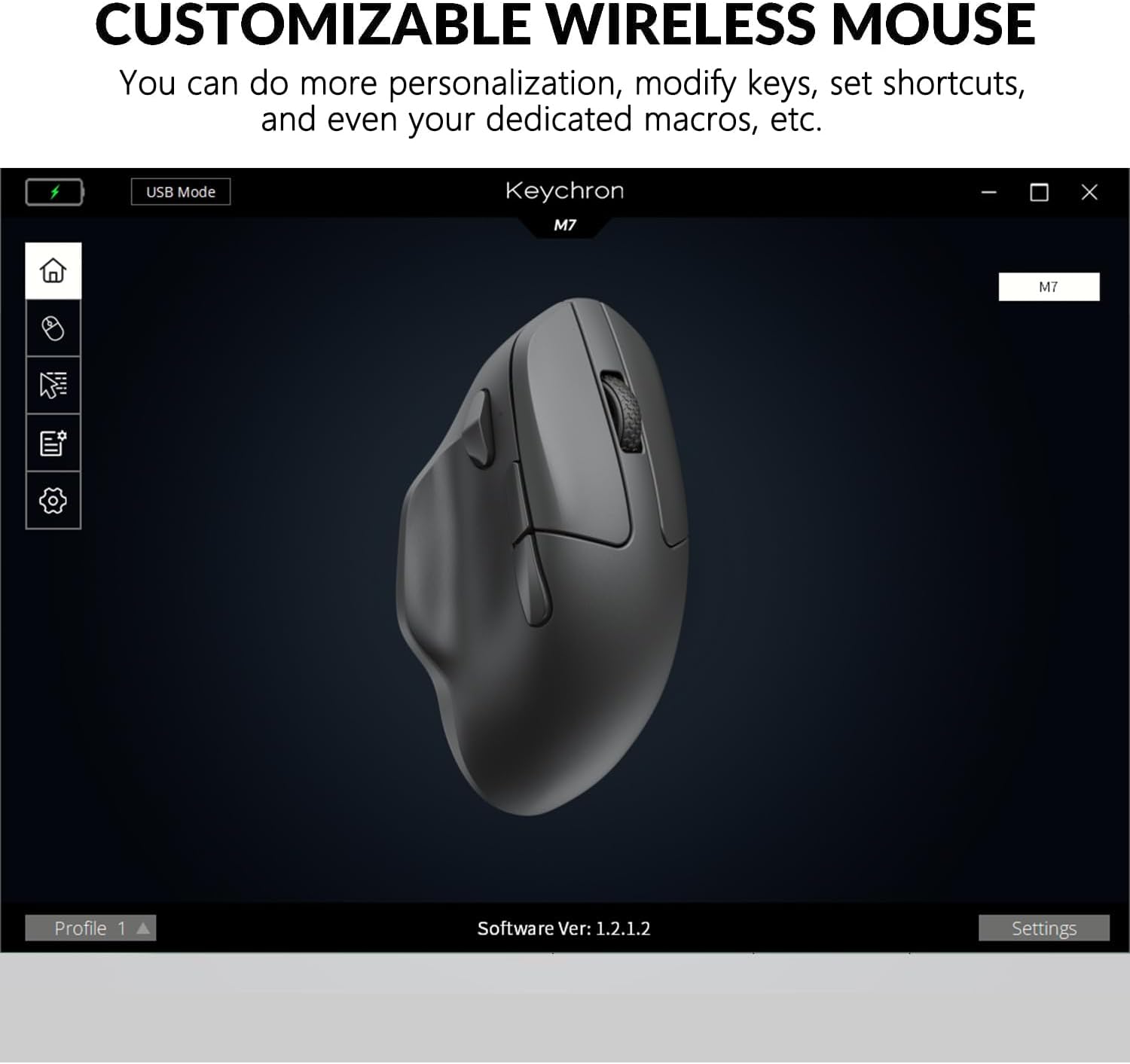
Figure 2: Keychron M7 features: 70-hour battery life and 26,000 DPI sensor.
پیل کول
1. د موږک چارج کول
Before first use, it is recommended to fully charge the mouse. Connect the provided USB-C to USB-A cable to the mouse's USB-C port and the other end to a powered USB port on your computer or a USB charger. The LED indicator will show charging status.
2. موږک سره نښلول
The Keychron M7 offers three connection modes:
- د بریښنا حالت: Connect the mouse directly to your computer using the USB-C to USB-A cable. The mouse will function immediately and charge simultaneously.
- ۲.۴ GHz بېسیم حالت:
- Locate the 2.4 GHz receiver (either Type-C or Type-A).
- رسیور په خپل کمپیوټر کې موجود USB پورټ کې ولګوئ.
- On the bottom of the mouse, slide the switch to the 'G' (2.4 GHz) position. The mouse will automatically connect.
- د بلوتوټ ۵.۰ حالت:
- On the bottom of the mouse, slide the switch to the 'B' (Bluetooth) position.
- Press and hold the Bluetooth pairing button (usually located near the mode switch) until the LED indicator starts blinking, indicating pairing mode.
- On your computer, open Bluetooth settings and search for new devices. Select "Keychron M7" from the list to pair.

Figure 3: Keychron M7 2.4 GHz receivers and polling rate indicator table.
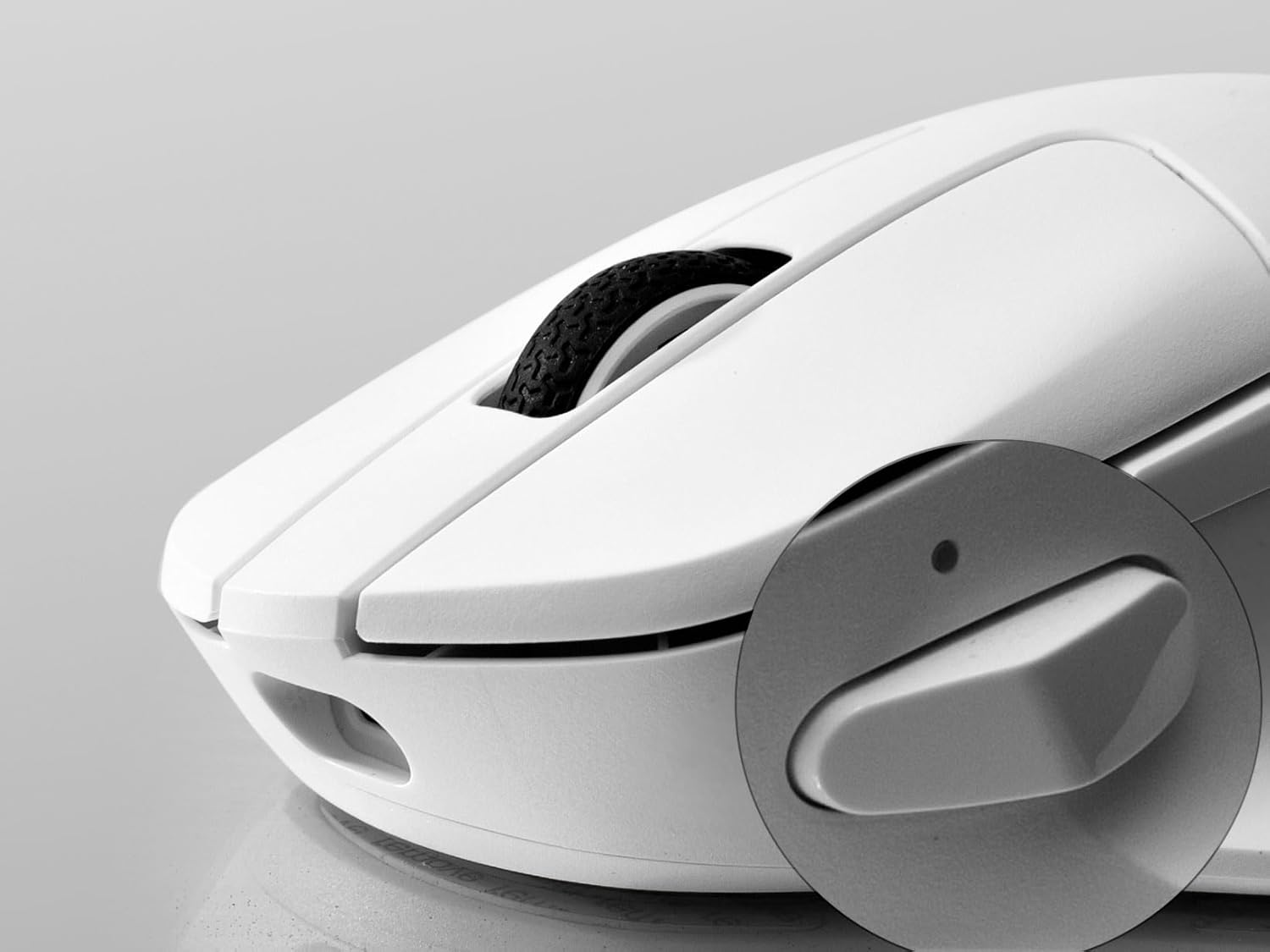
Figure 4: Mouse bottom with G/OFF/B mode switch and pairing button.
د موږک چلول
د DPI تعدیل
The Keychron M7 allows for on-the-fly DPI adjustment. Use the dedicated DPI button on the bottom of the mouse to cycle through preset DPI levels. The LED indicator will change color to indicate the current DPI setting.
د رای ورکولو د نرخ سمون
In 2.4 GHz or Wired mode, you can adjust the polling rate using the 'RPT' button on the bottom of the mouse. Press this button to switch between 125 Hz (White LED), 500 Hz (Blue LED), and 1000 Hz (Red LED).
د پروګرام وړ تڼۍ او میکرو
The Keychron M7 features programmable buttons. To customize button functions, set shortcuts, or create dedicated macros, download and install the Keychron Engine software from the official Keychron website. The software also allows for professional settings like Lift-Off Distance (LOD) and further DPI customization.

Figure 5: DPI switch and macro button location.

Figure 6: Keychron Engine software interface for customization.
ساتنه
پاکول
To maintain optimal performance and appearance, regularly clean your Keychron M7 mouse. Use a soft, dry, lint-free cloth to wipe the surface. For stubborn dirt, slightly dampen the cloth with water or a mild electronics cleaner. Avoid using harsh chemicals or abrasive materials.
د بیټرۍ پاملرنه
The Keychron M7 uses a rechargeable Lithium Polymer battery. To prolong battery life:
- د بیټرۍ په مکرر ډول د بشپړ چارج کولو څخه ډډه وکړئ.
- موږک په یخ او وچ ځای کې وساتئ کله چې د اوږدې مودې لپاره نه کارول کیږي.
- Charge the mouse using the provided cable or a certified USB charger.
د ستونزو حل کول
- موږک ځواب نه ورکوي: Ensure the mouse is charged. Check the mode switch on the bottom of the mouse is set correctly (G for 2.4 GHz, B for Bluetooth, or connected via cable). For wireless modes, ensure the receiver is properly plugged in or Bluetooth is paired.
- په بېسیم حالت کې ځنډ یا قطع کیدل: Try moving the receiver closer to the mouse. Ensure there are no strong interfering signals (e.g., other 2.4 GHz devices, Wi-Fi routers) nearby. Switch to a different USB port for the receiver.
- DPI or button issues: Ensure the Keychron Engine software is installed and updated. Check your settings within the software. Reset the mouse to factory defaults if necessary (refer to software instructions).
- د موږک کرسر بې ثباته: Clean the optical sensor on the bottom of the mouse. Ensure you are using the mouse on a suitable surface (a mouse pad is recommended).
تخنیکي مشخصات
| فیچر | مشخصات |
|---|---|
| ماډل | کیکرون M7 بې سیم موږک |
| ارتباط | 2.4 GHz Wireless, Bluetooth 5.1, USB Wired |
| سینسر | PixArt 3395 نظری سینسر |
| د DPI حد | تر 26,000 DPI پورې |
| IPS | 650IPS |
| سرعت | 50G |
| د رای ورکولو کچه | 125 Hz, 500 Hz, 1000 Hz (adjustable) |
| وزن | ۱۳.۶ ګرامه (تقریبا ۰.۴۸ اونس) |
| ابعاد (L x W x H) | 127.7 x 77.1 x 40.5 mm (4.8 x 2.95 x 1.97 انچه) |
| بیټرۍ | ۶۵۰mAh لیتیم پولیمر (د چارج وړ) |
| د بیټرۍ ژوند | تر اتو ساعتونو پورې (یو ځل چارج) |
| مطابقت | وینډوز کمپیوټر، ماک |

Figure 7: Keychron M7 mouse dimensions.
تضمین او ملاتړ
Keychron products are covered by a limited warranty against manufacturing defects. For specific warranty terms and conditions, please refer to the warranty information provided with your purchase or visit the official Keychron website. For technical support, troubleshooting assistance, or to download the Keychron Engine software, please visit the Keychron support page: