Chilkey ND75 Aluminum 75% Wireless Mechanical Keyboard User Manual
ماډل: ND75
1. پیژندنه
This manual provides detailed instructions for the setup, operation, and maintenance of your Chilkey ND75 Aluminum 75% Wireless Mechanical Keyboard. Please read this manual thoroughly before using the product to ensure optimal performance and longevity.
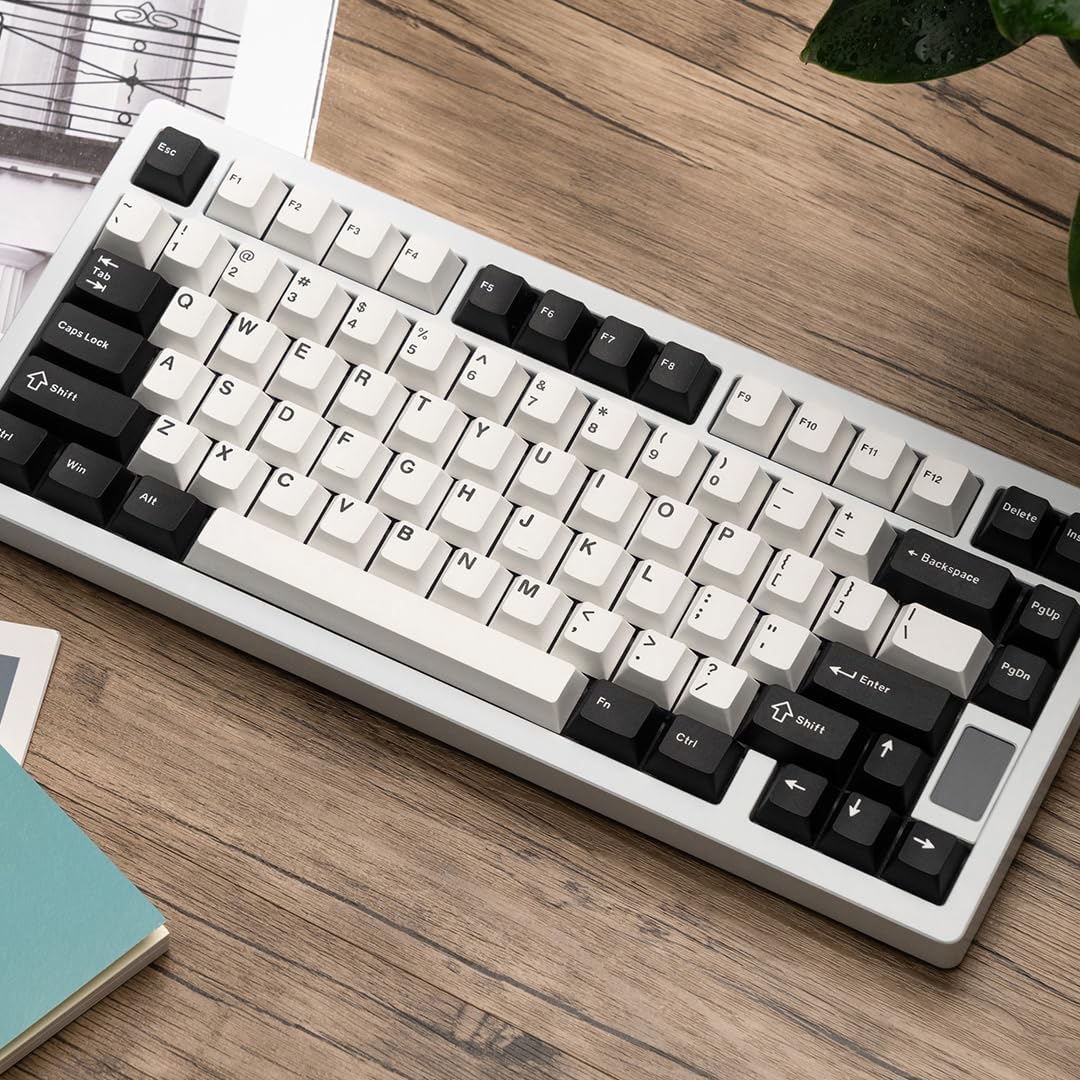
The Chilkey ND75 is a high-performance 75% layout mechanical keyboard featuring a full aluminum alloy case, multi-mode connectivity (Bluetooth 5.0, 2.4GHz wireless, USB-C wired), hot-swappable switches, per-key RGB backlighting, and an integrated LCD screen for enhanced functionality.
Image: The Chilkey ND75 keyboard, showcasing its 75% layout and aluminum casing.
د USB-C کیبل بل پای ستاسو په کمپیوټر کې موجود USB پورټ سره وصل کړئ.
کیبورډ به په اتوماتيک ډول کشف شي او د کارولو لپاره چمتو شي.
۳.۱.۲ ۲.۴GHz بېسیم حالت
Locate the 2.4GHz USB receiver. This is typically stored in a compartment on the keyboard or included separately.
Remove the Right Shift keycap to access the wireless switch. Ensure the switch is in the 2.4GHz position.
د 2.4GHz USB ریسیور په خپل کمپیوټر کې موجود USB پورټ کې دننه کړئ.
کیبورډ باید په اتوماتيک ډول وصل شي. که نه، فشار ورکړئ fn+4 د 2.4GHz جوړه کولو حالت فعالولو لپاره.
۴.۲.۲ بلوتوث ۶.۰ حالت
Remove the Right Shift keycap to access the wireless switch. Ensure the switch is in the Bluetooth position.
په خپل کمپیوټر یا وسیله کې، بلوتوث فعال کړئ او د نویو وسایلو لټون وکړئ.
په کیبورډ کې، فشار ورکړئ او ونیسئ fn+1, fn+2، یا fn+3 for 3-5 seconds to enter pairing mode for one of the three available Bluetooth channels. The LCD screen will indicate pairing status.
Select "Chilkey ND75" from the list of available Bluetooth devices on your computer/device to complete pairing.
You can switch between paired Bluetooth devices using fn+1, fn+2، یا fn+3.
3.2 Mounting System Adjustment
The ND75 keyboard features a screwless quick assembly structure and supports three different mounting systems: Split O-Ring Mounting, Silica Gel Particle Mounting, and Top Mounting. These can be adjusted to customize typing feel.
انځور: نږدې انځور view of the keyboard's internal structure highlighting the three mounting systems: Top Mount, Split O-Ring Mount, and Silica Gel Particle Mount. Each system offers a distinct typing experience.
Refer to the detailed instructions provided with the additional hardware for specific guidance on disassembling and reassembling the keyboard to change mounting systems.
4. عملیاتي لارښوونې
4.1 د LCD سکرین دندې
The integrated LCD screen provides real-time information and allows for quick adjustments without software. Functions include:
Connection Mode display (BT, 2.4G, USB-C)
د بیټرۍ کچې شاخص
Backlight Brightness/Speed adjustment
RGB Mode/Color selection
د حجم کنټرول
د ژبې ترتیبات
Custom GIF/Image display
Image: The ND75 keyboard with an overlay illustrating the various functions accessible via the LCD screen, including configuration, connection modes, RGB settings, system information, and volume control.
Navigate the LCD screen menu using the dedicated knob or specific key combinations (refer to the quick guide provided with the keyboard).
4.2 د RGB بیکلاینټینګ
The ND75 keyboard features per-key RGB backlighting with 19 preset lighting effects. Custom light colors can also be defined.
Image: The ND75 keyboard illuminated with per-key RGB backlighting, demonstrating the range of colors and effects available.
Adjust lighting effects and colors directly via the LCD screen or using specific Fn key combinations. Consult the quick guide for a list of shortcuts.
۵.۳ ګرم بدلیدونکي سویچونه
The ND75 keyboard is equipped with a hot-swappable PCB, allowing users to replace switches without soldering. It supports both 3-pin and 5-pin switches.
Image: A switch puller tool is used to remove a mechanical switch from the keyboard, illustrating the hot-swappable functionality.
د سویچ بدلولو لپاره:
Carefully remove the keycap using the keycap puller tool.
Use the switch puller tool to gently grip the top and bottom clips of the switch.
Caution: Apply gentle, even pressure when inserting switches to avoid bending pins or damaging the PCB.
۴.۳ د سافټویر اصلاح کول
The ND75 keyboard supports independent driver/software for advanced customization, including key remapping, macro creation, and further RGB lighting control. The software can be downloaded from the official Chilkey webسایټ
Note: Some users have reported that the software can be clunky. Refer to the official Chilkey Discord community or support channels for assistance with software usage.
5. ساتنه
۷.۲ د کیبورډ پاکول
د پاکولو دمخه کیبورډ له خپل کمپیوټر څخه جلا کړئ.
د کیلي کیپسونو ترمنځ د دوړو او کثافاتو لرې کولو لپاره نرم برش یا فشار شوي هوا وکاروئ.
For deeper cleaning, keycaps can be removed using the provided keycap puller. Clean keycaps with a mild soap solution and allow them to dry completely before reattaching.
د کیبورډ پوښ د نرم، d سره پاک کړئamp ټوکر. د سختو کیمیاوي موادو یا خړوبونکو موادو څخه ډډه وکړئ.
5.2 د بیټرۍ پاملرنه
The keyboard contains two Lithium Polymer batteries. To prolong battery life:
که چیرې د اوږدې مودې لپاره ونه کارول شي، نو کیبورډ په یخ او وچ ځای کې وساتئ.
Charge the keyboard using the provided USB-C cable or a compatible charger.
6. ستونزه حل کول
۵.۱ کیبورډ ځواب نه ورکوي
د بریښنا حالت: ډاډ ترلاسه کړئ چې د USB-C کیبل په خوندي ډول د کیبورډ او کمپیوټر دواړو سره وصل دی. یو بل USB پورټ یا کیبل هڅه وکړئ.
2.4GHz بې سیم حالت: Ensure the USB receiver is properly inserted and the wireless switch (under the Right Shift keycap) is in the 2.4GHz position. Try re-pairing by pressing fn+4.
بلوتوث موډ: Verify Bluetooth is enabled on your device and the keyboard is paired. Ensure the wireless switch is in the Bluetooth position. Try re-pairing by holding Fn + 1/2/3.
بیټرۍ: Check the battery level on the LCD screen. Connect the keyboard to a power source to charge if the battery is low.
۷.۳ هغه کیلي چې راجستر نه کیږي یا دوه ځله ټایپ کیږي
This may indicate a faulty switch. Utilize the hot-swappable feature to replace the affected switch.
Image: Technical drawing illustrating the precise dimensions of the ND75 keyboard.
انځور: چاودنه وشوه view diagram detailing the internal layers and components of the ND75 keyboard, including keycaps, switches, case, and sound dampد جوړولو مواد.
8. تضمین او ملاتړ
For warranty information, technical support, or further assistance, please refer to the official Chilkey website or contact their customer service. You may also find helpful resources and community support on the official Chilkey Discord server.
Manufacturer: OOCTPK
Ask a question about this manual
Ask about setup, troubleshooting, compatibility, parts, safety, or missing instructions. Manuals+ will review the question and use this page’s manual context to help answer it.