
XunFox K30 Pro
XunFox K30 Pro Transparent Mechanical Keyboard User Manual
ماډل: K30 پرو
Brand: XunFox
پیژندنه
Welcome to the XunFox K30 Pro Transparent Mechanical Keyboard user manual. This guide provides detailed instructions for setting up, operating, and maintaining your new keyboard. The K30 Pro features a unique transparent design, 61-key layout, RGB backlighting, and versatile 3-mode connectivity (2.4GHz wireless, Bluetooth 5.1, and wired USB).
د بسته محتويات
- XunFox K30 Pro Mechanical Keyboard
- د USB-C څخه USB-A کیبل (د تار لرونکي اتصال او چارج کولو لپاره)
- 2.4GHz بې سیم ترلاسه کونکی
- د کارونکي لارښود (دا لاسوند)
محصول پای ته ورسیدview
The XunFox K30 Pro keyboard features a compact 61-key layout with transparent keycaps and a translucent bottom shell, showcasing its internal mechanical components.
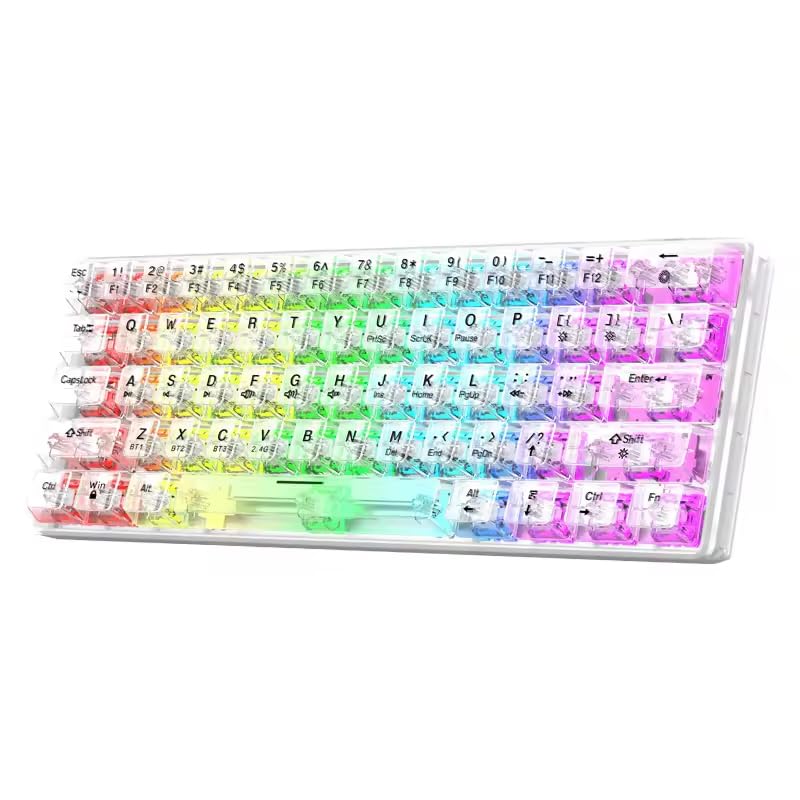
انځور: مخکینۍ برخه view of the XunFox K30 Pro Transparent Mechanical Keyboard, showcasing its compact 61-key layout and vibrant RGB backlighting through transparent keycaps.

Image: Diagram highlighting the 61-key minimalist layout of the XunFox K30 Pro keyboard, emphasizing space-saving design compared to traditional 104-key keyboards.

Image: Exploded diagram illustrating the internal layers of the keyboard, including transparent keycaps, customized mechanical shafts, positioning plate, PCB board, and translucent bottom shell.
کلیدي ځانګړتیاوې:
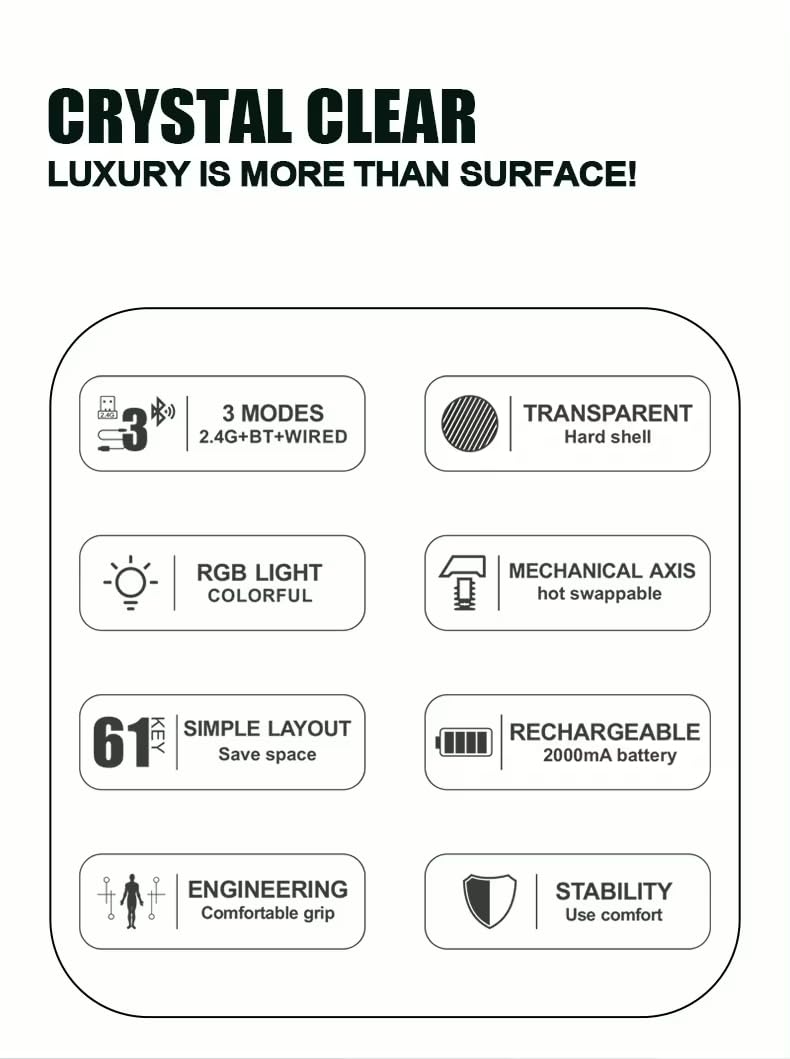
- 61-Key Minimalist Layout: Space-saving design.
- شفاف ډیزاین: Crystal clear hard shell and keycaps.
- د 3-موډ اتصال: 2.4GHz Wireless, Bluetooth 5.1, and Wired USB.
- د RGB شاته رڼا: Customizable colorful lighting effects.
- Hot-Swappable Mechanical Axis: Allows for easy switch replacement.
- 2000mAh د چارج وړ بیټرۍ: For extended wireless use.
- ارګونومیک ډیزاین: Comfortable grip for prolonged use.
چمتو کول
1. د بیټرۍ چارج کول
Before first use, or when the battery is low, connect the keyboard to a USB power source (e.g., computer USB port, USB wall adapter) using the provided USB-C cable. The charging port is typically located on the back or side of the keyboard.
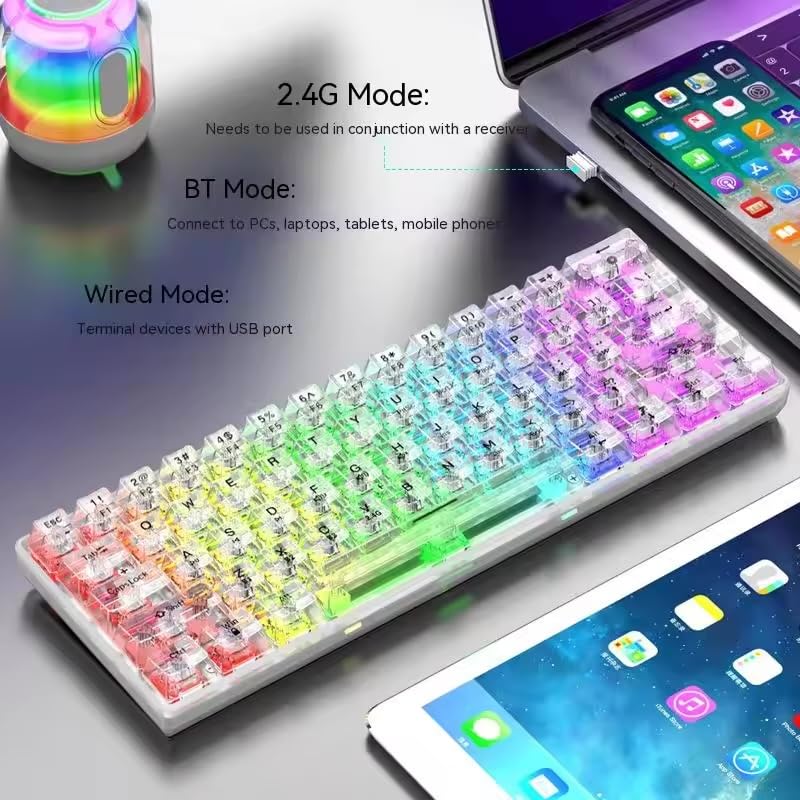
Image: The XunFox K30 Pro keyboard connected via a USB-C cable to a laptop, illustrating the charging process and highlighting the 2000mAh battery capacity.
A full charge provides approximately 2000mAh of battery life.
۲. د ۲.۴GHz بېسیم حالت له لارې نښلول
- Locate the 2.4GHz wireless receiver, usually stored in a compartment on the keyboard or included separately.
- د 2.4GHz ریسیور په خپل کمپیوټر کې موجود USB پورټ کې ولګوئ.
- Switch the keyboard's connection mode to 2.4GHz. This is typically done using a switch on the keyboard or an FN key combination (e.g., FN + V).
- کیبورډ باید په اتوماتيک ډول ستاسو وسیله سره وصل شي.
۳.۳. د بلوتوث حالت له لارې نښلول
- Switch the keyboard's connection mode to Bluetooth. This is typically done using a switch on the keyboard or an FN key combination (e.g., FN + Z for BT1, FN + X for BT2, FN + C for BT3).
- For first-time pairing, long-press the corresponding FN key combination (e.g., FN + Z for 3 seconds) to enter pairing mode. The keyboard's indicator light will flash.
- On your device (computer, laptop, tablet, phone), open Bluetooth settings and search for new devices.
- Select "XunFox K30 Pro" (or similar name) from the list of available devices to pair.
- یوځل چې جوړه شي، د شاخص څراغ به ځلیدل ودروي.
4. Connecting via Wired USB Mode
- د ورکړل شوي USB-C کیبل یوه پای د کیبورډ USB-C پورټ سره وصل کړئ.
- د USB-A کیبل بل پای ستاسو په کمپیوټر کې موجود USB پورټ سره وصل کړئ.
- Switch the keyboard's connection mode to Wired. This is typically done using a switch on the keyboard or an FN key combination.
- The keyboard will be recognized as a standard USB keyboard and is ready for use.

Image: Diagram illustrating the three connection modes: Bluetooth (BT), 2.4GHz Wireless (with receiver), and Wired (USB-C cable). Shows the keyboard connected to various devices.
عملیاتي لارښوونې
د پیوستون حالت بدلول
The keyboard supports three connection modes. Use the dedicated switch or FN key combinations to switch between them:
- ۲.۴ ګیګاهرتز بېسیم: مطبوعاتي FN + V (short press to switch, long press for 3 seconds to enter pairing mode). Requires the 2.4GHz receiver.
- بلوتوث ۱ (BT1): مطبوعاتي FN + Z (short press to switch, long press for 3 seconds to enter pairing mode).
- بلوتوث ۱ (BT2): مطبوعاتي FN + X (short press to switch, long press for 3 seconds to enter pairing mode).
- بلوتوث ۱ (BT3): مطبوعاتي FN + C (short press to switch, long press for 3 seconds to enter pairing mode).
- د بریښنا حالت: Connect the USB-C cable. The keyboard will automatically switch to wired mode or may require a specific FN key combination (refer to specific product documentation if FN key is needed).
د RGB بیک لایټ کنټرول
The XunFox K30 Pro features customizable RGB backlighting. Specific FN key combinations are used to control lighting effects, brightness, and speed. Please refer to the quick start guide or product packaging for exact FN key combinations for RGB control, as these can vary.
Special Function Keys (FN Combinations)
The 61-key layout utilizes the FN key to access secondary functions printed on the keycaps.
- FN + [Number Keys]: Access F1-F12 functions.
- FN + [Other Keys]: Access multimedia controls, volume, and other system functions.
A detailed list of FN key combinations can usually be found in the quick start guide or on the product's official support page.
ساتنه
پاکول
د خپل کیبورډ پاکولو لپاره:
- Disconnect the keyboard from all power sources and devices.
- د نرم، لینټ پاک ټوکر څخه لږ څه کار واخلئampد کیلي کیپس او چیسس پاکولو لپاره د اوبو یا نرم پاکولو محلول سره مینځل شوی.
- د کیلي ګانو ترمنځ د دوړو او کثافاتو لپاره، فشار شوي هوا وکاروئ.
- د سختو کیمیاوي موادو یا خړوبولو موادو کارولو څخه ډډه وکړئ.
ګرم بدلیدونکي سویچونه
The K30 Pro features hot-swappable mechanical switches, allowing you to change switches without soldering. Use a switch puller tool (not included unless specified) to carefully remove and insert compatible 3-pin or 5-pin mechanical switches.
د ستونزو حل کول
کیبورډ ځواب نه ورکوي
- ډاډ ترلاسه کړئ چې کیبورډ چارج شوی دی.
- Check the connection mode (2.4GHz, Bluetooth, Wired) and ensure it matches your device's connection.
- For 2.4GHz, ensure the receiver is properly plugged in.
- For Bluetooth, ensure it's paired correctly and within range. Try re-pairing.
- For wired, ensure the USB cable is securely connected to both the keyboard and the computer.
- هڅه وکړئ چې د بل USB پورټ یا وسیلې سره وصل شئ.
د بلوتوټ اتصال مسلې
- ډاډ ترلاسه کړئ چې کیبورډ د بلوتوث جوړه کولو حالت کې دی (د شاخص رڼا چمکۍ).
- د خپل وسیلې د بلوتوث لیست څخه کیبورډ لرې کړئ او بیا د جوړه کولو هڅه وکړئ.
- ډاډ ترلاسه کړئ چې ستاسو د وسیلې بلوتوټ فعال دی.
- Reduce distance between keyboard and device.
د RGB څراغونه کار نه کوي
- ډاډ ترلاسه کړئ چې کیبورډ فعال او چارج شوی دی.
- Check if the backlight has been turned off via an FN key combination.
- Adjust brightness settings using FN key combinations.
مشخصات
| فیچر | مشخصات |
|---|---|
| برانډ | XunFox |
| ماډل | K30 پرو |
| د کیبورډ ډول | میخانیکي |
| ترتیب | 61 کیلي |
| ارتباط | ۲.۴GHz بېسیم، بلوتوث ۵.۰، تار لرونکی (USB-C) |
| د بیټرۍ ظرفیت | 2000mAh |
| شاته څراغ | RGB |
| ځانګړي ځانګړتیاوې | Backlit, Ergonomic, Rechargeable, Hot-swappable mechanical axis |
| د محصول ابعاد | 40 x 8 x 4 سانتي متره |
| د توکي وزن | 900 ګرامه |
| مطابقت لرونکې وسیلې | Laptop, PC, Tablet, Phone |
انځور: پورته-ښکته view of the XunFox K30 Pro keyboard with key dimensions (292mm length, 102mm width, 40mm height) indicated.
تضمین او ملاتړ
This XunFox K30 Pro keyboard comes with a 2 کلن تضمین.
For technical support, warranty claims, or further assistance, please contact:
- د پیرودونکي پاملرنه: +۴۵۷۴۸۸
- واردوونکی/پیکر: NJ Infotech
مهرباني وکړئ د تضمین موخو لپاره د پیرود ثبوت وساتئ.
Ask a question about this manual
Ask about setup, troubleshooting, compatibility, parts, safety, or missing instructions. Manuals+ will review the question and use this page’s manual context to help answer it.