
نولیا KM75
د Nulea KM75 پرمختللی ایرګونومیک بې سیم کیبورډ او موږک کامبو کارونکي لارښود
ماډل: KM75
پیژندنه
This manual provides detailed instructions for the setup, operation, and maintenance of your Nulea KM75 Advanced Ergonomic Wireless Keyboard and Mouse Combo. Please read this manual thoroughly before using the product to ensure optimal performance and longevity.
د بسته محتويات
- Nulea KM75 Ergonomic Wireless Keyboard
- Nulea Ergonomic Wireless Mouse
- 2.4G USB Receiver (shared for keyboard and mouse)
- د USB-C چارج کیبل
- د کارونکي لارښود (دا لاسوند)
محصول پای ته ورسیدview
د کیبورډ ځانګړتیاوې
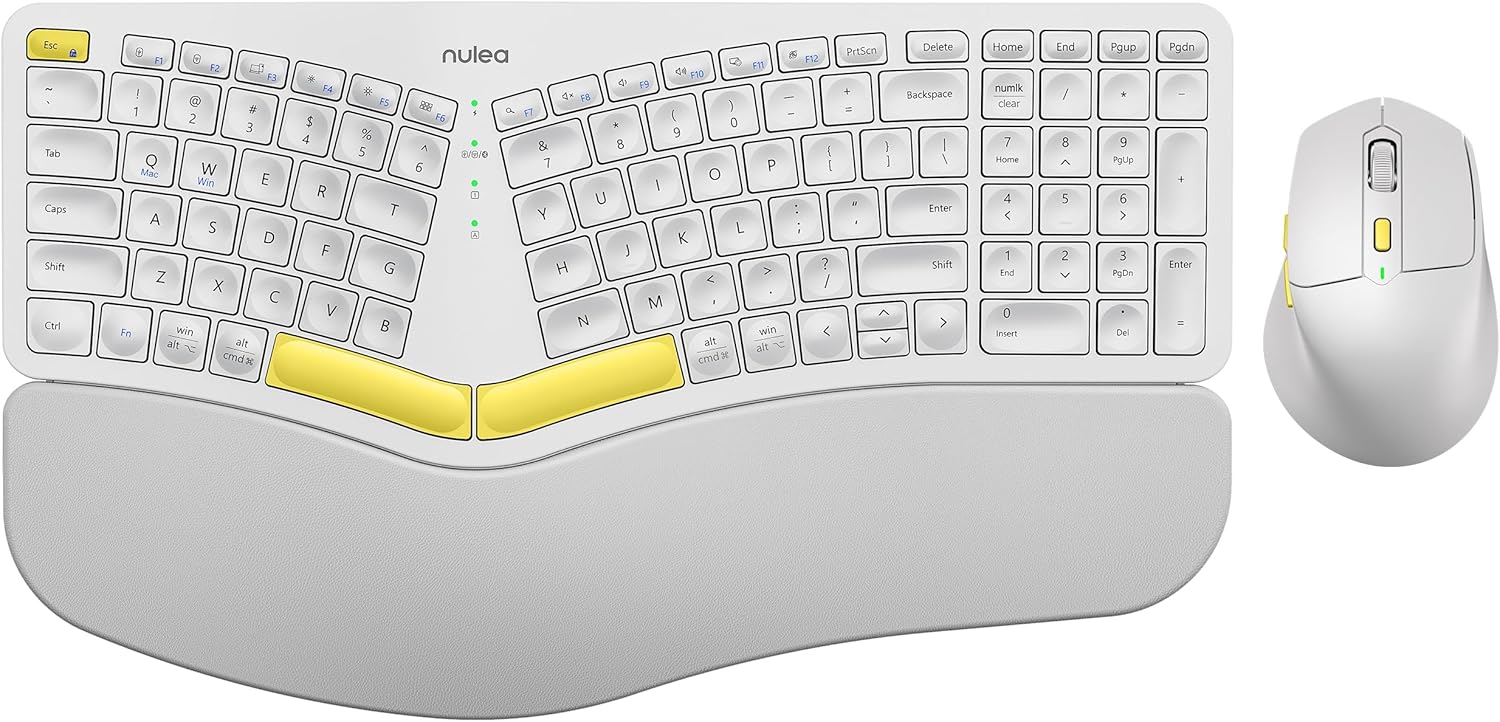
Image: The Nulea KM75 ergonomic keyboard and mouse combo. The keyboard features a curved and split layout with an integrated palm rest, and the mouse is sculpted for comfort. Both are white with yellow accents.
- Ergonomic Curved and Split Key-frame: Designed to position wrists and forearms naturally.
- د پام یوځای شوی آرام: Features a soft memory foam layer for wrist support.
- Adjustable Tilt Design: Allows for optimal keyboard positioning.
- د څو وسیلو نښلول: Supports USB cable, 2.4G USB receiver, and Bluetooth.
- د چارج وړ بیټرۍ: 500mAh capacity with USB-C charging.
- د اتوماتیک خوب حالت: Conserves power after 30 minutes of inactivity.
د موږک ځانګړتیاوې

Image: A close-up of the Nulea ergonomic mouse, showing its sculpted design for a natural hand posture with integrated palm and thumb rests. The mouse is white with yellow accents.
- Ergonomic Sculpted Design: Integrated palm and thumb rests for natural hand position.
- د تنظیم وړ DPI ترتیبات: د کرسر دقیق کنټرول لپاره.
- مخکی / شاته تڼۍ: د اسانتیا لپاره web نیویگیشن
- د څو وسیلو نښلول: Supports 2.4G USB receiver and Bluetooth.
- د چارج وړ بیټرۍ: 300mAh capacity with USB-C charging.
- د اتوماتیک خوب حالت: Conserves power after 30 minutes of inactivity.
چمتو کول
۲. د وسایلو چارج کول
Before initial use, fully charge both the keyboard and mouse using the provided USB-C cable. Connect the USB-C end to the device and the USB-A end to a power source (e.g., computer USB port, USB wall adapter).

Image: Illustration showing the keyboard and mouse connected via USB-C cables for charging. The keyboard has a 500mAh battery and the mouse has a 300mAh battery.
The indicator lights will show charging status and turn off when fully charged. A full charge provides approximately two months of operation.
۲. د ۲.۴G USB ریسیور له لارې نښلول
- Locate the 2.4G USB receiver. It is typically stored in a compartment on the underside of the mouse.
- د USB ریسیور په خپل کمپیوټر کې موجود USB-A پورټ کې دننه کړئ.
- کیبورډ او ماوس د دوی د اړوندو بریښنا سویچونو په کارولو سره چالان کړئ.
- د کیبورډ لپاره، فشار ورکړئ Fn + F2 to select 2.4G mode.
- For the mouse, switch the mode selector on the bottom to 2.4G.
- The devices should connect automatically.

Image: A close-up of the underside of the mouse, showing the storage compartment for the 2.4G USB receiver.
3. د بلوتوث له لارې نښلول
- کیبورډ او ماوس چالان کړئ.
- د کیبورډ لپاره، فشار ورکړئ Fn + F3 to select Bluetooth mode. The indicator light will blink, indicating pairing mode.
- For the mouse, switch the mode selector on the bottom to Bluetooth. The indicator light will blink.
- په خپل وسیله (کمپیوټر، ټابلیټ، سمارټ فون) کې، بلوتوټ فعال کړئ او د نویو وسایلو لټون وکړئ.
- Select "Nulea Keyboard" and "Nulea Mouse" from the list of available devices to pair.
- د جوړه کولو پروسې بشپړولو لپاره هر ډول د پردې پرامپټس تعقیب کړئ.
۳.۳. د وایرډ موډ له لارې نښلول
- Connect the USB-C charging cable to the keyboard or mouse and the USB-A end to your computer.
- د کیبورډ لپاره، فشار ورکړئ Fn + F1 to select wired mode.
- For the mouse, switch the mode selector on the bottom to wired mode.
- The devices will function as wired peripherals.

Image: Diagram illustrating the simple connectivity options for the Nulea KM75. Pressing Fn+F1 connects via wired, Fn+F2 via 2.4G, and Fn+F3 via Bluetooth, allowing connection to multiple devices like PCs, laptops, and mobile devices.
۵.۳. د وسیلو ترمنځ بدلول
The Nulea KM75 combo supports multi-device connectivity. You can switch between up to three connected devices (one wired, one 2.4G, one Bluetooth) by pressing the corresponding function keys on the keyboard (ایف این + ایف ۱۰/ایف ۱۱/ایف ۱۲) and adjusting the mode selector on the mouse.
عملیاتي لارښوونې
د کیبورډ کارول
- ارګونومیک ډیزاین: The curved and split key-frame is designed for natural hand and wrist positioning. Allow some time to adapt to this layout for optimal comfort.
- د تنظیم وړ خښتې پښې: Located on the underside of the keyboard, these legs allow you to adjust the typing angle for personalized comfort.

Image: A user demonstrating the adjustable tilt legs of the Nulea KM75 keyboard, showing how to customize the typing angle for ergonomic comfort.
- د فعالیت کیلي (Fn): ډیری کیلي ثانوي دندې لري چې د لاندې نیولو سره لاسرسی کیدی شي Fn key and pressing the desired function key (e.g., media controls, volume). Refer to the keycap legends for specific functions.
د موږک کارول
- د DPI تعدیل: Use the DPI switch button, usually located near the scroll wheel, to cycle through different sensitivity levels (DPI). This allows for precise control or faster cursor movement.

Image: A close-up of the Nulea ergonomic mouse, highlighting the DPI switch key and indicator light for adjusting cursor sensitivity.
- د غاړې تڼۍ: The side buttons (typically on the left for right-handed users) are often pre-programmed for forward and backward navigation in web براوزرونه یا file سپړونکي
ساتنه
- پاکول: د کیبورډ او موږک سطحې پاکولو لپاره نرم، وچ ټوکر وکاروئ. د سختې خاورې لپاره، یو څه damp د نرم صابون سره ټوکر کارول کیدی شي، ډاډ ترلاسه شي چې مایع وسیله ته ننوځي. د سختو کیمیاوي موادو یا خړوبونکي موادو څخه ډډه وکړئ.
- د بیټرۍ پاملرنه: To prolong battery life, avoid fully discharging the devices frequently. Recharge when the low battery indicator appears. Store in a cool, dry place if not used for extended periods.
- ذخیره کول: کله چې په کارولو کې نه وي، د USB ریسیور په موږک کې په ټاکل شوي ځای کې وساتئ ترڅو د ضایع کیدو مخه ونیول شي.
د ستونزو حل کول
- وسیله نه نښلي:
- ډاډ ترلاسه کړئ چې کیبورډ او موږک دواړه فعال دي.
- Verify the correct connection mode (2.4G, Bluetooth, Wired) is selected on both devices and your computer.
- د 2.4G لپاره، ډاډ ترلاسه کړئ چې د USB ریسیور په خوندي ډول په یو کاري USB پورټ کې پلګ شوی دی.
- For Bluetooth, ensure Bluetooth is enabled on your device and the devices are in pairing mode. Try re-pairing if necessary.
- Ensure the devices are charged.
- Try restarting your computer and the devices.
- ځنډ یا وقفه ای اړیکه:
- Move the devices closer to the USB receiver or your computer to reduce interference.
- د نورو بېسیم وسیلو یا لویو فلزي شیانو ته نږدې د ریسیور له ایښودلو څخه ډډه وکړئ.
- ډاډ ترلاسه کړئ چې بیټرۍ په کافي اندازه چارج شوي دي.
- Keys not responding or mouse not moving:
- د بیټرۍ کچه وګورئ او د اړتیا په صورت کې بیا چارج کړئ.
- Ensure the devices are properly connected (see "Device not connecting" above).
- Clean any debris from around the keys or mouse sensor.
مشخصات
| فیچر | تفصیل |
|---|---|
| برانډ | نولیا |
| ماډل | KM75 |
| ارتباط | Bluetooth, 2.4G USB, Wired (USB-C) |
| د کیبورډ بیټرۍ | 500mAh لیتیم |
| د موږک بیټرۍ | 300mAh لیتیم |
| مطابقت لرونکی OS | وینډوز، ماک OS، اندروید |
| ځانګړي ځانګړتیاوې | Ergonomic design, Curved/Split key-frame, Integrated palm rest, Adjustable tilt, Adjustable mouse DPI |
| د توکي وزن | ۳ پونډه (ګډ) |
| د کڅوړې ابعاد | 16.97 x 11.69 x 2.05 انچه |
تضمین او ملاتړ
Nulea products are designed for reliability and performance. For warranty information, technical support, or customer service inquiries, please refer to the contact details provided on the Nulea official webسایټ یا ستاسو د پیرود اسناد. مهرباني وکړئ د تضمین ادعاوو لپاره د پیرود ثبوت وساتئ.
Ask a question about this manual
Ask about setup, troubleshooting, compatibility, parts, safety, or missing instructions. Manuals+ will review the question and use this page’s manual context to help answer it.