
پیژندنه
This manual provides essential information for the proper setup, operation, maintenance, and troubleshooting of your KTC H27T27 27-inch WQHD IPS Flat Monitor. Please read this manual thoroughly before using the product to ensure optimal performance and safety.
The KTC H27T27 monitor features a 27-inch WQHD (2560x1440) IPS panel with a 100Hz refresh rate, designed to deliver clear and detailed images with smooth motion. It includes FreeSync technology for enhanced visual fluidity during dynamic content. The IPS panel ensures vivid colors and wide viewزاویې

Figure 1: KTC H27T27 27-inch WQHD IPS Flat Monitor Front View
چمتو کول
1. خلاصول
Carefully remove all components from the packaging. Ensure all items listed in the packing list are present and undamaged. Retain the original packaging for future transport or service needs.
2. ولاړ مجلس
- د مانیټر مخ په نرم او پاک سطحه کېږدئ ترڅو د سکریچونو مخه ونیول شي.
- د چمتو شوي پیچونو په کارولو سره د سټینډ اساس د سټینډ غاړې سره وصل کړئ.
- Align the assembled stand with the mounting slot on the back of the monitor and secure it firmly.
۵.۲. د VESA نصب کول (اختیاري)
The monitor supports VESA 100x100mm mounting. If using a VESA mount, remove the stand and attach the VESA compatible bracket to the monitor's rear panel using appropriate screws.
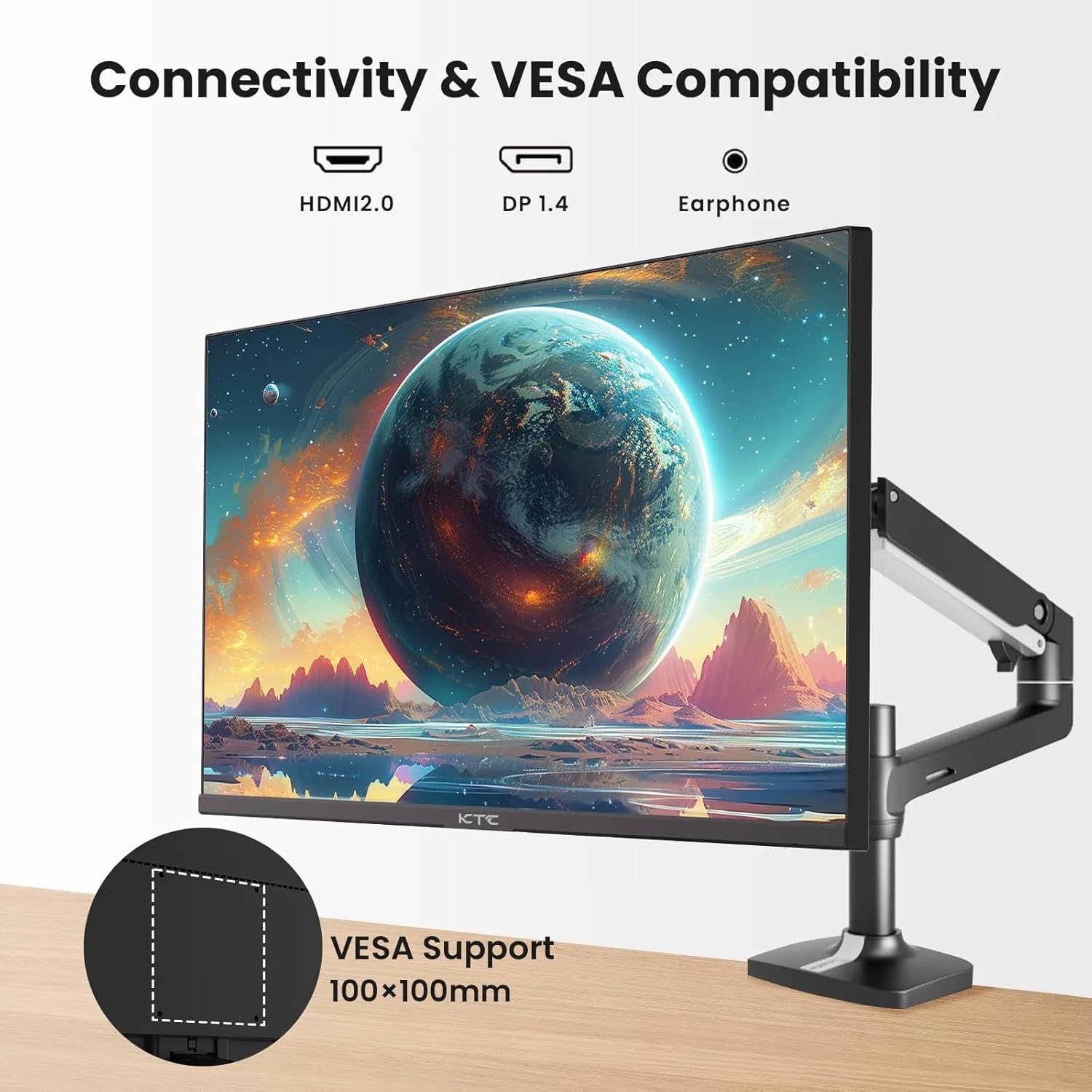
Figure 2: VESA Compatibility and Connectivity Ports
4. د کیبلونو نښلول
اړین کیبلونه د مانیټر او خپل کمپیوټر یا نورو وسایلو سره وصل کړئ. ډاډ ترلاسه کړئ چې ټولې اړیکې خوندي دي.
- د بریښنا کیبل: Connect the power adapter to the monitor's DC input port, then plug the power cable into a power outlet.
- د ویډیو کیبل: Connect either an HDMI cable (HDMI 2.0) or a DisplayPort cable (DP 1.4) from your computer's graphics card to the corresponding input port on the monitor.
- آډیو تولید: If desired, connect headphones or external speakers to the 3.5mm audio output jack.

شکل ۴: د ان پټ پورټونو څارنه
۳. لومړنی بریښنا فعالول
Press the power button on the monitor. The power indicator light will illuminate. If no image appears, ensure your computer is powered on and the correct input source is selected on the monitor.
عملیات
1. بریښنا فعال/بند
Press the power button located on the monitor to turn it on or off. The power indicator will show the monitor's status.
2. پر پرده ښودنه (OSD) مینو
The OSD menu allows you to adjust various monitor settings. Use the control buttons (usually located on the back or bottom of the monitor) to navigate the menu.
- Press a button to activate the OSD menu.
- Use the navigation buttons to move through menu options.
- Press a selection button to enter a sub-menu or confirm a setting.
- Press an exit button to close the OSD menu.
3. د ترتیباتو تنظیم کول
عام تنظیمیدونکي ترتیبات پدې کې شامل دي:
- روښانتیا/ تضاد: د رڼا او تیاره سیمو ترمنځ عمومي رڼا او توپیر تنظیم کړئ.
- د رنګ ترتیبات: د رنګ تودوخه، ګاما، او انفرادي RGB ارزښتونه بدل کړئ.
- د ننوتلو سرچینه: په لاسي ډول د HDMI 1، HDMI 2، یا DisplayPort ان پټونو ترمنځ غوره کړئ.
- د انځور حالت: د ښودلو لپاره مخکې ټاکل شوي طریقې غوره کړئ (د مثال په توګه، معیاري، لوبه، فلم).
4. د تازه کولو نرخ
The KTC H27T27 supports a 100Hz refresh rate, providing smoother motion compared to standard 60Hz displays. Ensure your graphics card and operating system are configured to output at 100Hz for the best experience.

Figure 4: 100Hz Refresh Rate Benefit
۶.۵. د فری سنک ټیکنالوژي
This monitor is compatible with AMD FreeSync technology, which synchronizes the monitor's refresh rate with your graphics card's frame rate. This helps eliminate screen tearing and stuttering for a smoother gaming and video experience. Ensure FreeSync is enabled in both the monitor's OSD menu and your graphics card's control panel.
Figure 5: FreeSync Technology in Action
ساتنه
۳. د پردې پاکول
- مانیټر بند کړئ او د بریښنا تار خلاص کړئ.
- په نرمۍ سره د نرم، لینټ پاک ټوکر سره سکرین پاک کړئ.
- د سختو نښو لپاره، په نرمۍ سرهampټوکر د اوبو یا ځانګړي سکرین کلینر سره ومینځئ (مستقیم په سکرین مه سپری کوئ).
- د کثافاتو پاکوونکو، الکولو، یا امونیا پر بنسټ محلولونو کارولو څخه ډډه وکړئ، ځکه چې دا کولی شي د سکرین سطح ته زیان ورسوي.
2. عمومي پاملرنه
- مانیټر د مستقیم لمر وړانګو، ډیرې تودوخې او رطوبت څخه لرې وساتئ.
- د ډیر تودوخې مخنیوي لپاره د مانیټر شاوخوا مناسب هوا ورکول ډاډمن کړئ.
- په مانیټر یا د هغې په کیبلونو کې د درنو شیانو له ایښودلو څخه ډډه وکړئ.
د ستونزو حل کول
که تاسو د خپل مانیټر سره ستونزې سره مخ شئ، لاندې عامې ستونزې او حل لارې وګورئ:
- ځواک نشته:
- Ensure the power cable is securely connected to both the monitor and the power outlet.
- Verify the power outlet is functional. - هیڅ سیګنال نشته:
- Check that the video cable (HDMI or DisplayPort) is securely connected to both the monitor and your computer.
- Ensure your computer is powered on and not in sleep mode.
- Select the correct input source via the monitor's OSD menu. - ځلیدونکی یا تحریف شوی انځور:
- Check the video cable for damage or loose connections.
- Adjust the refresh rate settings on your computer.
- Disable or enable FreeSync in the OSD menu and graphics card settings to test. - ناسم رنګونه:
- Reset color settings to factory defaults in the OSD menu.
- Adjust color temperature or individual RGB values.
که چیرې د دې حل لارو هڅه کولو وروسته هم ستونزه دوام ومومي، مهرباني وکړئ د پیرودونکو ملاتړ سره اړیکه ونیسئ.
مشخصات
| فیچر | مشخصات |
|---|---|
| برانډ | KTC |
| د ماډل شمیره | H27T27 |
| د سکرین اندازه | 27 انچه |
| قرارداد | 2560x1440 (WQHD) |
| د تازه کولو نرخ | 100 Hz |
| د ښودلو ډول | IPS |
| د غبرګون وخت | 7 ملی ثانیه |
| د تطبیق وړ همغږي | FreeSync |
| ارتباط | ۲x HDMI ۲.۰، ۱x ډیسپلی پورټ ۱.۴، ۱x ۳.۵ ملي میتر آډیو آوټ |
| د اړخ نسبت | 1.78:1 |
| د سکرین سطحه | مټ |
| د توکي ابعاد (D x W x H) | ۱۶"د x ۲۶"وچ x ۴۷"ح |
| د توکي وزن | 4 کیلوګرامه |
تضمین او ملاتړ
د تضمین معلومات
This KTC monitor is covered by a manufacturer's warranty. Please refer to the warranty card included in your product packaging for specific terms, conditions, and duration of coverage. Keep your purchase receipt as proof of purchase for warranty claims.
د پیرودونکي ملاتړ
For technical assistance, warranty service, or any product-related inquiries, please contact KTC customer support. Contact details can typically be found on the official KTC webپه سایټ یا د تضمین کارت کې.
When contacting support, please have your monitor's model number (H27T27) and serial number ready.