
پیژندنه
Thank you for choosing the CRUA 27-inch 4K UHD 144Hz IPS Gaming Monitor. This monitor is designed to deliver an immersive visual experience with its high resolution, fast refresh rate, and vibrant color reproduction. This manual provides essential information for the proper installation, operation, and maintenance of your new monitor. Please read it thoroughly before use and retain it for future reference.
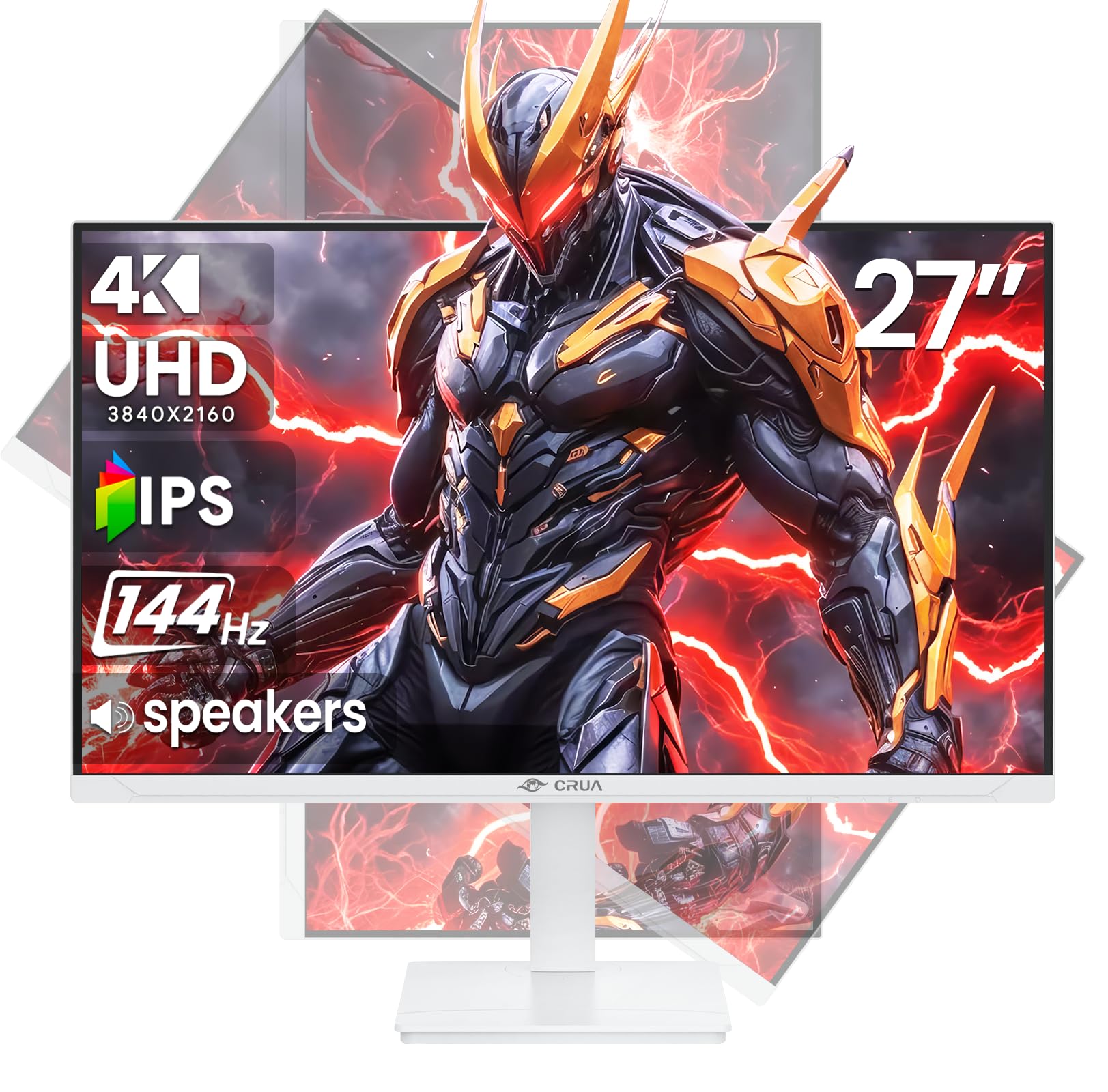
انځور: مخکینۍ برخه view of the CRUA 27-inch 4K UHD 144Hz IPS Gaming Monitor.
په بکس کې څه دي
مهرباني وکړئ د خپل کڅوړې محتويات وګورئ. که کوم توکي ورک یا خراب وي، نو خپل پرچون پلورونکي سره اړیکه ونیسئ.
- 27 انچ مانیټر
- ډي پي کیبل
- Base and Support
- د کارن لارښود
- د بریښنا رسول
د محصول ځانګړتیاوې
- 27" 4K Display with IPS Panel: Experience ultra-clear visuals with a 3840x2160P resolution.
- 144Hz ریفریش نرخ: Enjoy fluid and sharp motion, ideal for competitive gaming and fast-paced content.
- ۱۰۰٪ sRGB د رنګ دقت: Delivers rich and accurate tones with 350cd/m² brightness and 1000:1 high-contrast.
- جوړ شوي سپیکرونه: Provides clear audio for daily use.
- Full Ergonomic Adjustment: Features height, pivot, tilt, and rotation adjustments for optimal viewزاویې
- د ارتباط ډیری اختیارونه: Equipped with 2x HDMI 2.1 and 2x DP 1.4 ports.
- AMD FreeSync Support: Synchronizes the monitor's refresh rate with your GPU for tear-free gaming.
- د دیوال ماونټیل: Supports VESA 75mm x 75mm wall mounts for flexible installation.
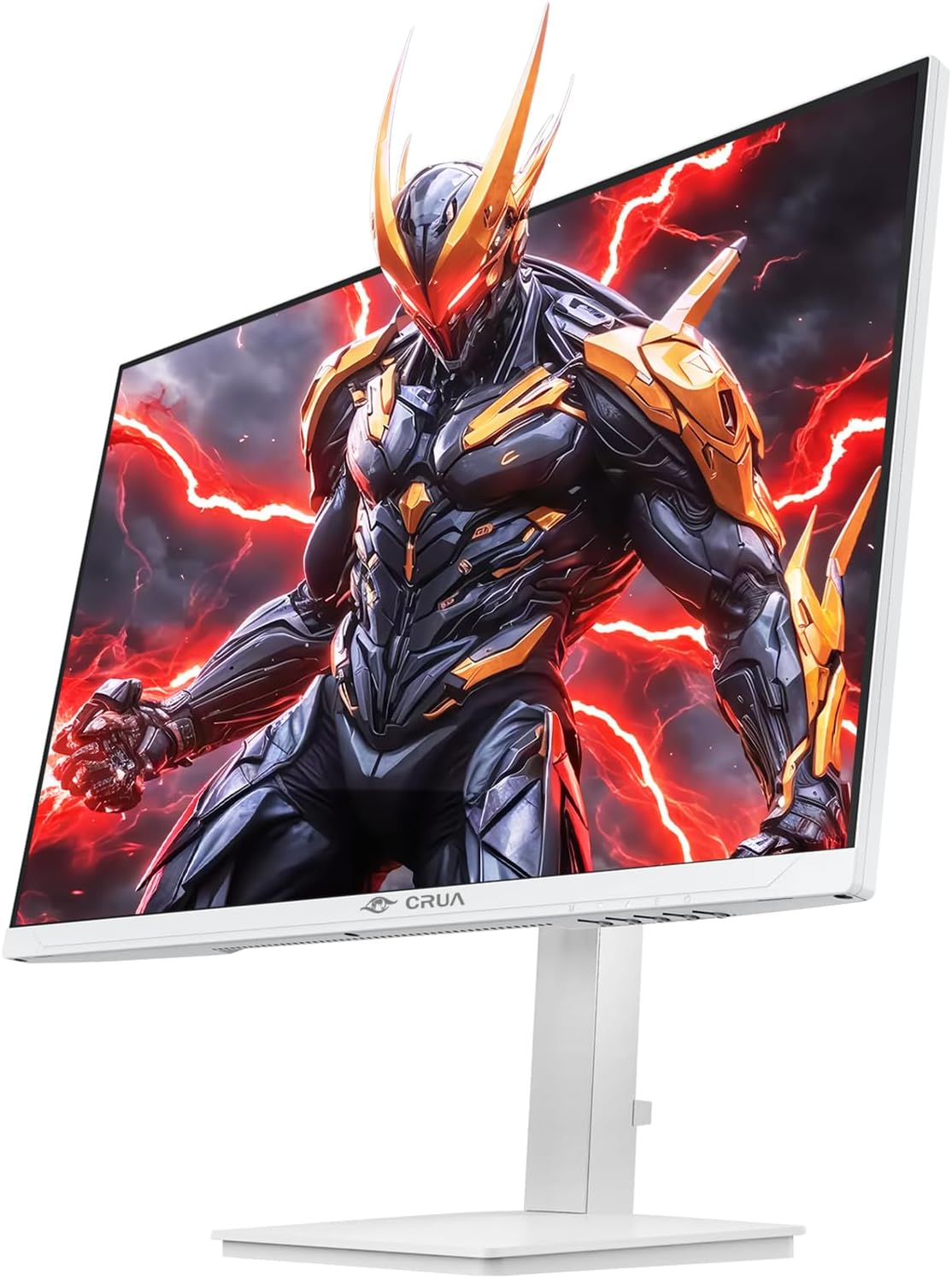
انځور: مخکینۍ برخه view of the CRUA 27-inch 4K UHD 144Hz IPS Gaming Monitor displaying a game scene.

انځور: شاته view of the CRUA 27-inch 4K UHD 144Hz IPS Gaming Monitor showing the stand and RGB lighting.

انځور: شاته view of the CRUA 27-inch 4K UHD 144Hz IPS Gaming Monitor highlighting the input ports (2x DP 1.4, 2x HDMI 2.1, and 3.5mm Audio Port).

Image: Diagram illustrating the adjustable height (110mm), tilt (-5° to +15°), swivel (±30°), and pivot (90°) features of the CRUA 27-inch 4K UHD 144Hz IPS Gaming Monitor.
د تنظیم کولو لارښوونې
1. د سټینډ راټولول
- د مانیټر او سټینډ اجزا په احتیاط سره له بسته بندۍ څخه لرې کړئ.
- د سټینډ غاړه د مانیټر پینل سره وصل کړئ. ډاډ ترلاسه کړئ چې دا په خوندي ډول په خپل ځای کې کلیک کوي یا که چمتو شوي وي نو د پیچونو سره تړل شوی.
- Attach the base to the stand neck, securing it with the thumb screw or other fasteners.
- راټول شوی مانیټر په یوه مستحکم او فلیټ سطحه کېږدئ.
۳. دیوال نصب کول (اختیاري)
The monitor supports VESA 75mm x 75mm wall mounts. Remove the stand before attaching a compatible wall mount bracket (not included). Follow the instructions provided with your wall mount.
3. د کیبلونو نښلول
- ځواک: Connect the power supply to the monitor's power input and then to a power outlet.
- د ویډیو انټرنېټ Connect one end of the provided DP cable (or an HDMI cable) to the corresponding port on your computer's graphics card and the other end to a DP 1.4 or HDMI 2.1 port on the monitor.
- د غږ محصول (اختیاري): If using external speakers or headphones, connect them to the 3.5mm audio jack on the monitor.
۳. لومړنی بریښنا فعالول
Press the power button on the monitor. The monitor should automatically detect the input signal. If not, you may need to manually select the input source using the OSD menu.
عملیاتي لارښوونې
1. بریښنا فعال/بند
د مانیټر د فعالولو یا بندولو لپاره د بریښنا تڼۍ فشار ورکړئ.
۴.۱. د OSD مینو نیویګیشن
The On-Screen Display (OSD) menu allows you to adjust various monitor settings. Navigate the menu using the joystick or buttons typically located on the back or bottom of the monitor.
- د OSD مینو د خلاصولو لپاره جویسټیک/تڼۍ فشار ورکړئ.
- Move the joystick up/down or use corresponding buttons to navigate through menu options.
- Move the joystick left/right or use corresponding buttons to adjust values or enter sub-menus.
- Press the joystick/button again to confirm selections or exit sub-menus.
3. د ننوت سرچینې انتخاب
If the monitor does not automatically detect the correct input, open the OSD menu, navigate to "Input Source," and select the active input (e.g., HDMI1, HDMI2, DP1, DP2).
4. د ښودلو ترتیبات تنظیمول
د OSD مینو دننه، تاسو کولی شئ ترتیبات تنظیم کړئ لکه:
- روښانتیا/ تضاد: د رڼا او برعکس عمومي کچه تنظیم کړئ.
- د رنګ ترتیبات: د رنګ تودوخه، ګاما، او انفرادي RGB ارزښتونه ښه تنظیم کړئ.
- د انځور کیفیت: Select preset modes (e.g., Standard, Game, Movie) or customize sharpness and dynamic contrast.
- د حل او تازه کولو نرخ: Ensure your computer's display settings match the monitor's native 4K UHD (3840x2160P) resolution and 144Hz refresh rate for optimal performance.
- AMD FreeSync: Enable FreeSync in the OSD menu and your graphics card control panel for adaptive synchronization.
5. د آډیو تنظیمات
Adjust the volume of the built-in speakers or connected external audio devices through the OSD menu's audio section. You can also mute the audio if desired.
۳.۴. ارګونومیک سمونونه
خپل غوره توب ته مانیټر تنظیم کړئ viewد موقعیت:
- لوړوالی: په نرمۍ سره مانیټر د سټینډ په اوږدو کې پورته یا ښکته کړئ یا کش کړئ.
- ټیلټ: Tilt the screen forward or backward.
- تیر: مانیټر د هغې په اساس کې چپ یا ښي خوا ته وګرځوئ.
- محور: Rotate the screen 90 degrees for vertical orientation.
ساتنه
د سکرین پاکول
- تل مانیټر بند کړئ او د پاکولو دمخه د بریښنا تار خلاص کړئ.
- د نرم، لینټ پاک ټوکر څخه په روښانه توګه کار واخلئampد اوبو یا ځانګړي سکرین پاکونکي سره مینځل کیږي.
- کلینر په مستقیم ډول په سکرین مه سپری کوئ.
- د کثافاتو پاکوونکو، الکولو، یا امونیا پر بنسټ محلولونو کارولو څخه ډډه وکړئ، ځکه چې دوی کولی شي د سکرین سطح ته زیان ورسوي.
عمومي پاملرنه
- مانیټر د مستقیم لمر وړانګو، تودوخې سرچینو او ډیرې دوړو څخه لرې وساتئ.
- د ډیر تودوخې مخنیوي لپاره د مانیټر شاوخوا مناسب هوا ورکول ډاډمن کړئ.
- په مانیټر یا د هغې په کیبلونو کې درانه شیان مه کیږدئ.
- د تیزو شیانو سره د سکرین د لمس کولو څخه ډډه وکړئ.
د ستونزو حل کول
| ستونزه | احتمالي حل |
|---|---|
| په پرده هیڅ عکس نشته |
|
| د سپیکرو څخه هیڅ غږ نشته |
|
| د انځور ځلېدل یا تحریف |
|
| تڼۍ ځواب نه ورکوي |
|
For further assistance, please refer to the CRUA support webسایټ یا د پیرودونکي خدمت سره اړیکه ونیسئ.
مشخصات
| فیچر | تفصیل |
|---|---|
| د ماډل شمیره | CR270E |
| د سکرین اندازه | ۷۸۷ انچه |
| قرارداد | ۴K UHD (۳۸۴۰ x ۲۱۶۰ پکسلز) |
| د تازه کولو نرخ | 144Hz |
| د پینل ډول | IPS |
| د اړخ نسبت | 16:9 |
| رنګ Gamut | 120٪ sRGB |
| روښانتیا | ۳۰۰ کینډیلا (سي ډي/مربع مربع) |
| د تناسب تناسب | 1000:1 |
| ارتباط | 2x DP 1.4, 2x HDMI 2.1, 1x 3.5mm Audio Jack |
| د تطبیق وړ همغږي | AMD FreeSync |
| ارګونومیک | Height, Pivot, Tilt, Rotate Adjustable |
| دیوال غر | VESA 75mm x 75mm |
| جوړ شوي سپیکرونه | هو |
| د محصول ابعاد | 2.5 x 24 x 14 انچه |
| د توکي وزن | ۲.۴۵ پونډه |
تضمین او ملاتړ
CRUA provides high-quality computer monitors and premium services. For warranty information, technical support, or any questions regarding your monitor, please visit the official CRUA website or contact their customer service team. Details can typically be found on the product packaging or the CRUA brand store on Amazon.
د اړیکو معلومات: Refer to your purchase documentation or the CRUA official webد ملاتړ د اړیکو د تازه جزیاتو لپاره سایټ.