
1. پیژندنه
The JeDEL WD142 is a versatile wireless mouse designed for various computing tasks. It features dual-mode connectivity, allowing connection via 2.4GHz wireless or Bluetooth, and offers adjustable DPI settings for precise control. This mouse is rechargeable, providing convenience and extended use. This manual provides instructions for setting up, operating, maintaining, and troubleshooting your WD142 mouse.
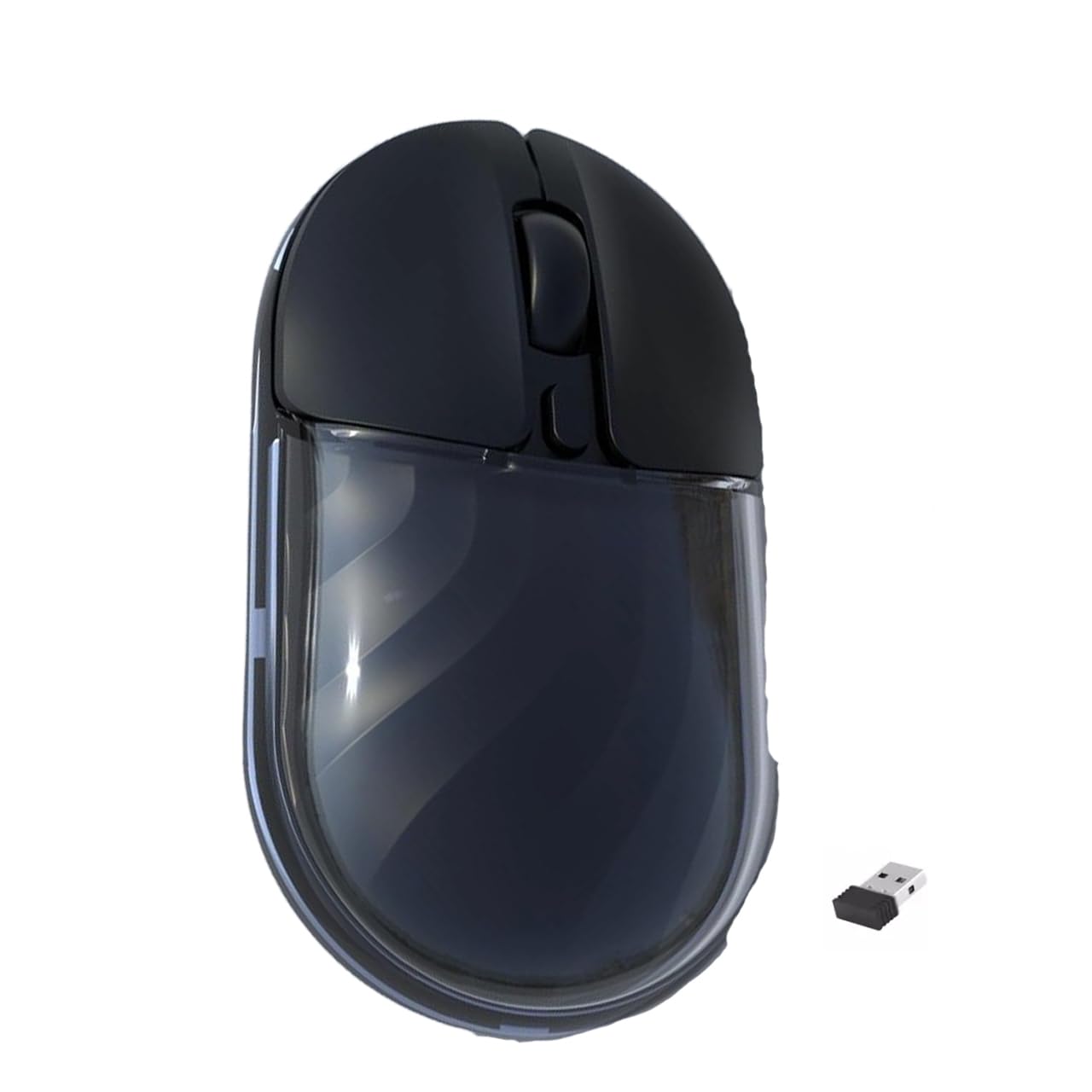
شکل 1: پورته view of the JeDEL WD142 Wireless Bluetooth Rechargeable Mouse.
2. ترتیب کول
۳.۱ د موږک چارج کول
Before first use, or when the battery is low, charge the mouse using the provided Type-C charging cable. Connect the Type-C end to the mouse's charging port and the USB-A end to a power source (e.g., computer USB port, USB wall adapter). The charging indicator light will illuminate during charging and turn off when fully charged. A full charge typically takes approximately 1.5 hours.
۳.۲.۱ ۲.۴GHz بېسیم اتصال
- Locate the USB 2.4GHz receiver, usually stored in a compartment on the underside of the mouse.
- د USB ریسیور په خپل کمپیوټر کې موجود USB پورټ ته دننه کړئ.
- د بریښنا سویچ په کارولو سره موږک چالان کړئ چې په لاندې برخه کې موقعیت لري.
- Switch the mouse to 2.4GHz mode using the mode switch button (if available, typically on the underside). The mouse should connect automatically.
2.3 د بلوتوث اتصال
- د بریښنا سویچ په کارولو سره موږک چالان کړئ.
- Switch the mouse to Bluetooth mode using the mode switch button. The indicator light will typically blink, indicating it is in pairing mode.
- On your device (computer, smartphone, tablet), go to Bluetooth settings.
- لټون new devices. The mouse should appear as "JeDEL WD142" or similar.
- Select the mouse to pair. Once paired, the indicator light on the mouse will stop blinking.
The JeDEL WD142 is compatible with iOS, macOS, Android, and Windows systems.
3. عملیاتي لارښوونې
3.1 اساسي دندې
- کیڼ کلیک: لومړني انتخاب او فعالول.
- ښي کلیک: د شرایطو مینو ته لاسرسی لري.
- سکرول ویل: Scrolls content up or down. Can also be clicked for middle-click functionality.
3.2 د DPI تعدیل
The mouse features adjustable DPI (Dots Per Inch) settings, allowing you to change cursor sensitivity. Press the DPI button (usually located behind the scroll wheel) to cycle through available DPI levels: 800, 1200 (default), and 1600. Each press will change the sensitivity, indicated by a brief flash of the indicator light.
3.3 د حالت بدلول
Use the mode switch button on the underside of the mouse to toggle between 2.4GHz wireless mode and Bluetooth mode as needed for different devices.
۶.۳ د RGB رڼا
The mouse features dynamic RGB lighting. Specific controls for RGB lighting (e.g., on/off, mode change) may be available via a dedicated button or software, if applicable. Refer to the product packaging or manufacturer's webد RGB کنټرول تفصيلي لارښوونو لپاره سایټ.
4. ساتنه
4.1 پاکول
د موږک د پاکولو لپاره، په نرمۍ سره د هغې سطحه د نرم، ډ سره پاک کړئamp cloth. Avoid using harsh chemicals, abrasive cleaners, or excessive moisture, as these can damage the mouse. Ensure no liquid enters the mouse's internal components.
4.2 د بیټرۍ پاملرنه
- د بیټرۍ د عمر د اوږدولو لپاره د هغې د بار بار بشپړ چارج کولو څخه ډډه وکړئ.
- Charge the mouse regularly, especially if it will not be used for an extended period.
- Do not expose the mouse to extreme temperatures, as this can affect battery performance.
4.3 ذخیره کول
When not in use, store the mouse in a cool, dry place away from direct sunlight and extreme temperatures. If storing for a long period, ensure the mouse is partially charged.
5. ستونزه حل کول
- موږک ځواب نه ورکوي:
- Ensure the mouse is powered on.
- Check battery level and charge if necessary.
- Verify the correct connection mode (2.4GHz or Bluetooth) is selected.
- For 2.4GHz, ensure the USB receiver is securely plugged into the computer.
- For Bluetooth, ensure the mouse is paired correctly and your device's Bluetooth is enabled. - د کرسر حرکت بې نظمه یا ورو دی:
- Clean the optical sensor on the underside of the mouse.
- Ensure you are using the mouse on a suitable surface (non-reflective, uniform color).
- Adjust the DPI setting to a higher value if movement is too slow. - موږک چارج نه کوي:
- Ensure the Type-C charging cable is properly connected to both the mouse and the power source.
- یو بل USB پورټ یا د بریښنا اډاپټر هڅه وکړئ.
- Check if the charging cable is damaged. - د بلوتوث جوړې ستونزې:
- Ensure the mouse is in Bluetooth pairing mode (indicator light blinking).
- Remove the mouse from your device's Bluetooth list and attempt to re-pair.
- Restart your device's Bluetooth function or the device itself.
6. مشخصات
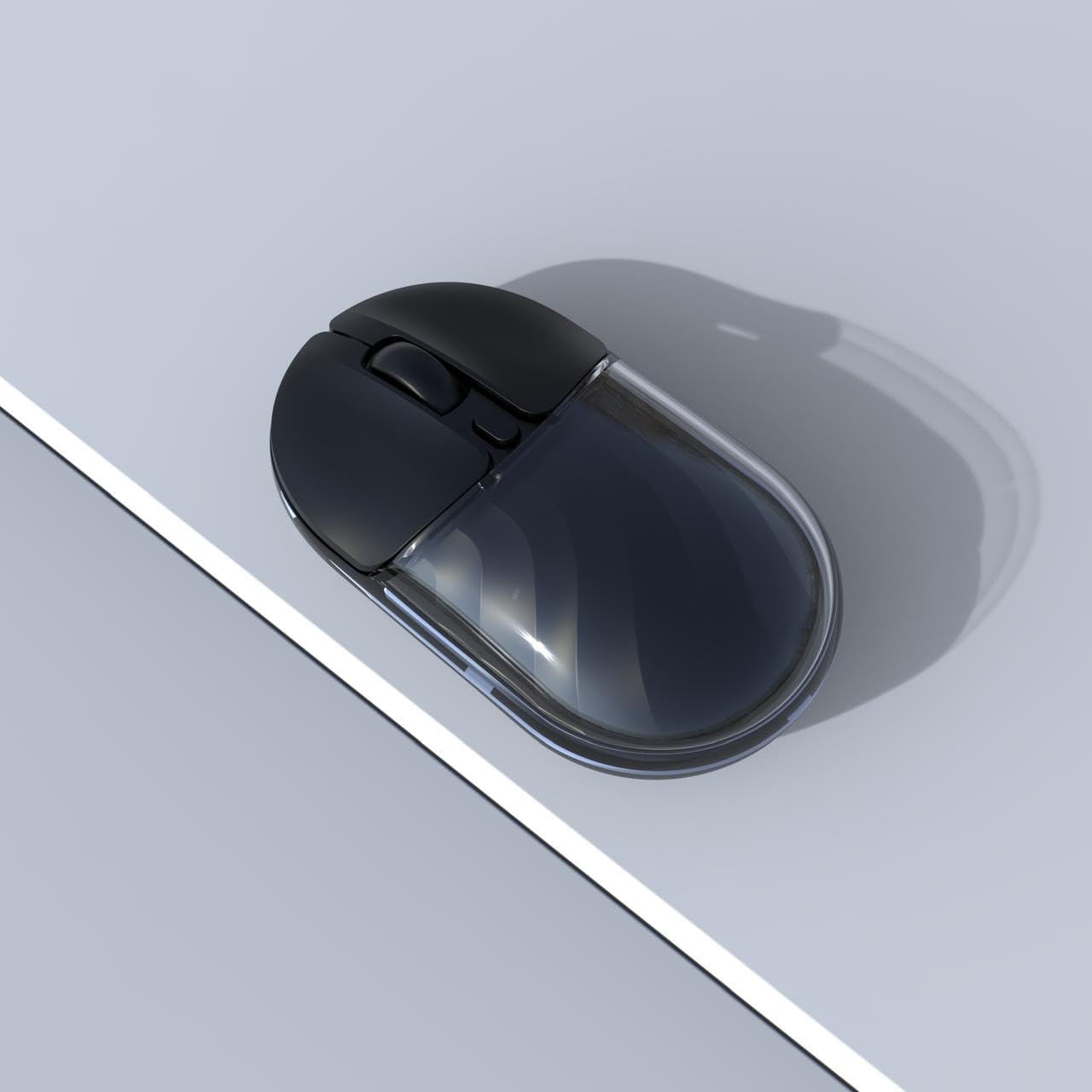
شکل 2: اړخ view of the JeDEL WD142 Wireless Bluetooth Rechargeable Mouse.
| فیچر | مشخصات |
|---|---|
| د ماډل نوم | WD142 |
| د ارتباط ټیکنالوژي | 2.4GHz بې سیم، بلوتوټ |
| د DPI تنظیمات | 800 / 1200 (ډیفالټ) / 1600 |
| د تڼیو شمیر | 4 (Left, Right, Scroll Wheel, DPI) |
| د بیټرۍ ډول | د چارج وړ لیتیم بیټرۍ |
| د بیټرۍ ظرفیت | 3.7V 300mAh |
| د چارج کولو بندر | ټایپ-سي |
| کاري واټن | تر 10 مترو پورې (33 فوټ) |
| Silent Switch Life | Approximately 3 million clicks |
| د لاس لارښوونه | سمه ده |
| مطابقت لرونکې وسیلې | شخصي کمپیوټر، سمارټ فون، ټابلیټ |
| د هارډویر پلیټ فارم | ماک، کمپیوټر |
| وزن | 69 ± 5g (without battery) |
| ابعاد (L x W x H) | 109 x 60 x 32 mm |
| د بیټرۍ ژوند | Up to 180 hours (standby), 75 hours (working) |
7. تضمین او ملاتړ
For warranty information and technical support, please refer to the documentation included with your purchase or contact the retailer/manufacturer directly. Specific warranty terms may vary by region and retailer.