
1. محصول ختم شوview
The HP All-in-One Desktop PC is designed for both business and personal use, offering a compact and powerful computing solution. This model features a 22-inch Full HD anti-glare display, an Intel Dual-core Processor, 40GB RAM, and a 512GB PCIe SSD, ensuring efficient performance for various tasks. It comes with a keyboard and mouse, and supports modern connectivity options including HDMI, USB-C, and Wi-Fi 6.
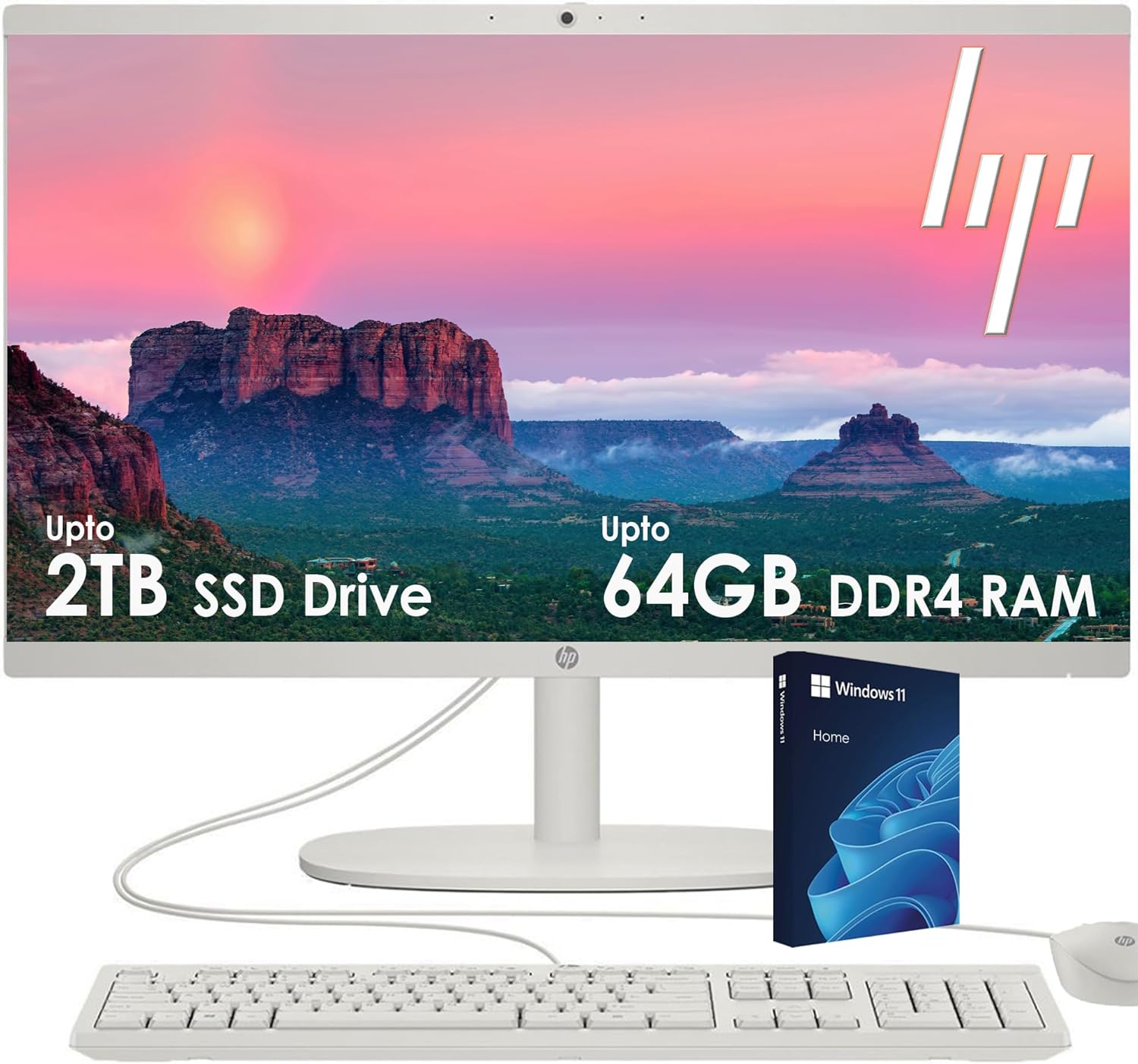
Figure 1.1: The HP All-in-One Desktop PC, showcasing the display, keyboard, and mouse.
کلیدي ځانګړتیاوې:
- پروسیسر: Intel Celeron J4025 (up to 2.9 GHz burst frequency, 4 MB L3 cache, 2 cores, 2 threads) with integrated Intel UHD Graphics for efficient performance.
- ښکاره کول: 21.5" Full HD (1920 x 1080) VA, three-sided micro-edge, anti-glare display with 250 nits brightness and 72% NTSC.
- حافظه او ذخیره: 40GB DDR4 SDRAM and 512GB PCIe NVMe M.2 Solid State Drive for smooth multitasking and fast data access.
- ارتباط: Includes 1x USB Type-C (5Gbps), 2x USB Type-A (Hi-Speed), 2x USB Type-A (5Gbps), 1x headphone/microphone combo, 1x RJ-45 Ethernet, 1x HDMI-out, and built-in Wi-Fi 6 & Bluetooth.
- Webکیم: HP True Vision 720p HD privacy camera with integrated dual array digital microphones.
- عملیاتي سیسټم: Pre-installed with Windows 11, 64-bit, English.
- ډیزاین: Cashmere White finish with a minimalist and modern look.

شکل 1.2: پایview of key internal components and connectivity features.
2. د تنظیم کولو لارښود
Follow these steps to set up your new HP All-in-One Desktop PC.
۲.۱ د بکس خلاصول او ځای پر ځای کول
- کمپیوټر او ټول لوازم په احتیاط سره له بسته بندۍ څخه لرې کړئ. د راتلونکي لیږد یا خدمت لپاره بسته بندۍ وساتئ.
- Place the PC on a stable, flat surface with adequate ventilation around the unit. Ensure no vents are obstructed.
- Unpack the included keyboard and mouse.
2.2 د پردیو سره نښلول
Identify the ports on the back of your HP All-in-One PC. Refer to Figure 2.1 for port locations.
- ځواک: Connect the power adapter cable to the power port on the back of the PC, then plug the adapter into a wall outlet.
- کیبورډ او موږک: Connect the USB cables from the keyboard and mouse to any available USB Type-A ports on the back of the PC.
- Optional External Display: If using an external monitor, connect an HDMI cable from the HDMI-out port on the PC to the HDMI-in port on your monitor.
- Optional Wired Network: For a wired internet connection, connect an Ethernet cable from your router or modem to the RJ-45 port on the PC.

Figure 2.1: Rear ports of the HP All-in-One PC.
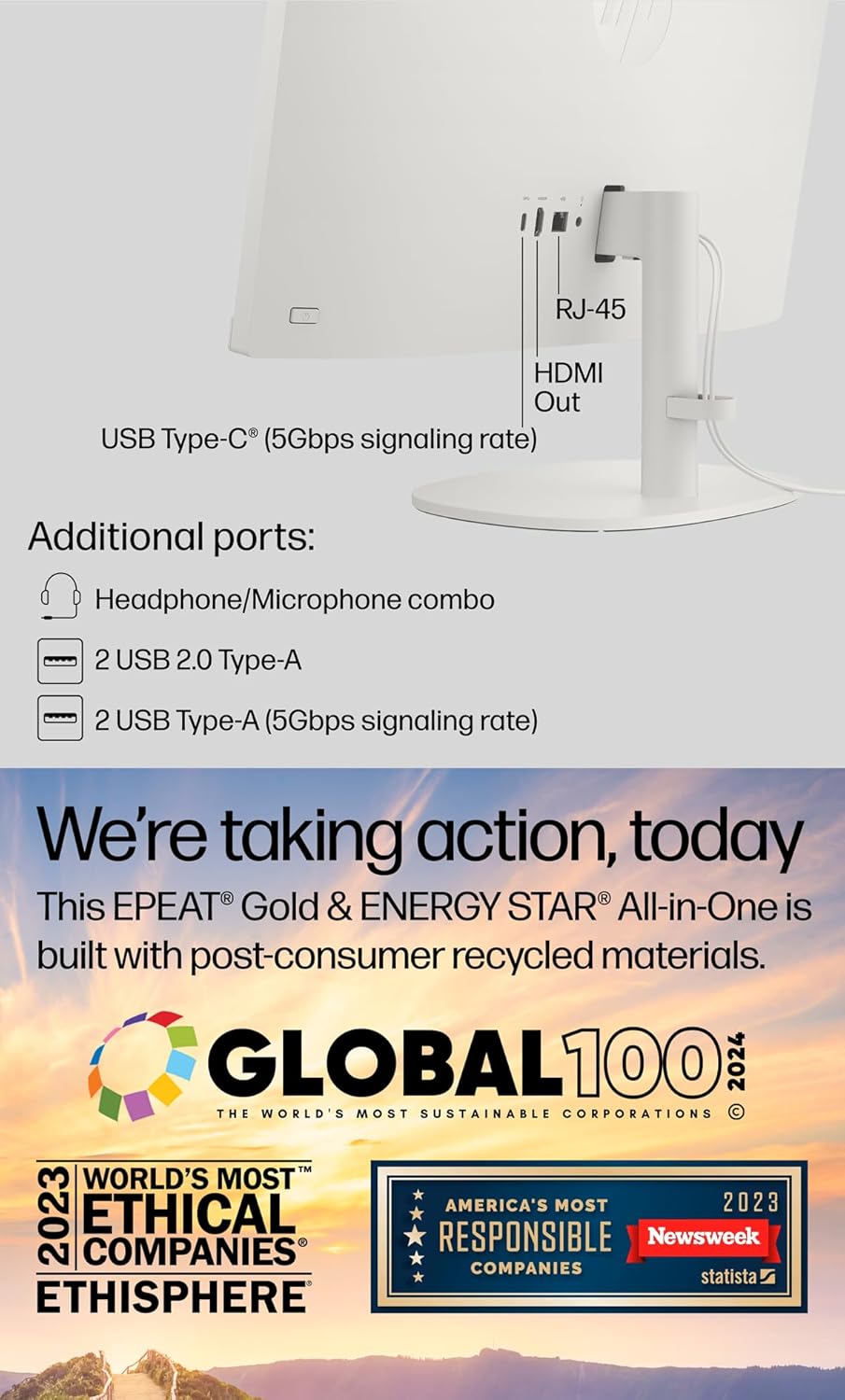
Figure 2.2: Additional connectivity options.
۲.۳ د بریښنا لومړنی فعالول او د وینډوز تنظیم کول
- د بریښنا تڼۍ فشار ورکړئ، چې معمولا د نندارې په اړخ یا شا کې موقعیت لري.
- The PC will boot up and guide you through the Windows 11 initial setup process. Follow the on-screen prompts to:
- خپله سیمه او د کیبورډ ترتیب غوره کړئ.
- د وای فای شبکې سره وصل شئ (که چیرې د تار ایترنیټ نه کاروئ).
- د خپل مایکروسافټ حساب سره لاسلیک وکړئ یا یو نوی جوړ کړئ.
- Set up privacy settings and create a PIN.
- The myHP application can assist with simple setup and device management.

Figure 2.3: The myHP application for simplified setup.
3. عملیات
This section provides guidance on operating your HP All-in-One PC.
۶.۲ د وینډوز ۱۱ کارول
Your PC comes with Windows 11 pre-installed. Familiarize yourself with the new interface, Start Menu, and taskbar. Utilize the search bar to quickly find applications and files.
۵.۲ ښودنه او لیدونه
The 21.5-inch Full HD anti-glare display minimizes reflections, providing a comfortable viewing experience. Adjust display settings (resolution, brightness) via Windows Settings > System > Display.
3.3 Webکیمره او آډیو
The integrated HP True Vision 720p HD privacy camera and dual array digital microphones are ideal for video conferencing and online communication. Ensure the privacy shutter is open when using the camera. Dual stereo speakers provide clear audio output.

Figure 3.1: Utilizing the integrated webcam and microphones for communication.
3.4 نښلول
- Wi-Fi 6: Connect to high-speed wireless networks for fast internet access. Manage Wi-Fi connections through the network icon in the system tray.
- بلوتوث: Pair Bluetooth-enabled devices such as headphones, speakers, or mobile phones via Windows Settings > Bluetooth & devices.
- USB پورټونه: Use the various USB Type-A and USB Type-C ports for connecting external drives, printers, and other peripherals.
- HDMI بهر: Extend your desktop to an external monitor or projector for increased productivity or presentations.
4. ساتنه
Regular maintenance helps ensure the longevity and optimal performance of your HP All-in-One PC.
4.1 پاکول
- ښکاره کول: د نرم، لینټ پاک ټوکر څخه په روښانه توګه کار واخلئampد اوبو یا غیر خارښونکي سکرین کلینر سره مینځل شوی. مایع په مستقیم ډول په سکرین مه سپری کوئ.
- بهر: بهرنۍ سطحې د نرم او وچ ټوکر سره پاک کړئ. د سختو کیمیاوي موادو څخه ډډه وکړئ.
- پلورونکي: Periodically check and gently clean the ventilation openings to prevent dust buildup, which can affect cooling.
4.2 د سافټویر تازه معلومات
- د وینډوز تازه معلومات: Ensure Windows Update is enabled to receive the latest security patches and feature enhancements. Go to Settings > Windows Update.
- د موټر چلوونکي تازه معلومات: HP regularly releases updated drivers for optimal hardware performance. Check the HP Support webستاسو د ماډل لپاره سایټ.
4.3 د ذخیرې مدیریت
The 512GB PCIe SSD provides fast storage. To maintain performance:
- په منظم ډول غیر ضروري حذف کړئ files او د ریسایکل بن خالي کړئ.
- Uninstall programs you no longer use.
- Consider using cloud storage for large files to free up local disk space.
5. ستونزه حل کول
دا برخه هغه عامې ستونزې په ګوته کوي چې تاسو ورسره مخ کیدی شئ او د ستونزو د حل کولو اساسي ګامونه وړاندې کوي.
۴.۱ بریښنا نشته / سیسټم نه پیل کیږي
- ډاډ ترلاسه کړئ چې د بریښنا کیبل په خوندي ډول د کمپیوټر او دیوال آوټ لیټ دواړو سره وصل دی.
- د بل وسیلې په لګولو سره د دیوال آوټ لیټ فعال دی تصدیق کړئ.
- د بریښنا یو بل ځای هڅه وکړئ.
۵.۲ هیڅ ښودنه / خالي سکرین نشته
- Confirm the PC is powered on (check power indicator light).
- If an external monitor is connected, ensure it is powered on and the correct input source is selected.
- Restart the PC by holding the power button for 10 seconds until it shuts down, then press it again to restart.
۵.۳ د شبکې د اتصال مسلې
- وای فای: Check if Wi-Fi is enabled in Windows settings. Restart your router/modem. Ensure you are connecting to the correct network and entering the password correctly.
- تار لرونکی (ایترنیټ): Verify the Ethernet cable is securely connected at both ends. Check the network status in Windows settings.
- د وینډوز شبکې ستونزې حل کوونکی چل کړئ (ترتیبات > شبکه او انټرنیټ > پرمختللي شبکې ترتیبات > د شبکې ستونزې حل کوونکی).
5.4 Peripheral Not Responding (Keyboard/Mouse)
- Ensure the USB cables for the keyboard and mouse are firmly plugged into the PC's USB ports.
- هڅه وکړئ چې پردې په مختلفو USB پورټونو کې ولګوئ.
- کمپیوټر بیا پیل کړئ.
6. مشخصات
Detailed technical specifications for the HP All-in-One Desktop PC (Model: 0024).

Figure 6.1: Physical dimensions of the HP All-in-One PC.
| فیچر | تفصیل |
|---|---|
| د ماډل شمیره | 0024 |
| پروسیسر | Intel Celeron J4025 (2.0 GHz base, up to 2.9 GHz) |
| ګرافیک | د انټل UHD ګرافیک (مدغم) |
| د ښودلو اندازه | 21.5 انچه |
| د ښودلو ریزولوشن | FHD (1920 x 1080), Anti-Glare |
| RAM | 40GB DDR4 SDRAM |
| ذخیره کول | ۵۱۲ جي بي پي سي آی اې NVMe M.2 SSD |
| عملیاتي سیسټم | Windows 11 (64-bit, English) |
| USB بندرونه | 1x USB Type-C (5Gbps), 2x USB Type-A (5Gbps), 2x USB 2.0 Type-A |
| د ویډیو تولید | 1x HDMI بهر 1.4 |
| آډیو بندرونه | 1x Headphone/Microphone combo |
| شبکه | Wi-Fi 6, Bluetooth, 1x RJ-45 Ethernet |
| Webکمره | HP True Vision 720p HD privacy camera |
| ابعاد (L x W x H) | 19.30 x 7.05 x 14.99 انچه |
| وزن | 12.56 پونډه |
| لوازم شامل دي | کیبورډ، موږک |
7. تضمین او ملاتړ
For detailed warranty information and technical support, please refer to the official HP resources.
7.1 د محصول تضمین
Your HP All-in-One PC comes with a standard manufacturer's warranty. The specific terms and duration of the warranty are provided with your product documentation or can be found on the official HP webسایټ. مهرباني وکړئ د تضمین ادعاوو لپاره د پیرود ثبوت وساتئ.
7.2 تخنیکي ملاتړ
If you encounter issues that cannot be resolved using the troubleshooting steps in this manual, HP offers comprehensive technical support.
- د HP ملاتړ Webسایټ: لیدنه support.hp.com for drivers, software updates, diagnostic tools, and knowledge base articles.
- د ملاتړ سره اړیکه: Information on contacting HP customer service via phone or chat can be found on the HP support webسایټ
- آنلاین فورمونه: Participate in HP's online community forums to get help from other users and HP experts.