
TECURS KC009
TECURS Wireless Keyboard User Manual
ماډل: KC009
1. محصول ختم شوview
The TECURS Wireless Keyboard is designed to enhance the functionality of your Microsoft Surface Pro tablet, offering a comfortable typing experience and a responsive trackpad. This ultra-thin, rechargeable keyboard features a 7-color LED backlight, making it suitable for various lighting conditions.
کلیدي ځانګړتیاوې:
- Bluetooth Connection for seamless pairing.
- Magnetic attachment for easy setup and portability.
- 7-Color LED Backlight with 3 levels of brightness adjustment.
- Responsive Trackpad supporting scrolling, zooming, and multi-touch gestures.
- Ultra-slim and lightweight design for enhanced portability.

Figure 1: TECURS Wireless Keyboard with 7-color backlight and integrated trackpad.
2. د تنظیم کولو لارښود
۶. د مطابقت چک
This keyboard is specifically designed for Microsoft Surface Pro 7, Pro 7+, Pro 6, Pro 5, Pro 4, and Pro 3 (12.3-inch models). It is نه compatible with Surface Pro 11/10/9/8/X (13-inch) or other models.
To confirm your Surface Pro model:
- ورتګ ترتیبات on your Surface Pro.
- وټاکئ سیسټم.
- کلیک وکړئ په اړه ته view your model name.
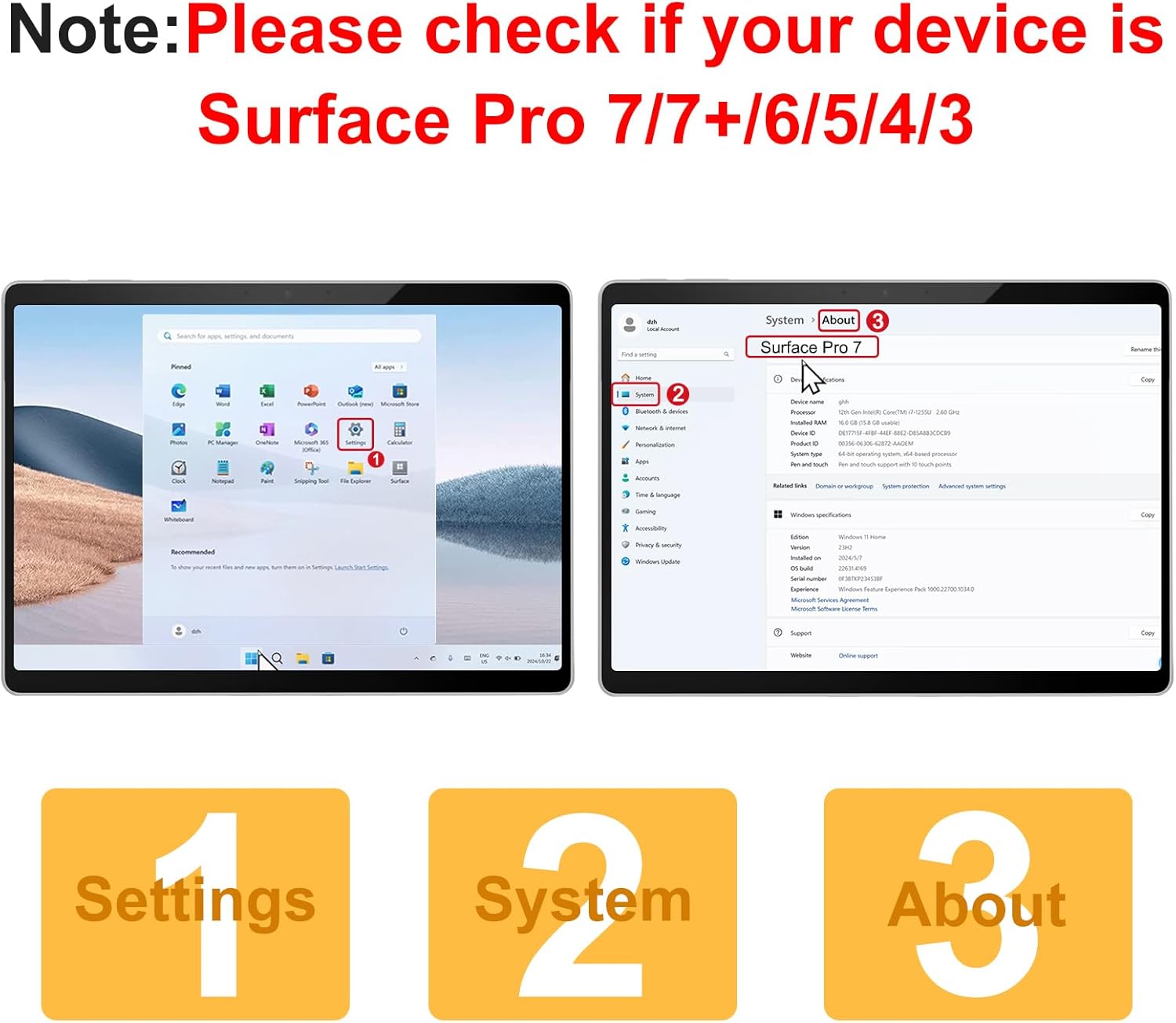
Figure 2: Steps to verify your Microsoft Surface Pro model for compatibility.

Figure 3: Visual guide to compatible and incompatible Surface Pro models.
2.2. Physical Attachment
The keyboard attaches magnetically to your Surface Pro tablet. Simply align the magnetic strip at the top of the keyboard with the bottom edge of your tablet until it snaps into place. The magnetic strip is for physical attachment only and does not provide charging or data connection.

Figure 4: Magnetic attachment of the keyboard to the Surface Pro, offering two typing angles.
2.3. د کیبورډ چارج کول
The keyboard has a built-in rechargeable battery and is charged via a Type-C charging cable (included). Connect the Type-C cable to the charging port on the keyboard and a suitable USB power source. A full charge takes approximately 2 hours and provides up to 50 hours of working time.

Figure 5: Charging the TECURS Wireless Keyboard via its Type-C port.
2.4. د بلوتوث اتصال مرحلې
Follow these steps to pair your keyboard with your Surface Pro:
- Turn on the power switch located on the side of the keyboard.
- فشار ورکړئ "Fn" + "C" keys simultaneously to activate the keyboard's Bluetooth pairing mode. The Bluetooth indicator light will blink.
- On your Surface Pro, go to ترتیبات > بلوتوث او وسایل او ډاډ ترلاسه کړئ چې بلوتوث فعال دی ON.
- کلیک وکړئ "Add a device" او انتخاب کړئ "Bluetooth Keyboard" from the list to complete the pairing process.
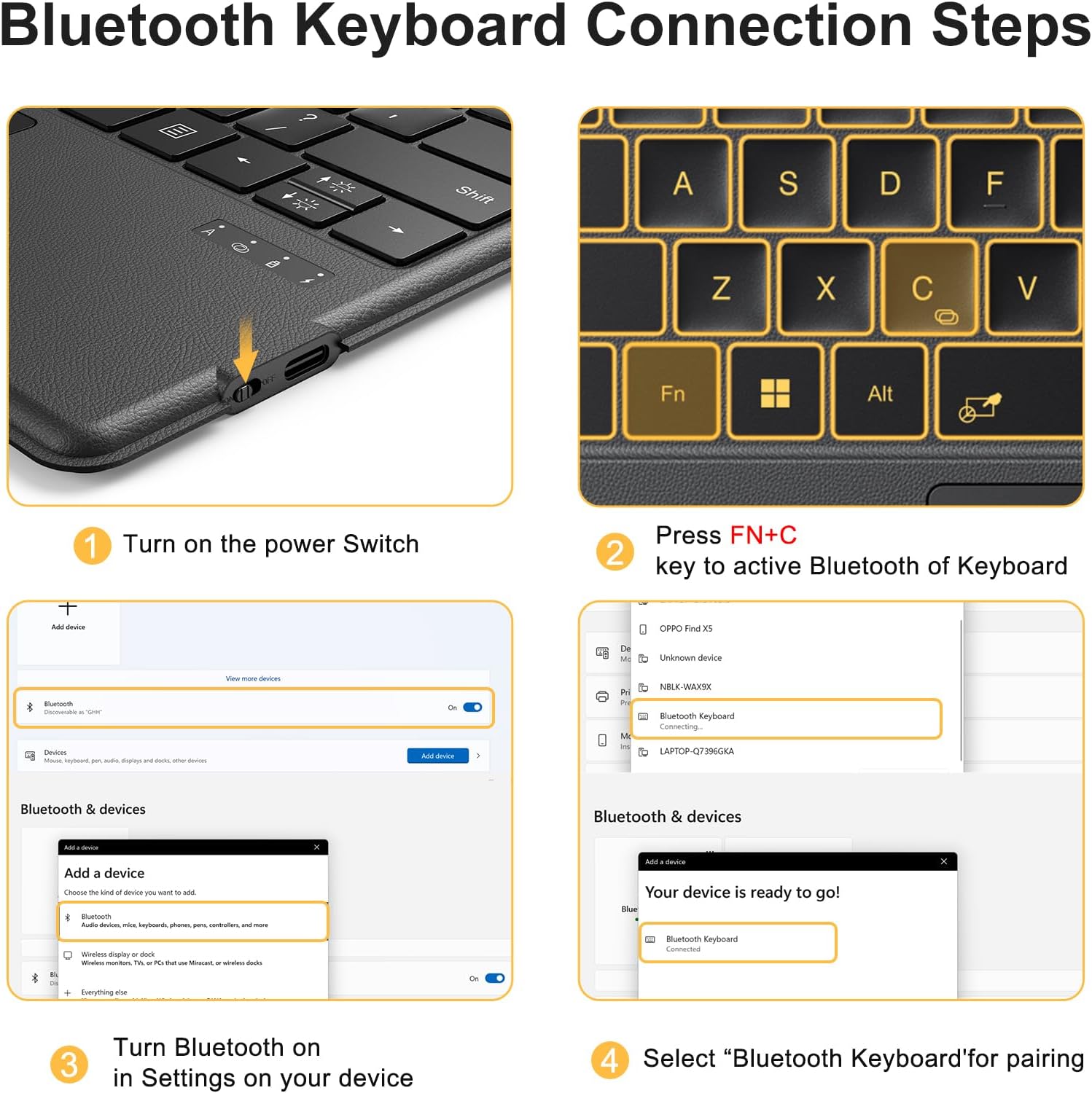
Figure 6: Detailed steps for establishing a Bluetooth connection between the keyboard and your Surface Pro.
3. عملیاتي لارښوونې
3.1. Keyboard and Typing
The keyboard features a standard QWERTY layout with 78 keys, providing a comfortable and responsive typing experience. The keys are designed for silent and comfortable typing, similar to a laptop keyboard.
3.2. د backlight کنټرول
The keyboard is equipped with a 7-color LED backlight. You can adjust the color and brightness to suit your preference and environment.
- د تنظیم کولو لپاره د شاتنۍ رڼا رنګ: پریس "Fn" + (light bulb icon). Cycle through the 7 available colors.
- د تنظیم کولو لپاره د backlight روښانتیا: پریس "Fn" + (sun icon). There are 3 levels of brightness adjustment, including off.

Figure 7: Controls for adjusting keyboard backlight colors and brightness levels.
۴.۴. د ټریک پیډ فعالیت
The built-in responsive trackpad supports precise cursor control and multi-touch gestures, similar to a mouse.
- د بدلولو لپاره trackpad ON/OFF: پریس "Fn" + Spacebar.
- One finger slide: کرسر حرکت ورکړئ.
- Two fingers tapping: ښي کلیک وکړئ.
- Two fingers up/down: Scroll vertically.
- Two fingers pinch: زوم ان/آوټ.
- Three fingers tap: لټون.
- Three fingers up: Open all task windows.
- Three fingers down: Back to desktop.
- Four fingers tap: Open the activity center.
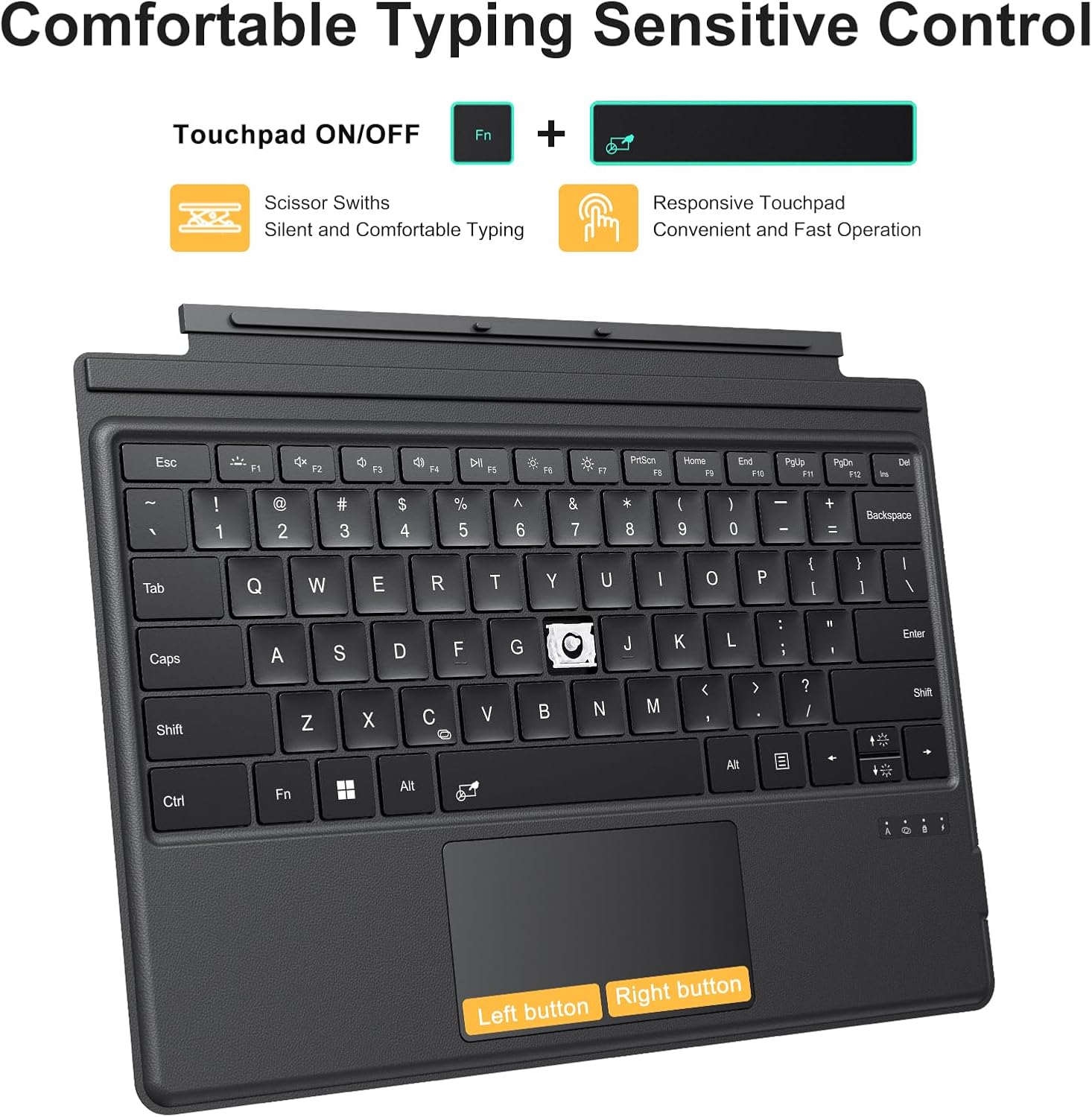
Figure 8: Trackpad features and multi-finger gestures for enhanced control.
۴.۵. د فعالیت کیلي او لنډلارې
The top row of keys provides various function and shortcut controls:
- Esc: فرار
- F1: خاموش
- F2: حجم کم کړئ
- F3: حجم زیات کړئ
- F4: پلی/ودرول
- F5: مخکینی ټریک
- F6: بله لار
- F7: کم پرده
- F8: سکرین روښانه کړئ
- F9: د چاپ سکرین
- F10: Home (Start of Line)
- F11: End (End of Line)
- F12: پاڼه پورته
- ډیل: ړنګول

شکل 9: پایview of keyboard function keys and their shortcuts.
4. ساتنه
Proper maintenance ensures the longevity and optimal performance of your TECURS Wireless Keyboard.
- پاکول: د نرم، لینټ پاک ټوکر څخه لږ څه کار واخلئampened with water or a mild cleaning solution to wipe the surface of the keyboard and trackpad. Avoid excessive moisture. Do not use harsh chemicals or abrasive materials.
- ذخیره کول: When not in use, keep the keyboard attached to your Surface Pro to protect the screen and keys. Store in a cool, dry place away from direct sunlight and extreme temperatures.
- د بیټرۍ پاملرنه: To preserve battery life, avoid fully discharging the keyboard frequently. Charge it regularly, even if not in constant use.
5. ستونزه حل کول
If you encounter issues with your TECURS Wireless Keyboard, refer to the following common problems and solutions:
- کیبورډ د بلوتوث له لارې نه نښلي:
- ډاډ ترلاسه کړئ چې د کیبورډ بریښنا سویچ فعال دی.
- Press "Fn" + "C" to put the keyboard into pairing mode.
- Check that Bluetooth is enabled on your Surface Pro.
- Forget the "Bluetooth Keyboard" device in your Surface Pro's Bluetooth settings and attempt to re-pair.
- ډاډ ترلاسه کړئ چې کیبورډ چارج شوی دی.
- د شا څراغ کار نه کوي یا تیاره کیږي:
- Press "Fn" + (sun icon) to increase brightness levels.
- ډاډ ترلاسه کړئ چې کیبورډ کافي بیټرۍ چارج لري.
- ټریک پیډ بې ځوابه دی:
- Press "Fn" + Spacebar to toggle the trackpad ON/OFF.
- ډاډ ترلاسه کړئ چې کیبورډ د بلوتوث له لارې په سمه توګه وصل دی.
- د ټریک پیډ سطحه پاکه کړئ ترڅو هر ډول کثافات لرې کړئ.
- کیلي ځواب نه ورکوي:
- د بلوتوث اتصال تایید کړئ.
- کیبورډ چارج کړئ.
- خپل سرفیس پرو بیا پیل کړئ.
6. مشخصات
| فیچر | تفصیل |
|---|---|
| برانډ | TECURS |
| مطابقت لرونکې وسیلې | Microsoft Surface Pro 7/Pro 7+ /Pro 6 /Pro 5 /Pro 4 /Pro 3 (12.3 inch) |
| د ارتباط ټیکنالوژي | بلوتوث |
| د کیبورډ توضیحات | د چارج وړ بیټرۍ |
| ځانګړي ځانګړتیاوې | Backlit, Ergonomic, Portable |
| رنګ | تور |
| د کلیدونو شمیر | 78 |
| د کیبورډ بیک لائیټینګ رنګ ملاتړ | RGB (7 Colors) |
| شاملې برخې | 1 x Keyboard, 1 x Type-C Charging Cable, 1 x User Manual |
| د کیبورډ ترتیب | QWERTY |
| د توکي وزن | ۲.۴۵ پونډه |
| د کڅوړې ابعاد | 13.43 x 9.92 x 0.59 انچه |
| د چارج کولو وخت | نږدې 2 ساعته |
| د کار وخت | نږدې 50 ساعته |
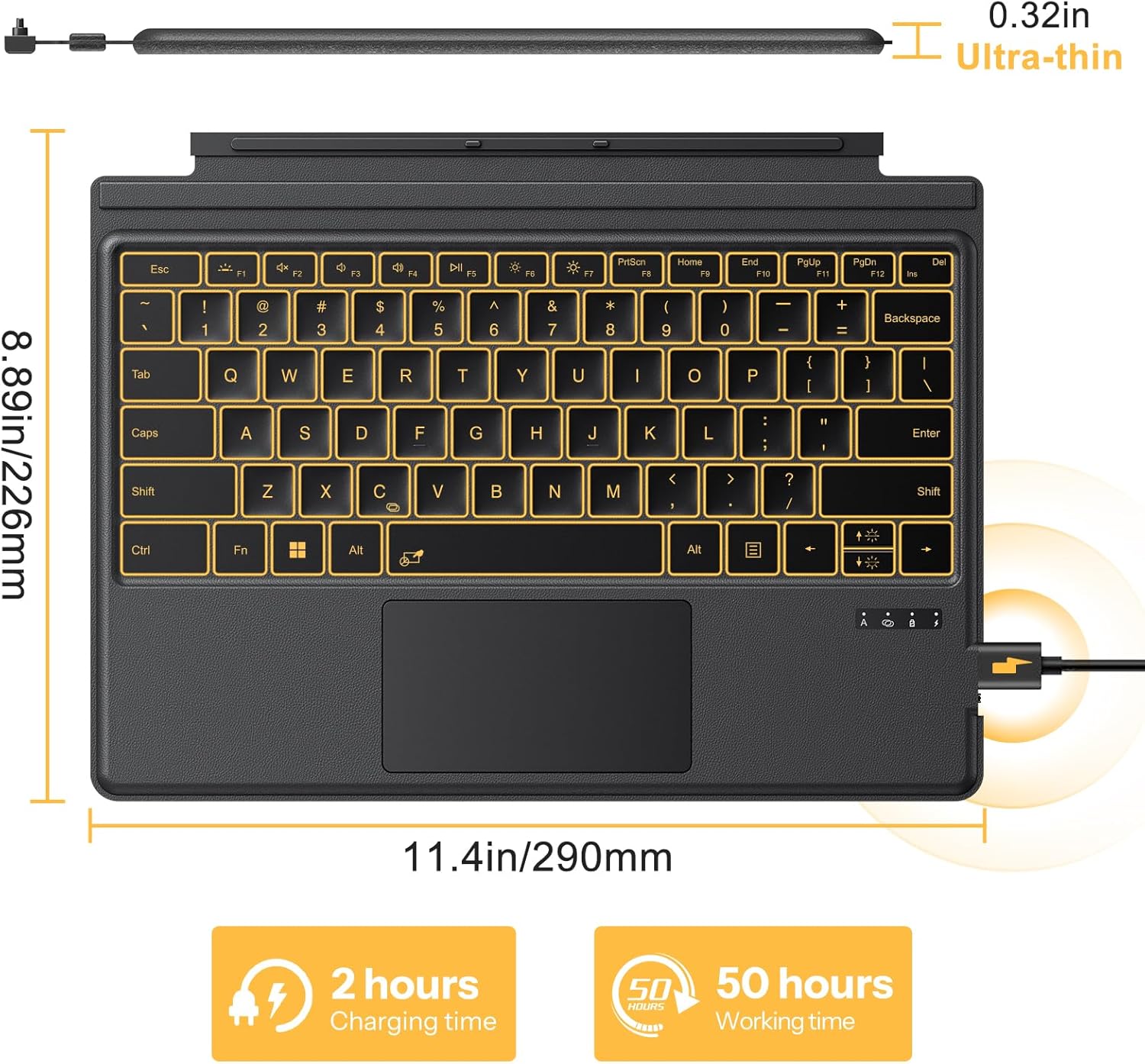
Figure 10: Physical dimensions and battery performance of the keyboard.
7. تضمین او ملاتړ
TECURS products are designed for reliability and performance. For any product-related inquiries, technical support, or warranty claims, please refer to the contact information provided with your purchase or visit the official TECURS webسایټ
Additional protection plans may be available for purchase separately to extend coverage beyond the standard warranty. Please check with your retailer for details.
Ask a question about this manual
Ask about setup, troubleshooting, compatibility, parts, safety, or missing instructions. Manuals+ will review the question and use this page’s manual context to help answer it.