
1. پیژندنه
This manual provides detailed instructions for the TECURS Bluetooth Keyboard, designed for use with Microsoft Surface Pro 11, 10, 9, 8, and X (13-inch models). Please read this manual carefully before using the product to ensure proper operation and to maximize its features.
2. مطابقت
مهم: Before use, verify your device model. This Bluetooth keyboard is exclusively compatible with Microsoft Surface Pro 11, Surface Pro 10, Surface Pro 9, Surface Pro 8, and Surface Pro X (13-inch models). It is not compatible with other Surface models.
To check your device model, navigate to Settings > System > About on your Surface Pro device.
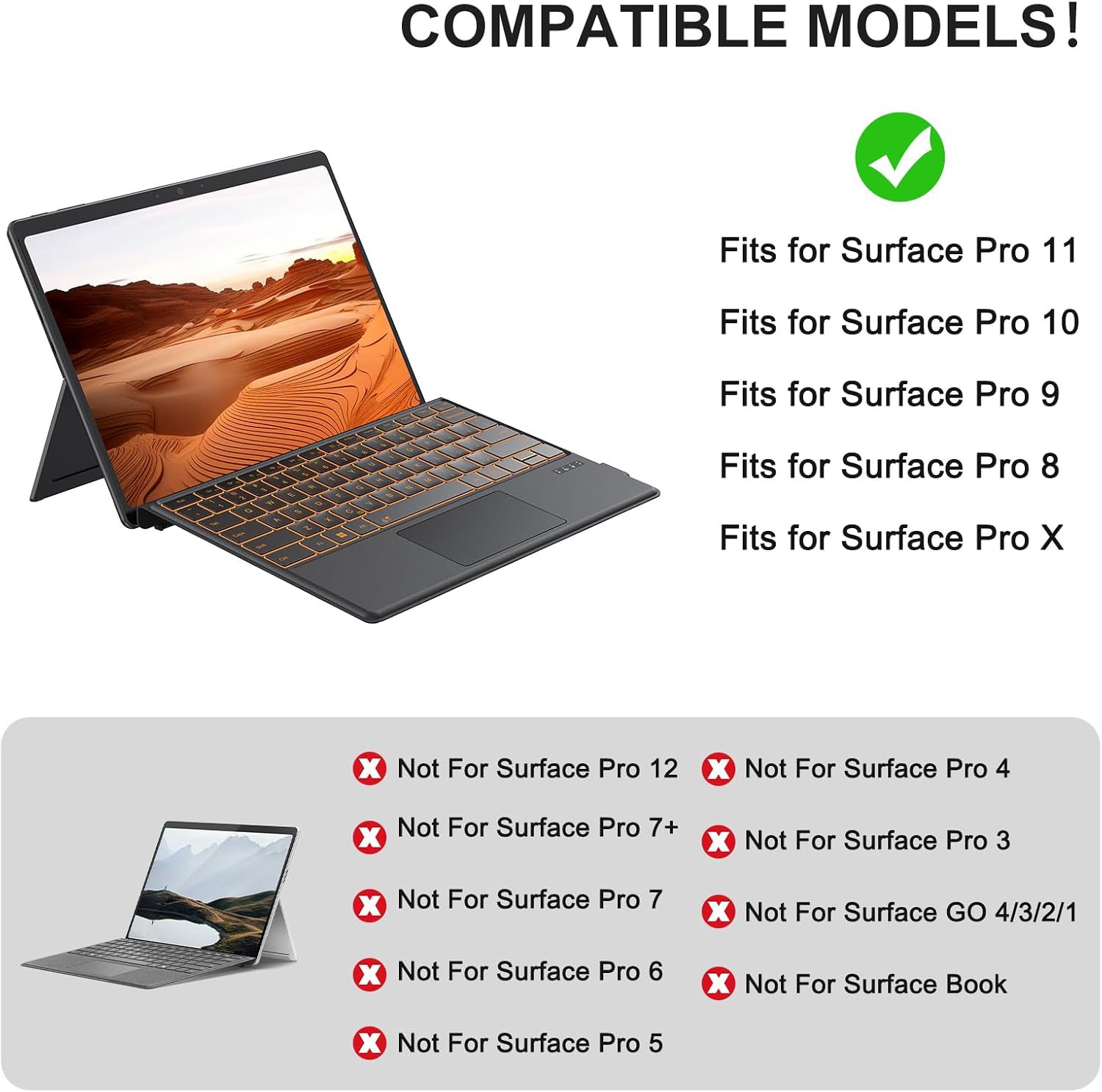
Figure 2.1: Compatible Surface Pro Models. This image illustrates which Surface Pro models are compatible (Surface Pro 11, 10, 9, 8, X) and which are not (e.g., Surface Pro 12, 7+, 7, 6, 5, 4, 3, Go, Book).

Figure 2.2: Steps to check your Surface Pro model. This image displays the steps: 1. Settings, 2. System, 3. About, to confirm your device model.
3. د بسته محتويات
په بسته کې لاندې توکي شامل دي:
- 1 x TECURS Bluetooth Keyboard
- 1 x د ډول-C چارج کیبل
- 1 x د کارونکي لارښود
۴. تنظیم او پیوستون
4.1 Physical Attachment
The keyboard attaches to your Surface Pro via a magnetic strip. This strip is designed to securely fix the keyboard to the tablet and allows for two different typing angles:
- Fold Magnetic Stripe: Fold the magnetic stripe to elevate the keyboard for a more ergonomic typing position.
- Attach Directly: Attach the keyboard directly to the Surface Pro for a flat typing surface.
یادونه: The magnetic strip is for physical attachment only and does not provide charging or data connection to the tablet.

Figure 4.1: Two typing angles. This image demonstrates how to position the keyboard for an elevated angle by folding the magnetic strip, or for a flat angle by attaching it directly.
4.2 د بلوتوټ جوړه کول
This keyboard supports Bluetooth manual pairing only. Magnetic automatic connection is not supported.
- د بریښنا سویچ فعال کړئ: Locate the power switch on the keyboard and slide it to the ON position.
- Activate Keyboard Bluetooth: فشار ورکړئ FN + C keys simultaneously on the keyboard to activate its Bluetooth pairing mode. The Bluetooth indicator light will flash.
- په وسیله کې بلوتوث فعال کړئ: On your Microsoft Surface Pro, go to ترتیبات > بلوتوث او وسایل and ensure Bluetooth is turned ON.
- Select Keyboard for Pairing: In the list of available Bluetooth devices on your Surface Pro, select "Bluetooth Keyboard" to initiate pairing.
- پیوستون تایید کړئ: Once paired, the Bluetooth indicator light on the keyboard will stop flashing and remain solid, and your device will show the keyboard as connected.
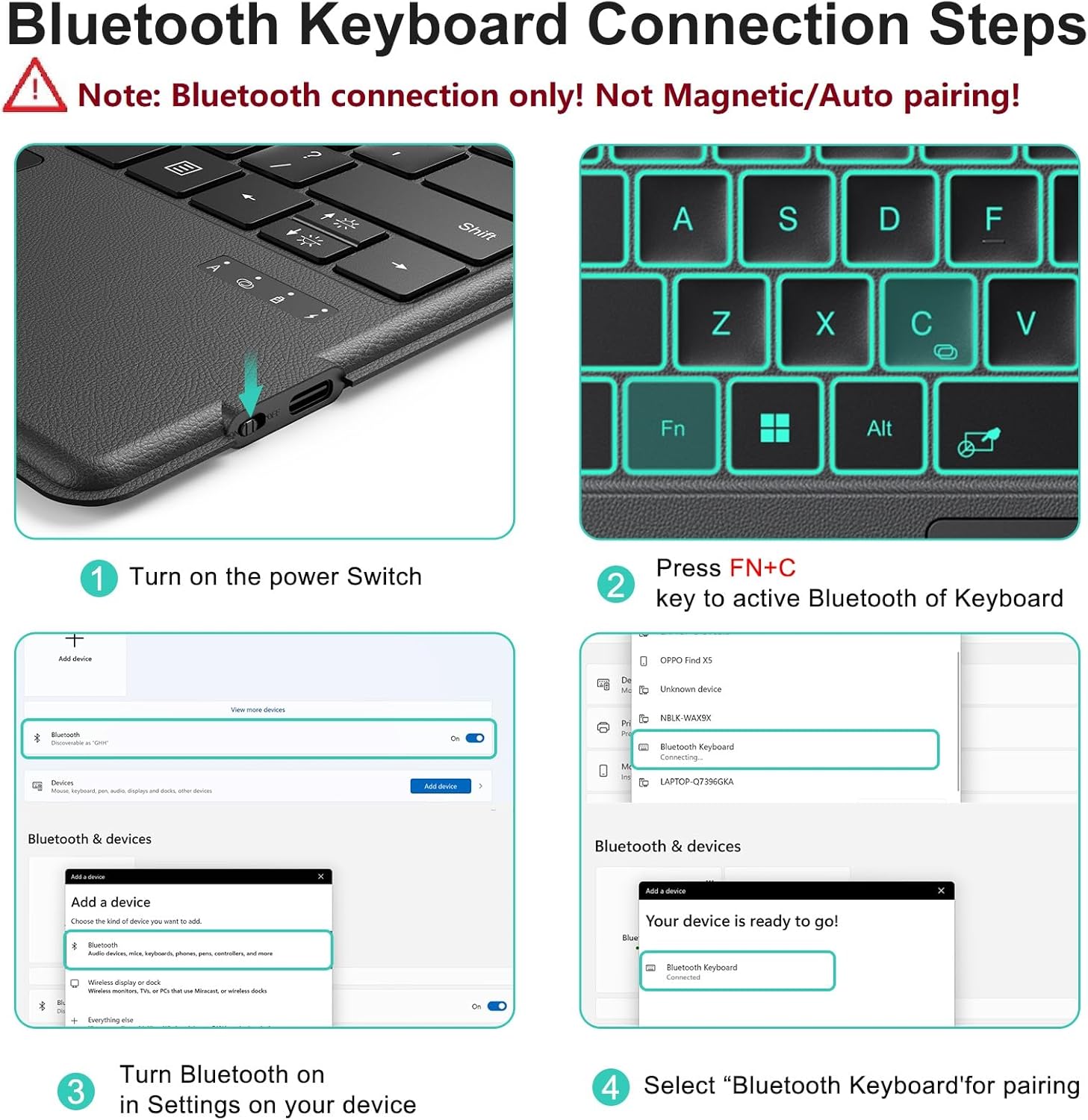
Figure 4.2: Bluetooth Keyboard Connection Steps. This image visually guides through turning on the keyboard, pressing FN+C, enabling Bluetooth on the device, and selecting "Bluetooth Keyboard" for pairing.
5. چارج کول
The keyboard is equipped with a rechargeable battery. Use the included Type-C charging cable to charge the device.
- Connect the Type-C cable to the charging port on the keyboard and the other end to a USB power source.
- بشپړ چارج معمولا 2-3 ساعته وخت نیسي.
- The keyboard provides approximately 50 hours of continuous operation on a full charge.
یادونه: The keyboard cannot be charged via the magnetic strip; it must be charged using the provided Type-C cable.

Figure 5.1: Keyboard dimensions and charging port. This image highlights the Type-C charging port and indicates the charging time (2 hours) and working time (50 hours).
6. عملیاتي لارښوونې
۴.۳ د تنظیم وړ شاته رڼا
The keyboard features a 7-color adjustable backlight with 3 brightness levels for comfortable typing in various lighting conditions.
- To change backlight colors, press FN + 💡 (light bulb icon key).
- To adjust brightness levels, press FN + ⬆️💡 (up arrow with light bulb) or FN + ⬇️💡 (down arrow with light bulb).

Figure 6.1: Backlight adjustment. This image displays the keyboard with different backlight colors and illustrates the three brightness levels.
6.2 Precision Touchpad & Media Shortcuts
The responsive touchpad supports multi-touch gestures for effortless navigation. Cursor sensitivity can be adjusted in your device's settings (Settings > Bluetooth & devices > Touchpad > Cursor speed).
Customizable hotkeys allow you to adjust volume, media playback, and screen brightness without interrupting your workflow.

Figure 6.2: Touchpad and Pen Holder. This image highlights the touchpad area, indicating left and right click zones, and the integrated pen holder (non-charging).
د فعالیت کیلي
The top row of keys provides various function shortcuts. Press the FN key in combination with the desired function key (F1-F12) to activate its secondary function.
- FN+F1: Decreases or increases keyboard backlight, including off.
- FN+F2: غږ بند کړئ.
- FN+F3: حجم کموي.
- FN+F4: حجم زیاتوي.
- FN+F5: میډیا پلی کړئ / بند کړئ.
- FN+F6: Dims the screen.
- FN+F7: Brightens the screen.
- FN+F8: د چاپ سکرین.
- FN+F9: کور
- FN+F10: End of the Line.
- FN+F11: پاڼه پورته.
- FN+F12: پاڼه ښکته.
- ډیل: ړنګول.
دوستانه یادونه: The first key on the bottom left of the keyboard is the FN key, not the Ctrl key. When using Ctrl + C for copying, ensure you press the correct combination to avoid accidentally triggering FN + C, which initiates Bluetooth reconnection and can cause the keyboard to disconnect.
7. ساتنه
To ensure the longevity and optimal performance of your TECURS Bluetooth Keyboard, follow these maintenance guidelines:
- پاکول: د کیبورډ سطحې پاکولو لپاره نرم، وچ، له لینټ څخه پاک ټوکر وکاروئ. د سختې خاورې لپاره، یو څه کمampټوکر د اوبو یا نرم پاکولو محلول سره ومینځئ. د سختو کیمیاوي موادو یا خړوبونکو موادو څخه ډډه وکړئ.
- ذخیره کول: When not in use, store the keyboard in a clean, dry environment away from extreme temperatures, direct sunlight, and excessive moisture.
- له توییدو ډډه وکړئ: د کیبورډ څخه مایعات لرې وساتئ ترڅو داخلي برخو ته زیان ونه رسیږي.
- په احتیاط سره سمبالول: د کیبورډ له غورځولو یا د قوي ټکانونو سره د مخ کیدو څخه ډډه وکړئ.
8. ستونزه حل کول
If you encounter issues with your keyboard, refer to the following troubleshooting steps:
- کیبورډ نه نښلي:
- ډاډ ترلاسه کړئ چې کیبورډ فعال دی.
- Confirm Bluetooth is enabled on your Surface Pro.
- Re-initiate pairing mode on the keyboard by pressing FN + C.
- Remove any previously paired
Ask a question about this manual
Ask about setup, troubleshooting, compatibility, parts, safety, or missing instructions. Manuals+ will review the question and use this page’s manual context to help answer it.