
Maxfree M4
د میکس فری ډبل پورټ ایبل مانیټر M4 کارن لارښود
ماډل: M4
پیژندنه
Thank you for choosing the Maxfree Dual Portable Monitor M4. This manual provides essential information for setting up, operating, and maintaining your new dual monitor system. Please read this manual thoroughly before use to ensure optimal performance and longevity of your device.
محصول پای ته ورسیدview
The Maxfree Dual Portable Monitor M4 is designed to expand your workspace with two 15.6-inch 1080P FHD IPS displays. Its folding design enhances portability, making it ideal for travel and various work environments.

Image: The Maxfree Dual Portable Monitor M4, featuring two 15.6-inch screens in an open, stacked configuration, ready for use.
کلیدي ځانګړتیاوې:
- Dual 15.6-inch 1080P FHD IPS Displays
- Plug & Play USB-C Connectivity
- Folding Design for Portability
- Matte Screen with Anti-glare, No Flicker, and Eye Care Functions
- 100 s sRGB رنګ ګامټ
- Multiple Display Modes and 330° Rotation
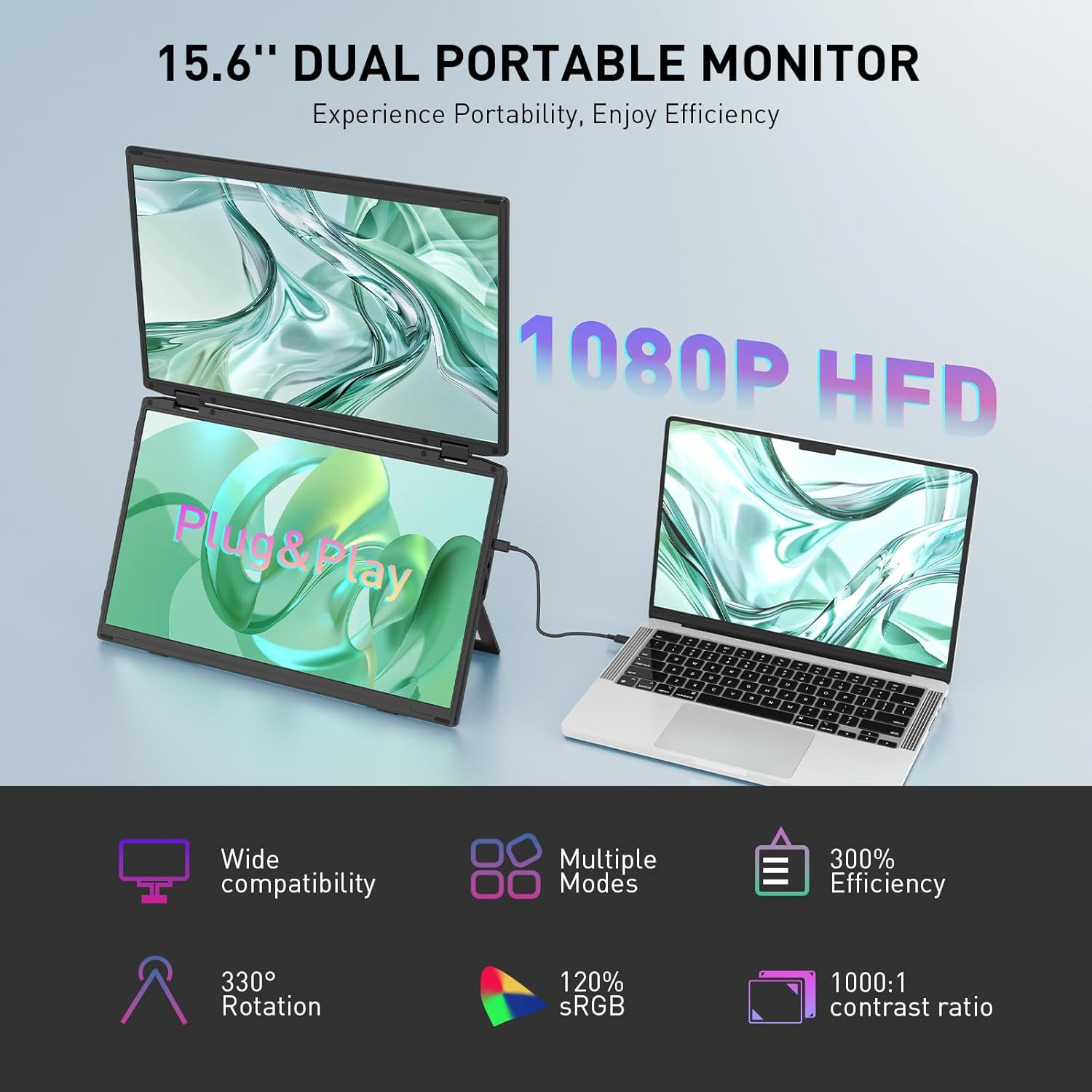
Image: The Maxfree Dual Portable Monitor M4 connected to a laptop, illustrating its plug-and-play functionality and various display modes.
د تنظیم کولو لارښوونې
- مانیټر خلاص کړئ: په احتیاط سره مانیټر او ټول لوازم له بسته بندۍ څخه لرې کړئ.
- مانیټر ځای په ځای کړئ: Place the monitor on a stable, flat surface. Adjust the integrated stand to your desired viewزاویه.
- Connect to Power (Recommended): For optimal performance, connect the monitor to a power source using the provided USB-C power adapter (if included) or a compatible USB-C port on your device that supports power delivery.
- وسیله سره وصل کړئ:
- د USB-C اتصال: Connect one end of the provided USB-C cable to the monitor's USB-C port and the other end to a full-featured USB-C port on your laptop or PC. This single cable can transmit video, audio, and power.
- HDMI + USB-A Connection (if applicable): If your device does not have a full-featured USB-C port, you may need to use an HDMI cable for video and a USB-A to USB-C cable for power and touch functionality (if supported by your model). Refer to your device's manual for specific port requirements.
- پاور آن: Press the power button on the monitor. Your device should automatically detect and extend the display.
- د ښودنې تنظیمات تنظیم کړئ: On your computer, navigate to Display Settings to configure the dual monitors (e.g., extend, duplicate, arrange displays).
عملیاتي لارښوونې
د ښودلو طریقې:
The Maxfree Dual Portable Monitor supports various display modes to enhance productivity:
- غځول شوی حالت: Expands your desktop across both screens, providing a larger workspace. This is ideal for multitasking.
- د نقل بڼه: Mirrors your primary display onto the portable monitors. Useful for presentations or sharing content.
- عمودی ترتیب: The unique vertical stacking design minimizes scrolling and page switching, reducing eye and neck fatigue, especially for document review or coding.
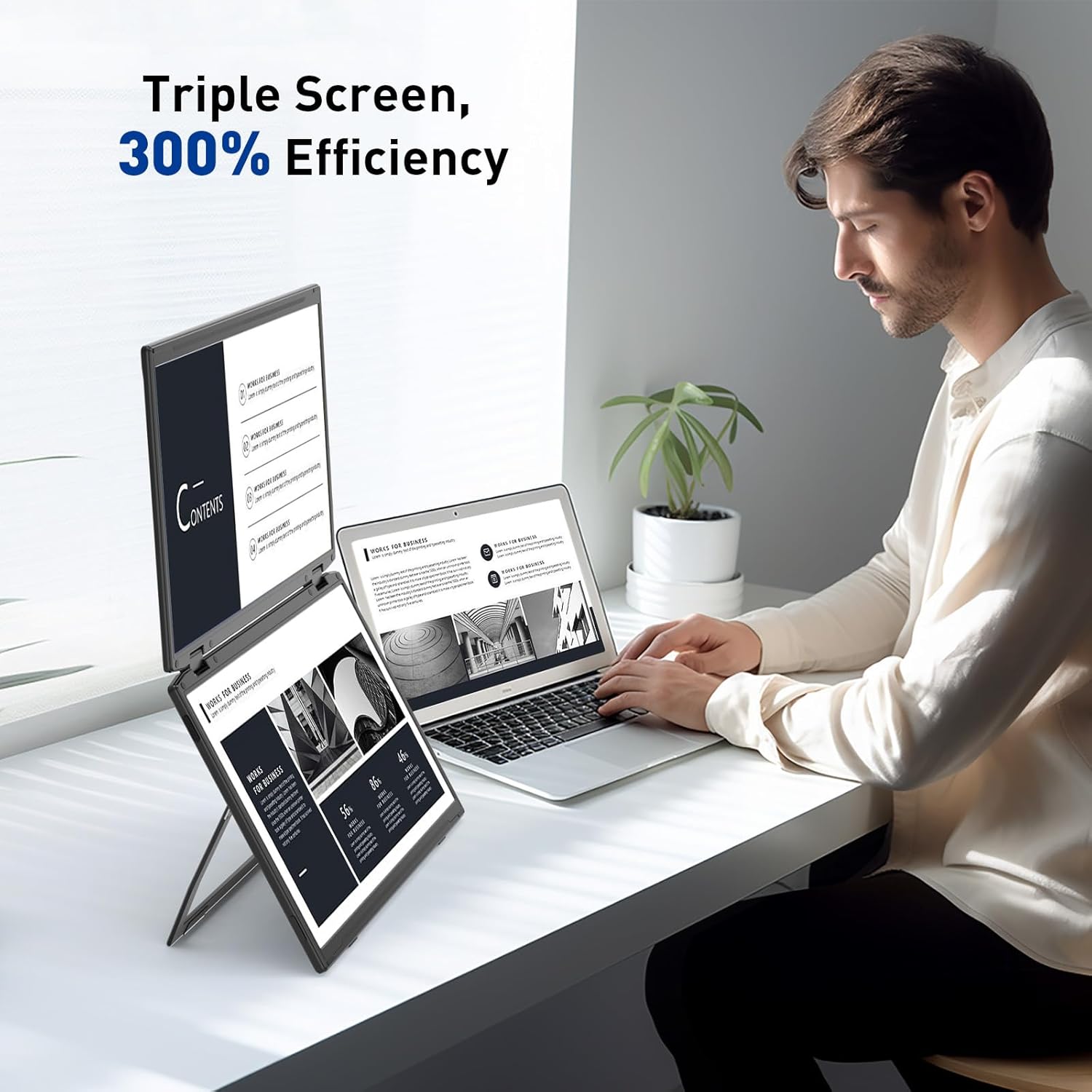
Image: A user demonstrating the Maxfree Dual Portable Monitor M4 in a vertical stacked setup, illustrating how it creates an efficient triple-screen workspace.
په پرده ښودنه (OSD) مینو:
Use the buttons on the side of the monitor to access and navigate the OSD menu. This menu allows you to adjust settings such as:
- روښانتیا او برعکس
- Color Settings (e.g., sRGB, color temperature)
- د سرچینې انتخاب داخل کړئ
- د اړخ نسبت
- Volume (if applicable)
Refer to the on-screen prompts for specific button functions (e.g., Menu, Up, Down, Exit).
مشخصات
| فیچر | تفصیل |
|---|---|
| د سکرین اندازه | دوه ګونی ۶.۵ انچه |
| قرارداد | ۱۹۲۰ x ۱۰۸۰ (FHD ۱۰۸۰p) |
| د پینل ډول | IPS |
| د اړخ نسبت | 16:9 |
| د سکرین سطحه | مټ |
| د انځور روښانتیا | 300 Candela |
| رنګ Gamut | 100٪ sRGB |
| ارتباط | USB-C (Full-featured), HDMI (if applicable) |
| ټول USB پورټونه | 1 (USB-C for main connection) |
| والیtage | 5 ولټه |
| د محصول ابعاد | 0.5 x 14 x 9 انچه |
| د توکي وزن | ۲.۴۵ پونډه |
| د ماډل شمیره | M4 |
د ستونزو حل کول
- نه ښودنه:
- Ensure the USB-C cable is securely connected to both the monitor and your device.
- تایید کړئ چې ستاسو د وسیلې USB-C پورټ د ویډیو آوټ پټ (ډیسپلی پورټ بدیل حالت) ملاتړ کوي.
- Connect the monitor to an external power source if your device cannot provide sufficient power.
- د خپل کمپیوټر د ښودلو ترتیبات وګورئ ترڅو ډاډ ترلاسه کړئ چې بهرنۍ مانیټر کشف او فعال شوی دی.
- ځلیدونکی سکرین:
- ډاډ ترلاسه کړئ چې د کیبل اړیکې خوندي دي.
- یو بل USB-C کیبل هڅه وکړئ.
- Reduce the display resolution or refresh rate on your computer.
- د انځور د کیفیت مسلې (تور، ناسم رنګونه):
- Adjust the brightness, contrast, and color settings via the OSD menu.
- Ensure your computer's display resolution matches the monitor's native resolution (1920x1080).
- مانیټر نه فعالیږي:
- Confirm the power cable is properly connected and the power outlet is functional.
- د بریښنا تڼۍ په کلکه فشار ورکړئ.
ساتنه
- د سکرین پاکول: په نرمۍ سره سکرین د نرم، لینټ نه پاک ټوکر سره پاک کړئ. د سختو نښو لپاره، یو څه لږampټوکر د اوبو یا د سکرین پاکولو محلول سره ومینځئ. د سختو کیمیاوي موادو یا خړوبونکي موادو څخه ډډه وکړئ.
- د سي پاکولasing: د مانیټر د پاکولو لپاره نرم، وچ ټوکر وکاروئasing.
- ذخیره کول: When not in use, fold the monitor and store it in a cool, dry place, preferably in its original packaging or a protective case to prevent damage.
- د سختو شرایطو څخه ډډه وکړئ: مانیټر د لوړې تودوخې، رطوبت یا مستقیم لمر وړانګو سره مه مخ کوئ.
تضمین او ملاتړ
For warranty information, technical support, or service inquiries, please refer to the warranty card included with your product or visit the official Maxfree webسایټ
جوړونکی: Shenzhen Baijiayoupu Technology CO., Ltd.
Ask a question about this manual
Ask about setup, troubleshooting, compatibility, parts, safety, or missing instructions. Manuals+ will review the question and use this page’s manual context to help answer it.