
1. پیژندنه
Thank you for choosing the Transformers GM04 Lightweight Wireless Gaming Mouse. This manual provides essential information for setting up, operating, and maintaining your new gaming mouse. Designed for precision and comfort, the GM04 features a high-precision PAW3311 sensor, triple connection modes (2.4G wireless, Bluetooth 5.3, and USB-C wired), 5 programmable buttons, and up to 100 hours of battery life. Its ergonomic design and lightweight construction ensure a comfortable and responsive experience for gaming, work, and study.
۲. په بکس کې څه دي؟
- TF-GM04 Wireless Gaming Mouse x 1
- USB Wireless Dongle x 1
- د USB-C کیبل x 1
- د کارن لارښود x 1
3. محصول ختم شوview
Familiarize yourself with the key features and components of your Transformers GM04 gaming mouse.
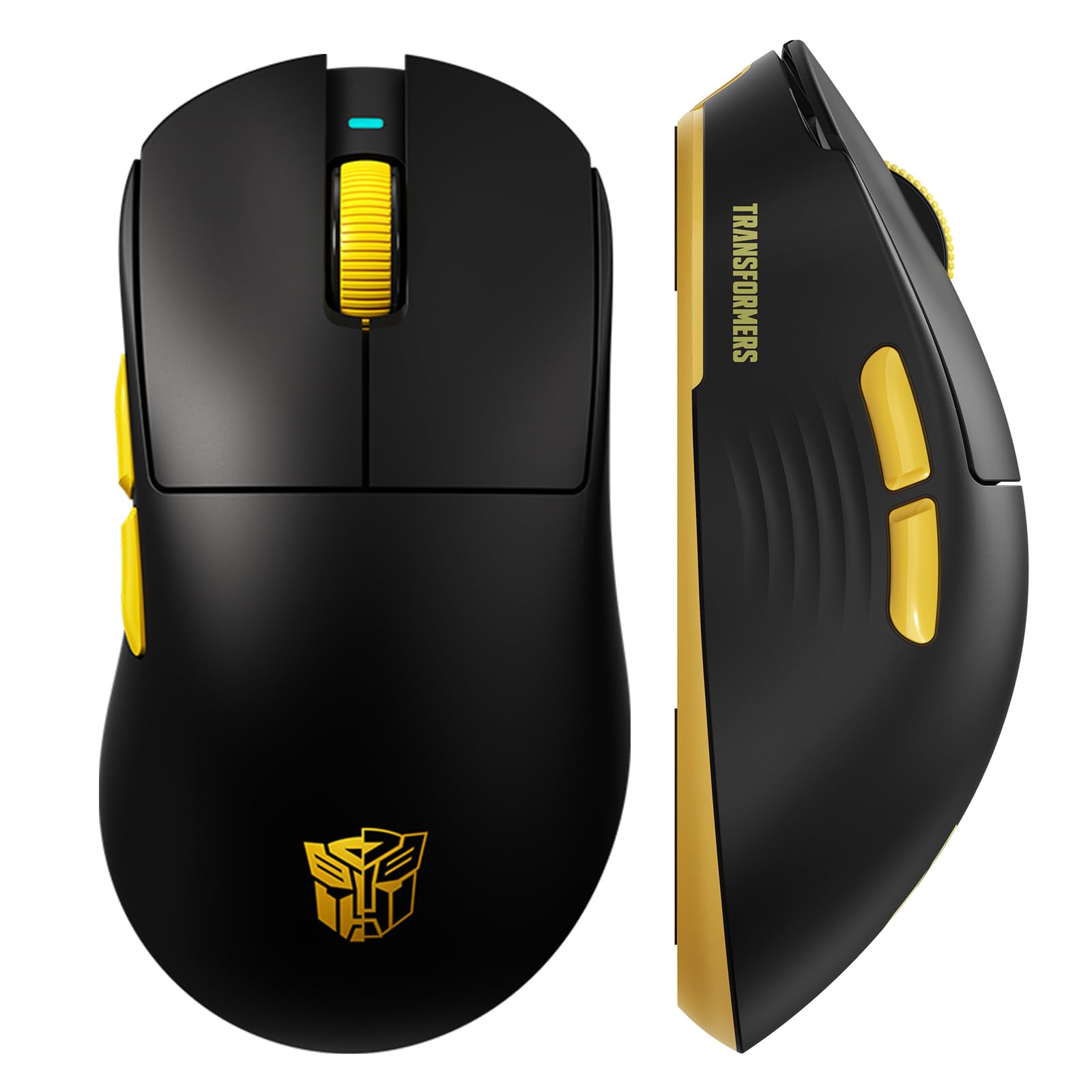
انځور 1: The Transformers GM04 Wireless Gaming Mouse, showcasing its sleek black and yellow design, along with icons highlighting its core features such as PixArt PAW3311 sensor, up to 12000 DPI, 1000Hz polling rate, 20 million clicks, Tri-Mode connectivity, custom macros, 63g lightweight design, and up to 100 hours of battery life. A USB wireless dongle is also visible next to the mouse.

انځور 2: A hand demonstrating the ergonomic design of the Transformers GM04 mouse. The image highlights how the mouse fits comfortably in the palm, promoting more comfort and less fatigue during extended use, thanks to its non-slip texture.

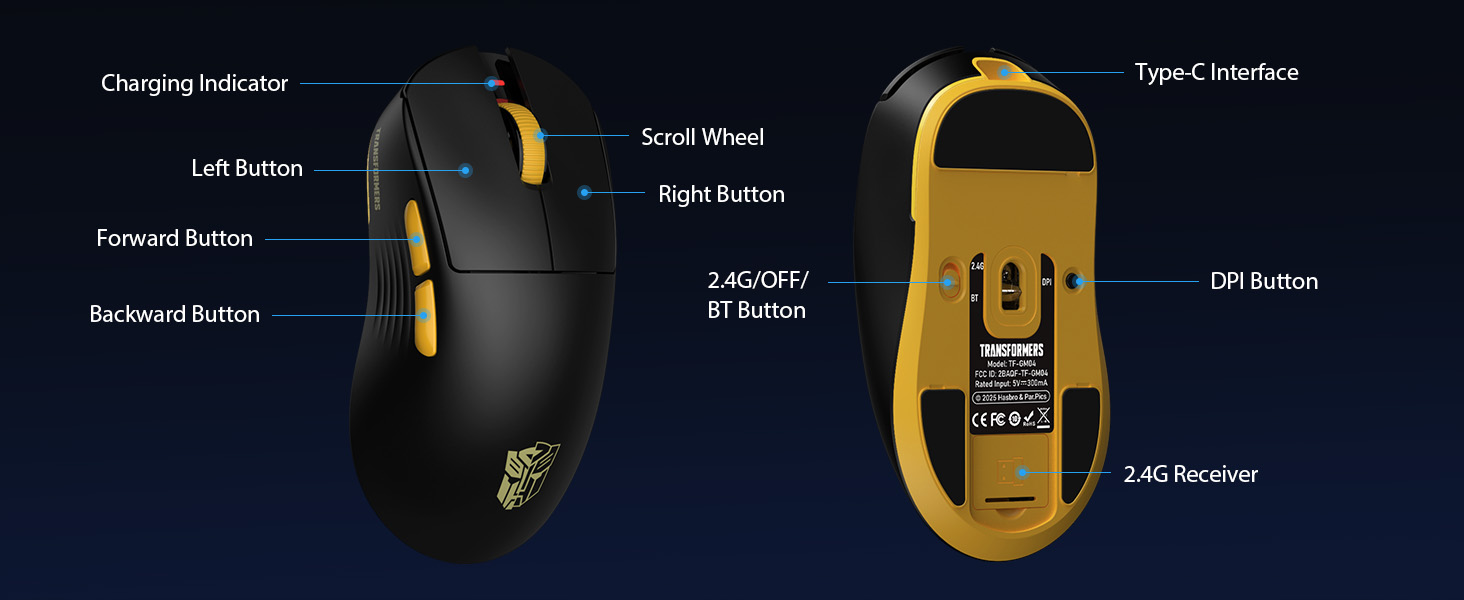
انځور 3: The underside of the Transformers GM04 mouse, detailing the 2.4G/OFF/BT switch for connection modes, the DPI button, and the storage compartment for the 2.4G wireless receiver. This view is crucial for understanding how to switch modes and adjust settings.

انځور 4: An illustration of the 6-level adjustable DPI settings for the Transformers GM04 mouse. It shows the DPI values (1200, 2400, 3200, 4800, 6400, 12000) and their corresponding LED indicator colors (Red, Green, Blue, Purple, Yellow, Cyan), which helps users identify the current DPI level.
انځور 5: یوه چاودنه وشوه view diagram of the Transformers GM04 mouse, highlighting the HUANO micro switches. This image emphasizes the precision-engineered mechanical switches designed for crisp feedback and a lifespan of over 20 million clicks, ideal for rapid gaming actions.
ویډیو 1: An official product video from Transformers Keyboard showcasing the GM04 Lightweight Wireless Gaming Mouse. This short video provides a dynamic overview of the mouse's design and features.
4. ترتیب کول
4.1. د موږک چارج کول
Before first use, it is recommended to fully charge your GM04 mouse. Connect the provided USB-C cable to the mouse's front port and the other end to a USB power source (e.g., computer USB port, USB wall adapter). The LED indicator will show charging status.
4.2. موږک سره نښلول
The GM04 mouse supports three connection modes: 2.4G Wireless, Bluetooth 5.3, and USB-C Wired. Use the switch on the bottom of the mouse to select your desired mode.
۲. ۲.۴G بېسیم حالت
- Remove the USB wireless dongle from its storage slot on the bottom of the mouse.
- Plug the USB wireless dongle into an available USB-A port on your computer.
- د موږک په ښکته برخه کې د موډ سویچ "2.4G" موقعیت ته سلائډ کړئ.
- موږک باید په اتوماتيک ډول ستاسو کمپیوټر سره وصل شي.
4.2.2. د بلوتوث حالت
- د موږک په ښکته برخه کې د موډ سویچ د "BT" موقعیت ته سلائډ کړئ.
- په خپل کمپیوټر یا وسیله کې، د بلوتوټ ترتیبات خلاص کړئ او د نویو وسایلو لټون وکړئ.
- Select "TF-GM04 BT" from the list of available devices to pair.
- The mouse should connect and be ready for use.
۳.۱.۳. د USB-C وایرډ حالت
- Connect the provided USB-C cable to the mouse's front port and the other end to a USB-A port on your computer.
- موږک به په اتوماتيک ډول د تار حالت ته لاړ شي او چارج به پیل کړي.
5. چلول
۴.۴. د DPI سمون
The GM04 mouse offers 6 default DPI settings. To cycle through these settings, press the د DPI تڼۍ located on the bottom of the mouse. The LED indicator will change color to reflect the current DPI level:
- سور: 1200 DPI
- شین: 2400 DPI
- آبي: 3200 DPI
- ارغواني: 4800 DPI
- ژیړ: 6400 DPI
- سیان: 12000 DPI
۴. د پروګرام وړ تڼۍ
The mouse features 5 programmable buttons. To customize these buttons with macro commands, shortcut keys, or other functions, you will need to use the dedicated driver software. This software is typically available for Windows systems under 2.4G wireless and wired modes. Bluetooth mode may not support full software customization.
۴. د اتصال حالت بدلول
Easily switch between 2.4G Wireless, Bluetooth, and Wired modes using the dedicated switch on the bottom of the mouse. This allows for seamless transitions between multiple devices.
5.4. د LED شاخصونه
- د DPI شاخص: Changes color according to the current DPI setting (see 5.1).
- د چارج کولو شاخص: A green LED near the scroll wheel indicates charging. It turns off when fully charged.
6. ساتنه
6.1. پاکول
د غوره فعالیت او ظاهري ساتلو لپاره، په منظم ډول خپل موږک پاک کړئ. د سطحې پاکولو لپاره نرم، وچ ټوکر وکاروئ. د سختې خاورې لپاره، یو څه damp ټوکر کارول کیدی شي، ډاډ ترلاسه شي چې رطوبت داخلي برخو ته ننوځي. د سختو کیمیاوي موادو یا خړوبونکو موادو څخه ډډه وکړئ.
6.2. د بیټرۍ پاملرنه
The GM04 mouse is equipped with a 500mAh high-capacity battery. To prolong battery life:
- د بیټرۍ په مکرر ډول د بشپړ چارج کولو څخه ډډه وکړئ.
- موږک په یخ او وچ ځای کې وساتئ کله چې د اوږدې مودې لپاره نه کارول کیږي.
- If using wired mode, the mouse will charge automatically.
7. ستونزه حل کول
۹.۱. موږک ځواب نه ورکوي
- بیټرۍ چیک کړئ: Ensure the mouse is charged. Connect it via USB-C cable.
- د اتصال حالت وګورئ: Verify the switch on the bottom is set to the correct mode (2.4G, BT, or Wired).
- Re-pair (2.4G/Bluetooth): For 2.4G, try plugging the dongle into a different USB port. For Bluetooth, unpair and re-pair the device in your computer's settings.
- Try Wired Mode: Connect the mouse directly via USB-C cable to see if it functions.
۹.۳. DPI نه بدلېږي
- Ensure you are pressing the correct DPI button on the bottom of the mouse.
- Observe the LED indicator for color changes to confirm DPI cycles.
- که تاسو دودیز سافټویر کاروئ، ډاډ ترلاسه کړئ چې ترتیبات په سمه توګه پلي کیږي.
۶.۲. په بېسیم حالت کې ځنډ یا قطع کیدل
- مداخله کمه کړئ: Move the mouse closer to the receiver/device. Avoid obstacles or other wireless devices that may cause interference.
- بیټرۍ چیک کړئ: Low battery can affect wireless performance.
- د چلوونکو تازه کول: Ensure your computer's Bluetooth or USB drivers are up to date.
8. مشخصات
| فیچر | تفصیل |
|---|---|
| د محصول ابعاد | 4.68 x 2.52 x 0.1 انچه |
| د توکي وزن | ۷.۳۷ اونس (تقریبا ۲۰۹ ګرامه) |
| د توکي ماډل شمیره | د TF-GM04 لپاره تفتیش وسپارئ، موږ به په XNUMX ساعتونو کې له تاسو سره اړیکه ونیسو. |
| د ارتباط ټیکنالوژي | ۲.۴ جي بېسیم، بلوتوث ۵.۰، USB-C وایرډ |
| د حرکت کشف ټیکنالوژي | آپټیکل (PAW3311 سینسر) |
| د DPI تنظیمات | 1200/2400/3200/4800/6400/12000 (Adjustable) |
| د رای ورکولو کچه | ۱۰۰۰ هرټز (۲ ملی ثانیې ځنډ) |
| د تعقیب سرعت | 300IPS |
| سرعت | 35G |
| تڼۍ | 5 د پروګرام وړ بټن |
| د سویچ ډول | HUANO Micro Switches (20 Million Clicks) |
| د بیټرۍ ظرفیت | 500mAh |
| د بیټرۍ ژوند | Up to 100 hours (Bluetooth mode) |
| مطابقت | Windows, Mac OS, and other systems |
9. تضمین او ملاتړ
9.1. د تضمین معلومات
The Transformers GM04 Lightweight Wireless Gaming Mouse comes with a standard manufacturer's warranty. Please refer to the packaging or the official Transformers webد تضمین تفصيلي شرایطو او مقرراتو لپاره سایټ. د هر ډول تضمین ادعا لپاره د پیرود ثبوت په توګه د پیرود رسید وساتئ.
9.2. د پیرودونکي ملاتړ
For technical assistance, troubleshooting, or any questions regarding your Transformers GM04 mouse, please contact Transformers customer support. Contact details can typically be found on the product packaging or the official brand webسایټ