
1. محصول ختم شوview
The ATTACK SHARK X8SE is a high-performance wireless gaming mouse designed for precision and versatility. It features tri-mode connectivity, an advanced optical sensor, and a lightweight ergonomic design for extended use.
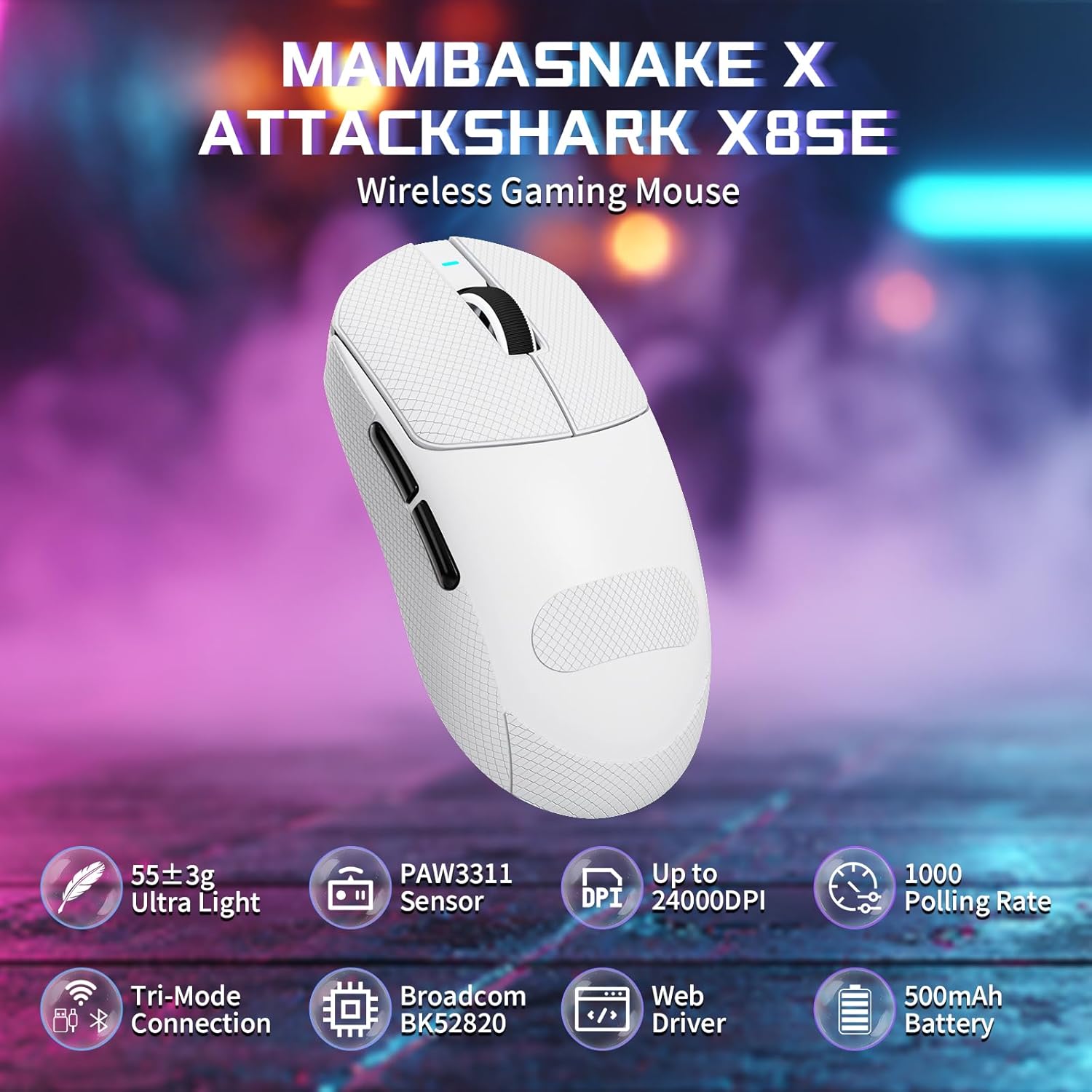
Figure 1: ATTACK SHARK X8SE Wireless Gaming Mouse highlighting ultra-light design, PAW3311 sensor, adjustable DPI, 1000Hz polling rate, tri-mode connection, Broadcom BK52820 chip, web driver, and 500mAh battery.
2. د بسته محتويات
- ATTACK SHARK X8SE Wireless Gaming Mouse
- د USB-C چارج کول/ډیټا کیبل
- 2.4G USB رسیدونکی
- Griptape (pre-applied or included separately)
- د لارښوونې لارښود
3. ترتیب کول
3.1 ابتدايي چارج کول
Before first use, connect the mouse to a USB-A port on your computer using the provided USB-C cable to ensure it is fully charged. The mouse can be used in wired mode while charging.
۴.۲ د ارتباط طریقې
The X8SE mouse supports three connection modes: 2.4GHz Wireless, Bluetooth, and USB-C Wired. A switch on the bottom of the mouse allows you to select the desired mode.
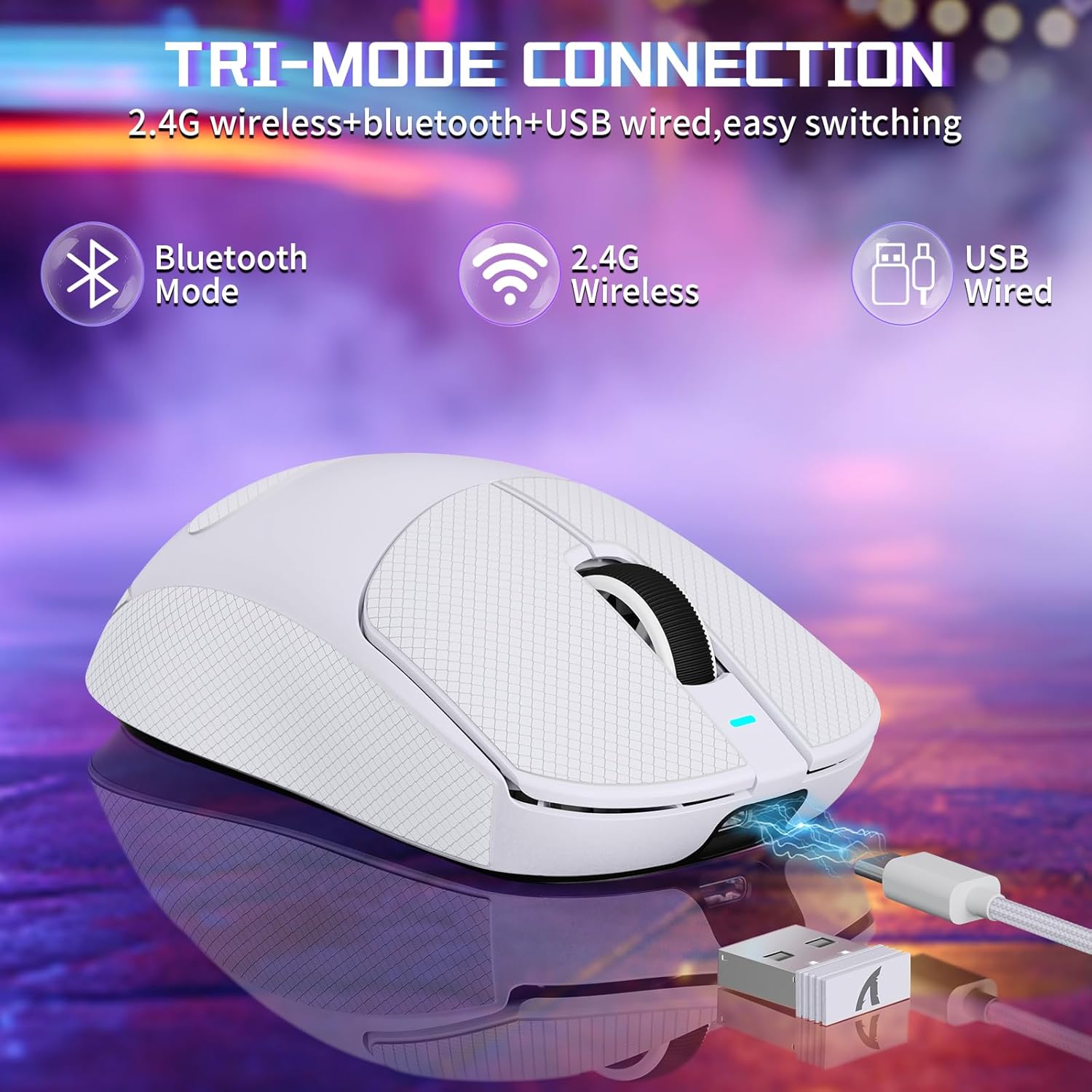
Figure 2: Tri-mode connection options including Bluetooth, 2.4G Wireless, and USB Wired.
۳.۱.۲ ۲.۴GHz بېسیم حالت
- د موږک په ښکته برخه کې په کمپارټمینټ کې زیرمه شوی 2.4G USB ریسیور ومومئ.
- د USB ریسیور په خپل کمپیوټر کې موجود USB-A پورټ کې ولګوئ.
- Switch the mode selector on the bottom of the mouse to the '2.4G' position.
- موږک باید په اتوماتيک ډول ستاسو کمپیوټر سره وصل شي.
3.2.2 بلوتوث حالت
- Switch the mode selector on the bottom of the mouse to the 'BT' position.
- په خپل کمپیوټر یا وسیله کې، د بلوتوټ ترتیباتو ته لاړ شئ او بلوتوټ فعال کړئ.
- لټون new devices and select 'ATTACK SHARK X8SE' to pair.
۴.۲.۳ د USB-C وائرډ حالت
- Connect one end of the provided USB-C cable to the mouse and the other end to a USB-A port on your computer.
- موږک به په اتوماتيک ډول د تار حالت ته لاړ شي او چارج به پیل کړي.
3.3 د ډرایور نصب کول
The ATTACK SHARK X8SE utilizes an intelligent cloud-based driver for customization. This driver typically auto-detects your system. For advanced settings and customization, visit the official ATTACK SHARK website to download the latest software if not automatically prompted.
4. عملیاتي لارښوونې
4.1 د تڼۍ دندې
The X8SE mouse features 5 programmable buttons and a DPI switch.
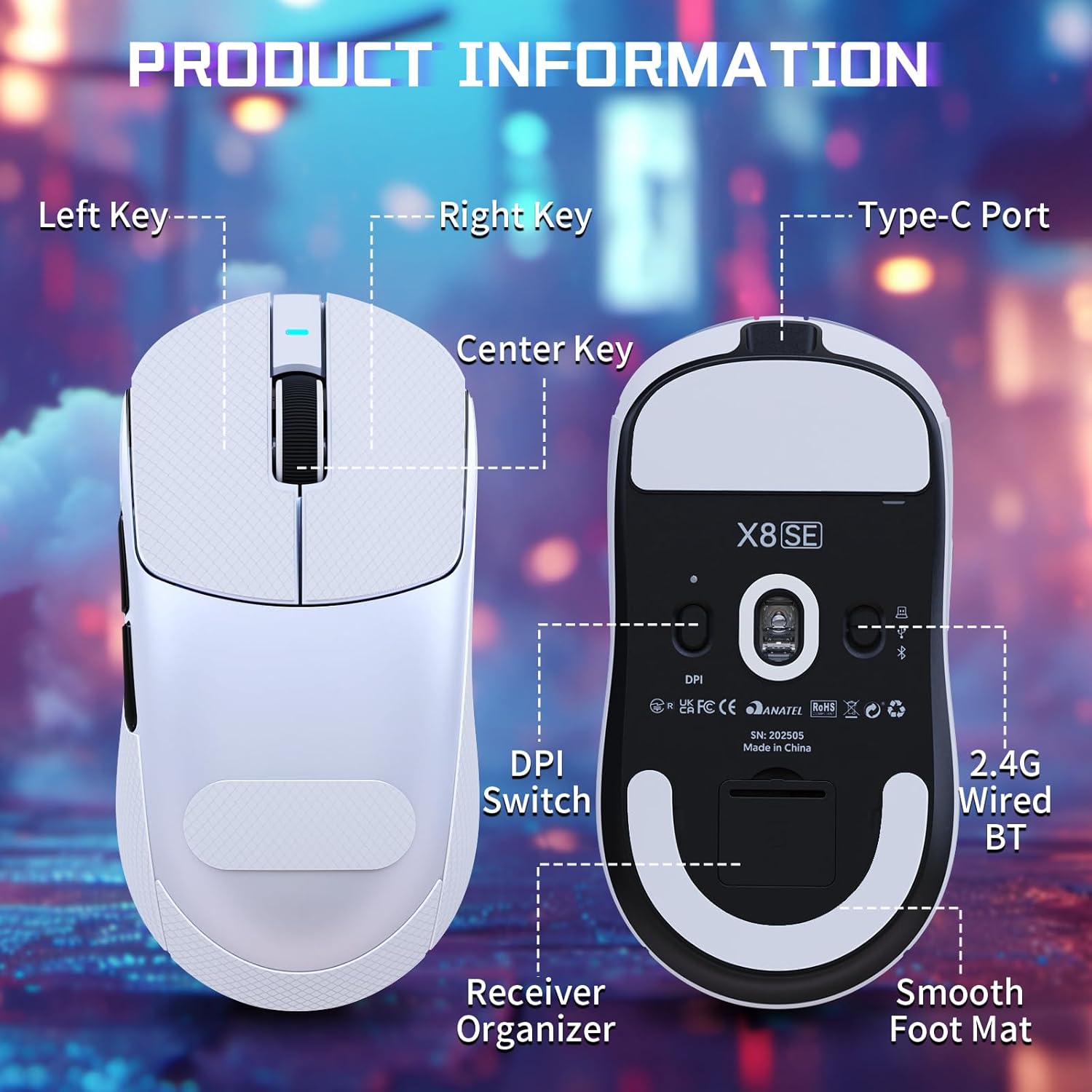
Figure 3: Product information diagram showing Left Key, Right Key, Center Key (scroll wheel), Type-C Port, Front Side Key, Back Side Key, DPI Switch, Receiver Organizer, and Smooth Foot Mat.
- کی Key کیلي: د لومړني کلیک فعالیت.
- ښی کیلي: د ثانوي کلیک فعالیت.
- Center Key (Scroll Wheel): پورته/ښکته سکرول کړئ، په منځ کې کلیک وکړئ.
- د مخکینۍ خوا کیلي: Default function (programmable).
- Back Side Key: Default function (programmable).
- DPI Switch (bottom): د DPI ترتیباتو له لارې تیریږي.
4.2 د DPI تعدیل
The mouse is equipped with a PixArt PAW3311 optical sensor, offering up to 25,000 DPI. You can adjust the DPI sensitivity using the dedicated DPI switch on the bottom of the mouse. There are 6 adjustable DPI levels:
- 800 DPI
- 1600 DPI
- 2400 DPI
- 3200 DPI
- 8000 DPI
- 25000 DPI

Figure 4: Visual representation of adjustable DPI levels (800-25000) and polling rates (125Hz-1000Hz) with corresponding indicator lights.
۵.۳ د رای ورکولو د کچې سمون
The 2.4G wireless mode supports a 1000Hz polling rate for esports-level responsiveness. Polling rates can be adjusted via the cloud driver software to 125Hz, 250Hz, 500Hz, or 1000Hz.
4.4 اصلاح کول
Utilize the intelligent cloud driver software to fully customize your mouse settings. This includes:
- Remapping button functions.
- Adjusting DPI levels and sensitivity.
- Setting polling rates.
- Recording and assigning macros.

Figure 5: The cloud driver interface for customizing mouse settings, including button assignments, DPI, and polling rate.
4.5 د بیټرۍ ژوند
The built-in 500mAh battery provides up to 65 hours of continuous use. Battery status can typically be monitored via the driver software or system indicators.

Figure 6: The 500mAh large capacity battery ensures extended usage.
۳.۳ ارګونومیک ډیزاین
Weighing approximately 55g, the X8SE features an optimized symmetrical shape suitable for medium to large hands, promoting comfort and control during long sessions.

Figure 7: Dimensions of the X8SE mouse (125mm length, 63mm width, 39.7mm height) and its ergonomic design for larger hands and symmetrical waist-tapered shape.
5. ساتنه
5.1 پاکول
د خپل موږک د پاکولو لپاره، یو نرم، وچ ټوکر وکاروئ. د سختې خاورې لپاره، یو څه damp د نرم صابون سره ټوکر کارول کیدی شي، ډاډ ترلاسه شي چې مایع موږک ته ننوځي. د سختو کیمیاوي موادو یا خړوبونکي موادو څخه ډډه وکړئ.
5.2 د بیټرۍ پاملرنه
د بیټرۍ د ژوند اوږدولو لپاره، د موږک په مکرر ډول په بشپړه توګه چارج کولو څخه ډډه وکړئ. کله چې د بیټرۍ شاخص ټیټ وي موږک چارج کړئ. موږک په یخ او وچ ځای کې وساتئ کله چې د اوږدې مودې لپاره نه کارول کیږي.
5.3 Griptape Application
If your mouse came with separate griptape, ensure the mouse surface is clean and dry before applying. Carefully peel the backing from the griptape and align it with the designated areas on the mouse for improved grip. Press firmly to secure.
6. ستونزه حل کول
۶.۱ موږک ځواب نه ورکوي
- ارتباط چیک کړئ: Ensure the mouse is in the correct mode (2.4G, BT, or Wired) and properly connected. For 2.4G, ensure the receiver is securely plugged in. For Bluetooth, verify pairing in your device's settings.
- د بیټرۍ کچه: د USB-C کیبل په کارولو سره موږک چارج کړئ.
- بیا پیل کول: Turn the mouse off and then on again using the switch on the bottom.
- د چلوونکي سافټویر: If using the cloud driver, ensure it is running correctly. Sometimes restarting the driver software or running it as an administrator can resolve issues.
- USB پورټ: په خپل کمپیوټر کې یو بل USB پورټ هڅه وکړئ.
6.2 DPI or Polling Rate Not Changing
- DPI سویچ: Ensure you are pressing the DPI switch on the bottom of the mouse firmly to cycle through settings.
- د سافټویر ترتیبات: Verify DPI and polling rate settings within the cloud driver software. Apply any changes made in the software.
۵.۳ د بلوتوث جوړې ستونزې
- د موږک حالت: Confirm the mouse is set to 'BT' mode.
- د وسیلې بلوتوث: Ensure Bluetooth is enabled and discoverable on your computer or device.
- وسیله هیر کړئ: If previously paired, try 'forgetting' the mouse in your device's Bluetooth settings and re-pairing.
7. مشخصات
| فیچر | مشخصات |
|---|---|
| ماډل | د X8SE |
| ارتباط | ۲.۴GHz بېسیم، بلوتوث، USB-C تار |
| سینسر | PixArt PAW3311 Optical |
| DPI | تر 25,000 DPI پورې د تنظیم وړ |
| IPS | 400IPS |
| سرعت | 40G |
| د رای ورکولو کچه | 125Hz، 250Hz، 500Hz، 1000Hz |
| سویچونه | Huano Micro Switches (80 Million Clicks) |
| کوډ کوونکی | د TTC انکوډر |
| بیټرۍ | ۶۰۰mAh (تر ۱۸ ساعتونو پورې کارول) |
| وزن | Approx. 55g (±3g) |
| ابعاد | ۳۰ ملي متره x ۱۵ ملي متره x ۵ ملي متره (تقریبا) |
| ځانګړي ځانګړتیاوې | Ergonomic Design, Lightweight, Programmable Buttons, Rechargeable |
۱۱. د محصول ویډیو
ویډیو: د محصول رسمي ویډیو نندارهasing the ATTACK SHARK X8 SE 55g Superlight Wireless Gaming Mouse, demonstrating its design and features.
9. تضمین او ملاتړ
For warranty information and technical support, please refer to the documentation included with your product or visit the official ATTACK SHARK webسایټ. د تضمین ادعاوو لپاره د پیرود ثبوت وساتئ.