
1. پیژندنه
Thank you for choosing the Darmoshark M5PRO Mini Wireless Gaming Mouse. This manual provides detailed instructions for setting up, operating, and maintaining your new gaming mouse. The M5PRO features a tri-mode connection (2.4G wireless, Bluetooth, wired), a high-precision PAW3950 optical sensor, and a lightweight design for optimal performance.
2. محصول ختم شوview
The Darmoshark M5PRO is designed for competitive gaming, offering versatile connectivity and advanced sensor technology. Its ergonomic shape is ideal for finger grip players, providing responsive control and comfort during extended use.

Image: Darmoshark M5PRO Mini Wireless Gaming Mouse in various colors, highlighting its design.
کلیدي ځانګړتیاوې:
- درې اړخیزه اړیکه: Seamlessly switch between 2.4G wireless, Bluetooth 5.0, and wired USB connections.
- PAW3950 آپټیکل سینسر: Provides up to 30000 DPI, 750 IPS tracking speed, and 50G acceleration for precise and responsive tracking.
- د رایې ورکولو کچه ۸ کلو هرټز: Experience ultra-low latency with an 8KHz polling rate in 2.4G wireless mode, ensuring rapid response times.
- ډېر سپک ډیزاین: Weighing approximately 38 grams, the mouse reduces hand fatigue during long gaming sessions.
- 5 د پروګرام وړ بټنونه: Customize button functions via the dedicated software.
- جوړ شوی لیتیم بیټرۍ: High-capacity rechargeable battery for extended wireless usage.
- پراخه مطابقت: Compatible with Windows and Apple Mac operating systems.
3. د بسته محتويات
مهرباني وکړئ د لاندې توکو لپاره په بسته کې وګورئ:
- Darmoshark M5PRO Mini Wireless Gaming Mouse
- 2.4G Wireless Receiver (USB Dongle)
- USB-C to USB-A Cable (for charging and wired connection)
- د کارونکي لارښود (دا لاسوند)
- Grip Tape (optional accessory, if included)
4. تنظیم او ارتباط
۴.۳. وایرډ موډ
- د ورکړل شوي کیبل USB-C پای موږک سره وصل کړئ.
- د کیبل USB-A پای په خپل کمپیوټر کې موجود USB پورټ سره وصل کړئ.
- موږک به په اتوماتيک ډول د تار حالت ته لاړ شي او چارج به پیل کړي.
4.2. 2.4G Wireless Mode (with 8KHz Receiver)
- Locate the 2.4G wireless receiver (USB dongle) in the package.
- د 2.4G بېسیم ریسیور په خپل کمپیوټر کې موجود USB پورټ کې ولګوئ.
- On the bottom of the mouse, locate the tri-mode switching key. Switch it to the 2.4G wireless icon (usually indicated by a small antenna or 'G' symbol).
- The mouse should automatically connect. If not, press and hold the pairing button (if available, refer to the diagram) on the mouse until the indicator light flashes, then release.

Image: M5PRO mouse with its 8KHz wireless receiver for 2.4G connectivity.
4.3. د بلوتوث حالت
- On the bottom of the mouse, switch the tri-mode switching key to the Bluetooth icon.
- The mouse's indicator light will start flashing, indicating it is in pairing mode.
- په خپل کمپیوټر یا وسیله کې، د بلوتوث ترتیبات خلاص کړئ.
- لټون new devices and select "Darmoshark M5PRO" from the list.
- د جوړه کولو پروسې بشپړولو لپاره هر ډول د پردې پرامپټس تعقیب کړئ.
۴. د موږک چلول
5.1. د تڼۍ دندې
The M5PRO mouse features 5 programmable buttons and a scroll wheel.
- کیڼ کلیک: معیاري لومړنی کلیک.
- ښي کلیک: معیاري ثانوي کلیک.
- Track Roller Key (Scroll Wheel): پورته/ښکته سکرول کوي، او د منځني کلیک تڼۍ په توګه کار کوي.
- DPI Adjustment Key: د مخکې ټاکل شوي DPI کچو له لارې تیریږي.
- د وړاندې کولو تڼۍ: Default function for navigating forward in web براوزرونه یا file سپړونکي
- د شاته ځای تڼۍ: Default function for navigating backward in web براوزرونه یا file سپړونکي

انځور: چاودنه وشوه view of the M5PRO mouse showing internal components and button layout.
۴.۴. د DPI سمون
Press the DPI Adjustment Key (located on the underside of the mouse, refer to the product diagram) to cycle through different DPI sensitivity levels. The default DPI settings can be customized using the Darmoshark software.
5.3. د موږک چارج کول
When the battery is low, the mouse's indicator light will typically flash red. Connect the mouse to your computer using the provided USB-C cable to charge it. The indicator light will show charging status and turn off or change color when fully charged.
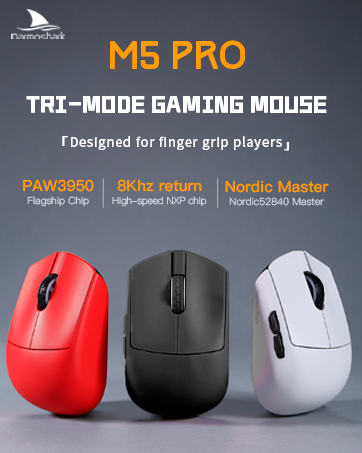
Image: Darmoshark M5PRO mouse charging via USB-C cable, highlighting its built-in lithium battery.
۴.۴. د سافټویر اصلاح کول
To unlock the full potential of your Darmoshark M5PRO mouse, download and install the official Darmoshark driver software from the manufacturer's webسایټ. سافټویر تاسو ته اجازه درکوي:
- Customize DPI settings and create multiple profiles.
- Program button functions and macros.
- د رای ورکولو کچه تنظیم کړئ.
- Manage power settings and battery life.
- فرم ویئر تازه کړئ.

Image: Darmoshark proprietary driver software interface for mouse customization.
7. مشخصات
| ماډل | M5PRO |
| سینسر | PAW3950 آپټیکل سینسر |
| DPI | تر 30000 DPI پورې |
| د تعقیب سرعت | 750IPS |
| سرعت | 50G |
| د رای ورکولو کچه | 8KHz (2.4G Wireless), 1KHz (Wired/Bluetooth) |
| ارتباط | ۲.۴ جي بېسیم، بلوتوث ۵.۰، USB-C وایرډ |
| تڼۍ | 5 د پروګرام وړ بټن |
| وزن | نږدې 38 ګرامه |
| ابعاد (L x W x H) | 91.7 mm x 57.4 mm x 35.7 mm |
| بیټرۍ | جوړ شوی لیتیم بیټرۍ (300mAh) |
| مطابقت | Windows, Apple Mac |
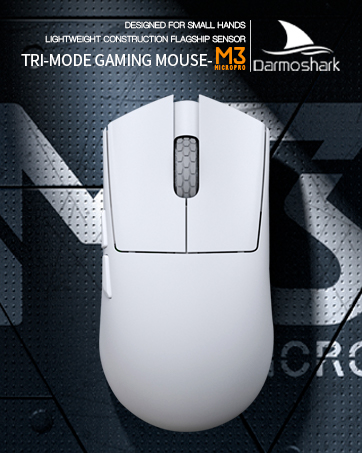
Image: Product parameter diagram with mouse dimensions.
8. ساتنه
- پاکول: د موږک د پاکولو لپاره نرم، وچ ټوکر وکاروئ. د سختو کیمیاوي موادو یا کثافاتو موادو کارولو څخه ډډه وکړئ.
- ذخیره کول: موږک په یخ او وچ ځای کې د مستقیم لمر وړانګو او سختې تودوخې څخه لرې وساتئ.
- د بیټرۍ پاملرنه: د بیټرۍ د ژوند اوږدولو لپاره، د موږک په مکرر ډول په بشپړه توګه چارج کولو څخه ډډه وکړئ. کله چې د بیټرۍ ټیټ شاخص څرګند شي نو چارج یې کړئ.
9. ستونزه حل کول
۹.۱. موږک ځواب نه ورکوي
- د بریښنا حالت: ډاډ ترلاسه کړئ چې USB کیبل په خوندي ډول د موږک او کمپیوټر دواړو سره وصل دی. یو بل USB پورټ هڅه وکړئ.
- 2.4G بې سیم حالت: Ensure the 2.4G receiver is plugged in and the mouse is switched to 2.4G mode. Try re-pairing the mouse with the receiver. Ensure the mouse battery is charged.
- بلوتوث موډ: Ensure Bluetooth is enabled on your device and the mouse is in Bluetooth pairing mode. Try re-pairing the mouse in your device's Bluetooth settings. Ensure the mouse battery is charged.
۲. د کرسر حرکت غلط یا ناسم دی
- د موږک په لاندې برخه کې نظري سینسر د نرم او وچ ټوکر سره پاک کړئ.
- ډاډ ترلاسه کړئ چې تاسو موږک په مناسب سطحه کاروئ (د مثال په توګه، د موږک پیډ). د ډیر انعکاس کونکي یا شفاف سطحو څخه ډډه وکړئ.
- Adjust the DPI settings using the DPI Adjustment Key or the software.
- Check for any software conflicts or outdated drivers. Update mouse drivers if necessary.
۵.۳. د بېسیم اتصال ستونزې
- Reduce the distance between the mouse and the receiver/device.
- Avoid placing the receiver near other wireless devices or sources of interference (e.g., Wi-Fi routers, cordless phones).
- ډاډ ترلاسه کړئ چې موږک په بشپړ ډول چارج شوی دی.
۳.۳. د محصول رسمي ویډیو
Watch the official product video for a visual guide on the Darmoshark M5PRO Mini Wireless Gaming Mouse.
ویډیو: یو اوورview of the Darmoshark M5PRO Wireless Gaming Mouse, showcasing its design and features in various colors.
11. تضمین او ملاتړ
For warranty information and technical support, please refer to the warranty card included with your product or visit the official Darmoshark webسایټ
جوړونکی: دارموشارک
Webسایټ: Darmoshark Official Store