
CRUA CR340AU
CRUA 34-inch Ultrawide Gaming Monitor User Manual
Model: CR340AU
1. د خوندیتوب معلومات
Please read all instructions carefully before using this monitor. Keep this manual for future reference.
- د اور یا بریښنا شاک څخه د مخنیوي لپاره مانیټر باران یا رطوبت ته مه ښکاره کوئ.
- مانیټر مه خلاصوئ casinج. دننه د کارونکي لپاره د خدمت وړ برخې نشته. ټولې خدمتونه وړ پرسونل ته راجع کړئ.
- مانیټر په یوه مستحکم او فلیټ سطحه کېږدئ ترڅو د رالویدو مخه یې ونیول شي.
- د مانیټر شاوخوا مناسب هوا ورکول ډاډمن کړئ. د هوا د بهیدو لارې مه بندوئ.
- یوازې هغه بریښنا اډاپټر وکاروئ چې د مانیټر سره چمتو شوی وي.
- که چیرې مانیټر د اوږدې مودې لپاره ونه کارول شي، نو د بریښنا پلګ له ساکټ څخه جلا کړئ.
2. د بسته محتويات
ډاډ ترلاسه کړئ چې ټول توکي ستاسو په کڅوړه کې شتون لري:
- CRUA 34-inch Ultrawide Gaming Monitor
- د څارنې موقف (بنسټ او غاړه)
- د بریښنا اډاپټر او کیبل
- HDMI کیبل
- د ډیسپلی پورټ (DP) کیبل
- د کارن لارښود
- د سټینډ اسمبلۍ لپاره پیچونه
3. ترتیب کول
۱.۲ د سټینډ راټولول
- په احتیاط سره مانیټر د هغې له بسته بندۍ څخه لرې کړئ، او په نرمه سطحه یې خوندي وساتئ.
- Attach the stand neck to the monitor's rear panel using the provided screws.
- Connect the stand base to the stand neck and secure it with the designated screw.
- Place the assembled monitor on a stable desk.
The monitor stand allows for tilt adjustment to find your optimal viewزاویه.
۴.۳ دیوال نصب کول (اختیاري)
This monitor supports VESA wall mounting (75x75mm). To wall mount:
- که چیرې سټینډ لا دمخه وصل وي، نو له مانیټر څخه لرې کړئ.
- Attach a compatible VESA 75x75mm wall mount bracket (not included) to the monitor's rear panel using appropriate screws.
- د خوندي نصبولو لپاره د خپل دیوال ماونټ سره ورکړل شوي لارښوونې تعقیب کړئ.

انځور: شاته view of the monitor highlighting the 75x75mm wall mount area and various input ports.
3.3 د وسیلې سره نښلول
خپل کمپیوټر یا د لوبو کنسول د شته پورټونو څخه د یوې په کارولو سره مانیټر سره وصل کړئ:
- ډیسپلی پورټ (DP 1.4): For optimal performance, especially for high refresh rates and FreeSync.
- HDMI (HDMI 1.4 x2): Compatible with most devices.
Connect the power adapter to the monitor's DC input and then plug it into a power outlet.
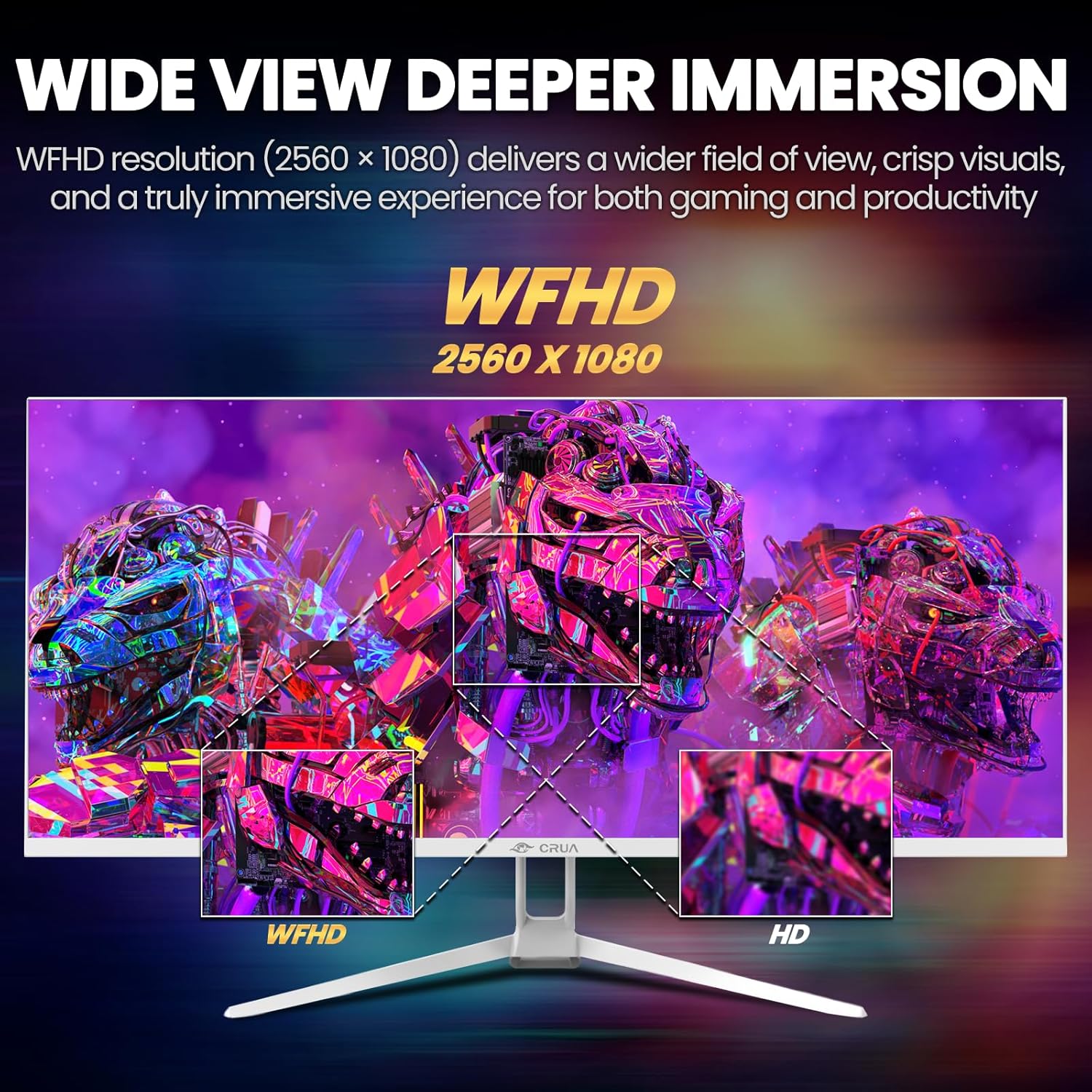
Image: A detailed diagram illustrating the monitor's connectivity options, including two HDMI 1.4 ports, one DisplayPort 1.4, an audio output, a USB charging port, and the DC power input.
4. عملیاتي لارښوونې
۸ پاور آن/بند
Press the power button, typically located on the bottom or rear of the monitor, to turn it on or off. The power indicator light will illuminate when the monitor is on.
۳.۱ د پردې پرده ښودنه (OSD) مینو
The OSD menu allows you to adjust various monitor settings. Access it by pressing the OSD menu button (often a joystick-like button or a set of dedicated buttons) on the monitor.
- نیویگیشن: Use the OSD buttons or joystick to navigate through the menu options.
- انتخاب: د فرعي مینو ته د ننوتلو یا ترتیب تاییدولو لپاره د انتخاب تڼۍ فشار ورکړئ.
- وتل: Use the exit button to go back or close the OSD menu.
4.3 د عکس تنظیمات
Adjust visual parameters for optimal viewing:
- روښانتیا: د سکرین عمومي روښانتیا کنټرولوي.
- برعکس: د رڼا او تیاره سیمو ترمنځ توپیر تنظیموي.
- د رنګ حرارت: Selects preset color modes (e.g., Warm, Cool, User).
- د نیلي رڼا فلټر: Reduces blue light emission to minimize eye strain during prolonged use.
- د اړخ نسبت: Set to 21:9 for ultrawide content or other options as needed.

Image: The CRUA ultrawide monitor showcasing its 21:9 aspect ratio, demonstrating how it provides more horizontal screen space compared to a standard 16:9 display.
4.4 د آډیو ترتیبات
The monitor includes built-in speakers. Adjust volume through the OSD menu or your connected device. An external audio output port is also available for headphones or external speakers.
۳.۴ AMD فري سنک
To enable AMD FreeSync for tear-free gaming, ensure your graphics card supports FreeSync and that it is enabled in your graphics card's control panel. Then, activate FreeSync within the monitor's OSD menu.

Image: A visual comparison demonstrating the effect of AMD FreeSync, showing a torn image when FreeSync is off and a smooth image when FreeSync is on, highlighting the 120Hz refresh rate.
5. ساتنه
۵.۱ د پردې پاکول
- مانیټر بند کړئ او د بریښنا تار خلاص کړئ.
- د نرم، لینټ پاک ټوکر څخه په روښانه توګه کار واخلئampد اوبو یا ځانګړي سکرین پاکونکي سره مینځل کیږي.
- Wipe the screen gently. Do not press hard or use abrasive cleaners.
5.2 عمومي پاملرنه
- مانیټر د مستقیم لمر وړانګو، تودوخې سرچینو او ډیرې دوړو څخه لرې وساتئ.
- په مانیټر یا د هغې په کیبلونو کې د درنو شیانو له ایښودلو څخه ډډه وکړئ.
- Do not spray cleaning liquids directly onto the monitor.
6. ستونزه حل کول
که تاسو د خپل مانیټر سره ستونزې سره مخ شئ، لاندې عامې ستونزې او حل لارې وګورئ:
| ستونزه | احتمالي حل |
|---|---|
| په پرده هیڅ عکس نشته | Ensure power cable is securely connected and the monitor is turned on. Check video cable (HDMI/DP) connections to both monitor and computer. Select the correct input source via the OSD menu. |
| انځور ځلیږي یا بې ثباته دی | Check video cable connections. Ensure your graphics card drivers are up to date. If using FreeSync, try disabling it temporarily to see if the issue persists. Adjust refresh rate in your computer's display settings. |
| د جوړ شوي سپیکرو څخه هیڅ غږ نشته | Increase volume via the OSD menu and your computer's sound settings. Ensure the correct audio output device is selected on your computer. Check if the audio cable (if used) is properly connected. |
| رنګونه غلط ښکاري | Reset picture settings to factory defaults via the OSD menu. Adjust color temperature and individual RGB values if available. |
If the problem persists after trying these solutions, please contact CRUA customer support.
7. مشخصات
Key technical specifications for the CRUA 34-inch Ultrawide Gaming Monitor (Model CR340AU):
| فیچر | مشخصات |
|---|---|
| د سکرین اندازه | ۷۸۷ انچه |
| د پینل ډول | IPS |
| قرارداد | ۲۵۶۰ x ۱۰۸۰ (WFHD) |
| د اړخ نسبت | 21:9 |
| د تازه کولو نرخ | 120Hz |
| د غبرګون وخت | (Not specified in provided data, typical for IPS is 1-5ms GTG) |
| روښانتیا | 350 cd/m² |
| رنګ Gamut | 120٪ sRGB |
| د رنګ ژوروالی | 8-bit (16.7 Million Colors) |
| Viewزاویه | ۱۷۸° (افقي/عمودي) |
| د تطبیق وړ همغږي | AMD FreeSync |
| ارتباط | 2x HDMI 1.4, 1x DisplayPort 1.4, Audio Out, USB Charging, DC Power Input |
| جوړ شوي سپیکرونه | هو |
| دیوال غر | VESA 75x75mm |
| د محصول ابعاد | 9.4 x 24.13 x 17.47 انچه |
| د توکي وزن | ۲.۴۵ پونډه |
8. تضمین او ملاتړ
CRUA provides high-quality computer monitors and customer service. For any questions or support needs regarding your CRUA 34-inch Ultrawide Gaming Monitor, please contact CRUA customer support.
Refer to your purchase documentation or the official CRUA webد ځانګړو تضمین شرایطو او اړیکو معلوماتو لپاره سایټ.
Ask a question about this manual
Ask about setup, troubleshooting, compatibility, parts, safety, or missing instructions. Manuals+ will review the question and use this page’s manual context to help answer it.