
مرکوزيز ME80X
Mercusys ME80X AX3000 WiFi 6 Range Extender User Manual
Model: ME80X | Brand: MERCUSYS
پیژندنه
This manual provides detailed instructions for setting up, operating, maintaining, and troubleshooting your Mercusys ME80X AX3000 WiFi 6 Range Extender. Please read this guide carefully to ensure optimal performance and proper use of your device.
په بکس کې څه دي
- Mercusys ME80X AX3000 WiFi 6 Range Extender
- Quick Installation Guide (not included in this digital manual, but typically provided)
Ensure all components are present and in good condition. If any item is missing or damaged, please contact customer support.
کلیدي ځانګړتیاوې
- Dual Band AX3000 Speeds: Up to 2402 Mbps on 5 GHz and 574 Mbps on 2.4 GHz.
- د وای فای ۶ ټیکنالوژي: Enhances speed, efficiency, and capacity for a better network experience.
- ګیګابایټ ایترنیټ پورټ: Provides fast wired connections for devices like PCs, IPTVs, and gaming consoles.
- نړیوال مطابقت: Works with any standard Wi-Fi router.
- One-Touch WPS Setup: Easy expansion of Wi-Fi coverage by pressing the WPS button.
- دوه ګونی عملیاتي حالتونه: Functions as a Range Extender (RE) or an Access Point (AP).
- د سمارټ ایپ کنټرول: Manage your network via the MERCUSYS app on iOS or Android devices.
- ایزی میش مطابقت لري: Create a unified mesh network for seamless roaming.
محصول پای ته ورسیدview
The Mercusys ME80X is designed to extend your existing Wi-Fi coverage, eliminating dead zones and providing strong, reliable wireless connectivity throughout your home or office.
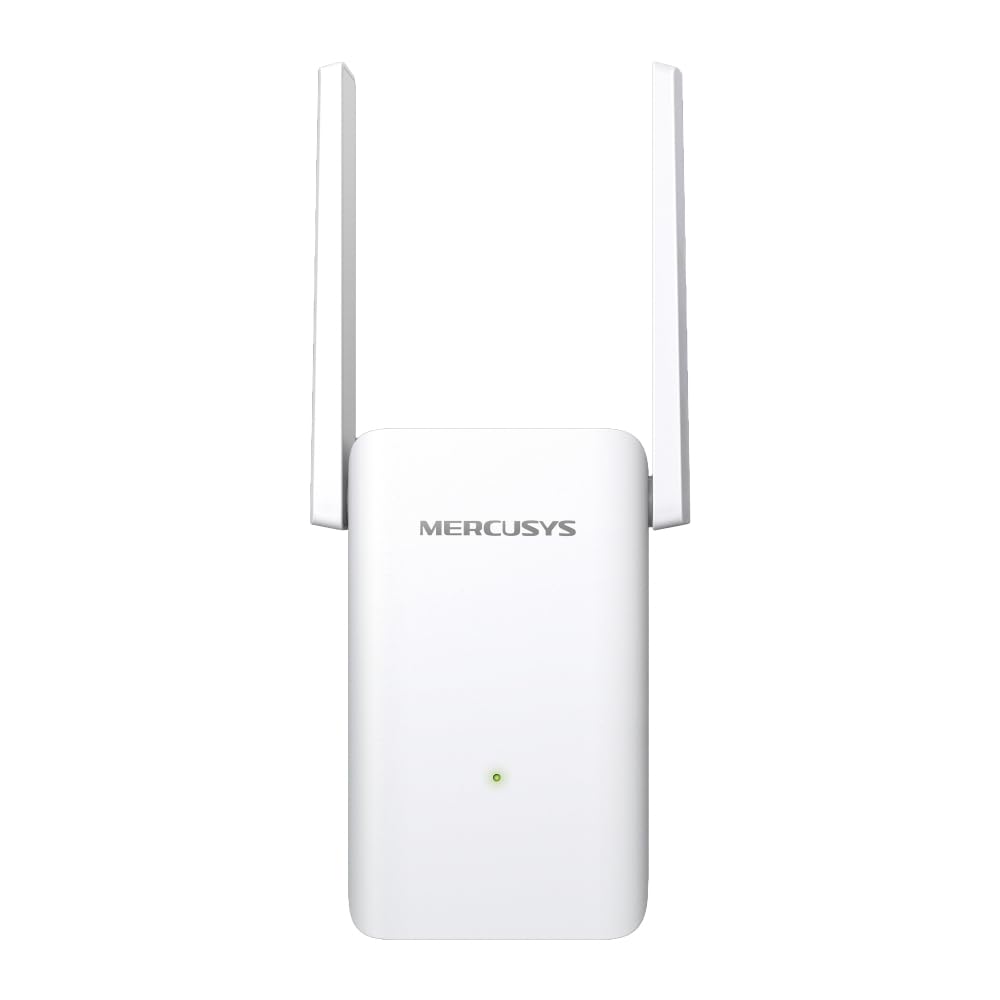
انځور: مخکینۍ برخه view of the Mercusys ME80X AX3000 WiFi 6 Range Extender, showing the MERCUSYS logo and an LED indicator.

Image: Diagram highlighting key features of the ME80X, including WiFi 6, Gigabit Ethernet, adjustable high-gain antennas, AX3000 speeds, compatibility with any router, built-in Access Point mode, EasyMesh, and MERCUSYS App Control.

Image: Visual representation of WiFi 6 benefits, showing 2.4 GHz at 574 Mbps and 5 GHz at 2402 Mbps, emphasizing higher speed, larger capacity, and ultra-low latency.
چمتو کول
There are several methods to set up your Mercusys ME80X Range Extender. Choose the method that best suits your needs.
طریقه ۱: WPS (د وای فای محافظت شوی تنظیم)
WPS is the quickest way to extend your Wi-Fi network if your router supports it.
- ME80X د خپل روټر سره نږدې په بریښنایی آوټ لیټ کې ولګوئ.
- Wait for the LED on the ME80X to turn solid red or orange.
- په خپل اصلي روټر کې د WPS تڼۍ فشار ورکړئ.
- په دوو دقیقو کې، په ME80X کې د WPS تڼۍ فشار ورکړئ.
- The LED on the ME80X should change to solid green, indicating a successful connection.
- Relocate the ME80X to an optimal location between your router and the Wi-Fi dead zone. Ensure the LED remains solid green for a good connection.

Image: Diagram illustrating the one-touch WPS setup process, showing pressing the WPS button on both the router and the ME80X, and the LED indicator for connection status (green for good, orange for too far).
طریقه ۱: د MERCUSYS اپلیکیشن له لارې
The MERCUSYS app provides an intuitive way to set up and manage your extender.
- Download the MERCUSYS app from the App Store (iOS) or Google Play (Android).
- ME80X د خپل روټر سره نږدې په بریښنایی آوټ لیټ کې ولګوئ.
- Open the MERCUSYS app and follow the on-screen instructions to add your new device.
- The app will guide you through connecting the extender to your existing Wi-Fi network.
- Once connected, relocate the ME80X to an optimal location.
میتود 3: له لارې Web براوزر
For advanced configuration or if WPS/App setup is not preferred.
- ME80X د خپل روټر سره نږدې په بریښنایی آوټ لیټ کې ولګوئ.
- Connect your computer or mobile device to the ME80X's Wi-Fi network (e.g., "MERCUSYS_Extender").
- خلاص a web براوزر او ډول mwlogin.net or the default IP address (check the label on the device or quick start guide) into the address bar.
- کله چې وغوښتل شي د ننوتلو پټنوم جوړ کړئ.
- Follow the on-screen instructions to select your host network and configure the extender.
- Relocate the ME80X to an optimal location.
Access Point (AP) Mode Setup
In Access Point mode, the ME80X connects to your router via an Ethernet cable to create a new Wi-Fi access point.
- ME80X په بریښنایی آوټ لیټ کې ولګوئ.
- Connect an Ethernet cable from your main router's LAN port to the Gigabit Ethernet port on the ME80X.
- Access the ME80X's web management page (as described in Method 3).
- Navigate to the operating mode settings and select "Access Point Mode".
- Configure the Wi-Fi network name (SSID) and password for the new access point.
- Save the settings. The ME80X will now function as a wired access point.

Image: The ME80X plugged into a wall outlet, connected via Ethernet cable to a laptop, demonstrating its use in Access Point mode to provide Wi-Fi to nearby devices.
EasyMesh Setup
The ME80X is EasyMesh compatible, allowing it to form a unified mesh network with a compatible EasyMesh router. This provides seamless roaming and a single Wi-Fi network name.
Note: This process requires your main router to also support EasyMesh and have the feature enabled.
- Factory Reset ME80X: If the ME80X has been previously set up, perform a factory reset by holding the Reset/WPS button for approximately 10-20 seconds until the LED behavior changes.
- Enable EasyMesh on Router: خپل ته ننوتل web-based router management interface (not through an app). Locate and enable the EasyMesh feature, usually found in the wireless or system settings.
- ابتدايي ځای پرځای کول: Plug the ME80X into an electrical outlet next to your router.
- Initiate WPS Pairing: Once the ME80X's LED turns orange, press the WPS button on your router, then immediately press the WPS button on the ME80X.
- Add Mesh Device: On your router's web management interface, scroll to the bottom (or relevant section) and select "Add Mesh" or "لټون WPS connection".
- تایید: The router should detect and automatically set up the ME80X as part of the mesh network. The ME80X's LED should turn solid green.
- Verify Network: Confirm that there is no separate "ME80X_Ext" network visible. Only your main home network SSID should be broadcast.
- ځای په ځای کول: You can now unplug the ME80X and relocate it to its permanent desired location within your home. Ensure the LED remains solid green for optimal mesh performance.
د رینج ایکسټینډر چلول
د LED شاخصونو پوهیدل
The LED on the front of the ME80X provides important status information:
- کلک شنه: The extender is connected to the router and is in a good location.
- جامد نارنجي: The extender is connected to the router but is too far from it. Relocate the extender closer to the router.
- کلک سور: توسیع کونکی د روټر سره نه تړل شوی.
- Flashing Green/Orange: د WPS جوړه په پرمختګ کې ده.
- بند: The extender is powered off or experiencing an error.
Relocating the Extender
After initial setup, you can unplug the extender and move it to a new location. The ideal location is halfway between your router and the Wi-Fi dead zone. Ensure the LED turns solid green after relocation to confirm a good connection.

Image: Diagram showing a house with a router and the ME80X extender placed strategically to extend Wi-Fi coverage to previously unreachable areas.

Image: The Mercusys ME80X plugged into a wall outlet in a modern living room setting, demonstrating its discreet placement.
ساتنه
د فرم ویئر تازه معلومات
Regularly check for firmware updates to ensure optimal performance, security, and access to new features. You can usually find firmware updates on the official MERCUSYS website or through the MERCUSYS app.
- Visit the official MERCUSYS support website for your model (ME80X).
- وروستی فرم ویئر ډاونلوډ کړئ file.
- Access the ME80X's web management page (mwlogin.net).
- Navigate to System Tools > Firmware Upgrade and follow the instructions to upload the new firmware.
- مهم: Do not power off the device during the firmware upgrade process.
پاکول
To maintain proper airflow and prevent overheating, periodically clean the exterior of the extender. Use a soft, dry cloth. Do not use liquid cleaners or aerosols.
د ستونزو حل کول
د ایکسټینډر سره وصل کیدو وروسته انټرنیټ ته لاسرسی نشته
- Ensure the extender's LED is solid green, indicating a good connection to the router.
- ډاډ ترلاسه کړئ چې ستاسو اصلي روټر انټرنیټ ته لاسرسی لري.
- هڅه وکړئ خپل روټر او توسیع کونکی دواړه بیا پیل کړئ.
- If using a static IP on your device, ensure it's compatible with the extender's network.
ورو سرعت یا پرله پسې قطع کېدل
- Relocate the extender closer to your main router. The LED should be solid green.
- Ensure there are no major obstructions (thick walls, metal objects, large appliances) between the extender and your devices, or between the extender and the router.
- Check for interference from other wireless devices (e.g., cordless phones, microwaves).
- Update the firmware of both your router and the extender.
- If using EasyMesh, ensure the setup was completed correctly and the extender is integrated into the mesh.
د WPS تنظیم ناکام شو
- ډاډ ترلاسه کړئ چې ستاسو روټر د WPS ملاتړ کوي او فعال شوی دی.
- Press the WPS button on the router and extender within two minutes of each other.
- هڅه وکړئ web browser or app setup method instead.
How to Factory Reset the ME80X
If you encounter persistent issues or forget your login password, a factory reset can restore the extender to its default settings.
- With the extender powered on, locate the Reset/WPS button (often a small pinhole or combined with WPS).
- Press and hold the button for approximately 10-20 seconds until the LED flashes rapidly or changes color, then release.
- توسیع کوونکی به د فابریکې ډیفالټ ترتیباتو سره بیا پیل شي. تاسو به اړتیا ولرئ چې دا بیا تنظیم کړئ.
مشخصات
| فیچر | تفصیل |
|---|---|
| برانډ | مرسي |
| د ماډل شمیره | ME80X |
| بيسيم ستندرد | 802.11a/b/g/n/ac/ax (Wi-Fi 6) |
| د فریکونسی بند | دوه ګونی بند (۲.۴ GHz او ۵ GHz) |
| د معلوماتو د لیږد کچه | تر ۱۸۰۰ ایم بی پی ایس پورې (په ۵ ګیګاهرتز کې ۱۲۰۱ ایم بی پی ایس، په ۲.۴ ګیګاهرتز کې ۵۷۴ ایم بی پی ایس) |
| ایترنیټ بندرونه | 1x ګیګابایټ ایترنیټ پورټ |
| ځانګړي ځانګړتیاوې | Beamforming, Mesh Wi-Fi (EasyMesh), Access Point Mode, Guest Mode |
| مطابقت لرونکې وسیلې | Gaming Consoles, PCs, Routers, Smart TVs, Tablets |
| رنګ | سپین |
| اجزا شامل دي | Range Extender Wi-Fi (ME80X) |
| جوړونکی | TP-Link (as per product data) |
تضمین او ملاتړ
د تضمین معلوماتو او تخنیکي ملاتړ لپاره، مهرباني وکړئ رسمي MERCUSYS ته مراجعه وکړئ webسایټ ته لاړ شئ یا مستقیم د دوی د پیرودونکو خدماتو سره اړیکه ونیسئ. د تضمین ادعاوو لپاره خپل د پیرود رسید وساتئ.
د مرکوز رسمي Webسایټ: www.mercusys.com
Ask a question about this manual
Ask about setup, troubleshooting, compatibility, parts, safety, or missing instructions. Manuals+ will review the question and use this page’s manual context to help answer it.