
پیژندنه
The Logicool MX Master 4 is an advanced wireless mouse designed for enhanced productivity and creative workflows. This model features significant advancements in both hardware and software, including haptic feedback, the innovative Actions Ring, improved wireless connectivity, and an ergonomic design. This manual provides detailed instructions for setting up, operating, maintaining, and troubleshooting your MX Master 4 mouse.
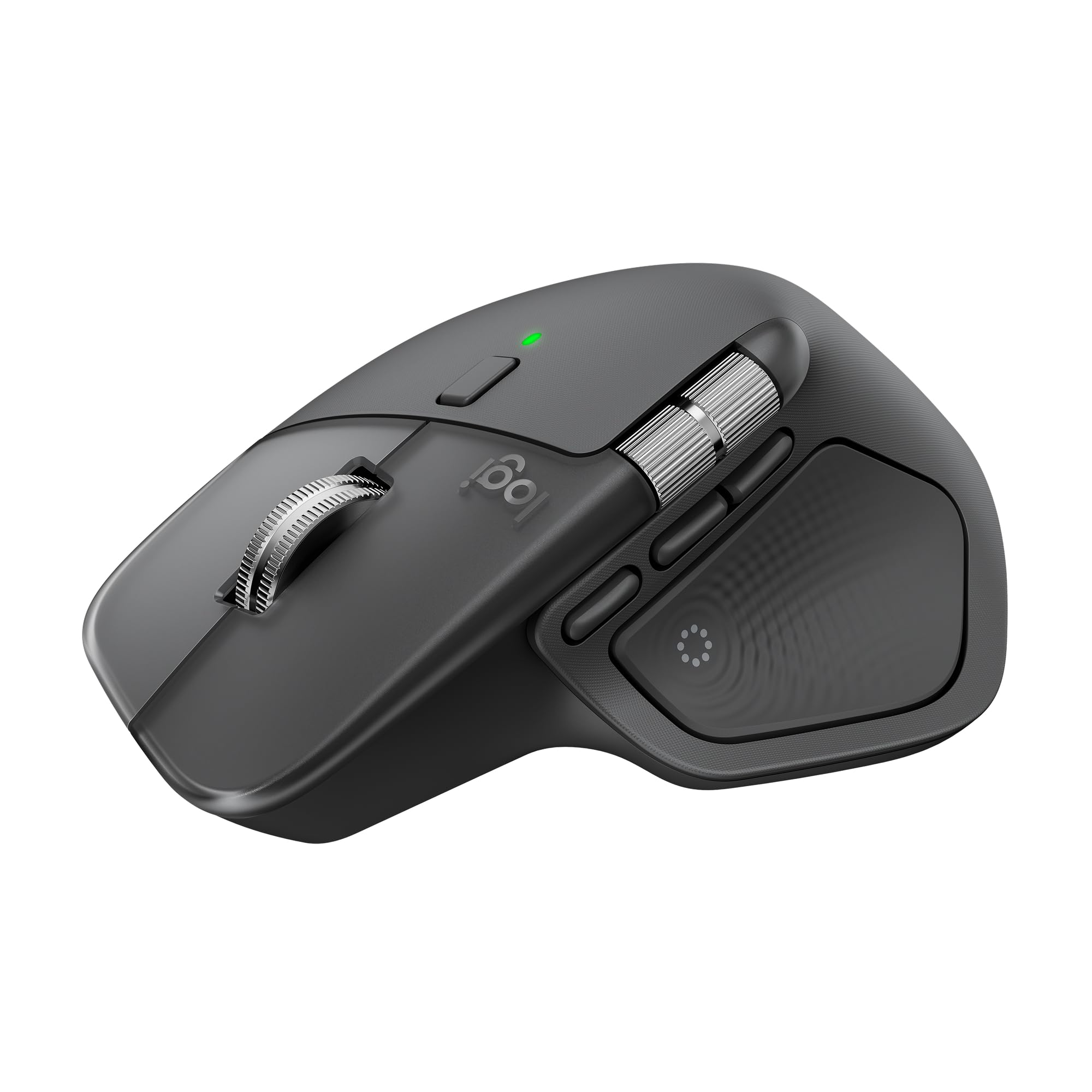
Image: The Logicool MX Master 4 Advanced Wireless Mouse.
د بسته محتويات
ډاډ ترلاسه کړئ چې ټول توکي ستاسو د محصول په کڅوړه کې شتون لري:
- Logicool MX Master 4 Advanced Wireless Mouse
- Logi Bolt USB Type-C Receiver
- د USB-C چارج کیبل

Image: The MX Master 4 mouse alongside its Logi Bolt USB receiver.
د تنظیم کولو لارښود
1. د موږک چارج کول
Before initial use, it is recommended to fully charge your MX Master 4 mouse. Connect the included USB-C charging cable to the mouse's USB-C port and to a power source (e.g., computer USB port, USB wall adapter). A 1-minute charge provides approximately 3 hours of use, and a full charge can last up to 70 days, depending on usage.
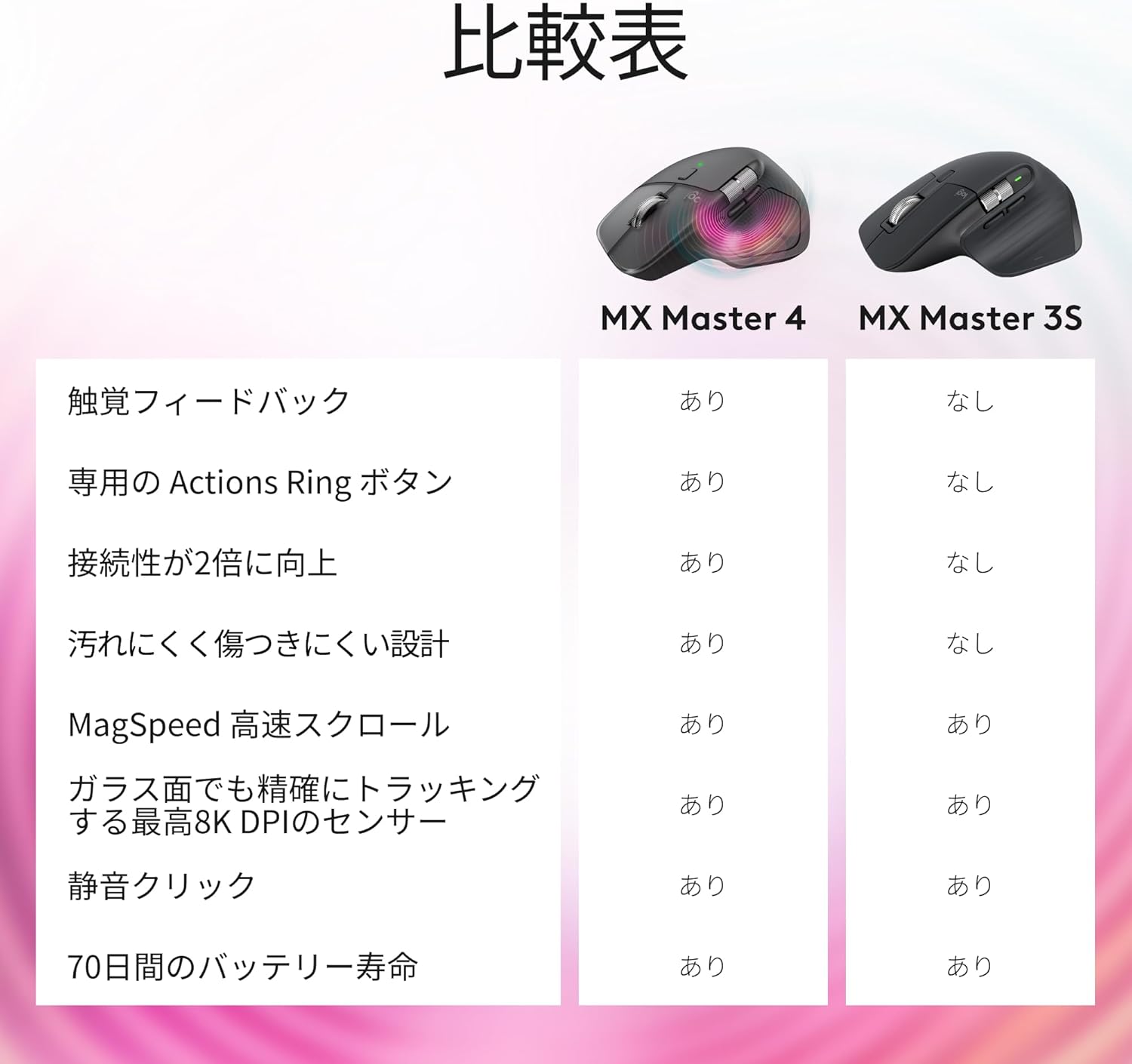
Image: The USB-C charging port located on the front of the MX Master 4 mouse.
2. موږک سره نښلول
The MX Master 4 offers two primary connection methods: via the Logi Bolt USB receiver or Bluetooth.
د لوګي بولټ USB ریسیور کارول
- Insert the Logi Bolt USB receiver into an available USB-C port on your computer.
- Turn on the MX Master 4 mouse using the power switch on the bottom.
- موږک باید په اتوماتيک ډول له رسیدونکي سره وصل شي.
د بلوتوث کارول
- Turn on the MX Master 4 mouse.
- Press the Easy-Switch button located on the bottom of the mouse to select an available channel (1, 2, or 3). Hold the button until the LED indicator for that channel blinks rapidly, indicating pairing mode.
- On your computer or device, navigate to Bluetooth settings and select "MX Master 4" from the list of available devices to complete the pairing process.

Image: Diagram illustrating the wireless connection between the MX Master 4 mouse and the Logi Bolt receiver.
عملیاتي لارښوونې
MagSpeed Electromagnetic Scroll Wheel
The main scroll wheel features MagSpeed electromagnetic scrolling, allowing for ultra-fast scrolling of up to 1,000 lines per second. It also provides precise, line-by-line scrolling. The wheel automatically switches between free-spin mode for rapid navigation and ratcheted mode for precise control, based on the speed of your scroll.

Image: A hand demonstrating the use of the MagSpeed scroll wheel.
Thumb Wheel (Horizontal Scroll)
The dedicated thumb wheel on the side of the mouse enables horizontal scrolling. This is particularly useful for navigating wide documents, spreadsheets (like in Excel), or timelines (like in Premiere Pro), enhancing workflow efficiency. Its ergonomic placement ensures intuitive operation.

انځور: نږدې انځور view of the thumb wheel on the MX Master 4.
Haptic Feedback and Actions Ring
The MX Master 4 incorporates haptic feedback in the thumb rest area, providing subtle vibrations in response to actions, shortcuts, and notifications. Pressing the "Actions Ring button" within this area activates the new "Actions Ring" feature in Logi Options+. This displays eight customizable shortcuts in a circular menu, allowing for quick execution by simply hovering your cursor over the desired action. This feature significantly boosts productivity by providing instant access to frequently used AI tools and device switching functions.
Video: A demonstration of the haptic feedback and Actions Ring feature, showcasing its functionality and benefits for productivity.

Image: A visual representation of the haptic feedback zone on the MX Master 4.
Darkfield Tracking Sensor
Equipped with an 8000 DPI Darkfield tracking sensor, the MX Master 4 provides precise cursor control on virtually any surface, including glass. This high-precision tracking ensures smooth and accurate movement, even on high-resolution monitors.
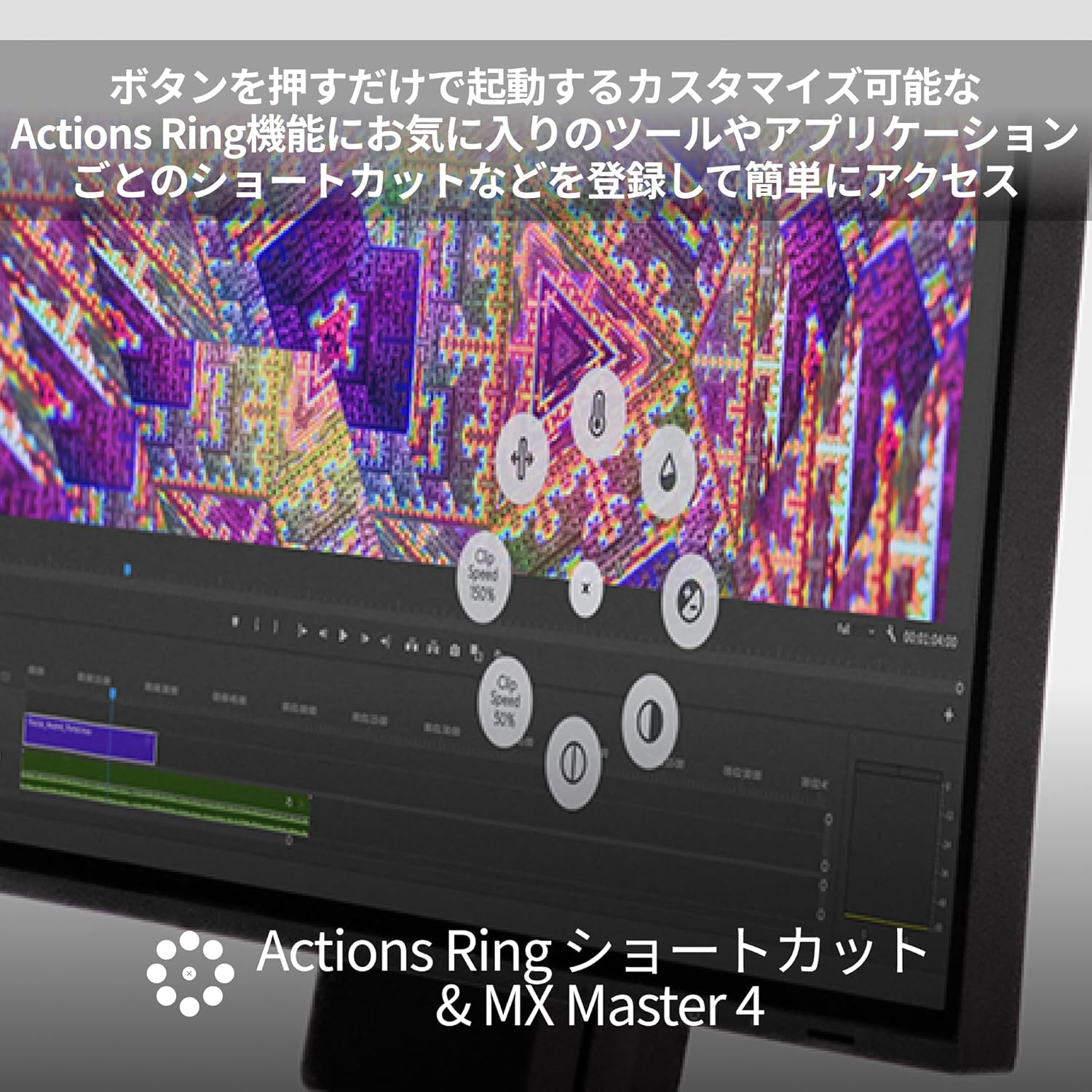
Image: The MX Master 4 mouse tracking accurately on a glass surface.
FLOW Feature
The Logicool FLOW feature allows you to seamlessly control multiple computers (up to three) with a single MX Master 4 mouse. You can effortlessly move your cursor across screens, and even copy and paste text, images, and fileد وینډوز او macOS عملیاتي سیسټمونو ترمنځ.
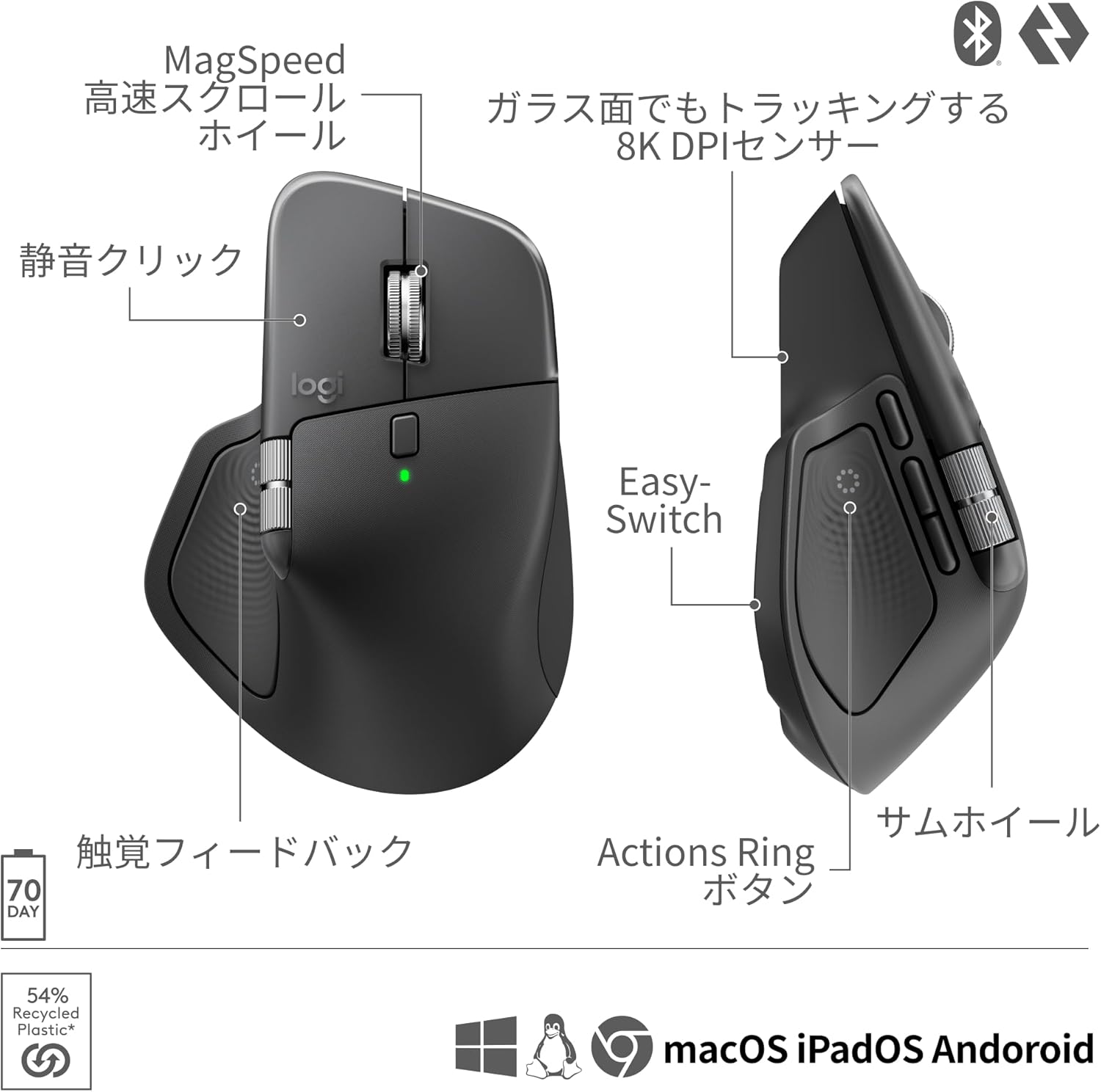
Image: A setup demonstrating the Logi Options+ FLOW feature, allowing seamless control between a laptop and a desktop monitor.
اسانه سویچ
The Easy-Switch button, located on the bottom of the mouse, allows you to instantly switch between up to three paired devices. This is ideal for users who work across multiple computers or operating systems.
ساتنه
پاکول
To maintain the appearance and functionality of your MX Master 4 mouse, clean it regularly. Use a soft, slightly damp cloth to wipe down the surfaces. Avoid using harsh chemicals, abrasive cleaners, or excessive moisture, as these can damage the mouse.
د بیټرۍ ژوند
The MX Master 4 is equipped with a long-lasting battery that provides up to 70 days of use on a full charge. Battery life may vary based on user and computing conditions. When the battery is low, connect the mouse using the USB-C charging cable. A quick 1-minute charge can provide approximately 3 hours of use.
د ستونزو حل کول
د پیوستون مسلې
- هیڅ اړیکه: Ensure the mouse is powered on and sufficiently charged.
- د لوګي بولټ رسیور: Verify that the Logi Bolt USB-C receiver is securely plugged into a working USB-C port on your computer. Try a different USB-C port if available.
- بلوتوث: Ensure Bluetooth is enabled on your device and the mouse is in pairing mode (rapidly blinking LED on the selected Easy-Switch channel). Re-attempt the pairing process.
- لاسوهنه: Move the mouse closer to your computer or away from other wireless devices that might cause interference.
Tracking Problems
- غیر منظم حرکت: Clean the optical sensor on the bottom of the mouse with a soft, dry cloth to remove any dust or debris.
- Surface Issues: While the Darkfield sensor works on most surfaces, extreme textures or highly reflective surfaces might occasionally affect tracking performance. Try using the mouse on a different surface or a mouse pad.
Software Issues (Logi Options+)
- Features Not Working: Ensure the Logi Options+ software is installed on your computer and is up to date.
- سافټویر ځواب نه ورکوي: Try restarting the Logi Options+ application or your computer.
- د اصلاح کولو ستونزې: If custom button assignments or FLOW features are not working, check the settings within Logi Options+ to ensure they are correctly configured.
تخنیکي مشخصات
| فیچر | تفصیل |
|---|---|
| برانډ | Logicool |
| د ماډل نوم | MX MASTER 4 (MX2400GRd) |
| د ارتباط ټیکنالوژي | Bluetooth, Logi Bolt |
| د تڼیو شمیر | 8 |
| Max DPI | 8000 DPI |
| مطابقت لرونکي عملیاتي سیسټمونه | Windows 11+, macOS 13+, ChromeOS, Linux, iPadOS 15+, Android 12+ |
| د بیټرۍ اوسط ژوند | 70 ورځې |
| شاملې برخې | Logi Bolt USB Type-C Receiver, Product Body |
| د توکي وزن | 150 ګرامه |
| وړاندیز شوي استعمالونه | Office, Remote Work |
تضمین او ملاتړ
The Logicool MX Master 4 (Model MX2400GRd) comes with a 1-year manufacturer's warranty. This warranty covers defects in materials and workmanship under normal use.
For detailed warranty information, technical support, frequently asked questions (FAQs), and driver downloads, please visit the official Logicool support webسایټ:
You can also find additional resources and community forums on the support page to help you get the most out of your MX Master 4 mouse.