
پیژندنه
Thank you for choosing the ProtoArc KM310 Wireless Mechanical Keyboard and Mouse. This combo offers a responsive typing experience with low-profile linear red switches and versatile multi-device connectivity. The ergonomic mouse is designed for comfort and precision. This manual provides detailed instructions for setup, operation, maintenance, and troubleshooting to ensure optimal performance.
په بکس کې څه دي

Image: Contents of the ProtoArc KM310 package, including the keyboard, mouse, charging cable, and user manual.
- ProtoArc KM310 بې سیم میخانیکي کیبورډ
- د پروټو آرک بې سیم موږک
- د USB-C چارج کیبل
- د کارن لارښود
محصول پای ته ورسیدview
د کیبورډ ځانګړتیاوې

انځور: نږدې انځور view of the ProtoArc KM310 keyboard, highlighting its low-profile keys and linear red switches.
- ټیټ پروfile میخانیکي کیلي: Equipped with linear red switches for a smooth, quiet, and responsive typing experience.
- Aluminum Top Case: Provides durability and a sleek, modern aesthetic.
- د تنظیم وړ خښتې پښې: Ergonomically designed with 2-stage foot mats offering 6° and 9° tilt options for comfortable typing.
- د بشپړې اندازې ترتیب: A 108-key layout suitable for office and business use.
د موږک ځانګړتیاوې

Image: The ProtoArc KM310 mouse being held, showcasing its ergonomic design for a natural grip.
- 63G Ultra-Lightweight: Reduces hand fatigue during extended use and enhances portability.
- ارګونومیک ډیزاین: Contoured shape for a comfortable and natural grip.
- د تنظیم وړ DPI: Three DPI levels (1000/1600/2400) for tailored control and precision.
- خاموش کلیک: د خاموش عملیاتو لپاره ډیزاین شوی.
- مخکی / شاته تڼۍ: Integrated for seamless browsing.
ارتباط او بریښنا
- د څو وسیلو نښلول: Connects up to 3 devices via 2.4G USB receiver or Dual Bluetooth (BT1, BT2).
- د چارج وړ: Both keyboard and mouse feature Type-C charging. The mouse's USB receiver is stored on its bottom.
- د بیټرۍ اوږد ژوند: Up to 150-200 days standby time; 2-3 hours for a full charge.
د تنظیم کولو لارښوونې
۲. د وسایلو چارج کول

Image: The keyboard and mouse are shown connected to power sources via USB-C cables for charging.
- Connect the provided USB-C charging cable to the charging port on the keyboard (located on the top edge) and the mouse (located on the front edge).
- د کیبل بله پای د USB بریښنا سرچینې سره وصل کړئ (د مثال په توګه، د کمپیوټر USB پورټ، د USB دیوال اډاپټر).
- The indicator lights will show charging status. Allow 2-3 hours for a full charge.
2. د وسایلو سره نښلول

Image: A desk setup showing the ProtoArc KM310 keyboard and mouse connected to a laptop, monitor, and tablet, illustrating multi-device capability.
The KM310 combo supports three connection modes: 2.4G wireless via USB receiver, Bluetooth 1 (BT1), and Bluetooth 2 (BT2).
2.1. 2.4G بې سیم اتصال
- د موږک په ښکته برخه کې په کمپارټمینټ کې زیرمه شوی USB ریسیور ومومئ.
- د USB ریسیور په خپل کمپیوټر کې موجود USB پورټ کې ولګوئ.
- کیبورډ او ماوس د دوی د اړوندو بریښنا سویچونو په کارولو سره چالان کړئ.
- The devices should connect automatically.
۴.۲. د بلوتوث اتصال (BT1 / BT2)
- کیبورډ او ماوس چالان کړئ.
- په کیبورډ کې، فشار ورکړئ BT1 or BT2 key (usually located on the number pad, indicated by orange keycaps) to select the desired Bluetooth channel. The indicator light will flash.
- On your device (computer, tablet, etc.), go to Bluetooth settings and search for "ProtoArc KM310 Keyboard" and "ProtoArc KM310 Mouse".
- Select the devices to pair. The indicator light will stop flashing once connected.
- د بل BT چینل په کارولو سره د دوهم بلوتوث وسیلې لپاره تکرار کړئ.
۵.۳. د وسیلو ترمنځ بدلول
To switch between connected devices, simply press the corresponding connection key on the keyboard (2.4G, BT1, or BT2) and the channel switch button on the bottom of the mouse.
عملیاتي لارښوونې
د کیبورډ کارول
- ټایپ کول: ټیټ پروfile linear red switches provide a responsive and quiet typing experience.
- د عملیاتي سیسټم مطابقت: The keyboard is compatible with Windows and Mac OS. Keys like 'Win' and 'Alt' also show 'Option' and 'Cmd' for Mac users.
- د خښتو تنظیمول: Use the adjustable tilt legs on the underside of the keyboard to set your preferred typing angle (6° or 9°).
د موږک کارول
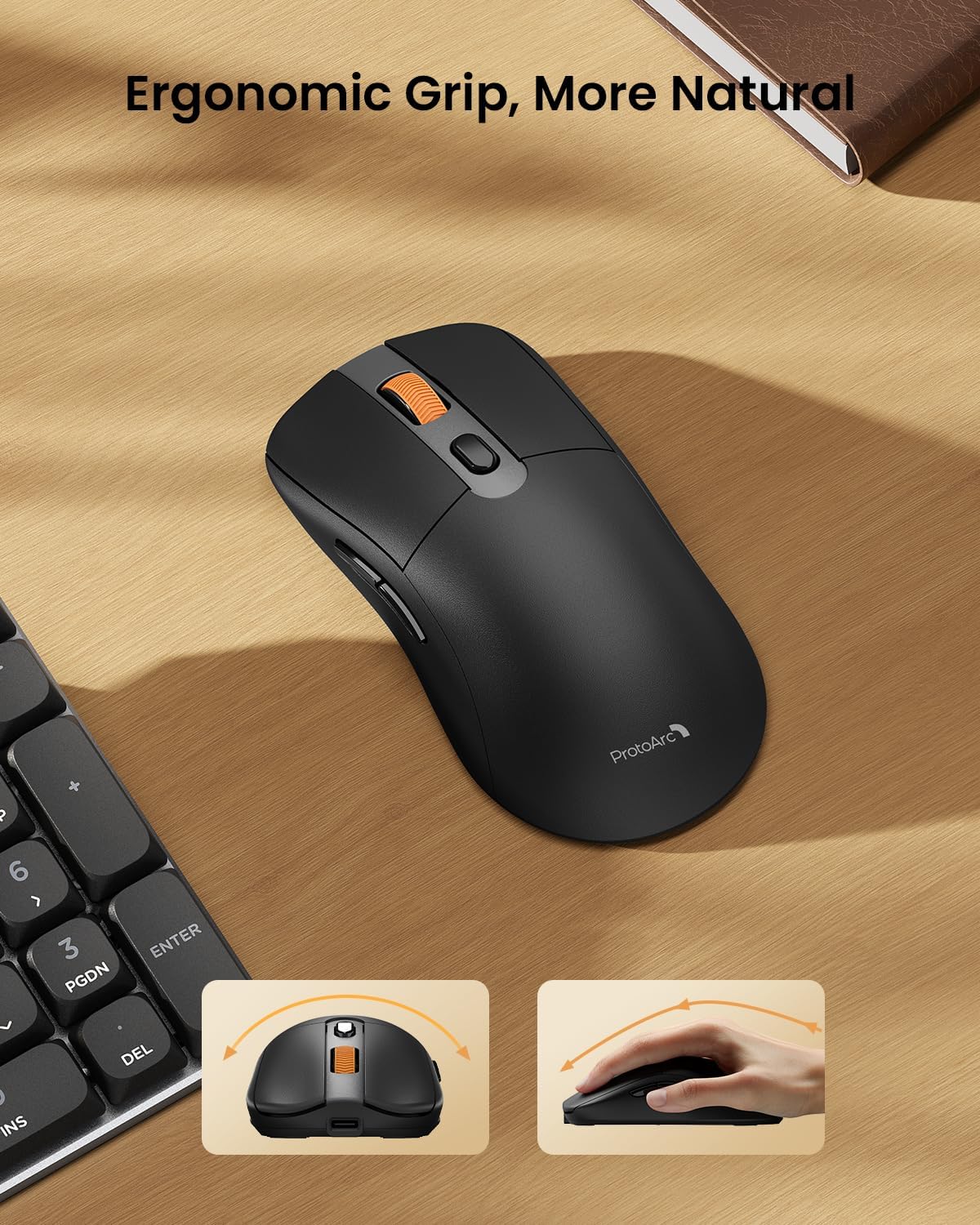
Image: A close-up of the ProtoArc KM310 mouse, illustrating the three adjustable DPI settings (1000, 1600, 2400).
- د DPI تعدیل: Press the DPI switch button (usually located near the scroll wheel) to cycle through the 3 DPI levels (1000/1600/2400) to match your preference for cursor speed and precision.
- د نیویګیشن تڼۍ: Use the forward and backward buttons on the side of the mouse for quick navigation in web براوزرونه یا file سپړونکي
- خاموش کلیکونه: The mouse features silent click buttons for a quiet working environment.
ساتنه
- پاکول: د کیبورډ او موږک د پاکولو لپاره نرم، وچ ټوکر وکاروئ. د سختې خاورې لپاره، یو څه damp د نرم صابون سره ټوکر کارول کیدی شي، ډاډ ترلاسه شي چې هیڅ مایع وسیله ته ننوځي.
- د بیټرۍ پاملرنه: Recharge the devices when the battery indicator is low. Avoid prolonged exposure to extreme temperatures.
- ذخیره کول: When not in use for extended periods, turn off the devices to conserve battery life. Store the USB receiver inside the mouse to prevent loss.
د ستونزو حل کول
Keyboard/Mouse Not Turning On or Stopping Working
- بیټرۍ چیک کړئ: Ensure both the keyboard and mouse are sufficiently charged. Connect them to a power source using the USB-C cable.
- وسایل بیا جوړه کړئ:
- For 2.4G connection, ensure the USB receiver is securely plugged in and the devices are set to 2.4G mode.
- For Bluetooth connection, ensure the devices are set to the correct BT channel (BT1 or BT2) and re-pair them through your device's Bluetooth settings.
- یو بل کیبل هڅه وکړئ: If charging issues persist, try using a different USB-C cable to rule out a faulty cable.
- لاسوهنه: وسایل خپل کمپیوټر ته نږدې یا د نورو بېسیم وسیلو څخه لرې کړئ چې ممکن د مداخلې لامل شي.
- د ملاتړ سره اړیکه: If the issue persists, please contact ProtoArc customer support for further assistance.
مشخصات
| د ماډل شمیره | KM310 |
| برانډ | ProtoArc |
| رنګ | فضا خړ |
| د ارتباط ټیکنالوژي | بلوتوث، USB (2.4G بېسیم) |
| ځانګړي ځانګړتیاوې | ټیټ پروfile Keys, Linear Red Switches, Ergonomic Design, Ultra-Light Mouse, Ergonomic Mouse |
| مطابقت لرونکې وسیلې | Laptop, Personal Computer, Tablet (Windows 7/8/10, Mac OS X 10.12, Android 4.3 or higher) |
| د توکي وزن | ۲.۴۵ پونډه |
| د کڅوړې ابعاد | 17.68 x 8.07 x 2.05 انچه |
تضمین او ملاتړ
The ProtoArc KM310 Mechanical Keyboard and Mouse combo comes with a ۱-کلن تضمین.
For any questions, technical support, or warranty claims, please contact ProtoArc customer service:
- بریښنالیک: support@protoarc.com
- تلیفون: +1 866-287-8188
د محصول رسمي ویډیو
ویډیو: د محصول رسمي ویډیو نندارهasing the features and design of the ProtoArc KM310 Aluminum Mechanical Keyboard and Mouse.